Charger Finder
Answer a few quick questions about your laptop and we’ll match it to the exact charger it needs — connector, voltage, and wattage confirmed, not guessed.
Find the Right Charger for Your Laptop
Tell us your brand and we’ll match it to the exact charger specs — no guesswork.
Don’t know it? No problem — we’ll ask brand next either way.
Which brand is your laptop?
Chargers vary a lot by brand — this gets you the right match fastest.
What does your charging port look like?
Tap the one that matches.
Which tip shape matches your old charger?
Tap the closest match.
Is your MacBook 2021 or newer, or older?
Not sure? 2021+ MacBooks have a notch on the screen and a MagSafe port alongside USB-C ports.
Which MacBook do you have?
Is the cable permanently attached to the charging brick, or detachable?
Roughly what year is your MacBook?
Here’s Your Match
Based on your answers, here’s what your laptop needs.

Last update on 2026-09-20 / Affiliate links / Images from Amazon Product Advertising API

Last update on 2026-09-20 / Affiliate links / Images from Amazon Product Advertising API

Last update on 2026-09-20 / Affiliate links / Images from Amazon Product Advertising API
Last update on 2026-09-20 / Affiliate links / Images from Amazon Product Advertising API

Last update on 2026-09-20 / Affiliate links / Images from Amazon Product Advertising API

Last update on 2026-09-20 / Affiliate links / Images from Amazon Product Advertising API

Last update on 2026-09-20 / Affiliate links / Images from Amazon Product Advertising API

Last update on 2026-09-20 / Affiliate links / Images from Amazon Product Advertising API

Last update on 2026-09-20 / Affiliate links / Images from Amazon Product Advertising API

Last update on 2026-09-20 / Affiliate links / Images from Amazon Product Advertising API

Last update on 2026-09-20 / Affiliate links / Images from Amazon Product Advertising API

Last update on 2026-09-20 / Affiliate links / Images from Amazon Product Advertising API
No products found.
Last update on 2026-09-20 / Affiliate links / Images from Amazon Product Advertising API

Last update on 2026-09-20 / Affiliate links / Images from Amazon Product Advertising API

Last update on 2026-09-20 / Affiliate links / Images from Amazon Product Advertising API

Last update on 2026-09-20 / Affiliate links / Images from Amazon Product Advertising API

Last update on 2026-09-20 / Affiliate links / Images from Amazon Product Advertising API

Last update on 2026-09-20 / Affiliate links / Images from Amazon Product Advertising API

Last update on 2026-09-20 / Affiliate links / Images from Amazon Product Advertising API


Last update on 2026-09-05 / Affiliate links / Images from Amazon Product Advertising API

Last update on 2026-09-20 / Affiliate links / Images from Amazon Product Advertising API

Last update on 2026-09-20 / Affiliate links / Images from Amazon Product Advertising API

Last update on 2026-09-20 / Affiliate links / Images from Amazon Product Advertising API
Last update on 2026-09-20 / Affiliate links / Images from Amazon Product Advertising API
Last update on 2026-09-20 / Affiliate links / Images from Amazon Product Advertising API

Last update on 2026-09-20 / Affiliate links / Images from Amazon Product Advertising API

Last update on 2026-09-20 / Affiliate links / Images from Amazon Product Advertising API
Last update on 2026-09-20 / Affiliate links / Images from Amazon Product Advertising API

Last update on 2026-09-20 / Affiliate links / Images from Amazon Product Advertising API
Last update on 2026-09-20 / Affiliate links / Images from Amazon Product Advertising API
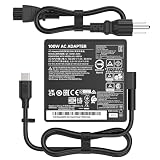
Last update on 2026-09-20 / Affiliate links / Images from Amazon Product Advertising API

Last update on 2026-09-20 / Affiliate links / Images from Amazon Product Advertising API

Last update on 2026-09-20 / Affiliate links / Images from Amazon Product Advertising API

Last update on 2026-09-20 / Affiliate links / Images from Amazon Product Advertising API
