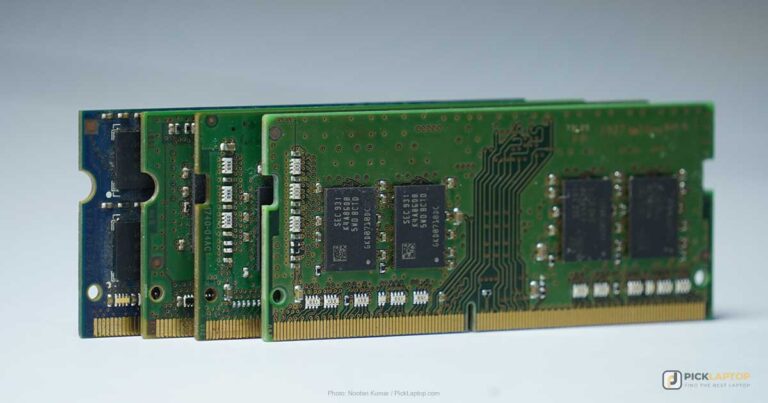
Most people shopping for a browsing laptop are shopping for the wrong thing. They compare processors, because that is what the spec sheet leads with, and then they buy a machine that feels sluggish six months later with twenty tabs open, a video call running, and a webmail client that never gets closed.
Browsing is a memory workload. Your browser is almost certainly the heaviest program on the machine, and the bottleneck is RAM, not clock speed. The picks below are chosen first by memory headroom, then by the screen and battery specifications that actually affect how a long day of reading feels — and every one of them comes from a machine currently listed with a verified configuration.
Editor’s Pick


Last update on 2026-10-22 / Affiliate links / Images from Amazon Product Advertising API
It starts at 16GB of unified memory and pairs it with a 500-nit screen, which is the combination that keeps a browsing machine pleasant for years rather than months.
- Memory 16GB unified
- Display 13.6-inch Liquid Retina, 2560×1664, 500 nits
- Battery Apple rates up to 15 hours of wireless web browsing
- Weight 2.71 lbs
What’s Inside
- 1 – Internet Surfing Laptop Buyer's Guide
- 1.1 – Why your browser is the heaviest program on the machine
- 1.2 – What Memory Saver and sleeping tabs actually do
- 1.3 – How much RAM a browsing laptop needs in 2026
- 1.4 – Soldered memory makes this a permanent decision
- 1.5 – The screen specs that change a browsing day
- 1.6 – Battery ratings versus measured web browsing
- 1.7 – Why the processor barely matters here
- 2 – Internet Surfing Laptop Comparison Table
- 3 – Best Internet Surfing Laptop Reviews
- 3.1 – 1. Apple MacBook Air 13-inch M5 (Best Overall)
- 3.2 – 2. HP OmniBook X 14 (Best Battery Life)
- 3.3 – 3. LG gram 15 (Best Large Screen Under Three Pounds)
- 3.4 – 4. Dell 16 DC16251 (Best for Reading Long Pages)
- 3.5 – 5. Lenovo ThinkPad E16 Gen 2 (Best Matte Anti-Glare Screen)
- 3.6 – 6. Lenovo Chromebook Plus 14 (Best ChromeOS Option)
- 3.7 – 7. Acer Aspire Go 15 AI (Best Budget)
- 4 – Recommended Accessories
- 5 – Which Internet Surfing Laptop Should You Buy?
- 6 – Internet Surfing Laptop FAQ
- 7 – Final Thoughts on Internet Surfing Laptops
Internet Surfing Laptop Buyer’s Guide
Why your browser is the heaviest program on the machine
Chrome and every other Chromium-based browser — Edge, Brave, Opera, Vivaldi — run each site in its own operating-system process. The Chromium team’s own design documentation states that in general, each new window or tab opens in a new process. That is why browser memory usage scales with your tab count rather than remaining at a fixed figure.
Site Isolation, the security feature that keeps one site from reading another’s memory, adds to that. Google puts the cost at about 10-13% when isolating all sites with many tabs open. You cannot turn it off without giving up the protection it exists to provide, so treat it as part of the baseline.
What Memory Saver and sleeping tabs actually do
Both major browsers ship a mitigation. Google’s help page describes Memory Saver plainly: Chrome deactivates tabs that you aren’t currently using, and when you go back to one, it automatically reloads. That reload is the catch — a discarded tab is not a free tab; it is a page you have to fetch and re-render, losing scroll position and unsaved form state along the way.
Microsoft published measured numbers for the Edge equivalent. In its own testing, a sleeping tab used 32% less memory and 37% less CPU on average than a non-sleeping one. A third off is a real saving, and it is also nowhere near enough to turn a memory-starved laptop into a comfortable one.
The number that decides how much browser you get. Chromium’s process model documentation says the browser sets a “soft” process limit based on the memory available on a given client, and starts reusing same-site processes once it is exceeded. Your RAM figure, not your processor, is what the browser reads before deciding how much room you have.
How much RAM a browsing laptop needs in 2026
Microsoft still lists 4GB as the minimum RAM for Windows 11. That is an installation floor, not a usage recommendation, and it is the reason 8GB machines keep getting built and sold as adequate.
Where 8GB breaks down is not a crash. The symptom is subtler and more annoying: the operating system starts compressing and paging memory to the SSD, and tabs you left open ten minutes ago reload from scratch when you click back to them. Switching to a tab goes from instant to a one- to three-second wait with a flash of white. On Windows, you will also see Task Manager memory sitting near 100% with disk activity that never settles.
Sixteen gigabytes is the sensible 2026 floor for a general-purpose browsing machine, and every pick on this list ships with it. If the difference between memory types is unclear, our breakdown of laptop RAM covers speed, channels, and capacity in more depth.
Soldered memory makes this a permanent decision
On most thin laptops, the RAM is LPDDR5X soldered to the mainboard. iFixit’s explanation of why is technical rather than cynical: the low operating voltage makes signal integrity between the memory and processor challenging, requiring tighter tolerances and shorter trace distances. Soldering is how manufacturers meet that requirement.
The consequence for you is simple. On a soldered machine, the memory you buy is the memory you own for the life of the laptop. LPCAMM2 modules are beginning to bring upgradeable low-power memory to a handful of business models, but they are the exception in 2026, and older DDR5 SO-DIMM designs are the other exception.
Check this before you click buy. Many laptop lines sell 8GB and 16GB versions of the same model under near-identical listing titles. On a soldered configuration there is no fixing it afterwards, so read the memory line on the exact listing rather than the model name.
The screen specs that change a browsing day
Brightness in nits. Three hundred nits is the common midrange figure, and it is marginal the moment there is a window behind you. Notebookcheck measured the HP OmniBook X at an average of 292.7 cd/m² and concluded that the combination of that brightness and a highly reflective surface causes visibility problems indoors, not just outdoors. If you read near daylight, 400 nits and up is the bracket to shop in.
Matte or glossy. Glossy panels look richer and reflect everything behind you. Anti-glare coatings scatter that reflection into a mild haze instead, which is the better trade for text. A matte 300-nit screen is often more usable than a glossy 300-nit screen in the same room.
PWM flicker. Many backlights dim by switching on and off rapidly rather than reducing power. Some people get headaches and eye strain from it, particularly at low brightness, and OLED panels are the most frequent offenders. LaptopMedia maintains a ranking of laptop models by PWM impact on eyesight that is worth checking against a shortlist if you have ever noticed this. Notebookcheck’s measurement of the OmniBook X found no flickering detected, which is a genuine point in favor of a plain IPS panel.
Aspect ratio. A 16:10 panel at 1920×1200 gives you 120 more vertical pixels than a 16:9 panel at 1920×1080 — roughly 11% more of an article visible before you scroll. Over a day of reading, that is the difference between a comfortable machine and a fidgety one. There is more on panel terminology in our guide to display specifications.
Battery ratings versus measured web browsing
Manufacturer battery figures usually come from looped local video playback with the radios off, which is the easiest job a laptop can be given. Web browsing is harder: the Wi-Fi radio stays on, and the CPU wakes constantly to run JavaScript. Apple publishes both numbers for the MacBook Air, and the gap is instructive — up to 18 hours of video streaming but up to 15 hours of wireless web browsing.
Treat a video-playback rating as a ceiling and expect real browsing to land meaningfully below it. Where a review has run an actual Wi-Fi browsing test, that number is the one to trust.
Why the processor barely matters here
This is the least intuitive claim in this guide and the most useful one. Rendering a web page is a short burst of work; the rest of the time the page sits idle waiting for you. Any current mainstream chip — Apple M-series, Snapdragon X, Intel Core Ultra, Ryzen 7 — finishes that burst faster than you can perceive. What you feel instead is whether the tab you clicked was still resident in memory.
The reviews bear this out. Notebookcheck summed up the Snapdragon-powered OmniBook X as an everyday laptop with long battery life but a weak display — the complaint was the panel, not the processor. Where a cheap machine genuinely feels slow, the cause is usually an entry-level N-series chip or a dim screen rather than a mainstream CPU one tier down from the flagship. If your browsing day includes heavy video calls as well, our work-from-home laptop picks weigh webcams and microphones more heavily than this list does.
Internet Surfing Laptop Comparison Table





Last update on 2026-10-22 / Affiliate links / Images from Amazon Product Advertising API
Best Internet Surfing Laptop Reviews
1. Apple MacBook Air 13-inch M5 (Best Overall)
Best Overall
Last update on 2026-10-22 / Affiliate links / Images from Amazon Product Advertising API
- ProcessorApple M5 (10-core CPU)
- Memory16GB unified
- Storage512GB SSD
- Display13.6-inch Liquid Retina, 2560×1664, 60Hz
- Battery18 hours rated
- Weight2.71 lbs
The reason this wins on a memory-first list is the base configuration. Apple’s specification page confirms that the entry model ships with 16GB of unified memory, with options up to 32GB, so you are not being pushed into an upgrade tier to get past the 8GB line.
The panel is the other half of the argument. At 500 nits with a 2560×1664 Liquid Retina display, it stays legible in the kind of bright room where 300-nit machines force you to reposition the screen.
Macworld’s reviewer, running its battery test at a fixed 150 nits, recorded 18 hours 24 minutes and noted that during ordinary use they could work all day on web browsing, email, and writing and still have half the battery remaining. That test used looped video rather than live browsing, so read it as the optimistic bound.
The honest limitation is the display finish: it is glossy, and Apple does not offer a matte option at this tier. If you sit with a window directly behind you, the 500 nits is doing real work to compensate for reflections rather than adding headroom on top of a matte panel.
Pros
- 16GB memory in the base configuration, so no upgrade tax to reach a sensible browsing floor
- 500-nit screen stays readable in bright rooms without maxing brightness and draining the battery
- Fanless, so a heavy tab session never turns into audible noise
- Fast-charges from a 70W USB-C supply you may already own
Cons
- Memory is soldered unified RAM — the configuration you buy is permanent
- Glossy finish reflects windows and overhead lights
- Two Thunderbolt ports mean a hub for anyone who plugs in more than a charger and one accessory
2. HP OmniBook X 14 (Best Battery Life)
Best Battery Life
Last update on 2026-10-22 / Affiliate links / Images from Amazon Product Advertising API
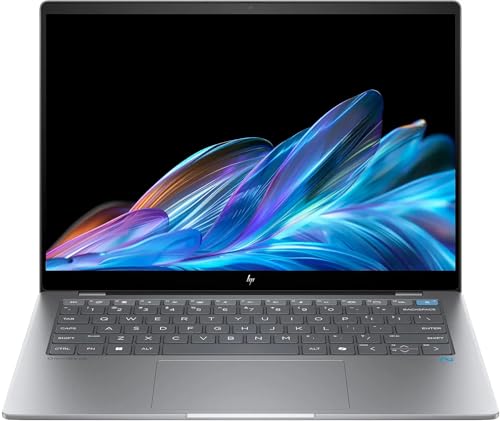
- ProcessorQualcomm Snapdragon X Elite X1E-78-100 (12-core)
- Memory16GB LPDDR5
- Storage1TB SSD (512GB config also available)
- Display14-inch 2.2K IPS touch, 2240×1400, 300 nits
- Battery26 hours rated
- Weight2.97 lbs
Arm-based Windows laptops idle at very low power, and idling is what a browsing machine does most of the day. That is why this one earns the endurance slot despite a 26-hour figure that is a manufacturer rating rather than a measured browsing result.
Notebookcheck’s review of the OmniBook X AI 14 recorded an average brightness of 292.7 cd/m² against a claimed 300 cd/m², a 1782:1 contrast ratio, and — the detail that matters for anyone who reads for hours — no screen flickering or PWM detected. That review covered the OmniBook X AI 14 rather than this exact listing, which is the 1TB Snapdragon X Elite configuration.
The same review is blunt about the trade: a reflective, sub-300-nit panel with a 60Hz refresh rate is the weakest part of the machine. Buy it for the runtime and the flicker-free backlight, and plan to work with your back to the window rather than facing it.
One platform caveat applies to every Snapdragon laptop. Notebookcheck notes that not all software ships with an Arm version, and not everything emulates cleanly, so check any niche software you depend on before committing. For mainstream browsing, mail and streaming, that concern is largely historical.
Pros
- Runtime long enough to leave the charger at home for a full working day
- No PWM flicker measured, which matters if long reading sessions give you headaches
- 2240×1400 at 14 inches puts more text on screen than a 1080p panel of the same size
- 16GB standard, with 1TB of storage on this configuration
Cons
- Measured brightness under 300 nits plus a reflective finish makes daylight use awkward
- Soldered LPDDR5 — 16GB is final on this machine
- Arm Windows still requires checking compatibility for specialist software
3. LG gram 15 (Best Large Screen Under Three Pounds)
Best Large Screen Under Three Pounds
Last update on 2026-10-22 / Affiliate links / Images from Amazon Product Advertising API
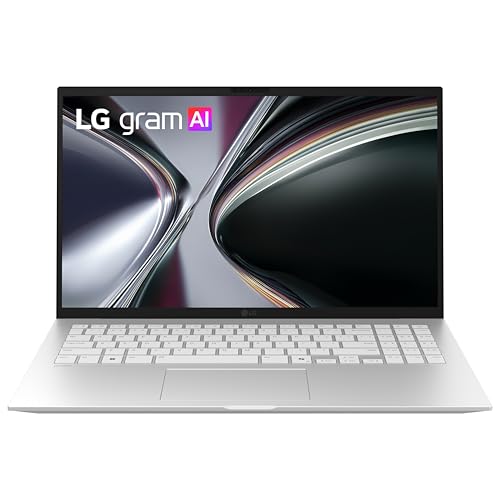
- ProcessorAMD Ryzen AI 7 450 (8-core)
- Memory16GB (32GB configs also available)
- Storage512GB SSD (1TB configs also available)
- Display15.6-inch FHD IPS touchscreen, 1920×1080
- Battery28 hours rated, 72Wh
- Weight2.8 lbs
Fifteen-inch laptops normally cost you a pound or more over a 14-inch machine. This one weighs 2.8 lbs, which is less than the 14-inch OmniBook above it, and that is the entire argument for it: a bigger reading surface with no portability penalty.
LG’s own product page is careful about what its endurance claim covers, quoting up to 22.5 hours of video playback with wireless off and the screen at 150 nits. Those are best-case laboratory conditions with the radio disabled, which is exactly the sort of rating to discount for browsing. The 72Wh battery is still large for a 2.8 lb chassis.
Two things to be clear about. The panel is 1920×1080 across 15.6 inches, so text is noticeably coarser than on the higher-resolution picks here, and it is 16:9 rather than 16:10 — you get width, not vertical reading space. LG also does not publish a nit figure for this touchscreen configuration, so treat brightness as unverified rather than assuming it is high.
Pros
- A 15.6-inch screen at 2.8 lbs, so the larger display costs nothing in daily carrying
- 72Wh battery is unusually large for the weight class
- MIL-STD-810H durability testing on a machine this light
- 16GB standard with a 32GB option at purchase
Cons
- 1080p over 15.6 inches means visibly softer text than the 2K-class picks
- 16:9 panel shows less of a page vertically than a 16:10 alternative
- Brightness is not published for this configuration, so daylight performance is unknown
- Premium pricing for specifications that are mid-range on paper
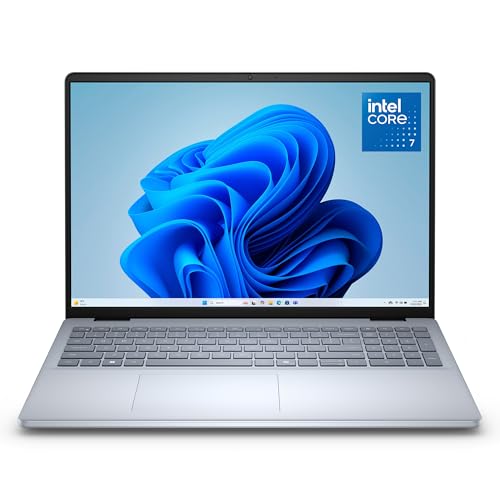
4. Dell 16 DC16251 (Best for Reading Long Pages)
Best for Reading Long Pages
Last update on 2026-10-22 / Affiliate links / Images from Amazon Product Advertising API
- ProcessorIntel Core 7 150U (10-core, up to 5.4GHz)
- Memory16GB DDR5 (32GB/64GB configs also available)
- Storage1TB SSD (2TB/4TB configs also available)
- Display16-inch 16:10 2K touchscreen, 1920×1200, 300 nits, ComfortView Plus
- Ports2x USB-A, 1x USB-C (PD, DP 1.4), HDMI 1.4, SD card reader
- OSWindows 11 Home (also sold with Windows 11 Pro)
Sixteen inches at 16:10 is the most screen real estate you can get without moving to a desktop monitor. Against a 15.6-inch 16:9 panel, the extra vertical pixels mean roughly one more paragraph of an article visible per screen — small per scroll, substantial across a morning.
Dell’s configuration page lists the memory as a single 16GB DDR5 module at 5200 MT/s, which tells you two useful things: it is slotted rather than soldered, and it runs single-channel out of the box. Slotted memory is a genuine advantage on a browsing machine you plan to keep.
ComfortView Plus is Dell’s always-on, low-blue-light approach, which reduces blue light output at the hardware level rather than through a warm color filter you have to schedule. For anyone reading late, that is a more practical implementation than a software night mode.
The ceiling here is 300 nit on a touchscreen, and the touch panels are glossy. Dell also lists the machine at a starting weight of 4.37 lbs, so this is a laptop that lives on a desk and moves between rooms, not one you carry all day.
Pros
- 16-inch 16:10 panel shows more of a page than anything else on this list
- Slotted DDR5 means a memory upgrade remains possible years later
- Full port selection including HDMI and an SD reader, so no hub for everyday use
- Hardware-level low blue light rather than a scheduled software filter
Cons
- Heavy enough that daily commuting with it is a real decision
- Glossy touchscreen at 300 nits is a poor combination facing a window
- Ships single-channel, which costs some integrated graphics performance
- Dell rates the battery at 54Wh, modest for a 16-inch machine
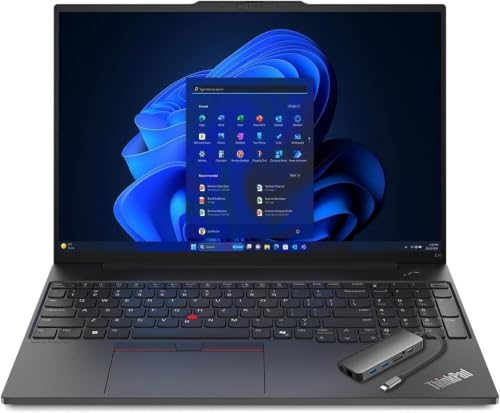
5. Lenovo ThinkPad E16 Gen 2 (Best Matte Anti-Glare Screen)
Best Matte Anti-Glare Screen
Last update on 2026-10-22 / Affiliate links / Images from Amazon Product Advertising API
- ProcessorAMD Ryzen 7 7735HS (8-core)
- Memory16GB DDR5 (up to 32GB configs available)
- Storage512GB PCIe SSD
- Display16-inch WUXGA IPS, 1920×1200, 300 nits, anti-glare, 120Hz
- Battery13 hours rated
- Weight3.59 lbs
The anti-glare coating is the point. On a matte panel, a lamp or window behind you becomes a soft gray wash across part of the screen instead of a mirror image of the room, and 300 nits goes considerably further than the same figure behind glass.
It is also 16:10 at 1920×1200 across 16 inches, and the panel runs at 120Hz, which makes scrolling through a long page visibly smoother than the 60Hz panels elsewhere on this list. Scrolling is the single most repeated action in browsing, so this is not a gaming specification being smuggled in.
The Ryzen 7 7735HS is an H-series chip rather than a low-power U-series part, which explains both the 13-hour rating being lower than the ultraportables here and the fact that it will not be the machine that flinches at forty tabs. Lenovo also rates it for three external 4K displays over HDMI and USB-C.
At 3.59 lbs, it is a desk-and-occasional-travel laptop, and the E series sits below the T and X lines in build quality — plastic-heavy rather than the carbon-fiber construction ThinkPad is known for.
Pros
- Matte anti-glare panel makes 300 nits genuinely usable near a window
- 120Hz refresh makes long-page scrolling smoother than any 60Hz pick here
- 16:10 at 16 inches for real vertical reading space
- Drives three external 4K displays, so it doubles as a desktop replacement
Cons
- Shortest rated battery life of the picks on this list
- H-series processor draws more power than a browsing workload needs
- Build quality sits below the premium ThinkPad lines
- Multiple CPU configurations share this model name — verify the chip on the listing
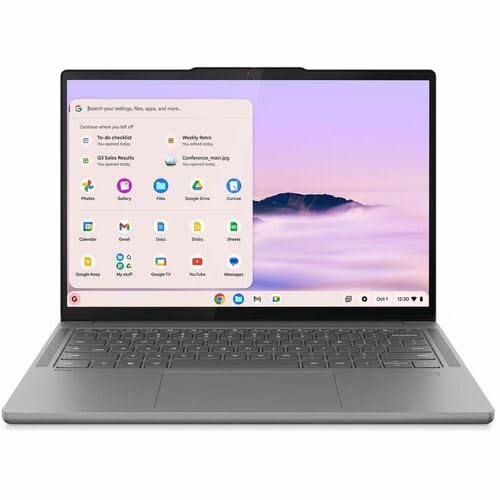
6. Lenovo Chromebook Plus 14 (Best ChromeOS Option)
Best ChromeOS Option
Last update on 2026-10-22 / Affiliate links / Images from Amazon Product Advertising API
- ProcessorMediaTek Kompanio Ultra 910
- Memory16GB
- Storage256GB UFS
- Display14-inch OLED, 1920×1200, 400 nits, 100% DCI-P3
- Battery15.75 hours rated
- Weight2.8 lbs
A 16GB Chromebook is unusual, and on an operating system that is essentially a browser wearing a desktop, it is the configuration that makes the category make sense for someone who keeps thirty tabs open.
It is also fanless, so a heavy session stays silent. Notebookcheck measured the OLED panel at an average of around 379 cd/m² with 100% sRGB coverage and a Delta E of 1.65, while noting that the highly reflective screen causes problematic glare in bright environments. The same review recorded the underside reaching 45 °C under sustained load.
The OLED panel is the thing to think hardest about. It is the best-looking screen here by a distance, and OLED backlight dimming is also the most common source of PWM flicker — if you are among the people who get eye strain from it, one of the IPS picks above is the safer buy.
ChromeOS machines have a fixed software support window that varies by model, and it is the one specification worth checking before buying any of them; our Chromebook roundup is organized around exactly those dates. Beyond that, this is a browsing machine with no meaningful Windows-side compromises other than the obvious one: it will not run Windows software.
Pros
- 16GB on ChromeOS is rare and removes the usual Chromebook tab ceiling
- Brightest measured panel of the picks here, at roughly 379 cd/m²
- Fanless and 2.8 lbs, so it is silent and easy to carry
- Color accuracy well beyond what a browsing machine needs
Cons
- Glossy OLED reflects badly in bright rooms despite the brightness
- OLED dimming is the most likely panel type here to bother PWM-sensitive readers
- Runs warm underneath under sustained load
- No Windows or macOS applications, and a fixed ChromeOS support end date
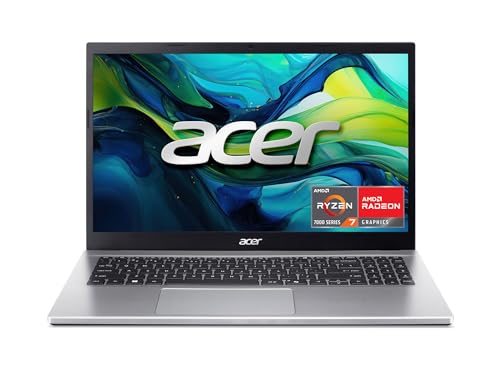
7. Acer Aspire Go 15 AI (Best Budget)
Best Budget
Last update on 2026-10-22 / Affiliate links / Images from Amazon Product Advertising API
- ProcessorAMD Ryzen 7 7730U
- Memory16GB DDR4
- Storage512GB PCIe NVMe 4.0
- Display15.6-inch Full HD IPS, 1920×1080, 60Hz
- Battery12.5 hours rated
- Weight3.92 lbs
This is here because it clears the 16GB bar at the bottom of the market, and an eight-core Ryzen 7 will not be what makes it feel old. Full-size keyboard, an RJ45 Ethernet port, and three USB-A ports also make it the most plug-and-go machine on the list.
Now the ceiling, stated plainly. Expert Reviews measured an Aspire Go 15 at 246 cd/m² peak brightness with a 216:1 contrast ratio, calling the display the machine’s defining flaw. That test covered a Ryzen 7 5825U configuration rather than the Ryzen 7 7730U model listed here, but the chassis and panel class are shared across the line, so expect a dim screen with weak contrast.
The memory is DDR4 rather than DDR5, and the 7730U is a Zen 3 design rather than a current-generation part. Neither will trouble a browser today. What will date this machine is the panel: 1080p across 15.6 inches at 16:9, with brightness that struggles in a normally lit room, is the specification you will still resent in three years.
Buy it if the budget genuinely does not stretch and you browse in controlled indoor light. If you can reach a tier higher, the screen is where that money goes.
Pros
- 16GB at the bottom of the market, so no memory compromise on a tight budget
- Eight-core Ryzen 7 has ample headroom for any browsing workload
- Ethernet, HDMI and three USB-A ports mean no adapters for older peripherals
- Gen4 NVMe storage keeps boot and tab-restore fast
Cons
- Dim, low-contrast panel is the reason to spend more if you possibly can
- 16:9 at 1080p shows the least vertical page area of any pick here
- Nearly 4 lbs, so portability is not part of the value case
- DDR4 memory and a Zen 3 chip put a firm ceiling on resale and longevity
Recommended Accessories
Browsing comfort mostly comes from posture and scrolling. A stand that raises the screen to eye level, a mouse with a proper scroll wheel, a hub for the machines with two ports, and a second panel if you read side by side.


Last update on 2026-09-05 / Affiliate links / Images from Amazon Product Advertising API
Which Internet Surfing Laptop Should You Buy?
| Buy this | If this describes you |
|---|---|
| Apple MacBook Air 13-inch M5 | You want the fewest compromises: 16GB standard, a 500-nit screen and silent operation. |
| HP OmniBook X 14 | You need to leave the charger behind and you browse in controlled indoor light. |
| LG gram 15 | You want a 15-inch screen but refuse to carry a 15-inch weight. |
| Dell 16 DC16251 | The laptop mostly stays on a desk and you read long articles all day. |
| Lenovo ThinkPad E16 Gen 2 | You sit near a window and want a matte panel with smooth 120Hz scrolling. |
| Lenovo Chromebook Plus 14 | Everything you do is already in a browser and you want the nicest screen for it. |
| Acer Aspire Go 15 AI | Budget is the binding constraint and you will not fight daylight on the screen. |
Internet Surfing Laptop FAQ
Is 8GB of RAM enough for web browsing in 2026?
It works, but it stops feeling good quickly. Chromium sets a soft cap on browser processes based on how much memory the machine has, so an 8GB laptop is told to be stingier with tabs than a 16GB one running identical software. The symptom is background tabs reloading when you click back to them, plus the system compressing and paging memory to the SSD. Sixteen gigabytes is the sensible floor now.
Does the processor matter for internet surfing?
Far less than the marketing implies. Rendering a page is a short burst of work that any current mainstream chip finishes faster than you can notice, and the page then sits idle. What you perceive as speed is almost always whether the tab was still held in memory. Spend the budget on RAM and the screen instead of a CPU tier.
How much memory does a browser tab actually use?
There is no single figure, because it depends entirely on the site — a text article and a video-heavy social feed are not comparable. What is fixed is the architecture: Chromium opens a new process for each new tab or window in general, and Google puts Site Isolation’s memory cost at roughly 10-13% on top when many tabs are open. Memory use therefore scales with tab count rather than sitting flat.
Do Chrome’s Memory Saver and Edge’s sleeping tabs solve the problem?
They reduce it. Microsoft’s published testing found a sleeping tab used about 32% less memory and 37% less CPU than an active one. But a deactivated tab reloads when you return to it, which costs you a wait, your scroll position and any unsaved form input. These features make a memory-tight laptop tolerable rather than comfortable.
Can I add more RAM to a thin laptop later?
On most of them, no. Low-power LPDDR5X is soldered to the mainboard because the low operating voltage demands very short, tightly controlled connections to the processor. LPCAMM2 modules are starting to bring upgradeable low-power memory to some business models, and traditional DDR5 SO-DIMM slots still exist on thicker machines like the Dell 16 and ThinkPad E16, but assume soldered unless the listing says otherwise.
How many nits do I need if I sit near a window?
More than the 300 nits that most midrange laptops advertise. Notebookcheck measured the HP OmniBook X at 292.7 cd/m² and found that brightness combined with a reflective surface caused visibility problems indoors, not only outdoors. Aim for 400 nits or more if the panel is glossy; a matte anti-glare coating buys back a meaningful amount at 300.
What is PWM flicker and should I care?
Many screens dim by switching the backlight on and off very rapidly rather than lowering its power. Most people never notice; a minority get headaches and eye strain, especially at low brightness. OLED panels are the most frequent culprits. LaptopMedia publishes a ranking of laptop models by PWM impact, which is the practical way to check a shortlist if you have ever had this problem.
Is 16:10 really better than 16:9 for browsing?
Yes, and the arithmetic is simple. At the same 1920-pixel width, a 16:10 panel gives 1200 vertical pixels against 1080 — about 11% more of a page before you scroll. Web pages are tall, so vertical space is the dimension that counts.
Should I trust the advertised battery hours?
Only as a ceiling. Most quoted figures come from looped local video with the wireless radio off, which is far easier than browsing. Apple publishes both for the MacBook Air and the gap is visible in its own numbers: up to 18 hours of video streaming against up to 15 hours of wireless web browsing. Where a review has run a real Wi-Fi browsing test, use that instead.
Final Thoughts on Internet Surfing Laptops
If you take one decision away from this, make it the memory line on the listing, because on most of these machines it is soldered and permanent. After that, the screen is what you will notice every day — brightness, finish and vertical space, in that order.
The processor is the specification you can safely stop worrying about, and the money it frees up is better spent on a panel you can still read at four in the afternoon with the sun coming in.