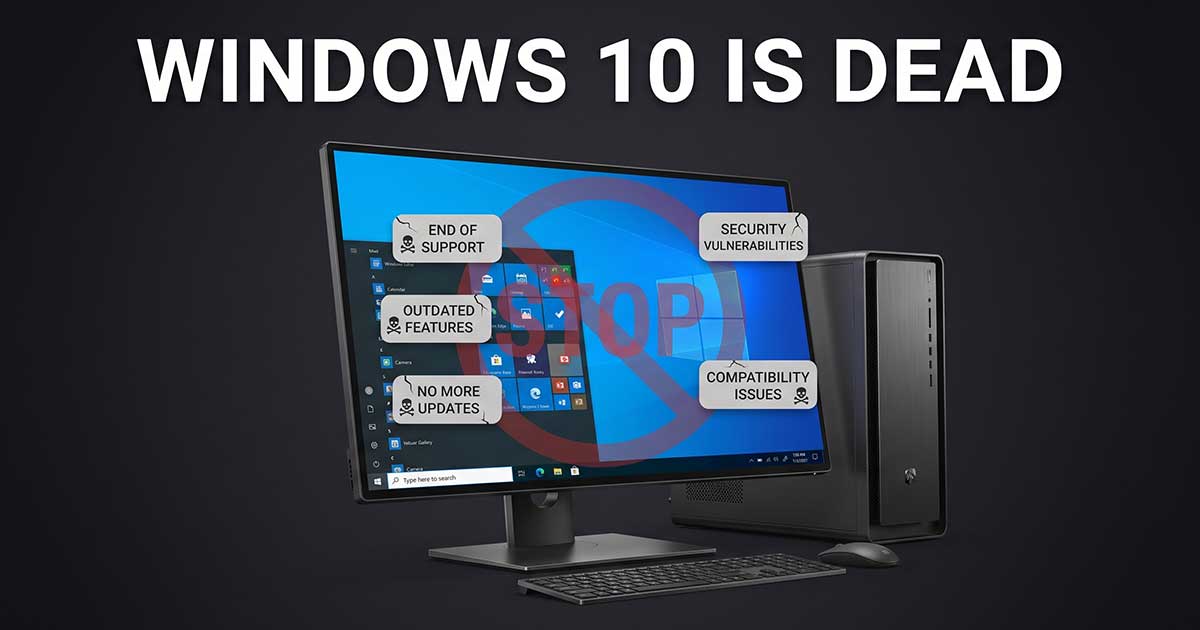
Windows 10 support officially ended on October 14, 2025 — and as of late 2024, roughly 60% of PCs worldwide were still running it. If you’re one of them, nothing broke overnight, but the clock is now running on a real security gap, and there are four genuinely different paths forward depending on your hardware and budget.
What’s Inside
What Actually Happens If You Keep Using Windows 10
Your PC keeps working exactly as it did the day before. What stops, per Microsoft’s own announcement, is technical assistance, feature updates, and — the part that actually matters — security updates. Every new vulnerability discovered in Windows 10 from October 14, 2025 onward goes unpatched on machines outside the ESU program, indefinitely. That’s a real, growing security gap, not a cosmetic inconvenience.
Option 1: Upgrade to Windows 11 for Free
If your PC meets Windows 11’s minimum hardware requirements, this is the straightforward path — go to Settings > Update & Security > Windows Update and check for the upgrade offer. It’s free, and it typically keeps your files intact, though backing up first is still worth doing before any OS upgrade.
Option 2: Buy the Extra Time with ESU
If your hardware isn’t Windows 11-eligible and you need more time, Microsoft’s consumer Extended Security Updates (ESU) program covers security patches only, through October 12, 2027. There are three ways to enroll: free if you sync your PC settings to a Microsoft account, by redeeming 1,000 Microsoft Rewards points, or a one-time $30 purchase. Whichever route you pick, it’s worth being clear-eyed about what ESU actually is: security patches only, with no feature updates and no general technical support. It’s a bridge to buy time, not a long-term fix — treat it as a deadline extension, not a solution.
Option 3: Buy New Hardware
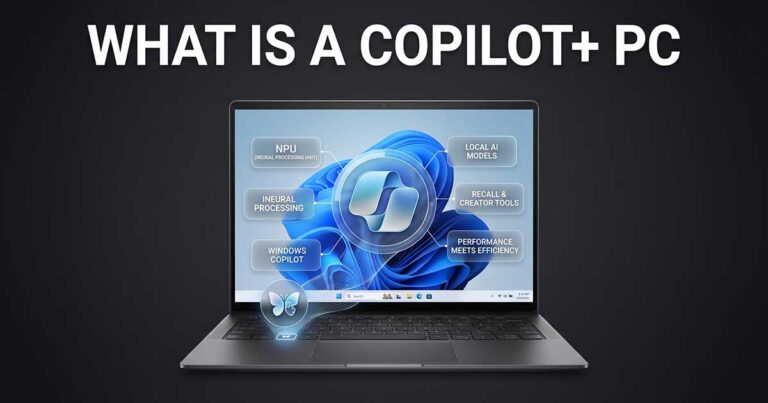
For genuinely old machines that don’t meet Windows 11’s requirements, a new Windows 11 laptop is often the more sensible move than trying to force an upgrade onto hardware that won’t cleanly support it. This is also where the calendar pressure connects to the current market: Windows 11’s mandatory Copilot integration and the rise of Copilot+ certified hardware mean most current laptops worth buying now ship with modern security features and, often, an AI-capable chip as a side effect — not because you need the AI features specifically, but because that’s simply what current hardware looks like.
Option 4: Switch to Linux
If your hardware is aging but still functional and you’re not attached to the Windows ecosystem specifically, mainstream Linux distributions like Ubuntu, Linux Mint, or Zorin OS are real, actively-maintained alternatives that will run comfortably on older hardware Windows 11 has left behind. This requires more of a learning curve than staying on Windows, and manually transferring files rather than a clean upgrade path, but it’s a genuinely free, secure option for hardware that would otherwise be stuck unsupported.
How to Check Where You Actually Stand
Before deciding anything, confirm two things: which Windows version you’re actually running (Settings > System > About > Windows specifications), and whether your specific machine is Windows 11-eligible (Settings > Update & Security > Windows Update will show an upgrade offer if it is). Those two facts determine which of the four options above actually applies to you — there’s no universal right answer, only the one that fits your specific hardware and how much runway you need.
If you’ve concluded new hardware is the right call, our buying guides cover current laptops across budgets and use cases.