SolidWorks buyers almost always arrive with the same two questions: does the graphics card actually have to be certified, and how much RAM does an assembly really need? Both have answers published by Dassault Systèmes rather than guessed at, and both change which laptop you should buy.
Every pick below is a Windows machine, because SolidWorks is Windows software and nothing else will run it natively. The list runs from a budget student machine to a fully ISV-certified mobile workstation, and each entry explains which SolidWorks job it is meant for.
Editor’s Pick
Last update on 2026-10-22 / Affiliate links / Images from Amazon Product Advertising API
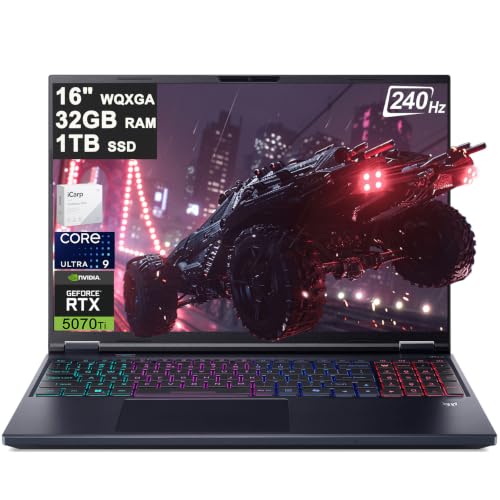
The Core Ultra 9 275HX gives SolidWorks the high single-core clock its rebuilds depend on, and 32GB of RAM covers assemblies well past the point where a 16GB machine starts swapping.
- Intel Core Ultra 9 275HX (24-core, 2.7-5.4GHz, 40MB cache)
- NVIDIA GeForce RTX 5070 Ti (12GB)
- 32GB DDR5-6400, 1TB PCIe Gen4 SSD
- 16-inch WQXGA IPS, 240Hz, 500 nits, 100% DCI-P3
What’s Inside
- 1 – SolidWorks Buyer's Guide
- 2 – SolidWorks Laptop Comparison Table
- 3 – Best SolidWorks Laptop Reviews
- 3.1 – 1. Acer Predator Helios Neo 16 AI (Best Overall)
- 3.2 – 2. Lenovo ThinkPad P16 Gen 3 (Best Certified Workstation)
- 3.3 – 3. Acer Nitro V 16S AI (Best Value)
- 3.4 – 4. Lenovo LOQ 15i / 15a (Best Budget Pick)
- 3.5 – 5. MSI Stealth 16 AI+ (Best for Portability)
- 3.6 – 6. Lenovo Legion Pro 7i Gen 10 (Best for Rendering and Simulation)
- 3.7 – 7. MSI Katana 17 HX (Best Large Screen)
- 4 – Recommended Accessories
- 5 – Which SolidWorks Laptop Should You Buy?
- 6 – SolidWorks Laptop FAQ
- 7 – Final Thoughts on SolidWorks Laptops
SolidWorks Buyer’s Guide
Certified graphics: what Dassault actually says
SolidWorks is the CAD package where graphics certification carries the most weight. Dassault Systèmes maintains a hardware certification page whose stated purpose is to help customers find a qualified workstation and graphics card, and it says every configuration listed there has been certified with SOLIDWORKS. The cards on that list are professional parts: NVIDIA Quadro and RTX PRO, AMD Radeon Pro, and Intel Arc Pro. GeForce is not on it.
That is a statement about what Dassault supports, not a claim that a GeForce laptop refuses to open a part file. In practice, SolidWorks runs on consumer cards, and it will flag an uncertified card or driver in its performance diagnostics. Reseller Hawk Ridge Systems puts the trade-off bluntly in its hardware guide: consumer cards such as GeForce and Radeon are not recommended because of graphics-related performance and stability limitations.
If your workplace requires certified hardware, only one machine here qualifies. A GeForce laptop is a reasonable personal or student choice for SolidWorks and most people use one without incident, but it is outside Dassault’s supported list. If support tickets, ISV certification or a customer audit matter to you, buy the RTX PRO workstation and stop there.
The exception runs the other way. Hawk Ridge’s guide notes that SOLIDWORKS Visualize, the ray-traced rendering module, performs best on GeForce cards rather than professional ones because it relies on raw CUDA throughput. If Visualize is a large part of your week, a big GeForce card is genuinely the better tool. Our explainer on when a discrete GPU is actually doing work covers the wider distinction between viewport display and GPU compute.
Clock speed beats core count for modeling
Dassault’s own engineering blog is unusually direct about this. Its 2018 post on choosing a processor states that SOLIDWORKS, like other MCAD systems, is largely single-threaded, and concludes that the best CPU is the one with the best single-core performance. Rebuild, the operation you trigger constantly while modeling, is the single-threaded case that matters most.
Cores are not useless; they are just used elsewhere. Hawk Ridge lists the operations that benefit from parallel processing as opening drawings, Draw Compare, Boolean operations, updating views, Simulation and Flow Simulation, while noting that most parametric operations must run sequentially. Rendering in Visualize and solving an FEA or CFD study will happily consume every core you own; dragging a dimension will not.
In practice, that means a 24-core HX chip with a 5.4 GHz boost is a better SolidWorks part than a 32-core chip with a lower ceiling. It also means the cheapest way to make modeling feel slow is to buy a low-clocked U-series ultrabook, which is the same mistake we flag in our CNC programming laptop guide for toolpath generation.
RAM scales with assembly size
Dassault’s published system requirements list 16GB as the minimum with 32GB recommended for the core SolidWorks client. That baseline says nothing about what you are modeling, which is why resellers instead publish tiered guidance.
GoEngineer ties memory directly to component count. Its hardware page recommends 16GB or more for assemblies of 200 or fewer components, 32GB or more for 200 to 1,000 components, and 64GB or more for 1,000 to 200,000 components.
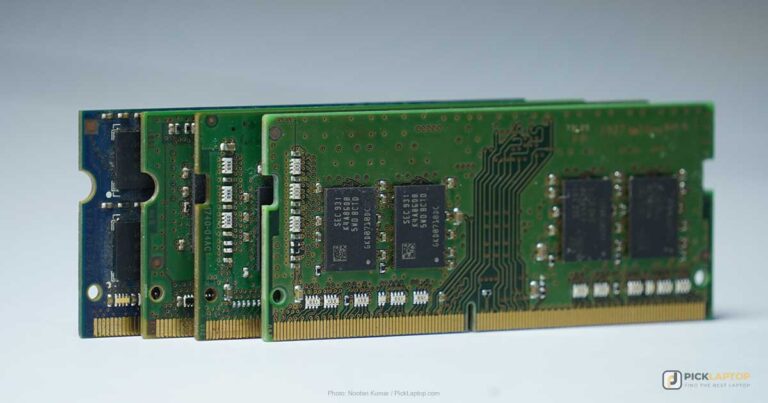
Note the driver: components in the open assembly, not parts in your project folder. A single machined bracket with 400 features is a light memory load; a weldment with 3,000 fasteners is not. Because most gaming laptops ship with two SO-DIMM slots, the honest question when buying at 16GB is whether the chassis lets you get to 32GB or 64GB later, which our breakdown of laptop memory types and upgrade paths goes into.
Windows only, no exceptions
Dassault’s system requirements page lists Windows 11 64-bit and Windows 10 64-bit for client products, and nothing else. There is no macOS build, so every MacBook is out, and Apple Silicon virtualization is not supported. Windows-on-ARM laptops are also a poor bet here, since the certified graphics list is built around x86 workstation GPUs.
Display and ports
A 16-inch 2560×1600 panel is the sweet spot: the extra vertical pixels over 1920×1080 give the FeatureManager tree room without shrinking the graphics area. Matte or anti-glare finishes help more than high refresh rates, since CAD viewports are static most of the time.
Check the port list before you buy. A second monitor is close to mandatory for drawing work, so HDMI 2.1 plus a DisplayPort-capable USB-C or Thunderbolt port is what you want, and Ethernet matters if your PDM vault lives on a company server.
SolidWorks Laptop Comparison Table


Last update on 2026-10-07 / Affiliate links / Images from Amazon Product Advertising API
Best SolidWorks Laptop Reviews
1. Acer Predator Helios Neo 16 AI (Best Overall)
Best Overall
Last update on 2026-10-22 / Affiliate links / Images from Amazon Product Advertising API
- ProcessorIntel Core Ultra 9 275HX (24-core, 2.7-5.4GHz, 40MB cache)
- GraphicsNVIDIA GeForce RTX 5070 Ti (12GB)
- Memory32GB DDR5-6400
- Storage1TB PCIe Gen4 SSD
- Display16-inch WQXGA IPS, 240Hz, 500 nits, 100% DCI-P3
- Weight5.95 lbs
This configuration aligns best with what Dassault says about the CPU. The Core Ultra 9 275HX peaks at 5.4 GHz, which is where rebuild time is won, and it still brings 24 cores for the Simulation studies and Visualize renders that scale out.
The 2560×1600 panel is the other reason it leads the list. At 500 nits and 100% DCI-P3, it stays readable under office lighting, and PC Gamer, reviewing this same Core Ultra 9 and RTX 5070 Ti configuration, singled out its exceptional screen brightness as a standout.
Plan for one quirk from that same review: the machine plays a startup sound loud enough that the reviewer went into the BIOS to disable the POST animation and audio. Two minutes of setup, but a memorable two minutes in a shared office.
The RTX 5070 Ti is a GeForce card, so this is not a certified configuration. For a freelancer, a student, or an engineer whose employer does not audit hardware, that is a trade most people make happily in exchange for the CPU and screen you get at this tier.
Pros
- 5.4GHz boost clock targets the single-threaded rebuilds you run all day
- 32GB covers assemblies into the four-figure component range without a memory upgrade
- Bright, color-accurate 16:10 panel means less scrolling in the feature tree
- Full-size Ethernet and HDMI 2.1 make it a drop-in for a PDM-and-dual-monitor desk
Cons
- GeForce graphics fall outside Dassault’s certified list, so a corporate IT policy may reject it
- Nearly 6 lbs plus a large charger; this is a desk machine that travels occasionally
2. Lenovo ThinkPad P16 Gen 3 (Best Certified Workstation)
Best Certified Workstation
Last update on 2026-10-22 / Affiliate links / Images from Amazon Product Advertising API
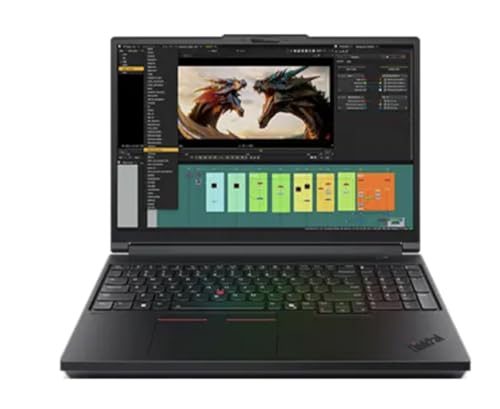
- ProcessorIntel Core Ultra 7 255HX — also available: Core Ultra 9 275HX
- GraphicsNVIDIA RTX PRO 2000 Blackwell (8GB) — RTX PRO 4000/5000 configs also available
- Memory32GB DDR5 (up to 128GB configs available)
- Storage1TB SSD (2TB/4TB configs also available)
- Display16-inch WQUXGA (UHD+), IPS, anti-glare, 800 nits
- Weight5.6 lbs
This is the only machine on the list built to the specification Dassault publishes. The RTX PRO 2000 Blackwell is a professional card in the family that appears on the certification page, and Lenovo lists the P16 Gen 3 as ISV certified for ANSYS, SOLIDWORKS, and AutoCAD. If your job title comes with an IT department, that sentence is the entire argument.
Everything else is workstation-shaped rather than gaming-shaped. Memory goes to 128GB in Lenovo’s configurations, which is the only way to reach GoEngineer’s 64GB-plus tier for very large assemblies, and the chassis is MIL-STD-810H tested with two Thunderbolt 5 ports for docking.
The 3840×2400 anti-glare panel at 800 nits is the sharpest screen here, though a 60Hz refresh rate makes cursor movement feel less fluid than the 240Hz gaming panels. For static CAD viewports, that is a fair trade; for anything else, it is noticeable.
StorageReview’s look at the P16 Gen 3 was run on the higher RTX PRO 5000 configuration rather than the RTX PRO 2000 here, so its performance numbers do not transfer. What carries over is the chassis finding: Lenovo tunes this machine conservatively, running the GPU well below the wattage that gaming rivals use and prioritizing thermals and sustained runtime over peak numbers. That is exactly the behavior you want for a four-hour simulation solve.
The database lists battery life at 3 hours, and this is the most expensive machine here by a wide margin. It is a professional purchase, not a value one.
Pros
- ISV certified for SOLIDWORKS, which removes the certification argument entirely
- Scales to 128GB of memory, so very large assemblies stay in RAM
- Conservative thermal tuning suits long unattended solves rather than short bursts
- Thunderbolt 5 docking and MIL-STD-810H build suit a shared engineering desk
Cons
- Costs multiples of the GeForce machines here for lower raw GPU throughput
- 3-hour rated battery means the charger goes wherever the laptop goes
- 60Hz panel feels sluggish outside CAD
3. Acer Nitro V 16S AI (Best Value)
Best Value
Last update on 2026-10-22 / Affiliate links / Images from Amazon Product Advertising API
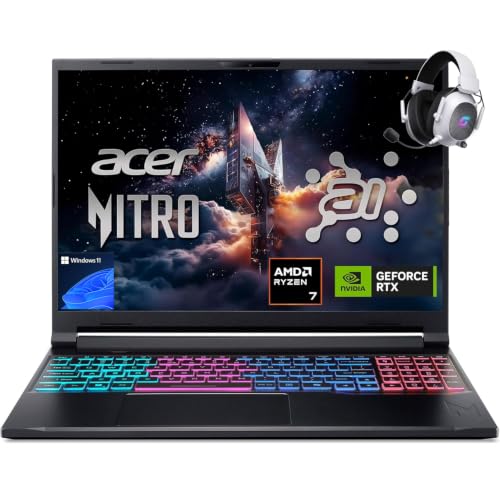
- ProcessorAMD Ryzen 7 260 (8-core, up to 5.10GHz)
- GraphicsNVIDIA GeForce RTX 5060 Laptop GPU (8GB GDDR7)
- Memory32GB DDR5-5600
- Storage1TB PCIe Gen4 SSD
- Display16-inch WUXGA IPS, 180Hz, ComfyView matte, 100% sRGB
- PortsUSB4, Wi-Fi 6, Killer Ethernet E2600
Getting 32GB and a 1TB drive at this price is the whole point. Most machines in this bracket ship 16GB, which puts you at GoEngineer’s entry tier and forces an upgrade the first time you open a supplier’s assembly.
The Ryzen 7 260 boosts to 5.10 GHz, so single-threaded rebuild performance is closer to that of the expensive machines than the price gap suggests. Eight cores is the limiting factor, and it shows up in Flow Simulation solve times rather than in day-to-day modeling.
Acer’s ComfyView matte finish suits CAD better than the glossy OLEDs elsewhere on this list, and PCVenus, testing the same Ryzen 7 260 and 32GB configuration, measured the panel at around 98.5% sRGB and 300 nits with the GPU running at a conservative 85W. That power limit costs it in rendering, not in the viewport.
The 1920×1200 resolution is the compromise. It is enough for modeling, but detailed drawings with dense dimension stacks will have you zooming more than you would on a 2560×1600 screen.
Pros
- 32GB out of the box means no memory upgrade before your first real assembly
- 5.10GHz boost keeps modeling responsive despite the lower price
- Matte panel with full sRGB coverage avoids reflections over a white CAD background
- Killer Ethernet on board for wired PDM vault access
Cons
- 1920×1200 leaves less usable graphics area once toolbars and the tree are open
- Eight cores slows Simulation and Visualize jobs relative to the HX machines
- GPU power limit caps rendering throughput below other RTX 5060 laptops
4. Lenovo LOQ 15i / 15a (Best Budget Pick)
Best Budget Pick
Last update on 2026-10-22 / Affiliate links / Images from Amazon Product Advertising API
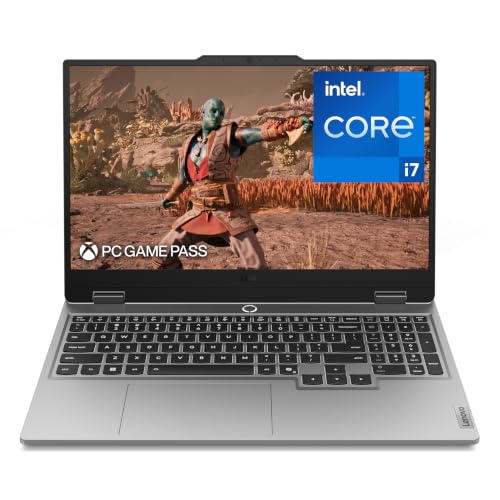
- ProcessorIntel Core i7-13650HX
- GraphicsNVIDIA GeForce RTX 5050 Laptop GPU
- Memory16GB
- Storage1TB SSD
- Display15.6-inch FHD IPS, 144Hz
For a student working through parts and assemblies under a few hundred components, this covers the published requirement and a little more. 16GB matches Dassault’s stated minimum and GoEngineer’s 200-component tier, so it will handle coursework and small mechanisms comfortably and struggle with anything bought in from a supplier catalog.
The i7-13650HX is an older HX part, which is precisely why it is here: it is a desktop-derived chip with real clock speed, rather than a low-power U-series processor with the same core count on paper. That distinction is what separates usable SolidWorks from frustrating SolidWorks at this price.
LaptopMedia reviewed a different LOQ 15 configuration, a Core Ultra 7 355 with RTX 5050, so its performance figures do not apply directly to this i7-13650HX unit. The chassis observations do: the panel uses no PWM dimming at all, which matters if you spend eight hours a day staring at a CAD viewport.
The database notes this SKU is listed on Amazon but not cross-verified against Lenovo.com, and Lenovo sells near-identical LOQ 15i and 15a variants, so confirm the exact CPU and GPU on the listing before ordering.
Pros
- HX-class processor delivers real rebuild speed at the bottom of the price range
- 1TB drive avoids the 512GB squeeze once SolidWorks and toolboxes are installed
- Flicker-free panel on the reviewed chassis suits long modeling sessions
Cons
- 16GB caps you at small assemblies; budget for a memory upgrade if projects grow
- 1920×1080 on 15.6 inches is cramped for drawings work
- Listing not cross-verified against Lenovo’s own SKU, so check the config carefully
5. MSI Stealth 16 AI+ (Best for Portability)
Best for Portability
Last update on 2026-10-22 / Affiliate links / Images from Amazon Product Advertising API
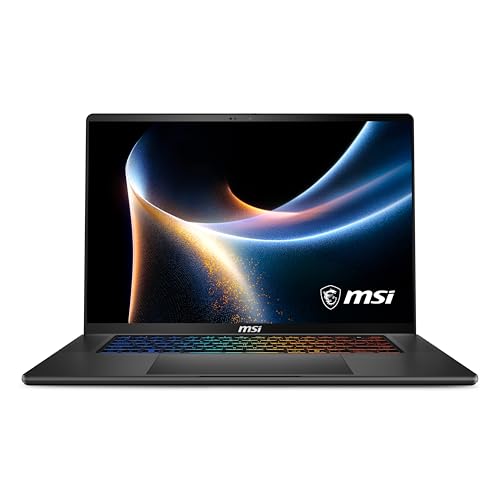
- ProcessorIntel Core Ultra 9 386H (Panther Lake-H)
- GraphicsNVIDIA GeForce RTX 5070 (base) — also available up to RTX 5080
- Memory32GB DDR5-7200
- Storage1TB NVMe SSD Gen4
- Display16-inch QHD+ OLED, 240Hz, 100% DCI-P3, DisplayHDR True Black 600
- Weight4.39 lbs
Engineers who take a laptop to site visits and customer meetings pay a real penalty for the 6 lb machines above. The Stealth 16 AI+ weighs 4.39 lbs with two Thunderbolt 4 ports, so it docks at a desk setup and still fits in a normal bag.
Tom’s Guide tested the RTX 5060 version rather than the RTX 5070 base configuration listed here, so treat its GPU numbers as a floor. Its battery result is consistent across graphics tiers: 10 hours and 49 minutes of web browsing, which is unusual for a machine with a discrete GPU and makes it viable for a day away from power.
The OLED panel is the one caveat for CAD. It is gorgeous and covers 100% DCI-P3, but SolidWorks is mostly white and gray, with a UI held on screen for hours, which is the worst-case content for OLED burn-in. Set the taskbar to auto-hide and use a screen blanker.
32GB of DDR5-7200 and a Panther Lake-H chip make this a properly capable modeling machine rather than a compromise, and this is the sort of premium thin-and-light we recommend for design work in our SketchUp laptop roundup.
Pros
- Under 4.5 lbs, so a site visit does not require a separate bag
- Nearly 11 hours of light-use battery lets you leave the charger behind
- Dual Thunderbolt 4 turns one cable into a full dual-monitor desk
- 32GB DDR5-7200 handles mid-size assemblies without compromise
Cons
- OLED plus a static white CAD interface is the classic burn-in scenario
- Thinner chassis means less sustained GPU power than the thicker machines here
- Premium pricing for the performance tier
6. Lenovo Legion Pro 7i Gen 10 (Best for Rendering and Simulation)
Best for Rendering and Simulation
Last update on 2026-10-22 / Affiliate links / Images from Amazon Product Advertising API
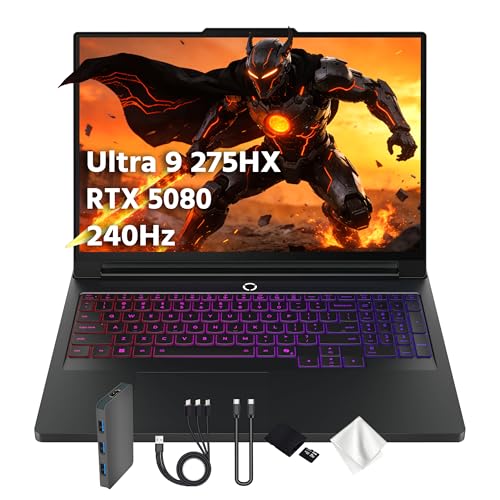
- ProcessorCore Ultra 9 275HX @5.4 GHz
- GraphicsRTX 5080 16GB
- Memory32GB
- Storage1TB PCIe SSD
- Display16-inch WQXGA OLED 240Hz, 500 nits
- Weight5.95 lbs
SOLIDWORKS Visualize is the one part of the workflow where a big GeForce card is not a compromise but the preferred option, per Hawk Ridge’s guidance above. The RTX 5080’s 16GB of VRAM is the key advantage: complex scenes with high-resolution textures fit in memory rather than falling back to the CPU.
Sustained power is what separates this from thinner RTX 5080 machines. Reviewing the same Core Ultra 9 275HX and RTX 5080 configuration, Ultrabookreview recorded roughly 150-170W on the CPU and 160-175W on the GPU in Performance mode, but also found that running it flat on a desk drops the GPU to 130-150W as heat builds. A laptop stand is not an accessory here; it is part of the configuration.
The same review measured fan noise below 35 dBA in Quiet mode while still delivering 60-70% of Performance mode output, which is the mode you will actually model in. Save Performance for renders and solves.
Two Thunderbolt 5 ports and HDMI 2.1 cover a multi-monitor CAD desk, and the 240Hz WQXGA OLED is the best-looking panel in this group. The database rates battery life at 6 hours, which is optimistic for anything but light work on a 5080 machine.
Pros
- 16GB of VRAM lets large Visualize scenes render entirely on the GPU
- Same 5.4GHz peak clock as the top pick, so modeling is not sacrificed for rendering
- Quiet mode is genuinely usable, keeping noise down during normal modeling
- Thunderbolt 5 and HDMI 2.1 for a three-screen engineering desk
Cons
- Needs a stand to hit rated GPU power, so desk setup affects results
- Most expensive GeForce machine here and still not a certified configuration
- Static CAD interfaces on an OLED panel invite burn-in over years of use
7. MSI Katana 17 HX (Best Large Screen)
Best Large Screen
Last update on 2026-10-07 / Affiliate links / Images from Amazon Product Advertising API
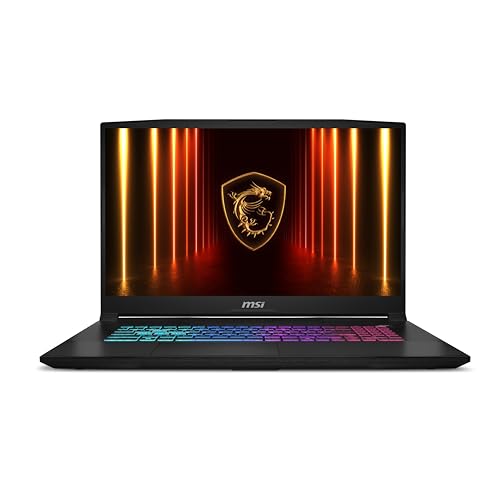
- ProcessorIntel Core i9-14900HX
- GraphicsNVIDIA GeForce RTX 5070 (8GB GDDR7)
- Memory32GB DDR5
- Storage1TB NVMe PCIe SSD
- Display17.3-inch QHD, 240Hz, IPS-level, 100% DCI-P3 (typical), PWM-free
- Weight5.95 lbs
If you work without a second monitor, screen area is the upgrade that changes your day. A 17.3-inch 2560×1440 panel gives you room for the FeatureManager tree, a properties pane, and a usable graphics area at once, which a 15.6-inch 1080p machine simply cannot do.
The i9-14900HX is a previous-generation Raptor Lake HX part, and that is the trade for the screen. It still clocks high enough for responsive rebuilds and brings a large core count for solves, but it is less power-efficient than the Core Ultra HX chips elsewhere on this list.
Tom’s Hardware reviewed a lower-end Katana 17 HX configuration with a Core i7-14650HX, 16GB of RAM, and a 1080p 144Hz panel, so its display measurements do not reflect the QHD 240Hz screen in this listing. Its build assessment applies to the shared chassis: the plastics feel thick and premium with minimal flex under pressure, which is more than most budget 17-inch machines manage.
The database lists this panel as PWM-free, and the full-size keyboard includes a number pad, which speeds up dimension entry more than you would expect.
Pros
- 17.3-inch QHD gives single-screen users real working area in the viewport
- 32GB and 1TB as standard, so no immediate upgrades needed
- Number pad speeds up typed dimensions and coordinate entry
- PWM-free panel avoids flicker fatigue on long modeling days
Cons
- Previous-generation i9-14900HX runs hotter and less efficiently than current HX parts
- A 17-inch chassis is awkward to carry and needs a larger bag
- 8GB of VRAM limits large Visualize scenes compared with the RTX 5080 pick
Recommended Accessories
A second display and a precise pointing device do more for CAD comfort than any specification bump. These four cover the gaps a laptop leaves.



Last update on 2026-10-22 / Affiliate links / Images from Amazon Product Advertising API
Which SolidWorks Laptop Should You Buy?
| Laptop | Best for | Key reason |
|---|---|---|
| Acer Predator Helios Neo 16 AI | Most SolidWorks users | 5.4GHz peak clock, 32GB, bright 16:10 panel |
| Lenovo ThinkPad P16 Gen 3 | Certified-hardware requirements | RTX PRO 2000 Blackwell, ISV certified for SOLIDWORKS |
| Acer Nitro V 16S AI | Best specification per dollar | 32GB and 1TB at a mid-range price |
| Lenovo LOQ 15i / 15a | Students and small assemblies | HX processor at the lowest price here |
| MSI Stealth 16 AI+ | Engineers who travel | 4.39 lbs with nearly 11 hours of light-use battery |
| Lenovo Legion Pro 7i Gen 10 | Visualize rendering and FEA/CFD | RTX 5080 with 16GB VRAM and high sustained power |
| MSI Katana 17 HX | Single-screen workflows | 17.3-inch QHD working area with a number pad |
SolidWorks Laptop FAQ
Will SolidWorks run on a GeForce laptop?
Yes, it runs, but GeForce cards do not appear on Dassault Systemes’ hardware certification page, which lists NVIDIA Quadro and RTX PRO, AMD Radeon Pro and Intel Arc Pro parts. SolidWorks can flag an uncertified card or driver, and Hawk Ridge Systems advises against consumer cards on performance and stability grounds. Most independent users run GeForce without issue; if your employer requires certified hardware, you need a professional card.
Can I run SolidWorks on a Mac?
Not natively. Dassault’s system requirements list only Windows 11 64-bit and Windows 10 64-bit for client products. Running it inside a virtual machine on Apple Silicon is not a supported configuration, so every MacBook is off this list.
How much RAM do I need for SolidWorks?
Dassault lists 16GB minimum and 32GB recommended. GoEngineer ties it to assembly size instead: 16GB or more for 200 components or fewer, 32GB or more for 200 to 1,000, and 64GB or more for 1,000 to 200,000. Buy for the largest assembly you expect to open, not the average one.
Do more CPU cores make SolidWorks faster?
Only for specific jobs. The SOLIDWORKS engineering blog states the software is largely single-threaded and that the best CPU is the one with the strongest single-core performance, because rebuild runs sequentially. Simulation, Flow Simulation, Visualize rendering, drawing view updates and Boolean operations do use multiple cores.
Is an RTX PRO card worth the price over a GeForce card?
It depends entirely on whether certification matters to you. The professional card buys supported-configuration status, ISV certification and driver validation, not raw speed. If nobody audits your hardware and you render in Visualize, a high-end GeForce card gives you more throughput for the money.
Does SolidWorks need a high-refresh display?
No. CAD viewports are static most of the time, so resolution, matte finish and brightness matter far more than 240Hz. A 2560×1600 or 2560×1440 panel gives the feature tree room without shrinking the modeling area.
What about SOLIDWORKS Visualize specifically?
Visualize is the exception to the professional-card rule. Hawk Ridge Systems notes those systems perform best with GeForce cards rather than professional ones, because rendering leans on raw CUDA throughput. VRAM capacity is the limiting factor for large scenes, which is why the RTX 5080 pick has 16GB.
Should I buy 16GB now and upgrade later?
Reasonable if the chassis has two accessible SO-DIMM slots, which most gaming laptops here do. It is not an option on soldered-memory ultrabooks, so confirm before buying at 16GB with the intention of upgrading.
Final Thoughts on SolidWorks Laptops
The certification question splits this list cleanly: if your employer or your customers require supported hardware, the ThinkPad P16 Gen 3 is the only answer here, and the price is the cost of that requirement. Everyone else is choosing between clock speed, memory headroom, and screen area, and the Predator Helios Neo 16 AI balances all three better than anything else at its tier.
Whichever you pick, size the memory to the largest assembly you expect to open, rather than to the one you are working on today.