Most people searching for an ArcGIS laptop are really asking one of two questions: whether their current machine will choke on a big raster, or whether they need to spend workstation money to run ArcGIS Pro at all. The answer depends less on brand and more on three numbers Esri publishes openly — cores, system memory, and dedicated video memory.
There is also a platform question that catches people arriving from older guides. ArcGIS Pro is 64-bit Windows software, ArcMap has reached the end of its life, and that combination rules out a straightforward Mac purchase. Everything below is based on Esri’s published requirements for Windows machines, rather than a generic performance ranking.
Editor’s Pick
Last update on 2026-11-06 / Affiliate links / Images from Amazon Product Advertising API
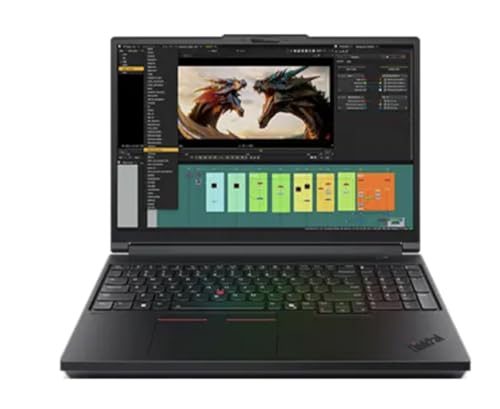
A 16-inch mobile workstation with professional NVIDIA graphics, memory headroom to 128GB, and ISV certification — the closest thing to a machine built for the workload.
- Intel Core Ultra 7 255HX (Core Ultra 9 275HX also offered)
- NVIDIA RTX PRO 2000 Blackwell, 8GB
- 32GB DDR5, configurable to 128GB
- 16-inch 3840×2400 IPS, 800 nits, anti-glare
What’s Inside
- 1 – ArcGIS Laptop Buyer's Guide
- 2 – ArcGIS Laptop Comparison Table
- 3 – Best ArcGIS Laptop Reviews
- 3.1 – 1. Lenovo ThinkPad P16 Gen 3 (Best Overall)
- 3.2 – 2. Acer Predator Helios Neo 16 AI (Best for 3D Scenes and Large Rasters)
- 3.3 – 3. Lenovo Legion Pro 7i Gen 10 (Best High-End GPU)
- 3.4 – 4. ASUS ROG Strix G18 (Best for Very Large Datasets)
- 3.5 – 5. Acer Nitro V 16S AI (Best Value)
- 3.6 – 6. Gigabyte Aero X16 (Best Portable Option)
- 3.7 – 7. Lenovo LOQ 15i / 15a (Best Budget Entry Point)
- 4 – Recommended Accessories
- 5 – Which ArcGIS Laptop Should You Buy?
- 6 – ArcGIS Laptop FAQ
- 7 – Final Thoughts on ArcGIS Laptops
ArcGIS Laptop Buyer’s Guide
Windows only, and ArcMap is gone
ArcGIS Pro runs on 64-bit Windows and nothing else. Esri’s system requirements for ArcGIS Pro 3.7 list Windows 11 Home, Pro, and Enterprise plus Windows Server 2019, 2022, and 2025 — all 64-bit. There is no macOS or Linux build.
The other half of the story is ArcMap. Esri set the ArcGIS Desktop retirement date for March 1, 2026, after which ArcMap, ArcCatalog, ArcScene, and ArcGlobe will no longer be supported. Perpetual license holders can continue running unsupported copies, while subscription access ends when the subscription does. If a buying guide you read still talks about ArcMap’s modest hardware appetite, it is describing retired software.
A Mac is a workaround, not a platform. Esri documents that on an M-series Mac, the only route is a virtual machine such as Parallels Desktop — and in that environment DirectX 12 and Vulkan fall back to DirectX 11, tools needing AVX instructions do not work, deep learning tools are not tested or certified, and Esri troubleshoots defects only against certified Windows x64 systems. Buy Windows if ArcGIS Pro is the job.
RAM is the first thing to get right
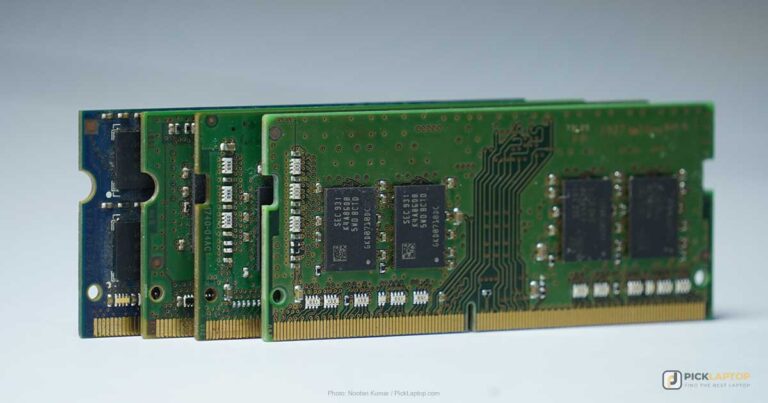
Esri’s published tiers for ArcGIS Pro 3.7 are 8GB minimum, 32GB recommended, and 64GB or more optimal. That minimum is a floor for the software to launch and draw a map, not a target — the gap between it and the recommended figure is unusually wide, which indicates how aggressively memory use scales.
What drives the scaling is your data, not your project count. Vector editing on a county parcel layer sits comfortably in 16GB; large mosaic datasets, lidar point clouds, and 3D scenes with textured multipatch buildings are the workloads that push past 32GB. If you are choosing between a faster CPU and more memory at the same price, memory is usually the better buy — and our explainer on how much RAM a laptop actually needs covers why soldered configurations matter so much when your data is going to grow.
Esri’s published tiers for ArcGIS Pro 3.7. CPU: 2 cores minimum, 4 recommended, 10 optimal. RAM: 8GB minimum, 32GB recommended, 64GB or more optimal. Storage: 32GB free, on an SSD. Discrete GPU: 8GB or more of dedicated graphics memory recommended.
The GPU is not optional here
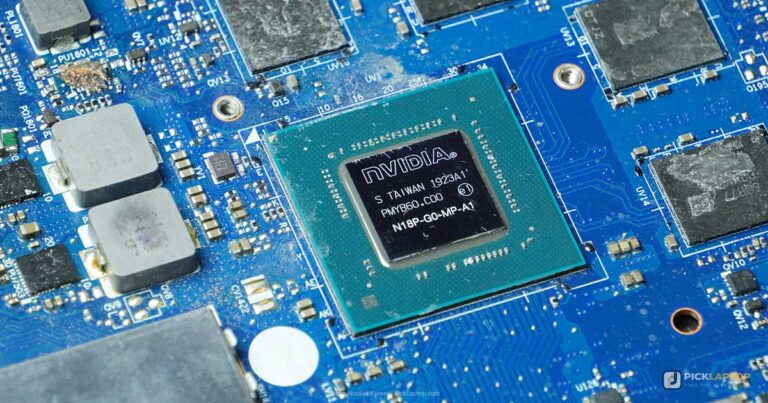
Plenty of professional software lists a graphics card and then barely touches it. ArcGIS Pro is not in that group. Esri recommends a discrete GPU with 8GB or more of dedicated graphics memory, requires DirectX 11 feature level 11.0 with Shader Model 5.0 as a floor, recommends DirectX 12 feature level 12.0, and states plainly that using a configuration without any GPU leads to the emulation of one and suboptimal performance.
Video memory is the specific constraint. Esri’s guidance on graphics adapter resources describes what happens when you run out: a “GPU resources exceeded” warning, scenes that do not draw completely, and stuttering — with the documented fixes being to close views, lower rendering quality, or move layers out of 3D groups. That is a rendering budget, and an 8GB card is the smallest one Esri suggests you work within. It is one of the few workloads where the answer to whether a separate graphics chip is worth the money is an unambiguous yes.
Cores, and where they help
Esri’s CPU tiers are 2 cores minimum, 4 recommended, and 10 optimal. Extra cores pay off in geoprocessing rather than in map navigation: the Parallel Processing Factor environment setting lets supported tools spread an operation across multiple processes, and Esri notes that many tools honor it, each with a built-in default for how many logical processes to use on a given machine.
The same documentation warns that asking for more processes than the machine has cores can cost you performance, since the processes compete for the same resources. A 24-core mobile chip is genuinely useful for batch raster processing; it does nothing for a slow attribute table on a spinning-plate laptop with 8GB of RAM.
Display, ports, and the desk you work at
Esri recommends 1080p or higher, with 1024×768 as the bare minimum. In practice, ArcGIS Pro’s ribbon, catalog pane, contents pane, and attribute table eat horizontal space fast, so a 16-inch 2560×1600 panel is far more comfortable than a 15.6-inch 1920×1080 one for the same reason a second monitor is: you stop hiding panes to see the map.
That makes port selection worth checking before you buy. Thunderbolt or USB4 with DisplayPort output is what lets a single cable drive an external panel at the office, and the trade-offs involved are the subject of our guide to driving multiple external displays. Matte or anti-glare coatings also matter more than usual if any of your work happens in the field.
ArcGIS Laptop Comparison Table


Last update on 2026-11-06 / Affiliate links / Images from Amazon Product Advertising API
Best ArcGIS Laptop Reviews
1. Lenovo ThinkPad P16 Gen 3 (Best Overall)
Best Overall
Last update on 2026-11-06 / Affiliate links / Images from Amazon Product Advertising API
- ProcessorIntel Core Ultra 7 255HX (Core Ultra 9 275HX also available)
- GraphicsNVIDIA RTX PRO 2000 Blackwell 8GB (RTX PRO 4000/5000 also available)
- Memory32GB DDR5, up to 128GB configs
- Storage1TB SSD (2TB/4TB configs also available)
- Display16-inch 3840×2400 IPS anti-glare, 800 nits
- Weight5.6 lbs
This is the only machine here that lines up with every one of Esri’s recommended tiers straight out of the box: 8GB of dedicated video memory on the base RTX PRO 2000, 32GB of system memory, and a CPU well past the 10-core optimal mark. The upgrade path is the reason it takes the top slot — 128GB configurations exist, so a lidar-heavy workflow two years from now does not mean a new laptop.
Lenovo lists ISV certification for ANSYS, SOLIDWORKS, and AutoCAD, as well as MIL-STD-810H testing. Certification is a driver-validation program rather than a performance promise, but it signals that the graphics stack is tuned for professional applications instead of games — the same reasoning that puts workstation-class machines at the top of our shortlist for simulation-heavy engineering software.
StorageReview’s teardown of this chassis found four SO-DIMM slots supporting up to 192GB, two PCIe 4.0 M.2 slots, and measured roughly seven hours in PCMark Modern Office — well ahead of the Dell and HP workstations it was compared against. That unit was a much higher configuration than the one listed here, with an RTX PRO 5000, 128GB of memory and a Tandem OLED panel, so treat the battery figure as chassis-level context rather than a number for this exact SKU.
The 3840×2400 anti-glare panel at 800 nits is the other quiet advantage. Fine cartographic linework and dense label placement are exactly the kind of work where extra pixels stop being a spec-sheet flourish, and the matte finish holds up under overhead office lighting. Lenovo rates battery life at 3 hours for this configuration, so plan on the charger.
Pros
- Meets Esri’s recommended GPU, RAM and CPU tiers without a single upgrade
- Memory expandable far past what any consumer laptop here allows
- Matte 4K-class panel keeps dense map layouts readable in bright rooms
- Two Thunderbolt 5 ports drive an external monitor setup from one cable
Cons
- Costs multiples of the gaming machines below for similar raw rendering speed
- Rated 3 hours of battery, so field days need a power plan
- 5.6 lbs plus a large charger is a real commute penalty
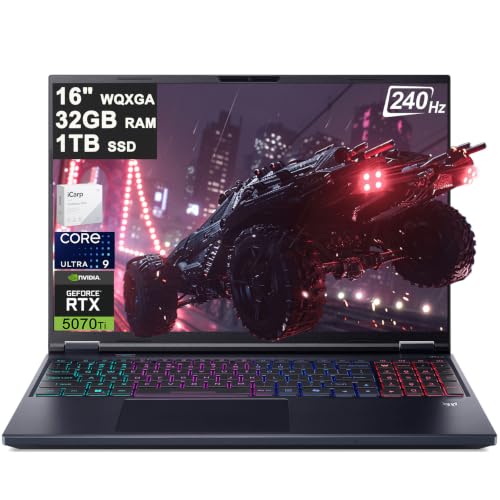
2. Acer Predator Helios Neo 16 AI (Best for 3D Scenes and Large Rasters)
Best for 3D Scenes
Last update on 2026-11-06 / Affiliate links / Images from Amazon Product Advertising API
- ProcessorIntel Core Ultra 9 275HX (24-core, 2.7-5.4GHz, 40MB cache)
- GraphicsNVIDIA GeForce RTX 5070 Ti, 12GB
- Memory32GB DDR5-6400
- Storage1TB PCIe Gen4 SSD
- Display16-inch 2560×1600 IPS, 240Hz, 500 nits, 100% DCI-P3
- Weight5.95 lbs
Twelve gigabytes of video memory is the point of this one. Esri’s floor for a discrete card is 8GB, and 3D scene work with textured buildings, terrain, and imagery basemaps is precisely the case where that budget gets spent — the extra 4GB buys you layers you would otherwise be turning off.
The 24-core Core Ultra 9 275HX is the other half. Batch geoprocessing that honors the Parallel Processing Factor scales onto those cores directly, which is the difference between a raster job you wait through and one you leave running over lunch.
PC Gamer’s review of this model measured 635 nits and 99% DCI-P3 coverage on the IPS panel, with temperatures staying under 94°C in testing — a brighter and more color-complete screen than most gaming panels, which matters if you produce map layouts other people print. The same review describes battery life as almost nonexistent, so this is a desk machine that travels rather than a mobile one.
Pros
- 12GB of video memory gives 3D scenes real headroom over Esri’s 8GB recommendation
- 24 cores make batch geoprocessing meaningfully faster
- Bright, color-accurate panel suits cartographic output, not just gaming
- Full-size Ethernet and an SD card reader for field data transfer
Cons
- Battery life is poor enough that unplugged fieldwork is off the table
- Nearly 6 lbs before the power brick
- Gaming styling and RGB may not suit every workplace
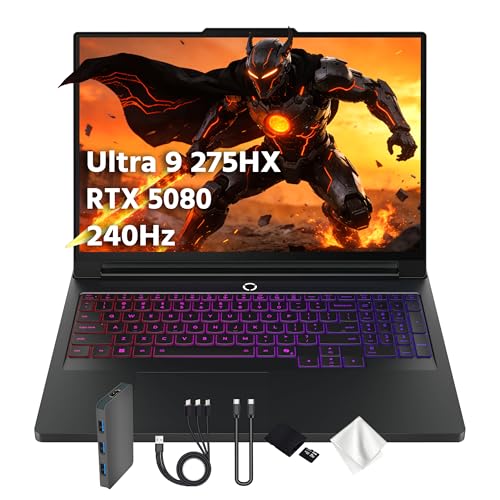
3. Lenovo Legion Pro 7i Gen 10 (Best High-End GPU)
Best High-End GPU
Last update on 2026-11-06 / Affiliate links / Images from Amazon Product Advertising API
- ProcessorIntel Core Ultra 9 275HX up to 5.4GHz
- GraphicsNVIDIA GeForce RTX 5080, 16GB
- Memory32GB
- Storage1TB PCIe SSD
- Display16-inch 2560×1600 OLED, 240Hz, 500 nits
- Weight5.95 lbs
Sixteen gigabytes of video memory is double Esri’s recommendation, and this is the pick for anyone whose scenes have already produced the “GPU resources exceeded” warning on a smaller card. Two Thunderbolt 5 ports also enable a docked desk setup that drives large external panels without hunting for adapters.
Notebookcheck’s review of the Gen 10 Legion Pro 7i recorded the RTX 5080 stabilizing around 80°C and 155W under sustained load with the CPU at 90°C, and measured 970 nits in HDR with an average color deviation of 3.2 dE on the OLED panel. Their unit carried 64GB of memory rather than the 32GB in this listing, so the thermal and display observations transfer, while the memory capacity does not.
An OLED panel is a genuine mixed blessing for GIS. Contrast and color accuracy are excellent for imagery interpretation, but ArcGIS Pro’s ribbon and panes are static bright elements that sit on screen for hours, which is the classic burn-in risk profile. Lenovo rates the battery at 6 hours, and the 400W power supply this class of machine needs is not a travel accessory.
Pros
- 16GB of VRAM removes the rendering ceiling for heavy 3D and imagery work
- Dual Thunderbolt 5 supports a serious multi-monitor desk
- OLED contrast helps when interpreting aerial and satellite imagery
Cons
- Static interface elements on OLED carry a long-term burn-in risk
- CPU runs hot under sustained load, so fan noise is part of the deal
- Very large charger makes this effectively a transportable desktop
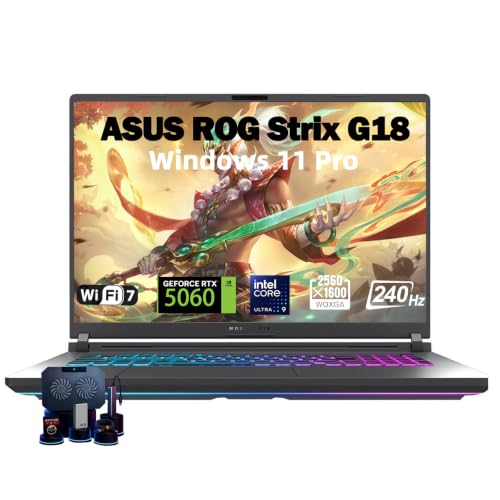
4. ASUS ROG Strix G18 (Best for Very Large Datasets)
Best for Very Large Datasets
Last update on 2026-11-06 / Affiliate links / Images from Amazon Product Advertising API
- ProcessorIntel Core Ultra 9 275HX (24-core, up to 5.4GHz)
- GraphicsNVIDIA GeForce RTX 5060 at 140W max TGP (RTX 5070/5070 Ti/5080 configs available)
- Memory64GB DDR5
- Storage1TB PCIe SSD
- Display18-inch 2560×1600 ROG Nebula IPS, 240Hz, 500 nits, anti-glare film
- Weight7.7 lbs
Sixty-four gigabytes of system memory is Esri’s “optimal” tier, and this is the only consumer machine on the list that ships with it rather than reaching it through an upgrade. If your bottleneck is a mosaic dataset or a point cloud that swallows memory the moment you open it, that matters more than any GPU on this page.
Be clear-eyed about the graphics pairing, though. The base configuration uses an RTX 5060 with 8GB — Esri’s recommended figure, not a comfortable margin — so the memory-rich SKU and the VRAM-rich SKU are not automatically the same purchase. ASUS sells eight variants, from the RTX 5060 up to the RTX 5080, and checking which one the listing shows is essential here.
The 18-inch canvas is the workflow argument. Laptop Mag measured the Nebula panel at 511.8 nits and 78% DCI-P3 on an RTX 5080 configuration, along with 7 hours 45 minutes of web browsing and a chassis too large to fit most laptop bags at just over 7 pounds. On a screen this size, ArcGIS Pro’s catalog pane, contents pane, and attribute table coexist with the map instead of taking turns.
Pros
- 64GB of memory out of the box handles datasets that stall 32GB machines
- 18-inch 1600p panel fits the full ArcGIS Pro interface without hiding panes
- Anti-glare film keeps a large glossy surface usable under office lighting
Cons
- Base GPU has only 8GB of VRAM, so verify the configuration before buying
- 7.7 lbs and an 18-inch footprint will not fit most laptop bags
- Overkill if your work is mostly 2D vector editing
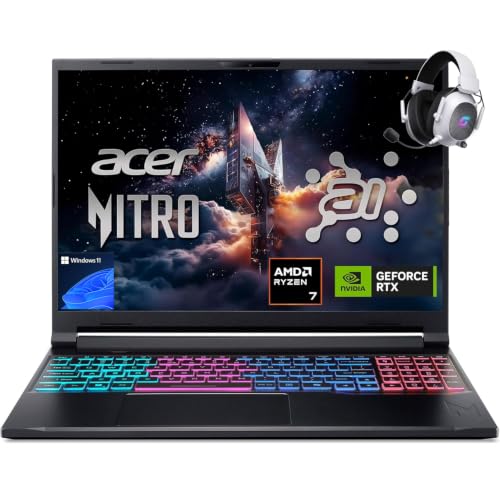
5. Acer Nitro V 16S AI (Best Value)
Best Value
Last update on 2026-11-06 / Affiliate links / Images from Amazon Product Advertising API
- ProcessorAMD Ryzen 7 260 (8-core, up to 5.10GHz)
- GraphicsNVIDIA GeForce RTX 5060 Laptop GPU, 8GB GDDR7
- Memory32GB DDR5-5600
- Storage1TB PCIe Gen4 SSD
- Display16-inch 1920×1200 ComfyView matte IPS, 180Hz, 100% sRGB
- PortsUSB4, Wi-Fi 6, Killer Ethernet E2600
This configuration meets Esri’s recommended 32GB of memory and 8GB of dedicated video memory, at the lowest price of anything here that does both. For a GIS analyst doing vector editing, cartography, and moderate raster analysis, that is the specification that matters.
The compromise is the CPU. Eight cores comfortably meet Esri’s 4-core recommendation but fall below the 10-core optimal tier, so heavily parallel geoprocessing runs will take longer than on the 24-core machines above. Nothing breaks; you simply wait.
Tom’s Hardware found the panel at 391.8 nits with 77.4% DCI-P3 and 109.3% sRGB, controlled thermal with the CPU at 60°C and GPU at 66.5°C under stress, and two M.2 slots, with one left empty, plus accessible SO-DIMM memory — the same 32GB configuration listed here. Serviceable memory and a spare drive bay are unusual at this price, and the matte finish is a better fit for map work than a glossy panel.
The same review calls out weak gaming performance relative to RTX 5070 machines nearby and a grainy 720p webcam. Neither is a GIS problem; the webcam might be a video-call problem.
Pros
- Hits both of Esri’s key recommended figures at the lowest cost here
- Matte 100% sRGB panel is well suited to reading dense map layouts
- Accessible SO-DIMM slots and a spare M.2 bay make later upgrades cheap
- Wired Ethernet helps when pulling large datasets off a network share
Cons
- Eight cores means slower batch geoprocessing than the 24-core options
- 1920×1200 gives less working area than the 1600p screens above
- 720p webcam is poor for a machine you may also take to meetings
6. Gigabyte Aero X16 (Best Portable Option)
Best Portable Option
No products found.
- ProcessorAMD Ryzen AI 9 HX 370 (12-core; Ryzen AI 7 350 config also available)
- GraphicsNVIDIA GeForce RTX 5070, 8GB GDDR7
- Memory32GB DDR5
- Storage1TB SSD
- Display16-inch 2560×1600 IPS, 165Hz, 100% sRGB, 400 nits
- Weight4.18 lbs, 16.75mm thick
Field surveys, site visits, and campus teaching all punish a 6-pound laptop. At 4.18 lbs and under 17mm thick, with a rated 14-hour battery life, this is the machine on the list you would actually carry, and it still brings 32GB of memory, a 12-core CPU beyond Esri’s optimal tier, and an 8GB RTX 5070.
The thinness has consequences. Tom’s Hardware tested the Ryzen AI 7 350 configuration with an 85W RTX 5070 — a lower-tier CPU than the Ryzen AI 9 HX 370 listed here — and recorded 369 nits and 78.5% DCI-P3 coverage plus 9 hours 13 minutes of mixed-use battery, while criticizing Wi-Fi 6E rather than Wi-Fi 7 and the inclusion of a USB 2.0 port. A GPU running at that power level renders more slowly than the same chip in a thick chassis.
For 2D cartography, editing, and moderate analysis away from a desk, that tradeoff is easy to accept. For heavy 3D scenes, it is not the machine — pick one of the thicker options and dock it.
Pros
- Genuinely portable at 4.18 lbs while still meeting Esri’s RAM and VRAM figures
- Long real-world battery life makes fieldwork and lecture days practical
- 1600p 16-inch panel gives more workspace than a 15.6-inch 1080p screen
- USB4 Type-C handles docking to an external display
Cons
- Thin-chassis power limits mean slower rendering than thicker RTX 5070 laptops
- Panel color coverage measured well short of the wide-gamut screens above
- Wi-Fi 6E and a USB 2.0 port look dated on a 2026 machine
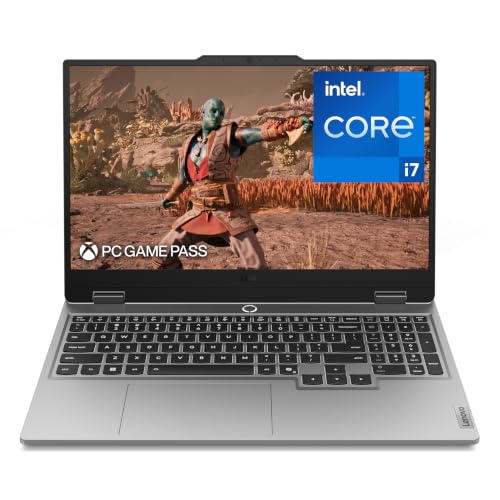
7. Lenovo LOQ 15i / 15a (Best Budget Entry Point)
Best Budget Entry Point
Last update on 2026-11-06 / Affiliate links / Images from Amazon Product Advertising API
- ProcessorIntel Core i7-13650HX
- GraphicsNVIDIA GeForce RTX 5050 Laptop GPU
- Memory16GB
- Storage1TB SSD
- Display15.6-inch 1920×1080 IPS, 144Hz
- OSWindows 11 Home
Students and people learning ArcGIS Pro on coursework-sized data do not need 64GB of memory. This clears Esri’s minimum tiers with room — 16 cores and threads of Raptor Lake HX silicon, a discrete GPU rather than emulated graphics, and double the 8GB memory minimum.
It also falls below Esri’s recommended figures for both memory and video memory, so you should buy it knowing that. Sixteen gigabytes is where ArcGIS Pro starts paging on large rasters, so budget for a memory upgrade rather than treating this as a finished machine. LaptopMedia’s teardown of a LOQ 15 sibling — a 15IPH11 unit with a Core Ultra 7 355 rather than this Intel HX chip — found two DDR5 SO-DIMM slots and a second M.2 bay running at PCIe 4.0 x2, so the upgrade path in this chassis family is straightforward.
The 1080p panel is the other limit. ArcGIS Pro’s interface is dense enough that 15.6 inches at 1920×1080 means collapsing panes to see your map, which is a daily friction rather than a one-off annoyance. If the budget stretches at all, the 16-inch 1200p option above solves that.
Pros
- Cheapest route to a discrete GPU and real multi-core geoprocessing
- Two SO-DIMM slots in this chassis family make a memory upgrade cheap
- 1TB of storage is generous for a budget machine holding large datasets
Cons
- 16GB of memory sits well under Esri’s recommended 32GB
- RTX 5050 falls short of the recommended 8GB of dedicated video memory
- 15.6-inch 1080p screen forces constant pane juggling in ArcGIS Pro
- Amazon SKU not cross-verified against Lenovo’s own listing
Recommended Accessories
A second screen and a fast external drive change ArcGIS Pro’s day-to-day feel more than most hardware upgrades — one gives the attribute table a home, the other keeps file geodatabases off a full internal SSD.



Last update on 2026-11-06 / Affiliate links / Images from Amazon Product Advertising API
Which ArcGIS Laptop Should You Buy?
| If this is you | Buy this | Because |
|---|---|---|
| Professional GIS work, long upgrade horizon | Lenovo ThinkPad P16 Gen 3 | Meets every recommended Esri tier and expands to 128GB |
| 3D scenes, textured buildings, imagery basemaps | Acer Predator Helios Neo 16 AI | 12GB of VRAM plus 24 cores |
| You have already hit GPU resource warnings | Lenovo Legion Pro 7i Gen 10 | 16GB of video memory, double Esri’s recommendation |
| Mosaic datasets and lidar that eat memory | ASUS ROG Strix G18 | 64GB out of the box on an 18-inch canvas |
| Everyday analysis on a sensible budget | Acer Nitro V 16S AI | 32GB and 8GB VRAM for the least money here |
| Fieldwork, site visits, teaching | Gigabyte Aero X16 | 4.18 lbs and all-day battery without dropping to integrated graphics |
| Student or first ArcGIS Pro machine | Lenovo LOQ 15i / 15a | Discrete GPU and upgradeable memory at entry pricing |
ArcGIS Laptop FAQ
Can I run ArcGIS Pro on a Mac?
Not natively. ArcGIS Pro is 64-bit Windows software, and Esri’s documentation states that on an M-series Mac the only route is a virtual environment such as Parallels Desktop. In that setup DirectX 12 and Vulkan fall back to DirectX 11, tools that require AVX instruction sets do not work, deep learning tools are not tested or certified, and Esri troubleshoots defects only against certified Windows x64 systems.
Is ArcMap still supported?
No. Esri retired ArcGIS Desktop — ArcMap, ArcCatalog, ArcScene and ArcGlobe — on March 1, 2026. Perpetual license holders can keep running unsupported installations, but subscription access ends when the subscription expires. Hardware advice written for ArcMap does not carry over to ArcGIS Pro.
How much RAM do I actually need for ArcGIS Pro?
Esri lists 8GB minimum, 32GB recommended and 64GB or more as optimal for ArcGIS Pro 3.7. Treat 32GB as the practical target for professional work. Vector editing and standard cartography are comfortable there; large mosaic datasets, lidar point clouds and detailed 3D scenes are what push you toward 64GB.
Do I need a dedicated graphics card, or will integrated graphics do?
Esri recommends a discrete GPU with 8GB or more of dedicated graphics memory and states that running without a GPU results in emulation and suboptimal performance. Integrated graphics will start ArcGIS Pro and handle simple 2D maps, but 3D scenes and heavy rendering are where the difference becomes obvious.
What happens if my GPU runs out of video memory?
Esri documents a “GPU resources exceeded” warning, along with scenes that fail to draw completely, low frame rates and stuttering. The documented remedies are closing views, lowering rendering quality, reducing layer visibility distances, or moving layers out of 3D groups — which is why buying past the 8GB recommendation is worthwhile if 3D is your main work.
Does ArcGIS Pro use more than one CPU core?
Yes, for geoprocessing. The Parallel Processing Factor environment setting lets supported tools spread an operation across multiple processes, and each tool that honors it has a built-in default for a given machine. Esri also warns that specifying more processes than the machine has cores can hurt performance. Esri’s CPU tiers are 2 cores minimum, 4 recommended and 10 optimal.
Will a gaming laptop work, or do I need a certified workstation?
A gaming laptop works. Esri’s requirements specify DirectX and OpenGL feature levels and video memory, all of which GeForce cards meet. Professional cards on machines like the ThinkPad P16 come with ISV certification, which is a driver-validation program — valuable in organizations with support policies that require it, not a guarantee of faster rendering.
Is a 15.6-inch 1080p screen enough?
It clears Esri’s recommendation of 1080p or higher, so it works. It is cramped in practice, because the ribbon, catalog pane, contents pane and attribute table all compete for the same space. A 16-inch 2560×1600 panel or an external monitor makes a bigger day-to-day difference than most people expect.
How much storage should I plan for?
Esri lists 32GB of free space as the minimum and recommends 32GB or more on a solid-state drive. That is the application’s own footprint — your datasets are separate, so 1TB is a sensible starting point for anyone working with imagery or lidar, with an external SSD for archives.
Final Thoughts on ArcGIS Laptops
Esri has done the hard part by publishing exact figures, so the decision comes down to matching them honestly: 32GB of memory and 8GB of dedicated video memory is the line between a machine that works and one that fights you. Spend above that where your data demands it — 3D scenes want video memory, lidar and mosaics want system memory — and skip the workstation premium unless your organization requires certified drivers.