Most laptop guides for 3D design software give the same generic advice regardless of which program is running — high core count, workstation GPU, done. That advice is wrong for SketchUp specifically. The software’s own navigation and modeling tools are single-core, single-thread operations, so a high-clock-speed six-core chip feels more responsive orbiting a model than a sixteen-core chip clocked lower, even though the sixteen-core machine looks more powerful on a spec sheet.
Whether you’re a student picking up SketchUp for the first time, an architect or interior designer whose current laptop stutters every time you orbit a detailed model, or a hobbyist working through set design or product concepts, this guide covers what SketchUp specifically needs — not generic CAD workstation advice.
Editor’s Pick
Last update on 2026-10-08 / Affiliate links / Images from Amazon Product Advertising API
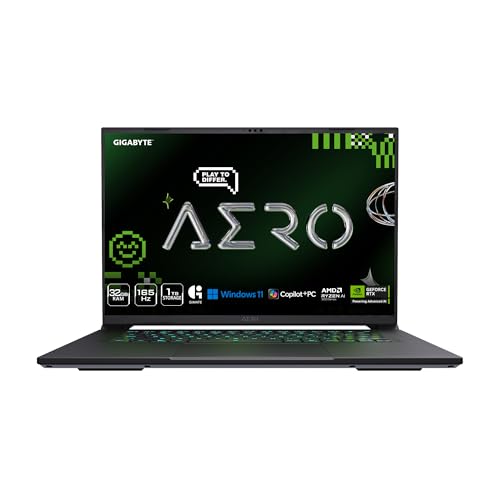
A high-clock-speed processor drives smooth modeling navigation, and the 8GB RTX GPU renders V-Ray and Enscape scenes — the two halves of SketchUp’s workload, in one balanced machine.
- AMD Ryzen AI 9 HX 370 (12-core)
- NVIDIA RTX 5070 (8GB)
- 32GB DDR5
- Creator-class display
What’s Inside
- 1 – SketchUp Laptop Buyer's Guide
- 2 – SketchUp Laptop Comparison Table
- 3 – Best Laptops for SketchUp, Reviewed
- 3.1 – 1. Gigabyte Aero X16 (Best Overall)
- 3.2 – 2. HP Victus 15 (Best Budget)
- 3.3 – 3. MSI Katana 15 HX (Best for V-Ray/Enscape Rendering)
- 3.4 – 4. HP ZBook X G1i (Best Workstation)
- 3.5 – 5. Apple MacBook Pro 14-inch (M5 Pro/M5 Max) (Best for Mac/V-Ray)
- 3.6 – 6. ASUS ROG Strix SCAR 16 (Best High-VRAM)
- 3.7 – 7. MSI Stealth 16 AI+ (Best Portable/Thin)
- 4 – Recommended Accessories
- 5 – Which SketchUp Laptop Should You Buy?
- 6 – SketchUp Laptop FAQ
- 7 – Final Thoughts on SketchUp Laptops
SketchUp Laptop Buyer’s Guide
Per SketchUp’s own current documentation, the official recommended baseline is a 2+GHz processor, a discrete graphics card with at least 8GB VRAM, and 8GB of system RAM. That’s a fairly modest bar — most current laptops clear it easily. Meeting the minimum matters less than whether the hardware matches how SketchUp behaves in practice.
Clock speed matters more than core count
SketchUp’s modeling and navigation tools — orbit, pan, push-pull, edge rendering — run on a single CPU core. A 6-core processor clocked at 5.0GHz will feel faster in day-to-day modeling than a 16-core chip clocked at 3.5GHz, even though the second one wins on multi-threaded benchmarks. Prioritize a high boost clock over raw core count when comparing CPUs for this specific use.
GPU and VRAM matter most once you add rendering
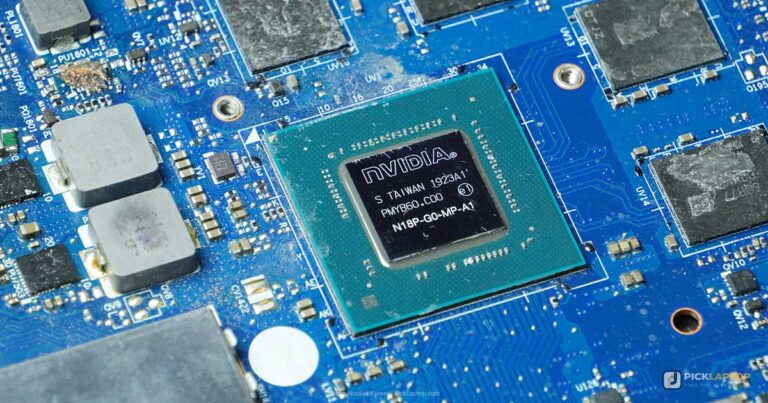
Basic SketchUp modeling runs fine on integrated graphics for small projects, but that changes the moment you bring in V-Ray, Enscape, or Twinmotion for photorealistic rendering — these plugins lean almost entirely on GPU performance. SketchUp’s own documentation goes further: working with models that use PBR texture maps, Ambient Occlusion, or Image Based Lighting calls for a GPU with up to 32GB of VRAM. Even flagship consumer laptop GPUs top out well below that figure, so treat it as a ceiling for the heaviest professional workflows, not a baseline you need to hit for typical project work.
Mac or Windows? It depends on your renderer
V-Ray for SketchUp runs on both macOS and Windows. Enscape does not have a native Mac version at all — if Enscape is part of your workflow, that decision is made for you. Twinmotion has an Apple Silicon-native build if you’re specifically on a current M-series Mac. SketchUp itself runs well on either platform; the renderer you rely on decides your OS.
How much RAM do you actually need?
16GB is enough as a working minimum for most SketchUp projects today. Step up to 32GB if you’re working with large, detailed architectural or interior models, running rendering plugins alongside SketchUp itself, or frequently pulling components from the 3D Warehouse into already-complex scenes.
An external mouse beats a trackpad for SketchUp navigation
SketchUp’s own documentation specifically recommends a 3-button, scroll-wheel mouse for both Windows and Mac — this isn’t a generic “buy a mouse” suggestion, it’s baked into the software’s own hardware guidance because SketchUp’s navigation relies heavily on middle-click orbit and scroll-to-zoom. A trackpad works in a pinch, but a mouse tracks orbit and zoom more precisely during modeling.
SketchUp Laptop Comparison Table


Last update on 2026-10-08 / Affiliate links / Images from Amazon Product Advertising API
Best Laptops for SketchUp, Reviewed
1. Gigabyte Aero X16 (Best Overall)
Best Overall
Last update on 2026-10-08 / Affiliate links / Images from Amazon Product Advertising API
- ProcessorAMD Ryzen AI 9 HX 370 (12-core)
- RAM32GB DDR5
- GPUNVIDIA RTX 5070 (8GB)
- Display16-inch WQXGA, creator-class panel
- BatteryNot independently tested on this CPU configuration
- OSWindows 11 Home
The RTX 5070’s 8GB VRAM meets SketchUp’s stated baseline and is enough for V-Ray and Enscape rendering on typical architectural and interior work, and the high-clock CPU tier is what SketchUp’s own single-threaded modeling and navigation tools reward most.
Tom’s Hardware measured 9 hours and 13 minutes of battery life on this chassis in mixed daily use, and Notebookcheck tested the same laptop separately — but both review units ran the Ryzen AI 7 350 configuration of the Aero X16, not the Ryzen AI 9 HX 370 build listed here. The HX 370 draws more power, so battery life on this exact configuration hasn’t been independently confirmed and is likely shorter than the measured figure.
Tom’s Hardware measured the display at 78.5% DCI-P3 coverage and 369 nits peak brightness — enough for everyday material review, though Tom’s own review counts the limited gamut against it for color-critical creative work. Notebookcheck’s separate test of the same panel measured 96.1% sRGB and 403 nits, consistent with a screen tuned for the sRGB range rather than a wider gamut.
Pros
- RTX 5070’s 8GB VRAM is enough for typical V-Ray and Enscape rendering
- 9h13m battery life measured on this chassis, on a lower CPU tier
- 32GB RAM standard
- Display measured at up to 403 nits, suitable for everyday material review
Cons
- Display gamut measured at 78.5% DCI-P3 — Tom’s Hardware flags this as a shortfall for color-critical work
- 8GB VRAM is well below SketchUp’s stated ceiling for PBR-heavy work
- Independent testing covers the Ryzen AI 7 350 configuration, not the HX 370 build listed here — battery life on this exact configuration is unconfirmed
2. HP Victus 15 (Best Budget)
Best Budget
Last update on 2026-10-08 / Affiliate links / Images from Amazon Product Advertising API
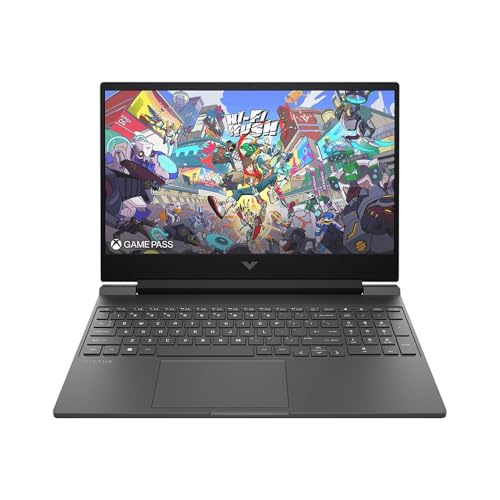
- ProcessorAMD Ryzen AI 5 340
- RAM16GB DDR5-5600
- GPUNVIDIA RTX 5050 (8GB)
- Display15.6-inch FHD IPS, 144Hz
- BatteryNot officially disclosed
- OSWindows 11
This is the entry point that meets SketchUp’s stated requirements rather than skimming under them. The RTX 5050’s 8GB VRAM matches SketchUp’s official minimum exactly, and 16GB of RAM is enough for most student and hobbyist project sizes.
The 144Hz display isn’t something SketchUp itself benefits from directly, but it makes general use and any gaming alongside your design work smoother — a reasonable bonus at this price tier rather than the main selling point.
Notebookcheck found HP limits the RTX 5050’s TGP to 80 watts rather than the chip’s full 115-watt potential, which caps rendering performance below what the same GPU delivers in less power-constrained chassis. That review tested an Intel Core i5-13420H configuration of this same Victus 15/RTX 5050 chassis rather than the AMD Ryzen AI 5 340 build listed here; TGP limits are set at the chassis and GPU-tuning level rather than by the CPU, so the figure likely carries over, but it hasn’t been independently measured on this exact configuration. For students working through coursework projects or hobbyists new to SketchUp, this still meets the software’s needs without paying for rendering capacity you may not use yet.
Pros
- Meets SketchUp’s 8GB VRAM minimum exactly
- 144Hz display
- Lowest price in this guide
- Dedicated GPU, not integrated graphics
Cons
- 8GB VRAM will show its limits on larger V-Ray/Enscape scenes
- RTX 5050 is TGP-limited to 80W on the Intel-CPU version of this chassis Notebookcheck tested; not independently confirmed on this AMD configuration
- Battery life not officially disclosed by HP
3. MSI Katana 15 HX (Best for V-Ray/Enscape Rendering)
Best for V-Ray/Enscape Rendering

Last update on 2026-10-08 / Affiliate links / Images from Amazon Product Advertising API
- ProcessorIntel Core i9-14900HX (24-core)
- RAM32GB DDR5
- GPUNVIDIA RTX 5070 (8GB)
- Display15.6-inch QHD, 165Hz
- BatteryNot officially disclosed
- OSWindows 11
The i9-14900HX boosts up to 5.8GHz — a high single-core clock that directly benefits SketchUp’s modeling and navigation, on top of the 24 cores that also help when V-Ray or Enscape are rendering in the background.
32GB of RAM and an RTX 5070 with 8GB VRAM together handle the combination this pick is named for: SketchUp modeling with rendering plugins running alongside it, without the RAM or VRAM ceiling showing up mid-project on typical architectural and interior work.
The 165Hz QHD display is a step up in sharpness for reviewing material detail over the more common FHD panels at this tier, without pushing into 4K territory that would tax the GPU further. LaptopMedia’s review of the Katana 15 HX B14W line reported the CPU running hot with clock-speed drops under sustained load, but that review spans multiple CPU configurations in the lineup, including the lower-tier Core i7-14650HX, and it isn’t clear which chip its thermal results reflect. Treat the throttling risk as a chassis-level concern for the i9-14900HX build listed here rather than a figure measured on this exact chip.
Pros
- 5.8GHz boost clock benefits SketchUp navigation directly
- 24-core CPU helps background rendering
- 165Hz QHD display
- 32GB RAM standard
Cons
- Battery life not officially disclosed
- Heavier than the ultraportable picks in this guide
- LaptopMedia reports thermal throttling on this chassis, though not confirmed for this exact CPU tier
4. HP ZBook X G1i (Best Workstation)
Best Workstation
Last update on 2026-10-08 / Affiliate links / Images from Amazon Product Advertising API
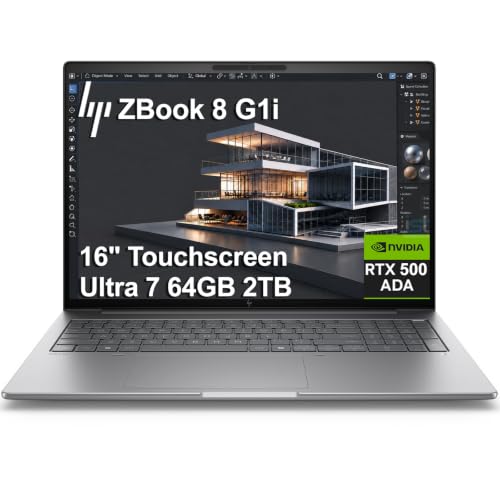
- ProcessorIntel Core Ultra 7 265H (16-core)
- RAM64GB DDR5
- GPUNVIDIA RTX PRO 1000 Blackwell (8GB)
- Display16-inch FHD+
- Battery83Wh (hours not disclosed for this GPU configuration)
- OSWindows 11 Pro
HP’s own listing lists ISV certifications for AutoCAD, SolidWorks, Revit, ANSYS, and MATLAB — SketchUp isn’t named among them specifically. That said, the underlying hardware profile fits professional 3D modeling work broadly: 64GB of RAM is well beyond what SketchUp itself needs; the extra headroom pays off only when other design applications run alongside it in the same session.
The multi-threaded performance is a strength shared across the chassis: ITPro’s multi-core benchmark scored the Core Ultra 7 265H at 16,103, well ahead of comparable workstations in the same review — the same CPU listed here, though ITPro’s test unit carried the higher RTX PRO 2000 Blackwell GPU rather than the RTX PRO 1000 in this configuration, so the CPU score transfers but GPU-dependent results don’t. TechRadar separately rated the ZBook X G1i’s battery life and port selection among its strengths, though that review’s unit used Intel’s integrated Arc Pro 140T graphics instead of the Nvidia RTX PRO GPU in this build — a reasonable general read on the chassis and its ports, not a confirmed figure for this exact GPU configuration.
Those ISV certifications matter to professionals whose work extends beyond SketchUp into other engineering or design software; if SketchUp is your only application, this is not the default choice.
Pros
- 64GB RAM standard
- Multi-threaded CPU performance (16,103 score) confirmed independently on the same Core Ultra 7 265H
- ISV certified for several major design/engineering applications
- Port selection praised by TechRadar, on a different GPU configuration of this chassis
Cons
- SketchUp specifically isn’t named among the listed ISV certifications
- The priciest pick in this guide
- Independent battery and port findings come from different GPU configurations of this chassis, not the RTX PRO 1000 build listed here
5. Apple MacBook Pro 14-inch (M5 Pro/M5 Max) (Best for Mac/V-Ray)
Best for Mac/V-Ray
Last update on 2026-10-08 / Affiliate links / Images from Amazon Product Advertising API
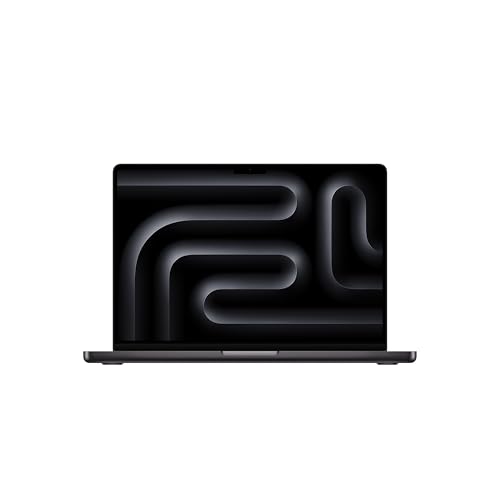
- ProcessorApple M5 Pro / M5 Max
- RAM24-128GB unified
- Storage1-2TB SSD
- Display14.2-inch Liquid Retina XDR
- BatteryApple rates up to 22h (M5 Pro) / 20h (M5 Max) video streaming
- OSmacOS
SketchUp’s current documentation lists macOS 26 (Tahoe), 15 (Sequoia), and 14+ (Sonoma) as supported versions. The unified memory architecture is the distinctive part of this pick — graphics-intensive rendering shares the same high-bandwidth memory pool as the CPU, which behaves differently from a traditional laptop’s separate VRAM pool and generally holds up well for texture-heavy scenes.
Two of the three major rendering plugins are covered here: V-Ray runs natively on this platform, and Twinmotion ships an Apple Silicon build made for chips like these. Enscape is the exception — it has no Mac release in any form, so if that’s the renderer your work depends on, no amount of hardware here changes the answer.
The Liquid Retina XDR display is a standout for reviewing material and color work specifically — brighter and more accurate than the IPS panels on most of the Windows picks in this guide, worth factoring in if client presentations or precise color review are part of your workflow. Apple rates the M5 Pro configuration at up to 22 hours of video-streaming battery life and the M5 Max at up to 20 hours — manufacturer figures rather than independently measured runtime. One caveat if you’re weighing the M5 Max configuration specifically: Notebookcheck found the M5 Max runs into thermal throttling under sustained heavy load, with inconsistent CPU performance even in the highest power mode — worth checking if long V-Ray render sessions are part of your regular workflow, since the M5 Pro tier isn’t reported to show the same pattern.
Pros
- Excellent single-core performance for modeling
- V-Ray runs natively on Mac
- Configurable up to 128GB unified memory
- Apple rates video-streaming battery life at up to 22h (M5 Pro) or 20h (M5 Max)
Cons
- No Enscape support at all on macOS
- Entry configurations have far less memory than the top-end option
- M5 Max configuration throttles under sustained heavy load, per Notebookcheck
6. ASUS ROG Strix SCAR 16 (Best High-VRAM)
Best High-VRAM

Last update on 2026-10-08 / Affiliate links / Images from Amazon Product Advertising API
- ProcessorIntel Core Ultra 9 275HX (24-core)
- RAM32GB DDR5-5600 (max 64GB)
- GPUNVIDIA RTX 5090 Laptop GPU (24GB GDDR7)
- Display16-inch
- BatteryNot officially disclosed
- OSWindows 11
SketchUp’s own documentation calls for up to 32GB of VRAM for the heaviest PBR material and lighting workflows, and no current consumer laptop GPU reaches that — this RTX 5090 configuration’s 24GB is the closest available at laptop scale, not a laptop that fully satisfies that ceiling.
For readers whose SketchUp work regularly pushes into complex materials, Ambient Occlusion, and Image Based Lighting on large models, this is the most VRAM-equipped option in this guide. Notebookcheck’s review of this Core Ultra 9 275HX / RTX 5090 configuration confirms two accessible RAM slots (max 64GB) rather than soldered memory, unlike some of the thinner chassis in this guide.
This is a large, heavy gaming-chassis laptop rather than a slim professional one, which is the tradeoff for that much VRAM — check the weight and dimensions if portability matters to your workflow.
Pros
- Most VRAM of any pick in this guide (24GB)
- Configurable up to 64GB RAM, confirmed as slot-based rather than soldered
- Alternate RTX 5080/16GB configuration available at a lower tier
Cons
- Still short of SketchUp’s stated 32GB VRAM ceiling for the heaviest workflows
- Large, heavy gaming chassis, not built for portability
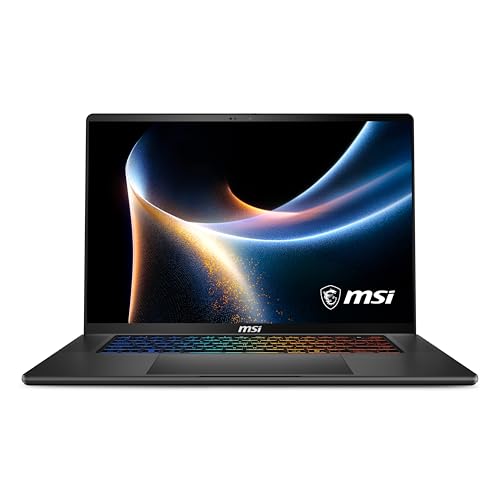
7. MSI Stealth 16 AI+ (Best Portable/Thin)
Best Portable/Thin
Last update on 2026-10-08 / Affiliate links / Images from Amazon Product Advertising API
- ProcessorIntel Core Ultra 9 386H
- RAM32GB DDR5-7200
- GPUNVIDIA RTX 5070 (base config)
- Display16-inch
- Battery10h2m measured on a higher GPU configuration of this chassis
- OSWindows 11
Not every SketchUp user works from a desk with a docking station — architects doing site visits and freelancers meeting clients need something that travels well without dropping to the weaker GPU tiers common in ultraportables. The Stealth 16 AI+ keeps a thin chassis while still fitting a full RTX 5070.
The 32GB of fast DDR5-7200 memory pairs with the base RTX 5070 configuration to cover typical SketchUp and rendering-plugin workloads, with the option to step up GPU tier if your specific projects need more VRAM.
ITPro’s standard battery test measured 10 hours and 2 minutes on this chassis — though that review’s unit carried the RTX 5080/16GB configuration rather than the base RTX 5070 build listed here. Both share the same Core Ultra 9 386H CPU, and battery life on a thin gaming chassis is driven mostly by CPU and display draw, so the figure is a reasonable read for the base config, but it hasn’t been measured directly on the RTX 5070 tier.
Pros
- Thin chassis without a weak GPU
- 32GB of fast DDR5-7200 RAM
- Solid general-use battery life reported for this chassis
- Higher GPU tiers available if needed
Cons
- Base RTX 5070 config has less VRAM than the workstation-class picks above
- Thinner chassis has less thermal capacity under sustained load than the gaming-style options here
- ITPro’s battery test ran on the RTX 5080 tier of this chassis, not the base RTX 5070 config
Recommended Accessories



Last update on 2026-10-08 / Affiliate links / Images from Amazon Product Advertising API
Which SketchUp Laptop Should You Buy?
| Best For | Pick |
|---|---|
| Overall | Gigabyte Aero X16 |
| Budget | HP Victus 15 |
| V-Ray/Enscape Rendering | MSI Katana 15 HX |
| Workstation | HP ZBook X G1i |
| Mac/V-Ray | Apple MacBook Pro 14-inch (M5 Pro/Max) |
| High-VRAM | ASUS ROG Strix SCAR 16 |
| Portable/Thin | MSI Stealth 16 AI+ |
SketchUp Laptop FAQ
What are the official system requirements for SketchUp?
SketchUp’s documentation sets separate minimums for each platform. Windows needs a processor running at 2GHz or faster, a discrete GPU with 8GB of VRAM, and 8GB RAM. Mac needs a 2.1GHz processor (or an Apple M1 chip or newer), the same 8GB RAM, but a much lower graphics bar — just 1GB of GPU memory. Both platforms also need support for SketchUp’s newer graphics engine: DirectX 12 on Windows, Metal 2 on Mac.
Does SketchUp need a powerful CPU?
It needs a fast one, not necessarily a large one in the way most people mean core count. Look for a high boost clock — 5.0GHz or above — rather than shopping by core count alone; that’s the spec that governs orbit, pan and push-pull responsiveness, since those operations run on a single core regardless of how many cores the chip has.
Does SketchUp run on a Chromebook?
No, SketchUp Pro is not supported on ChromeOS. You’ll need a Windows or Mac laptop that meets the official requirements above.
Is a dedicated GPU necessary for SketchUp?
Basic modeling on small projects can run on integrated graphics, but a dedicated GPU becomes necessary once you add V-Ray, Enscape, or Twinmotion rendering, or work with larger, more detailed models. SketchUp’s own recommendation calls for at least 8GB of dedicated video memory — treat that figure as the floor, since heavier PBR and lighting work can call for far more than that.
Should I buy a Mac or Windows laptop for SketchUp?
Platform choice for SketchUp itself is close to a non-issue — modeling performance and workflow are comparable either way. What decides it is your rendering plugin: Enscape is Windows-only, while V-Ray and Twinmotion both support Mac (Twinmotion via a native Apple Silicon build). If you collaborate with others on a shared project, confirm everyone’s SketchUp version and file format line up — cross-platform teams sometimes hit version-compatibility snags that have nothing to do with the machine itself.
Final Thoughts on SketchUp Laptops
SketchUp doesn’t need a maxed-out workstation to run well, but it needs the right kind of hardware — and that’s different from generic 3D-software advice. Prioritize single-core clock speed for the modeling experience, then match GPU VRAM to how much rendering work the project involves. Any of the seven picks above will run SketchUp well; the differences between them come down to how much rendering capacity each reader’s projects need.