Search results for AutoCAD and Revit laptops tend to converge on the same advice: buy the most cores you can afford. That advice survives because it sounds sensible, not because Autodesk’s own documentation supports it. Read what Autodesk publishes and a different picture appears — one where clock speed, memory and screen area carry most of the weight, and core count barely moves.
The two programs also diverge more than people expect. AutoCAD stays light on memory and leans on raw per-core speed; Revit scales its published requirements by model size and asks for four times the RAM at the top tier. This guide separates the two, then matches eight machines from our verified database to the specific way each program actually loads a laptop.
Editor’s Pick
Last update on 2026-10-22 / Affiliate links / Images from Amazon Product Advertising API
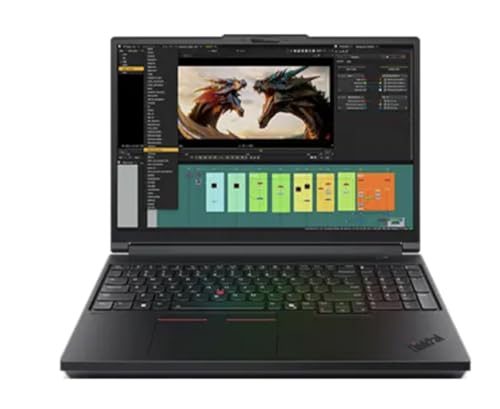
It is the only pick here that ships an Autodesk-certified professional GPU alongside a 3840×2400 panel, which is the combination that matters when drafting detail and vendor support both count.
- Intel Core Ultra 7 255HX
- NVIDIA RTX PRO 2000 Blackwell, 8GB
- 32GB DDR5, configurable to 128GB
- 16-inch WQUXGA IPS, 800 nits, anti-glare
What’s Inside
- 1 – AutoCAD and Revit Buyer's Guide
- 2 – AutoCAD and Revit Comparison Table
- 3 – Best AutoCAD and Revit Laptop Reviews
- 3.1 – 1. Lenovo ThinkPad P16 Gen 3 (Best Overall)
- 3.2 – 2. Lenovo Legion Pro 7i Gen 10 (Best for Rendering and Visualization)
- 3.3 – 3. ASUS ROG Strix G18 2026 (Best for Large Revit Models)
- 3.4 – 4. Acer Predator Helios Neo 16 AI (Best Mid-Range Value)
- 3.5 – 5. Gigabyte Aero X16 (Best for Site Visits)
- 3.6 – 6. ASUS Zenbook Duo 2026 (Best for 2D Drafting Screen Space)
- 3.7 – 7. ASUS Vivobook 18 (Best Big Screen on a Budget)
- 3.8 – 8. Acer Nitro V 16 (Best Budget Pick)
- 4 – Recommended Accessories
- 5 – Which AutoCAD and Revit Laptop Should You Buy?
- 6 – AutoCAD and Revit Laptop FAQ
- 7 – Final Thoughts on AutoCAD and Revit Laptops
AutoCAD and Revit Buyer’s Guide
Both programs come from Autodesk, both publish system requirements, and the two documents ask for noticeably different things. Reading them side by side is the fastest way to stop overbuying in one direction and underbuying in the other.
Clock Speed Beats Core Count for Most of the Work
Autodesk’s recommended processor for AutoCAD 2026 is written as a frequency, not a core count: 3+ GHz base and 4+ GHz turbo, with eight logical cores listed only at the basic tier. Nothing in that table rewards a 24-core chip over a 12-core one at the same clock.
Autodesk is also specific about which parts of AutoCAD do spread across cores. Its multi-core support article names ASM surface tessellation, xref copying from network locations, hatch pattern conversion, sheet-set publishing and the graphics system — and then concedes that “the acad.exe process does not use 100% of the available CPU resources.” Everything outside that list runs on one core at a time.
Puget Systems reaches the same conclusion from the workstation-building side, stating flatly in its Revit hardware guidance that “the majority of design tasks in Revit is only able to utilize a single CPU core which makes a high frequency CPU – regardless of the core count – an ideal choice for these tasks.”
Revit’s CPU line never changes. Across all three of Autodesk’s published Revit 2026 tiers — Minimum, Value and Performance — the processor requirement is identical: “Intel or AMD processor with 2 GHZ or higher base core clock speed.” Only RAM and video memory scale with model size.
Revit Is the One That Needs Memory
The Revit 2026 requirements step from 16GB at the entry tier, to 32GB or higher for balanced use, to 64GB or higher for large complex models. AutoCAD, by contrast, lists 8GB as basic and 32GB as recommended, and stops there.
That gap decides the shape of your purchase. If Revit is a small part of your week, 32GB covers both programs comfortably. If you are the person who opens the federated model, syncs to a central file and keeps Navisworks open beside it, the 64GB tier is the one Autodesk wrote for you — and buying it later is often impossible on soldered-memory ultrabooks, a constraint we go through in detail in our explainer on how laptop RAM is actually sized.
Video memory follows the same curve. Autodesk asks for a graphics card with 4GB at the Revit minimum, 6GB at the value tier and 8GB for large models. AutoCAD’s recommended entry is an 8GB card with 106 GB/s of bandwidth and DirectX 12 support.
Certified GPUs Versus GeForce: What the Difference Really Is
Autodesk maintains certified graphics hardware pages built from vendor test results, and its wording is careful: “Graphics cards and drivers not listed on their ISV certification pages may still work with the product, but Autodesk has not yet received or verified test results.” Certification is a statement about testing, not about capability.
Revit went further than that. Autodesk’s hardware certification FAQ states that from Revit 2023.1 onward “the certification status has been replaced by a direct report if the DirectX version, the Shader Model version, and the GPU memory available on the system meet the hardware acceleration requirements.” A GeForce card that clears those thresholds is supported.
A certified RTX PRO card buys you tested drivers and a clearer path through vendor support when an IT department or a client contract demands one. A GeForce card in the same laptop will usually draw the same model at the same speed for less money. Pick based on who has to sign off on your workstation, not on a performance gap.
Resolution and Screen Area Matter More Than Refresh Rate
Autodesk lists 1920×1080 with True Color as AutoCAD’s standard display target and supports up to 3840×2160 when paired with the recommended display card. Nothing in either requirements document mentions refresh rate, because 2D drafting is a static-image task — what you gain from a fast panel is smoother panning, not more drawing on screen.
Screen area is the specification that changes how a drafting day feels. Ribbon, Properties palette, Project Browser and a command line all compete with the drawing area, and a 16-inch 16:10 panel gives back roughly a palette’s worth of vertical space over a 15.6-inch 16:9 one. An anti-glare finish matters too, since CAD work is mostly light-background line work under office lighting.
Most drafters end up docked to an external panel anyway, so check that the machine can drive the arrangement you want before you buy — the port and bandwidth requirements are covered in our rundown of laptops built for multi-display desks.
Storage and the Windows-Only Question
Revit asks for 30GB of install space and recommends 100GB free for temporary files; AutoCAD asks for 10GB and suggests an SSD. A 1TB drive is the sane floor once local caches of central models, families and point clouds accumulate.
Autodesk lists 64-bit Windows as the only operating system for Revit. That single line rules out every Mac in our database for this workload regardless of how fast it is, which is why no Apple machine appears below.
AutoCAD and Revit Comparison Table



Last update on 2026-10-22 / Affiliate links / Images from Amazon Product Advertising API
Best AutoCAD and Revit Laptop Reviews
1. Lenovo ThinkPad P16 Gen 3 (Best Overall)
Best Overall
Last update on 2026-10-22 / Affiliate links / Images from Amazon Product Advertising API
- ProcessorIntel Core Ultra 7 255HX (Core Ultra 9 275HX also available)
- GraphicsNVIDIA RTX PRO 2000 Blackwell 8GB (RTX PRO 4000/5000 configs available)
- Memory32GB DDR5, up to 128GB
- Storage1TB SSD (2TB/4TB configs available)
- Display16-inch WQUXGA IPS, 3840×2400, 800 nits, anti-glare
- Weight5.6 lbs
Lenovo lists this chassis as ISV certified for AutoCAD alongside SOLIDWORKS and ANSYS, and it pairs that certification with an RTX PRO 2000 Blackwell carrying the 8GB of video memory Autodesk names for large Revit models. If your firm’s IT policy or a client contract requires certified hardware, this is the shortest route to satisfying it without moving to a desktop.
The 3840×2400 anti-glare panel is the other half of the argument. At 16 inches that resolution leaves genuine drawing area after the ribbon and palettes take their share, and the matte finish keeps line work readable under overhead office lighting in a way glossy OLED panels do not.
Sustained performance has a ceiling, though. Notebookcheck’s review found the 180W USB-C charger and a 105W GPU power limit hold the machine back under long loads, and rated its multi-core result slightly below average for the chip — with a further 26% drop on battery. That review covered a different configuration than the one linked here: a Core Ultra 9 285HX with RTX PRO 3000, 96GB of RAM and the base 1920×1200 panel rather than the 4K+ screen. Its verdict of “one step forward, two steps back” is aimed at the charger and thermal design, not the platform.
The four SO-DIMM slots and three M.2 bays are the reason to buy it anyway. A machine that accepts 192GB of memory over its life will still be adequate for whatever the Revit 2030 requirements ask for.
Pros
- Certified professional GPU clears IT and client hardware policies without argument
- 3840×2400 matte panel shows more drawing at once than any other pick here
- Four memory slots mean a Revit RAM upgrade is a screwdriver job, not a new laptop
- Windows 11 Pro and MIL-STD-810H testing suit a machine that moves between site and office
Cons
- Charger and GPU power limits cap sustained rendering below what the silicon could do
- Rated at 3 hours of battery, so it needs mains power for any real working session
- At 5.6 lbs it is a transportable workstation rather than a carry-anywhere laptop
2. Lenovo Legion Pro 7i Gen 10 (Best for Rendering and Visualization)
Best for Rendering and Visualization
Last update on 2026-10-22 / Affiliate links / Images from Amazon Product Advertising API
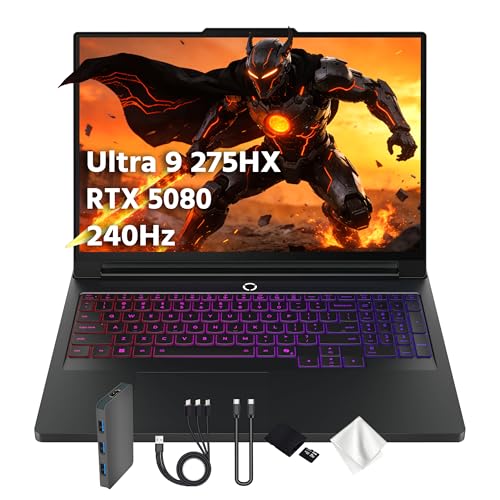
- ProcessorIntel Core Ultra 9 275HX @ 5.4 GHz
- GraphicsNVIDIA GeForce RTX 5080 16GB
- Memory32GB
- Storage1TB PCIe SSD
- Display16-inch WQXGA OLED, 2560×1600, 240Hz, 500 nits
- Weight5.95 lbs
The 5.4 GHz peak clock is the specification that matters here, and it is the one Autodesk’s own AutoCAD table asks for by name. Everything single-threaded — regenerating a view, opening a heavy sheet, recomputing a schedule — finishes on the fastest core available, and few laptops offer a faster one.
The RTX 5080’s 16GB of video memory is double what Autodesk names for large Revit models, which is the right kind of headroom if your week ends in rendered views, Enscape sessions or point-cloud work rather than drafting alone.
Notebookcheck measured the OLED panel at 970 nits in HDR and 500 nits in standard use with a 3.2 dE ColorChecker result, which is unusually accurate for a gaming display. The same review recorded the CPU settling at 3.9 GHz and 95°C under a Prime95 stress load with a 400W power supply feeding it — a reminder that this class of machine expects a wall socket.
The trade against the ThinkPad is straightforward: more raw speed, no certification, and 32GB that puts you at Autodesk’s middle Revit tier rather than the top one.
Pros
- Top-end single-core clock speeds up the operations that stall a drafting session
- 16GB of VRAM leaves room for rendering and visualization beyond Revit’s own needs
- Accurate, very bright OLED that doubles as a presentation screen for clients
Cons
- Not on Autodesk’s certified hardware lists, which some firms treat as a blocker
- 32GB puts large federated models at the tier below Autodesk’s Performance recommendation
- 400W brick and near-95°C sustained CPU temperatures make it a desk machine in practice
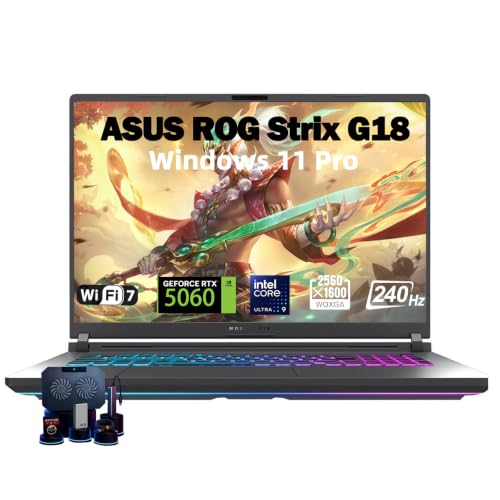
3. ASUS ROG Strix G18 2026 (Best for Large Revit Models)
Best for Large Revit Models
Last update on 2026-10-22 / Affiliate links / Images from Amazon Product Advertising API
- ProcessorIntel Core Ultra 9 275HX, 24-core, up to 5.4GHz
- GraphicsNVIDIA GeForce RTX 5060, 140W max TGP (5070/5070 Ti/5080 configs available)
- Memory64GB DDR5
- Storage1TB PCIe SSD
- Display18-inch 2.5K ROG Nebula IPS, 2560×1600, 240Hz, 500 nits, anti-glare film
- Weight7.7 lbs
Autodesk’s Performance tier for Revit asks for 64GB or higher, and this is the only machine in our database that ships that amount as standard alongside a current HX-class processor. Worksharing on a federated model is where that number stops being theoretical — every linked file, every open view and every local copy of the central model claims its share.
The 18-inch 16:10 panel is the largest here, and ASUS ships it with an anti-glare film rather than the gloss most 240Hz screens use. That is the correct choice for line work, even though the refresh rate itself does nothing for a static drawing.
Portability is the price. A long-term review of the G815 chassis put it at 3.3kg and called it the heaviest laptop released recently, noting that the display bezel flexes under pressure and that transport pressure produced IPS backlight bleed on the reviewer’s first unit. That review covered a G815LP with 16GB of RAM and an RTX 5070, not the 64GB RTX 5060 configuration recommended here — the chassis, panel and cooling observations carry over, the performance figures do not.
Two accessible SO-DIMM slots under a latched cover mean the memory is serviceable, which matters more on a machine bought specifically for its RAM.
Pros
- Meets Autodesk’s 64GB Performance tier out of the box, no upgrade required
- Largest usable drafting area of any pick, with an anti-glare finish
- Serviceable memory slots behind a latch rather than a glued panel
Cons
- At 7.7 lbs plus a large charger it is effectively a desktop replacement
- Base RTX 5060 has 8GB of VRAM — adequate for Revit, tight for heavy visualization
- Reviewer reported panel bleed after transport, so it wants a rigid case
4. Acer Predator Helios Neo 16 AI (Best Mid-Range Value)
Best Mid-Range Value
Last update on 2026-10-22 / Affiliate links / Images from Amazon Product Advertising API
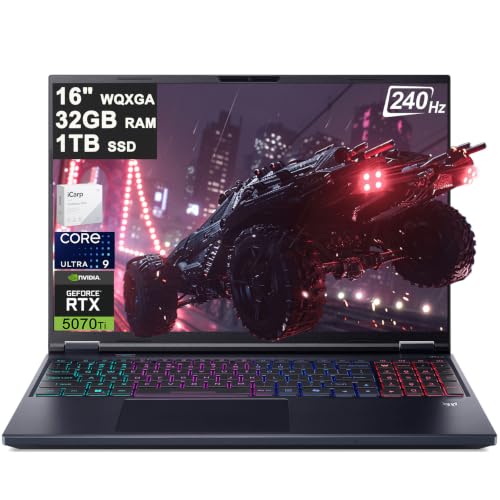
- ProcessorIntel Core Ultra 9 275HX, 24-core, 2.7-5.4GHz, 40MB cache
- GraphicsNVIDIA GeForce RTX 5070 Ti, 12GB
- Memory32GB DDR5-6400
- Storage1TB PCIe Gen4 SSD
- Display16-inch WQXGA IPS, 2560×1600, 240Hz, 500 nits, 100% DCI-P3
- Weight5.95 lbs
This is the configuration most drafters should look at first: the same 5.4 GHz Core Ultra 9 that heads the Legion, 12GB of video memory against Autodesk’s 8GB large-model figure, and 32GB of DDR5-6400 in two accessible slots.
LaptopMedia’s testing of the sibling OLED version is a useful warning about screen choice rather than a knock on this machine. That panel hit 100% sRGB and 100% DCI-P3 but measured 181 GU of reflectance, which the reviewers called one of the worst reflectance figures they had ever recorded. The IPS configuration listed here avoids that problem; Acer sells the OLED variant separately as the Helios Neo 16S AI.
The same review recorded a 2.0mm key travel and a full numeric keypad with full-size arrow keys — dull specifications until you spend a day entering coordinates and dimensions, at which point they are the difference between comfortable and irritating.
Cooling is the honest caveat. Reviewers saw peaks of 105°C on short CPU bursts and clocks settling near 4035 MHz over a sustained half-hour load, which is aggressive but not unusual in this chassis class.
Pros
- Fastest single-core clocks available without paying flagship prices
- 12GB VRAM exceeds Autodesk’s large-model recommendation with margin to spare
- Full numeric keypad with real arrow keys, plus dual M.2 slots and 64GB RAM ceiling
Cons
- Aggressive thermal behavior means clocks drop noticeably on long jobs
- Skip the OLED sibling if you work near windows — its gloss is severe
- 90Wh battery in a 5.95 lb chassis is a compromise in both directions
5. Gigabyte Aero X16 (Best for Site Visits)
Best for Site Visits
Last update on 2026-10-15 / Affiliate links / Images from Amazon Product Advertising API
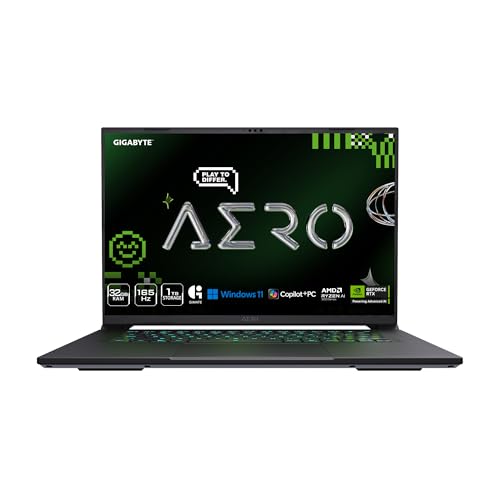
- ProcessorAMD Ryzen AI 9 HX 370, 12-core (Ryzen AI 7 350 config also available)
- GraphicsNVIDIA GeForce RTX 5070, 8GB GDDR7
- Memory32GB DDR5
- Storage1TB SSD
- Display16-inch WQXGA IPS, 2560×1600, 165Hz, 400 nits, 100% sRGB
- Weight4.18 lbs
Anyone whose week includes a site walk, a contractor meeting and a return to the office wants a 16-inch screen without a 6 lb chassis. The Aero X16 is 16.75mm thick and 4.18 lbs, and it still carries an RTX 5070 with the 8GB of video memory Autodesk names for large Revit models.
Tom’s Hardware clocked 9 hours and 13 minutes of battery life from it, the best result in their comparison group — a number that decides whether you can review a model in a site trailer without hunting for an outlet. That test used the Ryzen AI 7 350 with the RTX 5070 and 32GB of RAM, one CPU step below the Ryzen AI 9 HX 370 configuration listed here.
The panel is the compromise. The same review measured 369 nits and 78.5% DCI-P3 coverage and called the display average rather than creative-class. For 2D drafting on a white background that barely registers; for rendered client presentations it does.
Surface temperatures peaked at 114°F on the rear underside in that testing, with internal CPU and GPU averages of 58°C and 68°C — cool for the class, and the reason it can be this thin.
Pros
- Full 16-inch working area at a weight you can carry through a whole site day
- Battery life long enough to skip the charger on short trips
- Meets Autodesk’s 8GB video memory figure for large Revit models
Cons
- Display color coverage falls short for rendered visuals shown to clients
- Lower GPU power limit than thicker rivals with the same graphics chip
- Wi-Fi 6E rather than Wi-Fi 7, which matters on congested office networks
6. ASUS Zenbook Duo 2026 (Best for 2D Drafting Screen Space)
Best for 2D Drafting Screen Space
Last update on 2026-10-22 / Affiliate links / Images from Amazon Product Advertising API
- ProcessorIntel Core Ultra 9 386H (Panther Lake); Core Ultra X9 388H also available
- GraphicsIntel Graphics integrated; Intel Arc B390 on the X9 388H config
- Memory32GB LPDDR5X, soldered
- Storage1TB PCIe SSD, up to 2TB across two M.2 slots
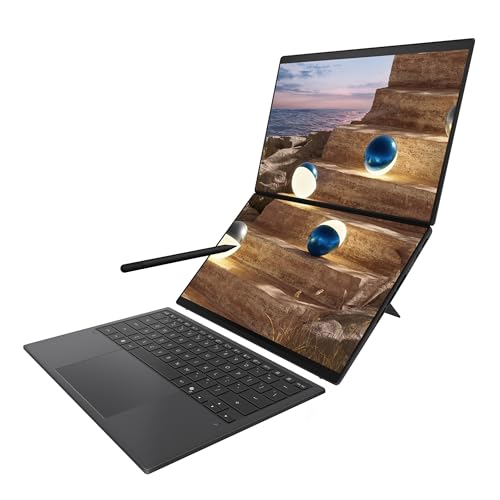
- DisplayDual 14-inch 3K OLED touchscreens, 2880×1800, 144Hz, 500 nits
- Weight3.64 lbs
Two 2880×1800 panels stacked in open-book mode give you somewhere to park the Project Browser, Properties palette and a reference sheet while the drawing keeps a full screen to itself. That is the single biggest quality-of-life change available to a drafter who works away from a docked monitor.
Notebookcheck found the redesigned hinge places the two screens closer together and makes open-book use “much more comfortable” than the previous generation, and measured roughly 497 cd/m² in SDR. Their unit was the top X9 388H build with Arc B390 graphics and 32GB of LPDDR5X; they also detected PWM flicker at 720 Hz across all brightness levels, which is the kind of thing that decides an eight-hour drafting day for flicker-sensitive users.
Be clear-eyed about the graphics. There is no discrete GPU in any configuration, so Autodesk’s 8GB video memory figure for large Revit models is out of reach. This is a machine for AutoCAD-led work and moderate Revit files, not for rendering — much the same reasoning we apply when weighing integrated graphics in our SketchUp laptop picks.
The 32GB of memory is soldered, so the Revit tier you buy is the Revit tier you keep.
Pros
- Second full screen for palettes and reference sheets with nothing to carry
- Two 3K panels give more total pixels than any single-screen pick here
- Light enough at 3.64 lbs to be a genuine daily-carry machine
Cons
- No discrete GPU option, so it cannot meet Revit’s large-model video memory figure
- Soldered memory caps you at Autodesk’s middle Revit tier permanently
- PWM flicker measured across the brightness range may rule it out for sensitive users
7. ASUS Vivobook 18 (Best Big Screen on a Budget)
Best Big Screen on a Budget

Last update on 2026-10-22 / Affiliate links / Images from Amazon Product Advertising API
- ProcessorAMD Ryzen 7 260, 8-core/16-thread (Ryzen AI 9 465 config also available)
- GraphicsAMD Radeon Graphics, integrated
- Memory32GB DDR5-5600
- Storage1TB SSD
- Display18.4-inch WUXGA IPS, 1920×1200, 144Hz, anti-glare, 300 nits
- Weight5.73 lbs
An 18.4-inch anti-glare panel at 1920×1200 is exactly the display Autodesk describes as AutoCAD’s standard target, delivered at the largest physical size in this list. For someone whose day is 2D drafting, sheet setup and plotting, that trade — big and matte over dense and glossy — is the right one.
Thirty-two gigabytes of DDR5 puts it squarely at Autodesk’s balanced Revit tier, which is unusual at this price and the main reason it earns a place over cheaper 15-inch machines.
LaptopMedia’s review of the M1807 measured 97% sRGB coverage, 352 cd/m² at center, no PWM, and 10 hours 35 minutes of video playback. It also flagged what you give up: a cramped numeric keypad and half-height arrow keys on a chassis with room for neither compromise, plus 126 PPI that makes fine linework look coarse up close. Their unit ran a Ryzen AI 7 445 rather than the Ryzen 7 260 in this configuration.
There is one SO-DIMM slot and a single M.2 bay, so upgrades mean replacing parts rather than adding them.
Pros
- Largest matte drafting surface available for the money
- 32GB as standard clears Autodesk’s balanced Revit tier without an upgrade
- PWM-free panel and over ten hours of playback make long sessions bearable
Cons
- Integrated graphics only — fine for AutoCAD, limiting for anything rendered
- Cramped numpad and half-height arrows undercut the productivity case for an 18-inch body
- 126 PPI shows on fine linework, and a single memory slot limits future headroom
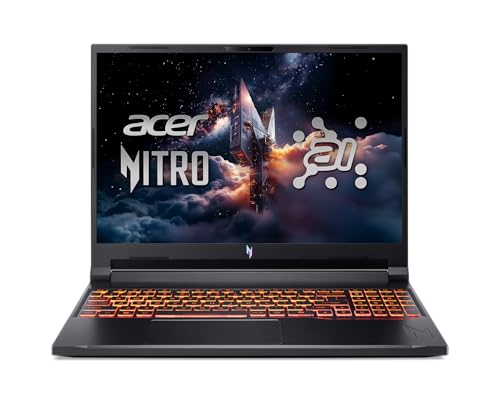
8. Acer Nitro V 16 (Best Budget Pick)
Best Budget Pick
Last update on 2026-10-22 / Affiliate links / Images from Amazon Product Advertising API
- ProcessorAMD Ryzen AI 5 340
- GraphicsNVIDIA GeForce RTX 5060 8GB (95W) plus integrated Radeon 840M
- Memory16GB DDR5-5600
- Storage512GB Gen4 SSD
- Display16-inch WUXGA IPS, 1920×1200, 180Hz
- Weight5.4 lbs
Students and new drafters need a machine that runs both programs legally and comfortably, not one that satisfies a firm’s procurement policy. The RTX 5060’s 8GB of video memory already matches Autodesk’s large-model figure, and 16GB of system RAM meets the published Revit minimum.
What makes it the budget pick rather than merely the cheap one is that both memory slots and both M.2 bays are user-accessible, with a 64GB ceiling. Start at 16GB, add a second stick when your models grow, and the machine follows you from coursework into practice.
LaptopMedia’s review of the ANV16-61 found the base panel covers only 57% of sRGB with visibly muted colors, though it is PWM-free and higher-tier 100% sRGB options exist. Muted color is survivable for monochrome drafting and a genuine problem for rendered output.
Cooling held up well in that testing, averaging 79°C over a 30-minute CPU load with minimal clock drop, and the chassis includes a full-size numeric keypad.
Pros
- Two memory slots and two M.2 bays make it the cheapest genuinely upgradeable pick
- 8GB of VRAM already meets Autodesk’s large-model video memory figure
- Holds clocks steady under sustained load instead of throttling hard
Cons
- Base panel’s 57% sRGB coverage makes rendered views look flat
- 512GB fills quickly once local model caches and families accumulate
- 16GB shipped means a memory purchase is coming if Revit becomes your main tool
Recommended Accessories
A second display, a precise pointing device and somewhere to keep model archives cover most of what a drafting setup needs beyond the laptop itself.




Last update on 2026-10-22 / Affiliate links / Images from Amazon Product Advertising API
Which AutoCAD and Revit Laptop Should You Buy?
| Laptop | Best for | Why it wins that slot |
|---|---|---|
| Lenovo ThinkPad P16 Gen 3 | Overall | Certified RTX PRO graphics, 3840×2400 matte panel, four memory slots |
| Lenovo Legion Pro 7i Gen 10 | Rendering and visualization | 5.4GHz peak clocks and 16GB of VRAM for work that ends in images |
| ASUS ROG Strix G18 | Large Revit models | 64GB as standard, matching Autodesk’s Performance tier |
| Acer Predator Helios Neo 16 AI | Mid-range value | Flagship clock speeds and 12GB VRAM without flagship pricing |
| Gigabyte Aero X16 | Site visits | 16-inch screen and nine-hour battery at 4.18 lbs |
| ASUS Zenbook Duo | 2D drafting screen space | Two 3K panels for palettes and references away from a desk |
| ASUS Vivobook 18 | Big screen on a budget | 18.4-inch matte panel with 32GB at an everyday price |
| Acer Nitro V 16 | Budget and students | Cheapest pick with two RAM slots, two M.2 bays and 8GB of VRAM |
AutoCAD and Revit Laptop FAQ
Do I need a workstation GPU like RTX PRO for AutoCAD and Revit?
No, in most cases. Autodesk’s certified hardware pages say cards not listed “may still work with the product, but Autodesk has not yet received or verified test results,” and from Revit 2023.1 onward the certification check was replaced by a direct test of DirectX version, Shader Model version and available GPU memory. A certified RTX PRO card buys tested drivers and cleaner vendor support, which matters when an IT department or a client contract requires it.
How many CPU cores do AutoCAD and Revit actually use?
Fewer than most buying guides imply. Autodesk lists specific multi-threaded features in AutoCAD — surface tessellation, xref copying, hatch conversion, publishing and graphics — and acknowledges that the acad.exe process does not use all available CPU resources. Revit’s published requirement is a clock speed of 2 GHz or higher and does not change across any of the three performance tiers. A fast eight-core chip generally beats a slower sixteen-core one.
Is 16GB of RAM enough for Revit?
It meets Autodesk’s stated minimum and is fine for coursework and small projects. Autodesk’s balanced tier calls for 32GB or higher, and its large-complex-model tier calls for 64GB or higher. Buy for the largest model you expect to open, and prefer a machine with accessible memory slots if you are unsure.
Can I run Revit on a MacBook?
Not natively. Autodesk lists 64-bit Windows as the operating system requirement for Revit, so a Mac needs virtualization or a separate Windows machine. AutoCAD does have a macOS version, but it is a different product from the Windows release and does not carry every toolset, so a Revit user is better served by a Windows laptop.
Does a high refresh rate display help with CAD work?
Only marginally. Panning and orbiting look smoother, but 2D drafting is a static-image task and Autodesk’s requirements do not mention refresh rate at all. Resolution, physical screen size and an anti-glare finish change how much you can see and how comfortable a long day is; 240Hz does not.
How much VRAM do I need for Revit?
Autodesk’s published figures are 4GB at the minimum tier, 6GB at the value tier and 8GB for large complex models. AutoCAD’s recommended display card is an 8GB unit with 106 GB/s of bandwidth and DirectX 12 support. Anything above 8GB is headroom for rendering and visualization rather than a Revit requirement.
Is an 18-inch laptop practical for drafting?
It is, if the machine mostly lives on a desk. The extra area genuinely helps once the ribbon, Properties palette and Project Browser take their share of the screen. The cost is weight and bag size — the 18-inch picks here run from 5.73 to 7.7 lbs, and one reviewer reported panel damage from transport pressure on a soft case.
Should I buy more storage or more RAM first?
RAM, if Revit is central to your work, because it is the specification Autodesk scales with model size and the one most laptops make hardest to change later. Storage is usually a second M.2 slot away. If your machine has soldered memory, that decision is made permanently at purchase.
Are these laptops suitable for other engineering software?
Broadly yes — the high-clock, 32GB, discrete-GPU profile that suits Autodesk work also covers most parametric CAD and simulation tools. Requirements diverge once you move toward toolpath generation or heavy numerical work, which is why we treat those separately in guides for CNC programming and process simulation.
Final Thoughts on AutoCAD and Revit Laptops
Autodesk has already written down what these programs need, and the answer is a fast core, memory sized to your largest model, and a screen big enough to hold the palettes. Core count and refresh rate, the two numbers most listings lead with, barely appear in either document.
Decide which program dominates your week before you decide anything else. AutoCAD-led work can be served well by an integrated-graphics machine with a large matte panel; Revit-led work on federated models is the case that justifies 64GB and a certified GPU.