Most people shopping for a medical school laptop start with the wrong question. They compare battery numbers and screen sizes, buy something excellent, and then find out in week two that it cannot legally sit in front of them during a block exam.
Medical education runs on locked-down exam software, and that software publishes a hard list of what it will and will not run on. Everything else — the twelve-hour lecture days, the rotation shifts with no free outlet, the terabyte of recorded lectures — matters enormously, but it matters second. This guide starts with the exam requirement, then works through what decides the other four years.
Editor’s Pick


Last update on 2026-10-22 / Affiliate links / Images from Amazon Product Advertising API
It sits inside every published requirement list a medical curriculum throws at it, weighs less than most anatomy textbooks, and runs silently through a lecture hall because it has no fan.
- Apple M5, 10-core CPU and 10-core GPU
- 16GB unified memory, 512GB SSD
- 13.6-inch Liquid Retina, 2560 x 1664
- 2.71 lbs, rated 18 hours
What’s Inside
- 1 – Medical School Laptop Buyer's Guide
- 1.1 – Exam Software Comes First
- 1.2 – Battery Life for Lectures and Rotations
- 1.3 – Weight You Carry Every Day
- 1.4 – Screen Size and Resolution for Slides and Imaging
- 1.5 – Storage for Lecture Recordings and Question Banks
- 1.6 – Anki and the Spaced Repetition Reality
- 1.7 – Pen and Touch: Useful, Not Essential
- 1.8 – Anatomy Software Is the One Graphics Workload
- 2 – Medical School Laptop Comparison Table
- 3 – Best Medical School Laptop Reviews
- 3.1 – 1. Apple MacBook Air 13-inch M5 (Best Overall)
- 3.2 – 2. LG gram 15 (Best Battery Life for Rotations)
- 3.3 – 3. Lenovo Yoga 9i 2-in-1 Aura Edition (Best for Annotating Slides)
- 3.4 – 4. Lenovo ThinkPad X1 Carbon Gen 13 Aura Edition (Best for Big Storage)
- 3.5 – 5. LG gram Pro 17 (Best Large Screen for Imaging)
- 3.6 – 6. Dell 16 Laptop (Best Midrange 16-Inch Touchscreen)
- 3.7 – 7. Acer Aspire Go 15 AI (Best Budget Pick)
- 4 – Recommended Accessories
- 5 – Which Medical School Laptop Should You Buy?
- 6 – Medical School Laptop FAQ
- 7 – Final Thoughts on Medical School Laptops
Medical School Laptop Buyer’s Guide
Exam Software Comes First
Examplify, the ExamSoft client that a large share of US medical schools use for block and shelf-style assessments, publishes its own minimum system requirements. The list is short and it is absolute: 64-bit Windows 11 (23H2, 24H2 or 25H2), macOS Sonoma, Sequoia or Tahoe, or iPadOS 18 or 26. ExamSoft states plainly that Examplify will not run on Chromebooks, Android or Linux.
The same page sets 4GB of RAM as the floor, 8GB when the ExamMonitor remote proctoring module is switched on, and asks for 4GB or more of free disk space plus a display of at least 1280 x 768 with scaling at 100 percent. ExamMonitor also requires an integrated or external USB camera that your operating system already supports, and ExamSoft specifies that virtual cameras are not accepted.
Three machines that will fail you on exam day. ExamSoft’s requirements page rules out Chromebooks, Android and Linux outright — so a Chromebook is not a medical school laptop, no matter how good the battery is. It also states that using Examplify in a virtual environment violates the End-User License Agreement, which kills the “run Windows in a VM on my Mac” workaround. And Windows-on-ARM machines are only conditionally supported: ExamSoft says ARM processors work only on Windows 11 24H2 or higher with Examplify 3.10.0 or higher. Every Snapdragon laptop in the 2026 lineup sits inside a support window narrow enough that we left them out of the picks below.
Practice testing adds a second requirement set. The NBME publishes its standard web-based testing requirements for self-assessments and subject exams, listing Windows 11, macOS 13 or higher, and iOS 16 or higher on iPad only. That document requires a secure browser on Windows and macOS, asks for 1024 x 768 or better with a 13-inch or larger laptop screen, and specifies at least 25 Mbps down and 5 Mbps up on a broadband connection. Android tablets are not supported; Chromebooks are not listed at all.
Neither vendor requires a fast processor. Both require a specific operating system on real hardware. That is the single most important sentence in this guide, and it is a different spine from the program-PDF approach we take in our pharmacy student laptop picks, where accreditation-driven hardware minimums vary school by school.
Battery Life for Lectures and Rotations
Preclinical years are long stretches of note-taking in rooms where the outlets are already claimed. Clinical years are worse, because a hospital workroom is not designed around charging a student’s laptop and you may not return to your bag for hours.
Treat manufacturer battery ratings as ceilings, not expectations. Tom’s Guide runs a consistent web-browsing test at 150 nits and recorded 15 hours 37 minutes on the MacBook Air M5 against Apple’s 18-hour rating. A machine rated in the mid-teens usually clears a lecture day. Anything rated under about 10 hours means carrying a charger, which is a real cost when you are also carrying a stethoscope and a white coat.
Weight You Carry Every Day
This is the spec students underrate at purchase and resent by November. A medical school laptop moves between lecture hall, library, apartment and hospital every single day for four years, usually in a bag that already holds a laptop charger, a phone charger, food and clinic gear.
Under 3 lbs is the comfortable band. Between 3 and 4 lbs is livable if the screen size buys you something. Above 4.5 lbs, you will start leaving it at home, and a laptop you leave at home does not help you pass anything.
Screen Size and Resolution for Slides and Imaging
Lecture slides are dense, and the common study posture is a slide deck on one half of the screen and a note document or question bank on the other. A 13-inch 1920 x 1200 panel does that badly. A 14-inch panel at 2880 x 1800, or any 16-inch screen, does it well.
Resolution matters more than size for one specific job: reading radiology. Grayscale chest films and CT slices lose detail fast on a low-resolution panel, and a matte or anti-glare finish helps in a bright reading room. High peak brightness is genuinely useful here rather than a marketing line.
Storage for Lecture Recordings and Question Banks
Examplify itself needs only 4GB free, but the rest of the curriculum is not so modest. Downloaded lecture captures, offline anatomy apps and years of accumulated slide decks fill a 256GB drive before second year ends, and a full drive is exactly the condition that makes exam software misbehave when it needs working space.
512GB is the sensible floor and 1TB is the comfortable answer. If you want to understand why an internal SSD beats an external drive for anything you open daily, the trade-offs are covered in our breakdown of laptop storage types.
Anki and the Spaced Repetition Reality
Anki is close to universal in medical school, and shared decks with tens of thousands of image-heavy cards are the norm rather than the exception. The Anki manual publishes an operating system floor — the 64-bit version of Windows 10 or 11 — but it does not publish any minimum RAM, CPU or graphics figure, so we are not going to invent one.
What we can say from the shape of the workload is that large decks are memory-hungry rather than processor-hungry, because the whole collection and its media index sit open alongside a browser full of resources. 16GB is the specification that keeps that comfortable; if you want the reasoning behind that number in general terms, our guide to how much RAM you actually need works through it.
Pen and Touch: Useful, Not Essential
A stylus earns its place if you annotate slides directly or sketch biochemical pathways and branching diagnostic trees by hand. It earns nothing if you type your notes, and a convertible hinge adds weight and cost either way.
One caution specific to this topic: a pure detachable tablet is a weaker choice than a convertible here, because exam software wants a real keyboard and a stable camera angle. If you are set on that form factor anyway, our roundup of detachable-keyboard laptops covers what to look for.
Anatomy Software Is the One Graphics Workload
Everything else in a medical curriculum is text and video. 3D anatomy is not. Elsevier’s published requirements for Complete Anatomy list Windows 11 64-bit or ARM, a minimum of Intel HD Graphics 520 or AMD Radeon HD 6700M, DirectX 12 with hardware feature level 11, and 2GB of dedicated or shared video memory. The recommended tier steps up to an Intel HD Graphics 630, Nvidia GTX 1050 or AMD RX 570 equivalent, with 8GB of RAM.
Integrated graphics clear this bar in 2026. Complete Anatomy’s minimum graphics tier is a nine-year-old Intel part, and its recommended tier is roughly a GTX 1050. Any current Intel Arc, AMD Radeon or Apple M-series integrated GPU is comfortably past both, which is why no pick below needs a discrete card. Visible Body’s Windows requirements are lighter still — Cengage’s help documentation lists 4GB of RAM, 1.84GB of storage and a 1024 x 768 screen, with a dedicated video card only recommended, not required.
Medical School Laptop Comparison Table




Last update on 2026-10-22 / Affiliate links / Images from Amazon Product Advertising API
Best Medical School Laptop Reviews
1. Apple MacBook Air 13-inch M5 (Best Overall)
Best Overall
Last update on 2026-10-22 / Affiliate links / Images from Amazon Product Advertising API
- ProcessorApple M5 (10-core CPU)
- GraphicsApple M5 10-core GPU (integrated)
- Memory16GB
- Storage512GB SSD
- Display13.6-inch Liquid Retina, 2560 x 1664
- Weight2.71 lbs
- BatteryRated 18 hours
Start with compliance, because that is the filter. macOS is on ExamSoft’s supported list, it is on the NBME’s list at version 13 or higher, and Complete Anatomy supports MacBook Air models from 2018 onward on macOS 15 or later. The Air satisfies all three natively, without a virtual machine — which, per ExamSoft’s own EULA language, is the only way you are allowed to satisfy them.
Then the thing you notice in an exam room: it has no fan. Every Windows ultrabook in this guide will spin up at some point during a three-hour proctored block, and the Air simply will not, because M-series Airs are passively cooled. In a silent hall that difference is not subtle.
Tom’s Guide’s standardized web test at 150 nits returned 15 hours 37 minutes, short of Apple’s 18-hour rating but far past a full teaching day. At 2.71 lbs it is also the pick you will actually keep carrying into third year.
The honest limitation is the 13.6-inch panel. Its 2560 x 1664 resolution is sharp enough for imaging, but the physical width makes a slides-plus-notes split cramped, and there is no touchscreen or pen support at all. If either of those describes how you study, look further down this list.
Pros
- Meets ExamSoft, NBME and Complete Anatomy operating system requirements without workarounds
- Fanless, so it stays silent through long proctored exams
- Cleared 15+ hours in a standardized browsing test, enough for lectures plus evening review
- Light enough that carrying it daily for four years is not a decision you have to make
Cons
- 13.6-inch screen makes side-by-side slides and notes tight
- No touch or stylus support, so slide annotation means a separate tablet
- 512GB fills quickly if you hoard lecture recordings
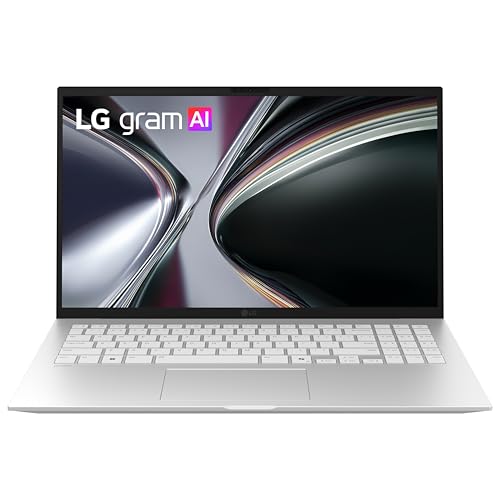
2. LG gram 15 (Best Battery Life for Rotations)
Best Battery Life
Last update on 2026-10-22 / Affiliate links / Images from Amazon Product Advertising API
- ProcessorAMD Ryzen AI 7 450 (8-core)
- GraphicsAMD Radeon Graphics (integrated)
- Memory16GB (32GB configs also available)
- Storage512GB SSD (1TB configs also available)
- Display15.6-inch FHD IPS touchscreen, 1920 x 1080
- Weight2.8 lbs
- BatteryRated 28 hours, 72Wh
A 15.6-inch laptop that weighs 2.8 lbs is unusual enough on its own. Pairing it with a 72Wh battery that LG rates at up to 28 hours is what makes this the rotation machine. Even discounting that rating heavily, as you should discount any manufacturer figure, it is the pick least likely to strand you in a workroom with no outlet.
LG also states the chassis passes MIL-STD-810H across seven durability tests. That is a testing standard rather than a warranty promise, but a gram’s weight comes from a thin magnesium alloy shell, and knowing the shell was put through drop and pressure testing is reassuring for something that lives in a call-room bag.
Windows 11 puts it squarely inside ExamSoft’s and the NBME’s supported lists, and it is an x86 AMD chip rather than ARM, so none of the version-gated ARM caveats apply. The touchscreen is a bonus for scrolling question banks one-handed.
The compromise is the panel. 1920 x 1080 stretched over 15.6 inches is the lowest pixel density in this roundup, and grayscale imaging looks softer here than on the higher-resolution picks. For notes, decks and Anki it is completely fine; for reading films critically it is the weakest screen on the list.
Pros
- Highest battery rating here, which is the difference between charging at lunch and not thinking about it
- 2.8 lbs for a 15.6-inch screen means big-screen study without the big-screen bag
- MIL-STD-810H tested chassis for a laptop that lives in a bag all day
- Touchscreen makes question-bank review easy standing up
Cons
- 1080p over 15.6 inches costs you detail when reading imaging
- 512GB base storage means a 1TB config or an external drive for recorded lectures
- Thin magnesium chassis flexes more than a thicker plastic laptop would
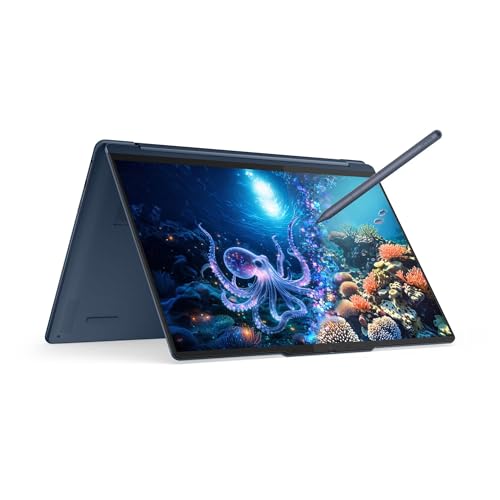
3. Lenovo Yoga 9i 2-in-1 Aura Edition (Best for Annotating Slides)
Best for Pen Annotation
Last update on 2026-10-22 / Affiliate links / Images from Amazon Product Advertising API
- ProcessorIntel Core Ultra 7 355 (8-core, Panther Lake)
- GraphicsIntel integrated
- Memory32GB LPDDR5X-7467
- Storage1TB M.2 NVMe SSD
- Display14-inch 2.8K OLED touchscreen, 2880 x 1800, 120Hz
- PenYoga Pen Gen 2 support
- OSWindows 11 Pro
If your study method is marking up slide decks by hand, this is the machine built for it. The 360-degree hinge folds flat, the 2880 x 1800 OLED gives you enough resolution to keep a full slide legible while you write on it, and the bundled Yoga Pen Gen 2 charges over USB-C and magnets to the back of the lid, so it is with you rather than in a drawer.
Ultrabook Review measured 486 cd/m² at center on a plugged-in unit configured with the same Core Ultra 7 355, 32GB of memory and 1TB drive as this listing. Bright enough for a sunlit library, and the OLED contrast is what makes grayscale CT slices readable rather than muddy.
32GB of memory and a 1TB drive at purchase mean this is also the pick you do not have to manage. Large Anki collections, a full offline anatomy install and years of lecture captures fit without a triage session every semester.
Battery is the trade. The same review recorded roughly 7 to 8 hours of text editing and 12 to 14 hours of video streaming in Battery Saver at 60 percent brightness — solid for a bright OLED convertible, but a long way behind the gram. Plan on a charger for a full clinical day.
Pros
- Pen is included and stays attached magnetically, so annotation actually happens
- Measured 486 cd/m² center brightness, comfortable in bright rooms
- 32GB and 1TB out of the box removes storage and memory as future problems
- Fold-flat hinge suits reading and marking up in a chair or on a ward
Cons
- Roughly 7 to 8 hours of real text work means carrying the charger
- Premium price for capability you will not use if you type your notes
- Glossy OLED reflects overhead fluorescent lighting
4. Lenovo ThinkPad X1 Carbon Gen 13 Aura Edition (Best for Big Storage)
Best for Lecture Archives

Last update on 2026-10-22 / Affiliate links / Images from Amazon Product Advertising API
- ProcessorIntel Core Ultra 7 258V
- Memory32GB DDR5
- Storage2TB Gen 5 SSD
- Display14-inch 2.8K OLED, 2880 x 1800
- OSWindows 11 Pro
- WirelessWi-Fi 7
2TB is the reason this one is here. Four years of downloaded lecture captures, a full offline Complete Anatomy install, and every question-bank export you will ever make fit on this drive without you thinking about it once.
Notebookcheck weighed its X1 Carbon Gen 13 review unit at 982 g, calling it the lightest 14-inch ThinkPad ever made, and measured its OLED panel at roughly 410 cd/m² against Lenovo’s 400-nit claim. That unit was configured with 32GB of memory and a 1TB drive rather than the 2TB in this listing; the chassis, panel and processor are the same.
The keyboard is the other argument. Notebookcheck describes typing on the 1.5 mm travel keys as “a joy”, and if you take typed notes through every lecture for four years, keyboard quality compounds in a way no spec sheet captures.
It is the most expensive pick here and it does not have a touchscreen in this configuration. You are paying for the drive, the keyboard and the weight, not for versatility.
Pros
- 2TB means you never delete a lecture recording to make room for another
- Under a kilogram in the reviewed configuration — the lightest thing here by a clear margin
- Keyboard is built for people who type all day, every day
- Windows 11 Pro sits inside every exam requirement checked in this guide
Cons
- Highest price on this list by a wide margin
- No pen or touch, so slide annotation is off the table
- Database lists this ASIN as an Amazon listing not yet cross-verified against Lenovo.com — confirm the exact configuration before buying
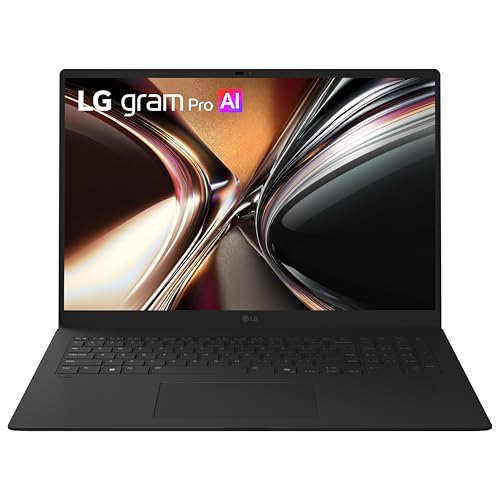
5. LG gram Pro 17 (Best Large Screen for Imaging)
Best Large Screen
Last update on 2026-10-22 / Affiliate links / Images from Amazon Product Advertising API
- ProcessorIntel Core Ultra 7 355 (8-core)
- GraphicsIntel integrated graphics
- Memory32GB LPDDR5X
- Storage1TB NVMe SSD (2TB configs also available)
- Display17-inch WQXGA touchscreen, 2560 x 1600, 350 nits
- Weight3.02 lbs
- BatteryRated 26.5 hours, 77Wh
A 17-inch screen at 3.02 lbs is the trick nobody else pulls off, and it changes how you study. A full lecture slide at readable size on the left, a question bank on the right, no window juggling — that is the workflow this display exists for, and 2560 x 1600 gives grayscale imaging room to show detail.
Techgoondu’s review of the 2026 gram Pro found the chassis “pretty sturdy” despite a 12.4 mm profile, but flagged the keyboard’s shallow key travel as a weakness for long typing sessions. That review covered the 16-inch 3K OLED model with a Core Ultra X7 358H, not this 17-inch integrated-graphics touchscreen configuration, so treat the keyboard note as a family trait rather than a measurement of this exact unit.
The 77Wh battery and LG’s 26.5-hour rating put it in the same endurance class as the gram 15, and the MIL-STD-810H testing carries across the line. Two Thunderbolt 4 ports plus HDMI 2.1 means it docks to a library monitor without adapters.
It is still a 17-inch laptop. It will not fit every backpack, it will overhang a small lecture-hall desk, and it is the wrong shape for a crowded workroom table. Buy it if your study happens at a desk and the commute is short.
Pros
- Genuine two-window study at readable slide size, no window management
- 2560 x 1600 has the pixel density that grayscale imaging needs
- 3.02 lbs makes a 17-inch screen portable in a way it normally is not
- Thunderbolt 4 plus HDMI 2.1 for a dongle-free library or apartment desk setup
Cons
- 17-inch footprint does not fit small desks or standard backpack sleeves
- Shallow key travel across the gram Pro line is a real cost for heavy note-takers
- Priced at the top of this list without the storage of the ThinkPad
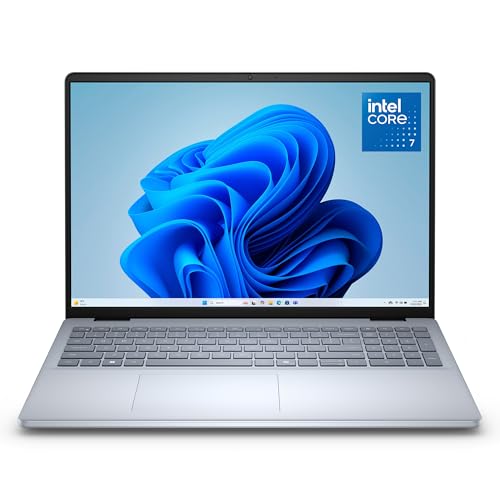
6. Dell 16 Laptop (Best Midrange 16-Inch Touchscreen)
Best Midrange
Last update on 2026-10-22 / Affiliate links / Images from Amazon Product Advertising API
- ProcessorIntel Core 7 150U (10-core, up to 5.4GHz)
- GraphicsIntel Graphics (integrated)
- Memory16GB DDR5 (32GB and 64GB configs also available)
- Storage1TB SSD (2TB and 4TB configs also available)
- Display16-inch 16:10 2K touchscreen, 1920 x 1200, 300 nits
- ExtrasSD card reader, ComfortView Plus low blue light
- OSWindows 11 Home (Pro configs also sold)
This is the pragmatic middle. A 16-inch 16:10 touchscreen, 16GB of memory and a 1TB drive covers the whole preclinical workload, and the configuration ladder runs to 64GB and 4TB if a research year later demands it.
The 16:10 aspect ratio is the underrated part. Compared to a 16:9 panel of the same diagonal, you get vertical room, which is exactly what a scrolling question bank or a long slide deck wants. Dell’s ComfortView Plus is a hardware-level low blue light panel rather than a software filter, so you keep it on permanently without the display turning amber.
An SD card reader is unusual at this price and occasionally useful in a curriculum that hands you imaging on physical media. Ports are otherwise modest: two USB-A, one USB-C with power delivery, and HDMI 1.4.
Our database does not list a battery rating for this model, so we will not quote one. The Core 7 150U is a 15W part in a 16-inch chassis, which is a reasonable combination, but if all-day unplugged endurance is your priority the gram 15 is the safer answer.
Pros
- 16:10 touchscreen gives real vertical space for question banks and slide decks
- 1TB standard, with 2TB and 4TB configurations if you archive everything
- Hardware low blue light panel you can leave enabled without a color shift
- SD card reader handles imaging handed over on physical media
Cons
- No published battery figure in our database, so plan around a charger until you know
- 1920 x 1200 across 16 inches is adequate rather than sharp for imaging
- HDMI 1.4 and a single USB-C limit what you can drive from one cable
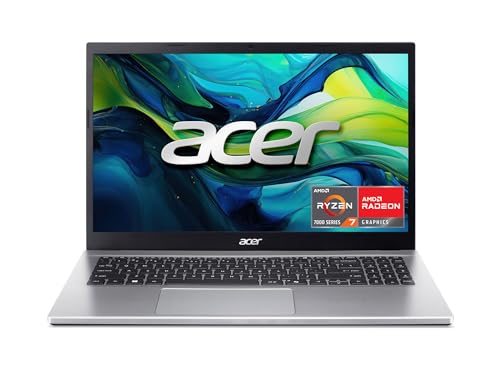
7. Acer Aspire Go 15 AI (Best Budget Pick)
Best Budget
Last update on 2026-10-22 / Affiliate links / Images from Amazon Product Advertising API
- ProcessorAMD Ryzen 7 7730U
- GraphicsAMD Radeon Graphics (integrated)
- Memory16GB DDR4
- Storage512GB PCIe NVMe 4.0
- Display15.6-inch Full HD IPS, 1920 x 1080
- Weight3.92 lbs
- BatteryRated 12.5 hours
Every requirement in this guide is met by a machine costing a fraction of the ThinkPad. Windows 11, an x86 processor, 16GB of memory, 512GB of storage and a webcam for ExamMonitor — there is nothing here that Examplify or the NBME secure browser objects to.
The Ryzen 7 7730U also matters more than the price suggests. PCWorld’s review of a cheaper Aspire Go 15 built on an Intel Core i3-N355 criticized that model’s N-series chip as too slow for demanding work and unsuitable for 3D applications — a caution that applies to the low-end Aspire configurations, not to this 8-core Ryzen build. When you shop this line, the processor is the spec that separates a usable machine from a frustrating one.
Connectivity is unusually generous for the money: three USB-A ports, USB-C, HDMI and a built-in Ethernet jack, which is occasionally the fastest way onto a hospital network that dislikes personal devices on Wi-Fi.
At 3.92 lbs it is the heaviest thing on this list, the 1080p IPS panel is the plainest, and the 12.5-hour rating is honest rather than exceptional. It is a first-year machine that will get you through, not a laptop you will love in fourth year.
Pros
- Clears every exam software requirement in this guide at the lowest cost here
- 8-core Ryzen 7 rather than the N-series chip in cheaper Aspire configurations
- Ethernet port for hospital networks that block personal Wi-Fi devices
- 16GB standard, so large Anki collections are not a problem
Cons
- 3.92 lbs is heavy for something carried every day for four years
- Basic 1080p IPS panel, weakest choice for reading imaging
- DDR4 memory and a plastic chassis show where the cost came out
Recommended Accessories
Three of these solve problems this guide raised directly: storage that fills up, outlets that do not exist on a ward, and a hospital network that wants a wired connection.



Last update on 2026-09-05 / Affiliate links / Images from Amazon Product Advertising API
Which Medical School Laptop Should You Buy?
| Laptop | Buy it if |
|---|---|
| Apple MacBook Air 13-inch M5 | You want the safest compliance answer, silent operation in exams, and the lightest daily carry. |
| LG gram 15 | Rotations are your worry and you need a big screen that survives a shift unplugged. |
| Lenovo Yoga 9i 2-in-1 | You annotate slides by hand and want the pen included rather than an afterthought. |
| Lenovo ThinkPad X1 Carbon Gen 13 | You archive every lecture recording and type notes all day on a keyboard that has to be right. |
| LG gram Pro 17 | You study at a desk and want slides and a question bank side by side at full size. |
| Dell 16 Laptop | You want a big 16:10 touchscreen and 1TB without paying premium ultrabook money. |
| Acer Aspire Go 15 AI | Budget is the constraint and you need something that passes every exam requirement, nothing more. |
Medical School Laptop FAQ
Can I use a Chromebook for medical school?
No, if your school uses Examplify. ExamSoft’s published minimum system requirements state that Examplify will not run on Chromebook, Android or Linux operating systems. The NBME’s web-based testing requirements list only Windows 11, macOS 13 or higher, and iOS 16 or higher on iPad, and require a secure browser on Windows and macOS. A Chromebook cannot sit either exam.
Can I run Examplify in a virtual machine on my Mac?
No. ExamSoft states on its requirements page that using Examplify in a virtual environment is a violation of the End-User License Agreement. If you need Windows-only software for another class, that is a reason to buy a Windows laptop, not a reason to virtualize your exam client.
Is a Snapdragon or ARM Windows laptop safe for exams?
Conditionally, and we chose not to recommend one here. ExamSoft says ARM processors are supported on Windows only with Windows 11 24H2 or higher and Examplify version 3.10.0 or higher. That is a narrower support window than an x86 machine sits in, and it depends on your school keeping its Examplify version current. If your program has explicitly approved an ARM device, it is fine; otherwise an Intel, AMD or Apple silicon machine removes the question entirely.
How much RAM do I need for medical school?
ExamSoft asks for 4GB minimum and 8GB when ExamMonitor proctoring is enabled. Complete Anatomy lists 4GB minimum and 8GB recommended. Neither is the binding constraint in practice — a large Anki collection running alongside a browser full of resources is. Every pick in this guide ships with at least 16GB for that reason.
Does Anki publish minimum system requirements?
Only for the operating system. The Anki manual states that recent releases require the 64-bit version of Windows 10 or 11, and notes which older Anki versions supported Windows 7, 8.1 and 32-bit systems. It does not publish a minimum RAM, CPU or graphics specification, so any figure you see quoted for Anki hardware is someone’s estimate rather than a vendor requirement.
Do I need a dedicated graphics card for 3D anatomy software?
No. Complete Anatomy’s published Windows minimum is Intel HD Graphics 520 or an AMD Radeon HD 6700M with DirectX 12 hardware feature level 11 and 2GB of video memory, and its recommended tier is around a GTX 1050 or Intel HD Graphics 630. Current integrated graphics clear both. Visible Body’s Windows documentation lists a dedicated video card as recommended only.
Do I need a webcam for exams?
If your school enables ExamMonitor, yes. ExamSoft requires an integrated or external USB camera that your operating system supports, and explicitly does not accept virtual cameras. It also specifies a microphone with no headphones and no virtual microphones, plus at least 2.5 Mbps upload speed. Every laptop in this roundup has a built-in camera.
How much storage should a medical student buy?
512GB is the working minimum and 1TB is the comfortable answer. Examplify itself needs only 4GB free and Visible Body about 1.84GB, but downloaded lecture captures are what fill a drive. If you are choosing between more storage now and adding an external drive later, the internal drive is the better purchase for anything you open daily.
Is a touchscreen or stylus necessary?
Necessary, no. Useful, yes, if you annotate slides by hand rather than typing. A convertible costs weight and money for a capability that a typist will never open, so decide based on how you already study rather than how you imagine you will.
Final Thoughts on Medical School Laptops
Check your own school’s technology page before you buy, because the version numbers in ExamSoft’s and the NBME’s requirements move and your program may be stricter than either. But the shape of the answer does not change: a current Windows 11 x86 machine or an Apple silicon Mac, 16GB of memory, at least 512GB of storage, a real webcam, and a battery you can trust on a ward.
Get those right and the rest is preference. Get the operating system wrong and no amount of battery life will help you on exam morning.