Storage is the specification buyers understand least and shop for most confidently. A listing says 512GB SSD, that sounds like plenty, and the decision is made. Six months later the drive is full, or copying a folder of video crawls to a stop halfway through — neither outcome visible in the number on the product page.
Most guides settle this with SSD versus hard drive and move on, which was useful a decade ago and answers little now that essentially every laptop ships with flash. What decides whether you are happy with a drive in three years is what the capacity is worth after the operating system takes its share, whether the flash is a genuine SSD or eMMC, what happens when you write to it for more than a few seconds, and whether you can change your mind later.
What’s Inside
- 1 – How Much Laptop Storage Do You Actually Need
- 2 – eMMC Versus a Real SSD
- 3 – SATA, NVMe and PCIe Generations
- 4 – DRAM-Cached Drives and the Write Cliff
- 5 – TBW, Endurance and How Long a Drive Lasts
- 6 – Can You Upgrade the Storage Later
- 7 – Why a Fast SSD Cannot Replace Missing RAM
- 8 – Laptop Storage FAQ
- 9 – Final Thoughts on Choosing Laptop Storage
How Much Laptop Storage Do You Actually Need
Work it out by addition rather than by picking a tier. Start with the operating system, add every application you install, then add your own files and whatever they grow into. The first two terms are larger than people expect, and they are published, so you can look them up instead of guessing.
Microsoft’s Windows 11 specification lists 64GB or larger storage as the minimum, and adds that the space needed for updates is highly variable. That is a floor for the operating system alone. Applications then take their own share, and the published figures are blunt about it.
| Software | Published disk space requirement |
|---|---|
| Aspen Plus V15 | 120GB free on the entry desktop configuration, 250GB on the next tier, SSD recommended |
| EA Sports FC 26 | 100GB at both the minimum and recommended tiers |
| MATLAB R2026a | 4.6GB for MATLAB alone, 5–8GB typical, 25GB for all products; SSD strongly recommended |
| EVE Online | 23GB free space |
| Cricut Design Space | 2GB free space |
Run that addition on a 512GB drive and it stops being abstract. Windows plus its update headroom, one engineering suite at its entry specification and one modern game leave under half the advertised capacity before your own files exist. That is how a drive sold as roomy becomes a housekeeping chore inside a year.
The pattern across the buying guides on this site is consistent enough to state plainly. 256GB works only where files genuinely live in the cloud, which means ChromeOS or light coursework. 512GB is the workable floor for Windows and requires occasional tidying. 1TB is the capacity that stops you thinking about it, and it is the starting point for anything that generates large files routinely — raw photography, 4K video, virtual machine images, FPGA toolchains kept side by side for different courses.
Advertised capacity is not usable capacity twice over. Drives are sold in decimal gigabytes and reported by the operating system in binary ones, so a 512GB drive presents as roughly 476GiB — and flash also needs free space to work efficiently, so a drive run permanently at 98% full is a drive you have made slower on purpose.
eMMC Versus a Real SSD
This is where cheap listings mislead hardest, because eMMC is flash storage and a spec sheet can describe it in language that sounds identical to an SSD. It is not the same component: eMMC is embedded managed flash of the kind phones and tablets use, soldered to the board, with a much simpler controller and a far narrower interface than a PCIe drive.
The interface ceiling tells the story. Windows Central puts the latest eMMC standard at up to roughly 400MB/s, comparable to a SATA SSD at its best, while a current PCIe 4.0 drive such as the Samsung 990 EVO Plus is specified at up to 7,150MB/s sequential read. The gap you feel is different from that headline: eMMC controllers handle small scattered reads and writes poorly, which is what booting, launching applications and installing updates consist of.
Reading it off a listing takes a moment. Look for the word eMMC in the storage line, and treat 32GB, 64GB or 128GB as a warning in itself, since those are the capacities eMMC has historically shipped in. Storage described only as “flash storage” with no interface named deserves a check against the manufacturer’s specification page rather than the retailer’s.
eMMC is soldered, so it is never an upgrade path. A cheap laptop with a small SSD can often be improved later for the price of a drive. A cheap laptop with eMMC cannot be improved at all — the storage is part of the board, and the machine will be as slow in year three as it was on day one.
SATA, NVMe and PCIe Generations
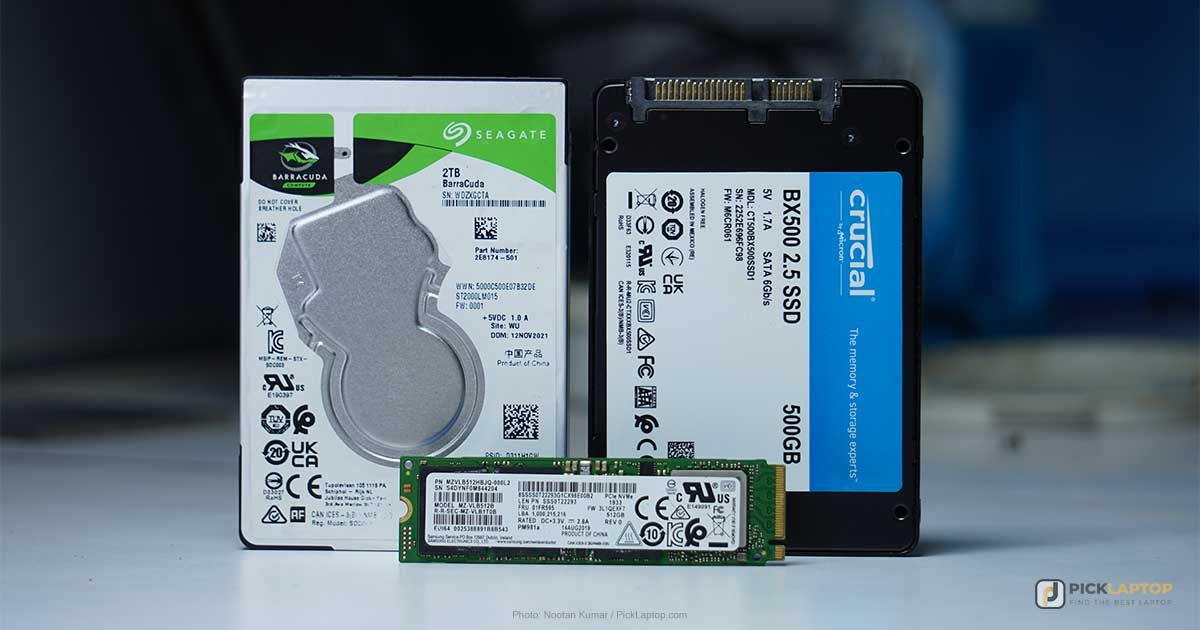
Two things get conflated here: the shape of the drive and the protocol it speaks. M.2 is a form factor, not a speed. Kingston makes the point directly — an M.2 drive can be a SATA drive capped at 6Gbps or an NVMe drive on PCIe lanes, and the two look nearly identical.
NVMe over PCIe is the baseline on any new laptop worth buying, and the price gap over SATA has closed to the point where the older interface is not a saving worth making. Beyond that, the generations stack up quickly on paper: each has doubled the per-lane transfer rate, with PCIe 5.0 going from 16GT/s to 32GT/s per lane.
Here is the honest part. Those sequential figures describe one enormous file moving in one continuous stream, and almost nothing in ordinary use looks like that. Booting, opening applications, loading a project and saving a document are small scattered operations where the difference between a Gen 3 drive and a Gen 5 one is difficult to notice at a desk. The jump from a mechanical hard drive to any SSD is transformative; the jump from one PCIe generation to the next is a specification you can safely lose an argument about. Where the generation earns its price is sustained bulk transfer — camera offloads, multi-gigabyte archives, virtual machine disks.
DRAM-Cached Drives and the Write Cliff
This separates two drives with identical headline speeds, and it is almost never printed on a laptop listing. SSDs keep a map of where data physically lives. A drive with its own DRAM holds that map in fast local memory; a DRAM-less drive borrows a slice of system memory through the NVMe host memory buffer feature instead. ServeTheHome describes HMB as a way to get most of the cost benefit of a DRAM-less design while keeping much of the performance, and is equally clear that HMB drives are not as fast as their DRAM-equipped alternatives.
The sharper effect is the write cliff. Cheap drives run part of their flash in a fast single-bit mode as a write buffer, so the first seconds of any copy are quick. When that buffer fills, writes fall through to the native flash and speed collapses — not gradually, but as a step down that holds for the rest of the transfer.
The scale of that drop is published in drive reviews, and it is severe. Tom’s Hardware measured the DRAM-less Crucial P310 writing at 6.3GB/s for around 64 seconds before falling to an average of 337MB/s against native QLC flash — and notes the older P3 Plus managed only around 100MB/s past the same point. AnandTech’s earlier whole-drive fill of the DRAM-less WD Blue SN500 found its 250GB model holding roughly 3GB of cache before settling at about 432MB/s.
For a browser and a document this never happens. For anyone writing tens of gigabytes at a stretch it decides whether the machine feels fast or feels broken, and it is invisible in every headline number. Larger capacities of the same model hold up longer, because a bigger drive has more flash to run in cache mode.
TBW, Endurance and How Long a Drive Lasts
Flash wears out through writing, so drives carry a terabytes-written rating. It is a warranty term, not a countdown to failure. Samsung’s SSD warranty states that coverage runs for the shorter of the warranty period or the point at which the drive exceeds its TBW threshold, whichever arrives first.
Put a real figure against it. The 1TB Samsung 990 EVO Plus is rated at 600TB written with a five-year limited warranty. Reaching that inside the warranty window means writing roughly 330GB every single day for five years. Ordinary work does not come close — a heavy day of photo editing or a full system backup is a few tens of gigabytes, and most days are a fraction of that.
Daily video encoding and constant virtual machine or database activity are the cases where the number deserves a look. Everyone else can treat TBW as a rough proxy for how seriously the drive was built. Endurance is rarely what kills a laptop drive; running out of capacity is.
Can You Upgrade the Storage Later
This decides how much a wrong capacity choice at checkout costs you. Three arrangements exist in current laptops.
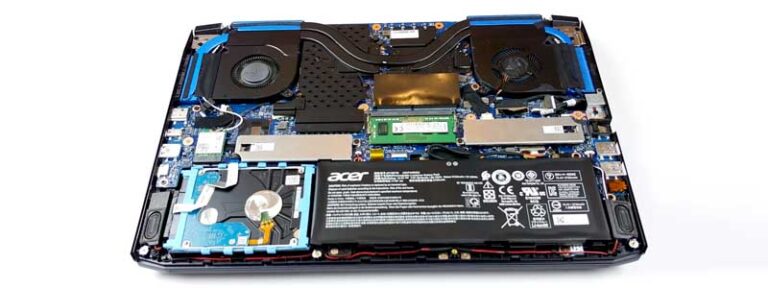
- A user-accessible M.2 slot, sometimes two. A bigger drive is a screwdriver and a clone away, and a second slot lets you add capacity without disturbing the boot drive.
- A 2.5-inch bay alongside the M.2 slot, now confined mostly to larger gaming and workstation chassis with the thickness for it. Cheap bulk capacity for a game library or archive.
- Soldered storage. Increasingly common in thin machines, and universal on Apple silicon — iFixit states flatly that on those MacBooks storage remains soldered to the logic board and cannot be replaced or upgraded. What you order is what you keep.
Where a slot exists, two details decide which drive fits, and the retail listing states neither. The first is length: M.2 modules come in 2280, 2242 and 2230 sizes, and ATP notes that the position of the mounting standoff on the board decides which lengths are compatible. A chassis restricted to the short 2230 length limits your choices and costs more per terabyte.
The second is keying. The notch pattern describes the interface: an M-key drive runs PCIe x4, while a drive carrying both B and M notches is a SATA or PCIe x2 part. ATP adds the caveat that matters most — a socket that physically accepts a key may still be wired for only one protocol, so the service manual is the document to check, not the notch. It names the slot count, the length and the interface; the product page almost never does.
Replacing the drive already in the machine, rather than filling an empty slot, adds a cloning-or-reinstall step that people underestimate — our walkthrough of swapping a laptop drive covers that end of it. For a fast boot drive plus cheap bulk capacity, the two-drive machines we track for hybrid storage have the bays to make it work. And with flash and memory pricing up sharply through 2026, both halves of the argument sharpen at once: adding a drive later costs more, and so does over-buying now.
Why a Fast SSD Cannot Replace Missing RAM
It comes up whenever someone is choosing between a faster drive and more memory on the same budget, and the answer is not close. Paging to storage is what the system does once memory has already run out, and no drive is fast enough to make that a good trade.
Buy the memory you need first and treat drive speed as the tiebreaker. Our companion guide to working out how much RAM you actually need covers measuring your own peak usage, which is a better basis for that decision than any tier list.
Laptop Storage FAQ
Is 512GB enough storage for a laptop in 2026?
For most people, yes, with occasional tidying. Windows takes a meaningful bite before you install anything, and one large application or game can take 100GB more. 512GB is comfortable for documents, browsing and coursework, and gets tight fast around photography, video, virtual machines or a game library. If your work routinely produces large files, start at 1TB.
How can I tell whether a laptop has eMMC or a real SSD?
Look for the word eMMC in the storage line, and be suspicious of 32GB, 64GB or 128GB capacities, which is where eMMC has traditionally lived. If a listing says only “flash storage” without naming an interface, check the manufacturer’s specification page. A genuine SSD is normally described as NVMe, PCIe or at least SATA.
What is a DRAM-less SSD and should I avoid one?
It is a drive with no dedicated memory for its mapping table, borrowing system RAM through the NVMe host memory buffer instead. It is not automatically bad — these drives feel quick for ordinary use and cost less. The compromise shows up in long sustained writes, where speed can fall by a factor of ten once the fast cache fills.
Why does copying a large folder start fast and then slow to a crawl?
You have hit the write cliff. The drive runs part of its flash in a fast single-bit mode as a buffer; once that fills, writes go to the native flash at a much lower speed. Published reviews show drives dropping from several gigabytes per second to a few hundred megabytes per second. Larger-capacity versions of the same drive last longer before it happens.
How long does a laptop SSD last?
Longer than the laptop, for normal use. A 1TB consumer drive rated at 600TB over a five-year warranty would need roughly 330GB written every day to reach that ceiling. Daily video work or constant virtual machine activity are the cases where the rating deserves a look. For everyone else, running out of space ends a drive’s usefulness long before wear does.
Can I add a second drive to my laptop?
Only where a slot is free, and the service manual is the document that tells you. It states how many M.2 slots exist, what length each accepts and which interfaces they are wired for — details retail listings rarely mention. A spare slot is worth real money at purchase, because it turns the capacity decision into one you can revisit.
Should I buy a bigger SSD or more RAM if I can only afford one?
Whichever one you are running out of. A full drive is an inconvenience an external disk can manage; full memory makes the machine slow every day and, on a soldered laptop, permanently. If the machine has a spare M.2 slot and soldered memory, memory is the decision that cannot be revisited.
Final Thoughts on Choosing Laptop Storage
Add up what the operating system and your applications publish before settling on a capacity, confirm the drive is a real NVMe SSD rather than eMMC, and check the service manual to see whether the machine will let you change your mind. Those three steps catch nearly every storage regret people have about a laptop.
Sequential speed is the number marketing leads with and the one you are least likely to feel. Capacity, sustained write behavior and a spare slot decide how the machine ages.