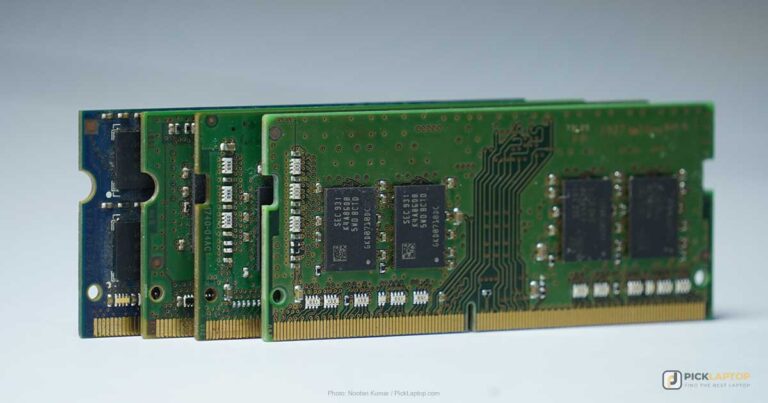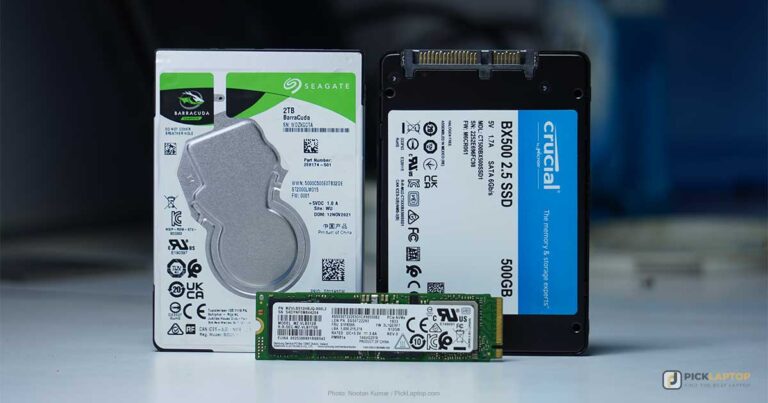
Mastercam’s own system requirements page names Windows 11 64-bit Professional as the operating system, a minimum of OpenGL 3.2 and OpenCL 1.2 support with 1GB of graphics memory and no onboard graphics — and then, for GPU-accelerated simulation, recommends an NVIDIA GeForce RTX 3060 or an AMD Radeon RX 7800 XT with 12GB or higher. Two of those three named cards are consumer gaming parts. That is the software vendor’s own guidance, not a forum opinion.
ISV certification buys one specific thing: vendor support and driver validation against a software publisher’s test suite. Dassault publishes a SOLIDWORKS hardware certification page whose stated job is pointing buyers at hardware Dassault has already validated, and every configuration listed on it runs Windows 11. Autodesk, by contrast, lists Microsoft Windows, Apple macOS and a web browser among Fusion’s supported platforms. Three programs a CNC programmer might run daily, three different hardware and OS pictures.
So the question is not workstation versus gaming laptop in the abstract. It is which of those three vendor requirements you are actually bound by. Seven machines below, including a certified workstation for shops under a support contract that names one and an uncertified gaming laptop for the much larger group that isn’t.
Editor’s Pick
Last update on 2026-11-06 / Affiliate links / Images from Amazon Product Advertising API
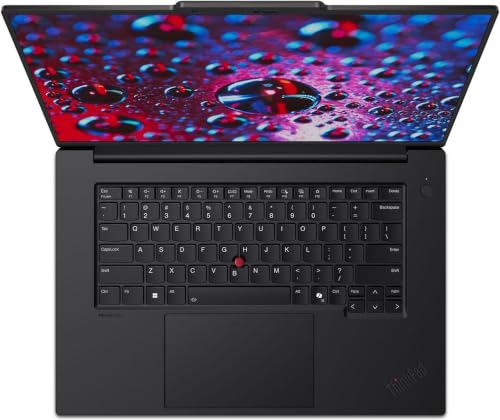
ISV certification against Autodesk, Dassault, Siemens, PTC and ANSYS among others, an RTX Ada workstation GPU, and a CAMM2 memory module that comes out with a screwdriver rather than being soldered down.
- Intel Core Ultra 7 165H
- RTX 3000 Ada 8GB
- 32GB DDR5 (CAMM2, upgradeable)
- 16″ 2.8K IPS, 165Hz
What’s Inside
- 1 – CNC Programming Laptop Buyer's Guide
- 2 – CNC Programming Laptop Comparison Table
- 3 – Best Laptops for CNC Programming — Reviews
- 3.1 – 1. Lenovo ThinkPad P1 Gen 7 (Best Overall — ISV-Certified)
- 3.2 – 2. MSI Cyborg 15 B13 (Best Budget)
- 3.3 – 3. Acer Nitro V 16 (Best for 2D-Only Work)
- 3.4 – 4. ASUS ROG Zephyrus G14 (Best Portable)
- 3.5 – 5. Razer Blade 18 (Best Premium — Desktop Replacement)
- 3.6 – 6. MSI Katana 15 HX (Does a Gaming GPU Actually Hold Up?)
- 3.7 – 7. Framework Laptop 16 (Best Repairable / Upgradeable)
- 4 – Recommended Accessories
- 5 – Which CNC Programming Laptop Should You Buy?
- 6 – CNC Programming Laptop FAQ
- 7 – Final Thoughts on CNC Programming Laptops
CNC Programming Laptop Buyer’s Guide
Processor
Flat 2D work — pocketing, contouring, drilling cycles, editing the posted G-code — sits well inside what a mid-range Core i5 or Ryzen 5 does. 3D changes the shape of the problem rather than the size of it: CAD viewport rotation and regeneration lean on single-thread speed, while toolpath calculation and simulation in Mastercam and Fusion spread across cores. A chip that is fast on one thread and has eight or more of them serves both halves.
A current-generation Core i7 or Ultra 7, or a Ryzen 7, clears that bar. Below it, the cost lands on viewport responsiveness in large assemblies rather than on whether the software runs at all.
Memory
Mastercam’s requirements page splits this cleanly: 8–12GB minimum, 32–64GB recommended for large toolpath generation and simulation. Treat 32GB as the working figure if 3D is part of the job. 16GB still runs 2D CAM and G-code work, and the honest test is what sits open at once — CAM package, a browser, a machine-control utility — rather than how many parts are in the file.
Graphics Card: ISV-Certified vs. Gaming GPU
ISV certification means a laptop maker has put a specific GPU and driver combination through a software publisher’s validation suite. It is a support-contract signal, not a performance claim, and it is not a license gate — uncertified consumer GPUs run the same CAD/CAM software. Dassault’s certification page exists “to assist customers in finding a qualified workstation and graphics card for use with SOLIDWORKS,” and Mastercam names a GeForce RTX 3060 in its own simulation recommendation.
The split follows the contract, not the software. A shop whose support agreement or customer requires certified hardware needs a certified workstation GPU; the ThinkPad P1 Gen 7 below is that machine. A student, hobbyist or small-shop owner without that clause gets the same work done on a current-generation RTX 5060 or above for a fraction of the outlay.
VRAM is where the two paths converge. Mastercam’s minimum is 1GB with the explicit condition of no onboard graphics; its recommendation is 4GB, rising to 12GB for GPU simulation. 8GB is the sensible floor for 3D assembly work, and the 6GB entry-level cards are the ones that run short first.
Mastercam lists Windows 11 64-bit Professional, not Home, as its operating system requirement. Consumer laptops overwhelmingly ship with Home. Check the license on the listing before ordering, and budget for the Pro upgrade if Mastercam is in the toolchain — Fusion, whose supported platforms include macOS, does not impose the same constraint.
Storage
A PCIe NVMe SSD is the baseline; the price gap over SATA has closed to the point where the older option is not a saving worth making. Where capacity is tight and project archives are large, pairing a fast boot drive with a second bulk drive still works — the hybrid storage guide goes into that arrangement in detail.
Display
15 to 16 inches balances toolpath legibility against carrying the thing between a desk and a machine. 13-inch panels cramp detailed toolpath review; 18-inch machines stop being portable in any meaningful sense. Panel technology and panel quality are separate questions: IPS describes off-axis consistency and says nothing about brightness or gamut, so check the measured numbers rather than the acronym. Refresh rate is close to irrelevant here.
Battery Life
A machine running 3D CAM simulation draws near its ceiling, and no rated figure survives that. The useful reading of a battery spec is how long the laptop lasts on light work between outlets, not how long a simulation pass runs unplugged.
Ports
Older routers and mills still expect a Serial (RS-232) connection, and current laptops do not ship with one. A USB-to-Serial adapter closes that gap — the Recommended Accessories section below lists one.
Past that: at least one USB-A port for older peripherals, and an Ethernet (RJ45) port or a dependable USB-C-to-Ethernet adapter where the machine networks over LAN. The PLC programming guide covers the same connectivity problem from the controls side.
Weight and Portability
Thin chassis designs trade sustained cooling for weight, and long simulation passes are exactly the workload that finds the limit. For a machine that mostly lives on a bench, the heavier option with more cooling volume is the better trade.
CNC Programming Laptop Comparison Table






Last update on 2026-11-06 / Affiliate links / Images from Amazon Product Advertising API
The Framework Laptop 16 isn’t sold on Amazon, so it’s not in the table above — see its review below for direct pricing.
Best Laptops for CNC Programming — Reviews
1. Lenovo ThinkPad P1 Gen 7 (Best Overall — ISV-Certified)
Best Overall
Last update on 2026-11-06 / Affiliate links / Images from Amazon Product Advertising API
- ProcessorIntel Core Ultra 7 165H
- GPURTX 3000 Ada 8GB
- RAM32GB DDR5 (CAMM2)
- Storage1TB PCIe SSD
- Display16″ 2.8K IPS, 165Hz
- Battery~7 hours
This is the machine for the reader whose support agreement or shop policy names certified hardware. StorageReview’s spec table for the P1 Gen 7 lists certifications from Autodesk, Dassault, Siemens, PTC, ANSYS, Bentley and others — the list that a procurement department asks for by name.
The memory sits on a removable CAMM2 module rather than being soldered. StorageReview, which tested an Ultra 7 165H unit with the lower RTX 1000 Ada GPU, found the same chassis arrangement: “Lenovo also went the extra mile for serviceability with a user-replaceable CAMM2 module instead of soldering the LPDDR5X memory to the motherboard.” The GPU differs from the configuration listed here; the memory design is the chassis, so 32GB is a starting point rather than a ceiling.
The cost shows up acoustically. TechRadar’s reviewer heard the fans only “during heavily intensive or many heavy tasks stacked together” and listed “fans can get a bit noisy” as a drawback. Day-to-day work stayed quiet for them; a long simulation pass in a shared office is the case where it registers.
Pros
- Carries the ISV certification list procurement departments ask for
- CAMM2 memory module is user-replaceable, not soldered
- ThinkPad keyboard and magnesium-aluminum build
Cons
- TechRadar flagged audible fans once heavy tasks stack up
- Costs several times what the gaming-GPU picks here do
2. MSI Cyborg 15 B13 (Best Budget)
Best Budget

Last update on 2026-11-06 / Affiliate links / Images from Amazon Product Advertising API
- ProcessorIntel Core i7-13620H
- GPURTX 4050 6GB
- RAM32GB DDR5
- Storage512GB–1TB PCIe SSD
- Display15.6″
- Battery~5 hours
MSI sells the Cyborg 15 chassis across several GPU tiers under near-identical model numbers — RTX 4050, 5050 and 5060 all appear on it. Read the specific listing rather than the model family.
32GB of RAM at this price is the argument for it. Most budget machines make the buyer pick between adequate memory and a usable GPU, and Mastercam’s 32–64GB recommendation is the reason that choice bites in CAM work specifically. Tom’s Hardware reviewed the Cyborg 15 A13V — the same i7-13620H and RTX 4050, in a 16GB configuration — and found “little flex” in the lid and chassis and a keyboard the reviewer typed 113 words per minute on. That test did not cover the 32GB B13 variant sold here, so the build and keyboard findings carry across the chassis while the memory does not.
The 6GB RTX 4050 is the constraint on 3D. It clears Mastercam’s 4GB recommendation and falls well short of the 12GB the vendor names for GPU simulation.
Pros
- 32GB RAM at a budget price, meeting Mastercam’s recommended figure
- Tom’s Hardware measured little chassis flex and liked the keyboard
Cons
- One chassis, several GPU tiers — confirm the exact spec before ordering
- 6GB of VRAM against the 12GB Mastercam recommends for simulation
3. Acer Nitro V 16 (Best for 2D-Only Work)
Best for 2D-Only
Last update on 2026-11-06 / Affiliate links / Images from Amazon Product Advertising API
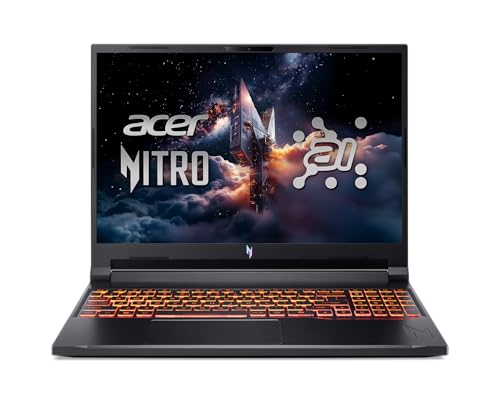
- ProcessorAMD Ryzen AI 5 340
- GPURTX 5060 8GB
- RAM16GB DDR5
- Storage512GB PCIe SSD
- Display16″ WUXGA IPS, 180Hz
- Battery~10 hours
16GB sits below Mastercam’s recommended range and inside what 2D toolpath generation and G-code editing ask for. That is the whole case for this one: a reader who is not doing 3D assemblies is paying for memory they will not fill.
The RTX 5060’s 8GB is the part that ages well if the work later grows into 3D. PCWorld tested a Nitro V 16 AI with a Ryzen 5 240 and an RTX 5050 — a lower CPU and GPU than the configuration listed here, sharing the same 76Wh battery — and ran “over 12 hours” on a looped 4K video rundown, with “roughly eight hours in a mix of web browsing and writing.” That gap between the two figures is the useful part for shop work: light editing gets most of a day, and simulation gets nowhere near it.
The 180Hz panel does nothing for CAD. It is there because this is a gaming chassis, and it costs nothing to have.
Pros
- Current-generation RTX 5060 with 8GB at the low end of the price range
- 76Wh battery; PCWorld measured roughly eight hours of light work on the same pack
Cons
- 16GB is below Mastercam’s recommended 32–64GB for 3D and simulation
- The published battery figures come from a slower-specified unit
4. ASUS ROG Zephyrus G14 (Best Portable)
Best Portable
Last update on 2026-11-06 / Affiliate links / Images from Amazon Product Advertising API
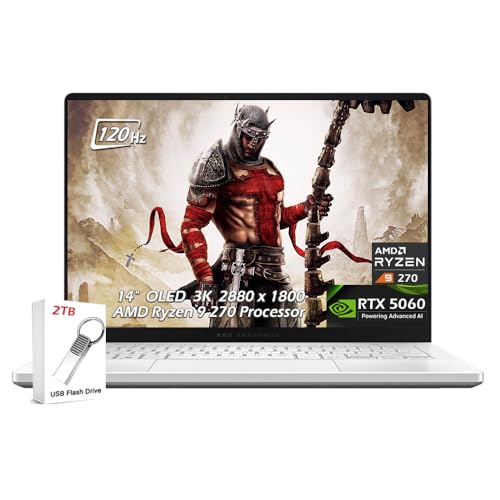
- ProcessorAMD Ryzen 9 270
- GPURTX 5060 8GB
- RAM16GB LPDDR5X
- Storage2TB PCIe SSD
- Display14″ 3K OLED, 120Hz
- Battery~8 hours
3.3 lbs and a discrete GPU is a combination the rest of this list does not offer. For someone carrying a laptop between an office, a shop floor and a customer site daily, that is the specification that decides it.
The thermal cost of a 14-inch chassis is documented, though not on this configuration. TechRadar’s 2025 G14 review tested a Ryzen AI 9 HX 370 with an RTX 5070 Ti and 32GB — a considerably hotter-running combination than the Ryzen 9 270 and RTX 5060 here — and reported that “the area above the keyboard became too hot to handle” in Turbo mode, with fan noise they described as “a fair amount.” Nobody has tested this specific CPU and GPU pairing publicly. The defensible reading is that the chassis has a documented thermal ceiling and this configuration sits below the build that reached it.
16GB is soldered LPDDR5X. For 2D work and moderate 3D it is workable; against Mastercam’s recommended range it is fixed at the wrong end, with no route to change it.
Pros
- 3.3 lbs, the lightest pick here, without dropping the discrete GPU
- 2TB of storage as standard for project archives
- 3K OLED panel for toolpath and model review
Cons
- TechRadar found the chassis too hot above the keyboard on a higher-power configuration
- 16GB soldered LPDDR5X with no upgrade path
5. Razer Blade 18 (Best Premium — Desktop Replacement)
Best Premium
Last update on 2026-11-06 / Affiliate links / Images from Amazon Product Advertising API
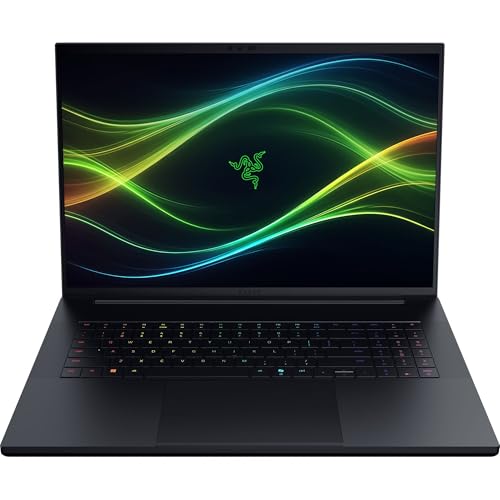
- ProcessorIntel Core Ultra 9 290HX
- GPURTX 5080 16GB
- RAM32GB DDR5-6400
- Storage1TB SSD (dual M.2)
- Display18″ dual-mode (UHD+ 240Hz or FHD+ 440Hz)
- Battery~5 hours
16GB of VRAM is the number that separates this from everything else here, and it is the only pick above the 12GB Mastercam sets as its simulation recommendation. On a large assembly with heavy simulation in the loop, that is a specification difference rather than a comfort one.
Tom’s Hardware’s June 2026 Blade 18 review covered the step-up RTX 5090 build rather than the RTX 5080 listed here, and its measurements describe the cooling system both share: a keyboard surface at 109°F under stress, a CPU at 88.90°C, and the summary that “the system still gets hot under use” despite vapor chamber and tri-fan cooling. The RTX 5080 draws less than the 5090 did in that test, so read those numbers as the chassis ceiling rather than this build’s result.
An 18-inch machine also stops being a laptop in the field sense. This is a desktop replacement that occasionally moves.
Pros
- 16GB of VRAM — no other pick here clears Mastercam’s 12GB simulation figure
- Dual-mode panel switches between resolution and refresh rate
- Dual M.2 slots for added storage
Cons
- Tom’s Hardware measured a 109°F keyboard surface on the RTX 5090 build of this chassis
- The most expensive machine on this list, and an 18-inch one to carry
6. MSI Katana 15 HX (Does a Gaming GPU Actually Hold Up?)
Gaming GPU, Proven

Last update on 2026-11-06 / Affiliate links / Images from Amazon Product Advertising API
- ProcessorIntel Core i9-14900HX
- GPURTX 5070 8GB
- RAM32GB DDR5
- Storage1TB PCIe SSD
- Display15.6″ QHD, 165Hz
- Battery~4 hours
This configuration is the one that tests the buyer’s guide’s central point against a price. An uncertified RTX 5070 with 8GB clears Mastercam’s 4GB recommendation twice over and sits above the GeForce RTX 3060 that appears in Mastercam’s simulation guidance, and 32GB of DDR5 lands inside the recommended memory range — at roughly a third of the ThinkPad’s price. What it does not have is a certification list, which matters only if a contract asks for one.
No independent lab has published measured results for this exact model, and a source cited here previously turned out to redirect to an unrelated domain, so it has been removed rather than replaced with a guess. What can be stated: MSI rates the chassis with Cooler Boost 5 dual-fan cooling, and a Core i9-14900HX paired with an RTX 5070 in a 15.6-inch body is a high-draw combination on battery. Plan on mains power for simulation work, and treat the runtime figure as untested.
Pros
- Exceeds Mastercam’s named GPU and memory recommendations without a certification premium
- 32GB DDR5 as standard, inside the 32–64GB recommended range
Cons
- No published independent test of this configuration — battery and thermals are unverified
- No ISV certification, which rules it out where a support contract requires one
7. Framework Laptop 16 (Best Repairable / Upgradeable)
Best Repairable
Framework Laptop 16
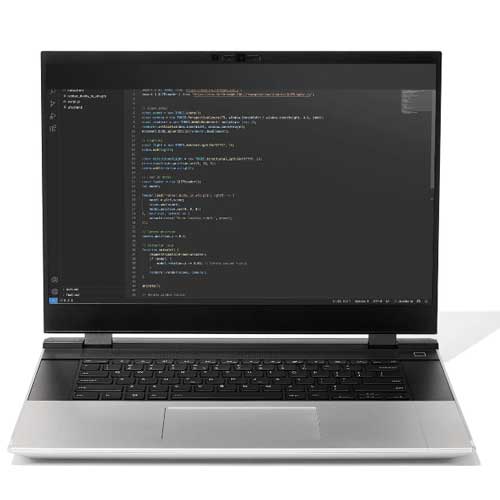
The GPU module, memory and storage are all designed to come out and be replaced by the owner — including a second-generation graphics module that fits first-generation machines.
- ProcessorRyzen AI 300 series (7 350 or AI 9 HX 370)
- GPURTX 5070 (swappable module)
- RAM8–64GB DDR5, user-upgradeable
- StorageUser-supplied M.2 NVMe SSD
- Display16″
- BatteryBelow average for the class
Buying direct rather than through Amazon is the trade here, and the reason to accept it is a claim no other machine on this list can make: Tom’s Hardware, reviewing the Ryzen AI 7 350 and RTX 5070 configuration, called shipping “a second-generation GPU… that users from new and existing Laptop 16s can upgrade to” Framework’s “standout accomplishment to date.” A shop laptop that takes a newer GPU module in three years is a different proposition from one that does not.
That matters more given where component prices have gone — RAM and SSD pricing spiked through 2026, and a machine you can add memory to later absorbs that differently from a soldered one. Framework’s memory range runs to 64GB, the top of Mastercam’s recommendation.
The modularity has a cost in rigidity. Tom’s Hardware found “still some flex, though, particularly in the center (especially when the lid is open)” in the keyboard deck, and measured 8 hours 20 minutes on its battery rundown — down from 8:49 on the previous generation.
Pros
- GPU module, memory and storage all replaceable by the owner
- Second-generation RTX 5070 module fits first-generation machines
- Takes up to 64GB of user-installed DDR5
Cons
- Keyboard deck flexes in the center, per Tom’s Hardware
- Direct purchase only, with no Amazon return path
Recommended Accessories


Last update on 2026-11-06 / Affiliate links / Images from Amazon Product Advertising API
Which CNC Programming Laptop Should You Buy?
| Best For | Pick |
|---|---|
| Overall / ISV-Certified | Lenovo ThinkPad P1 Gen 7 |
| Budget | MSI Cyborg 15 B13 |
| 2D-Only Work | Acer Nitro V 16 |
| Portability | ASUS ROG Zephyrus G14 |
| Maximum GPU Power | Razer Blade 18 |
| Gaming GPU on a Budget | MSI Katana 15 HX |
| Long-Term Repairability | Framework Laptop 16 |
CNC Programming Laptop FAQ
Do I really need an ISV-certified GPU for CNC programming?
Only where a support agreement, a customer requirement or an internal policy names it. The practical test is whether anyone can refuse to help you because of your hardware: if a support contract lets the publisher decline a ticket on an unlisted configuration, certification is buying you the ticket, not the frame rate. Nothing in the software checks for it at launch.
Can a gaming laptop actually run Fusion 360 or Mastercam well?
The cards Mastercam itself reaches for in its simulation recommendation are consumer gaming parts, which settles the question at the source. The condition the vendor does impose is a discrete GPU of some kind: the minimum specification reads “no onboard graphics,” ruling out integrated-only ultraportables however fast the CPU is. Fusion is less demanding again — Autodesk lets it fall back through its own driver selection rather than publishing a hard card requirement.
How much RAM do I actually need?
Mastercam publishes 8–12GB as a minimum and 32–64GB where simulation is involved. The number to watch on your current machine is peak usage with everything you normally have open, not file size — a 500-part assembly with nothing else running can sit below a 50-part one alongside a browser, a PDF viewer and a machine-control utility.
My CNC machine only has a Serial port — will any of these laptops connect to it?
Not directly; no current laptop has RS-232 built in. A USB-to-Serial adapter handles it, and the detail that catches people out is the chipset rather than the cable — first-party FTDI and Prolific chips have maintained Windows drivers, while unbranded clones have a history of driver-level lockouts. Some older controls also need specific flow-control settings that a cheap adapter’s driver will not expose.
Is a 2GB or 4GB GPU enough for CNC programming?
4GB matches Mastercam’s recommended figure and its stated minimum is 1GB, so both clear the bar for 2D work on paper. The number that moves is simulation: the same page recommends 12GB or more there, because the buffer holding the cut model gets evicted when VRAM runs out, and eviction shows up as stutter rather than as an error message.
Does the software run on a Mac?
It depends which program. Autodesk lists Apple macOS among Fusion’s supported platforms alongside Windows and a browser. Mastercam’s requirements page specifies Windows 11 64-bit Professional, and every configuration on Dassault’s SOLIDWORKS hardware certification page runs Windows. A Mac covers a Fusion-only workflow; a Mastercam or SOLIDWORKS shop needs Windows on the metal.
Final Thoughts on CNC Programming Laptops
Start with the software’s own requirements page rather than with a hardware tier. Mastercam’s rules out Windows Home and reaches for consumer GeForce cards; Dassault’s certification list is a support instrument that happens to be Windows-only; Autodesk supports Fusion on macOS as well. Between those three, the certification question answers itself for most readers — and for the ones with a contract clause that names it, the ThinkPad P1 Gen 7 is the machine that satisfies it.