Teaching online is not the same job as attending a meeting online. The person running the session is the one holding the slides, the roster, the lesson plan, the chat window and the shared screen, and doing it on a schedule that cannot be moved if the machine stumbles at 9:02am.
That changes what you should shop for. The picks below are chosen for the load of hosting rather than joining: memory headroom for the whole teaching stack, screen space for watching a class while sharing something else, pen input for marking up a slide live, and a wired network option for the one call you cannot reschedule.
Editor’s Pick

Last update on 2026-10-24 / Affiliate links / Images from Amazon Product Advertising API
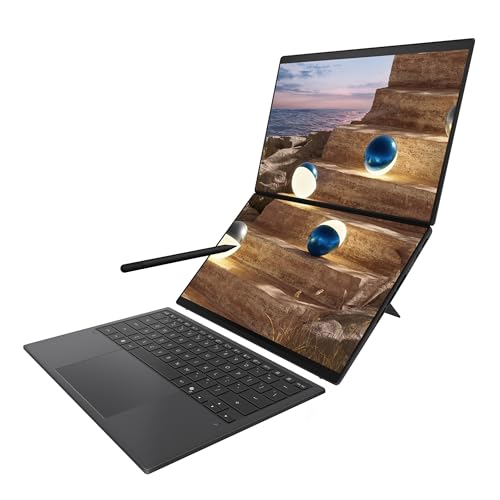
It brings the second screen with it, which solves the central layout problem of teaching — students on one panel, shared content on the other — without a monitor on the desk.
- Displays Dual 14-inch 3K OLED touchscreens, 144Hz
- Memory 32GB LPDDR5X
- Pen ASUS Pen 3.0 included in the box
- Ports 2x Thunderbolt 4, USB 3.2 Gen2, HDMI 2.1 FRL
What’s Inside
- 1 – Online Teaching Laptop Buyer's Guide
- 1.1 – What hosting a class demands that joining one does not
- 1.2 – Memory is the ceiling on your teaching stack
- 1.3 – Two screens, or one big enough to split
- 1.4 – Writing on slides while you talk
- 1.5 – Upload bandwidth, Wi-Fi and the case for an Ethernet port
- 1.6 – Background blur and what the NPU buys you
- 1.7 – Six hours of encoding is a sustained load
- 1.8 – Camera and microphone, briefly
- 2 – Online Teaching Laptop Comparison Table
- 3 – Best Online Teaching Laptop Reviews
- 3.1 – 1. ASUS Zenbook Duo (Best Overall for Teaching)
- 3.2 – 2. Lenovo Yoga 9i 2-in-1 Aura Edition (Best for Live Annotation)
- 3.3 – 3. Samsung Galaxy Book6 Pro (Best for Driving External Displays)
- 3.4 – 4. LG gram Pro 17 (Best Big Screen That Still Travels)
- 3.5 – 5. Gigabyte Aero X16 (Best for Wired Ethernet and Long Days)
- 3.6 – 6. ASUS Vivobook 18 (Best Desk-Bound Screen Space)
- 3.7 – 7. Apple MacBook Air 15-inch M5 (Best macOS Choice)
- 3.8 – 8. Acer Aspire Go 15 AI (Best Budget Pick with Ethernet)
- 4 – Recommended Accessories
- 5 – Which Online Teaching Laptop Should You Buy?
- 6 – Online Teaching Laptop FAQ
- 7 – Final Thoughts on Online Teaching Laptops
Online Teaching Laptop Buyer’s Guide
What hosting a class demands that joining one does not
The platforms publish this difference themselves, and it is easy to miss because the headline minimum looks so low. Microsoft’s hardware requirements page lists 4GB of RAM and a 1.1GHz dual-core processor as the floor for the Teams desktop app, then adds a separate line further down: large meetings of 10 or more participants require a four-core processor from 2018 or higher, as do Teams live events. A class of thirty is squarely in that bracket.
Zoom draws the same line at the screen-sharing stage. Its published requirements note that dual and single-core laptops have a reduced frame rate when screen sharing, around 5 frames per second. Five frames per second is fine for a static slide and unusable for scrolling a document or playing a clip, which is exactly what teaching involves.
Google states a hardware tier for Meet too. Google’s requirements page gives a dual-core CPU with 2GB of memory as the bare minimum, but lists its optimal tier as an 11th Gen Intel i5 or i7, an AMD 5000-series Ryzen 5 or 7, or Apple Silicon M1 and up. Read the vendors’ own tiers as a floor for a class, not a target.
Zoom’s recommended memory is four times its minimum. The same Zoom requirements page lists 4GB as the minimum RAM and 16GB as the recommended figure, alongside a recommended quad-core 2.5GHz processor. Sixteen gigabytes is the number to hold a shortlist against, and that is for the conferencing client alone.
Memory is the ceiling on your teaching stack
Count what is open during a lesson. The conferencing client encoding your video, a slide deck, your learning management system in a browser tab, a PDF or textbook, the class chat, and usually a roster or grading sheet. None of those is heavy alone. Together they are a memory problem, not a processor one, because everything stays resident for the full hour rather than taking turns.
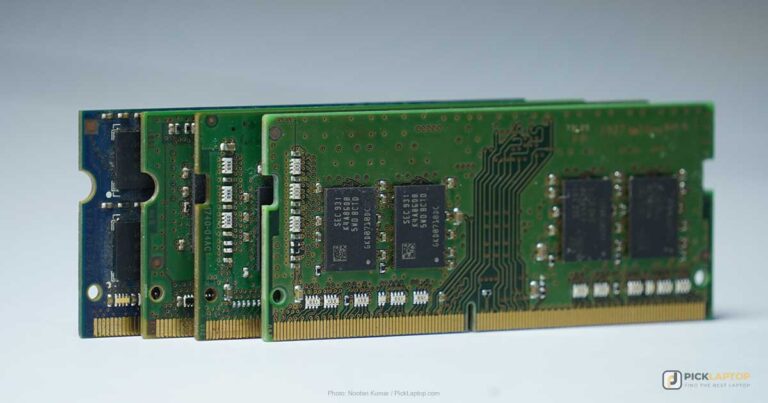
The failure is not a crash. It is the browser discarding the tab holding your LMS, so that when you switch to it mid-class you get a white flash and a reload while thirty students watch. On a 16GB machine that is uncommon; on 8GB with a video call encoding in the background it is routine. If the distinction between capacity, channels and soldered versus slotted memory is unfamiliar, our explanation of laptop RAM covers what each one changes.
Sixteen gigabytes is the working floor for teaching. Thirty-two is the figure to reach for if you record lessons, run breakout rooms, or keep a browser profile with more than a dozen tabs alive between classes.
Two screens, or one big enough to split
The specific problem teaching creates is that you need to look at two things at once. You share a slide or a document, and you simultaneously need to see the gallery of faces to tell whether anyone is lost, plus the chat where the quiet students ask their questions. On a single 13-inch panel, sharing your screen means either surrendering it entirely or squinting at a floating thumbnail strip.
Two arrangements solve it. Put the shared content on an external monitor and keep the gallery on the laptop panel, which needs a machine that can drive a display over HDMI or a DisplayPort-capable USB-C connection. Or use one genuinely large panel, 16 inches and up, and split it — that works well enough at 16:10, and poorly at 15.6-inch 16:9.
Check the port list rather than assuming. Machines with two USB-C ports and nothing else can usually still drive an external panel, but the charger occupies one of them and you are then one hub away from a working desk. Anyone planning a permanent two-monitor teaching desk should read our rundown of laptops built for multiple monitors before committing to a chassis.
Writing on slides while you talk
Annotation is the feature that separates a lecture from a lesson. Circling a term, working through an equation line by line, sketching a diagram on a blank whiteboard — all of it is trivial with a pen and awkward with a trackpad, and students can tell which one you are using.
What it requires in hardware is narrower than it sounds. You need an active digitizer in the display, not merely a capacitive touchscreen, and you need a pen that matches that digitizer’s protocol. A convertible or 2-in-1 hinge also matters more than it looks: writing accurately on a panel held upright at laptop angle is uncomfortable, and folding flat or into tablet mode is what makes a pen usable for a whole class.
Confirm the pen ships in the box. Several premium convertibles include one; Microsoft’s Surface Slim Pen and most third-party styluses are separate purchases, and a pen bought blind may not speak the right protocol. If a tablet-first design appeals for teaching from a document camera setup, the trade-offs are laid out in our look at detachable-keyboard machines.
Upload bandwidth, Wi-Fi and the case for an Ethernet port
Hosting is upload-heavy in a way that joining is not, because your video and your shared screen are both leaving the building. Zoom’s published figures put a 1:1 call at 1080p at 3.8Mbps up and 3.0Mbps down, and the same page puts gallery view for receiving at 2.0Mbps for 25 tiles and 4.0Mbps for 49 tiles.
Google publishes comparable numbers for Meet. Its network preparation guidance lists up to 3.6Mbps in both directions for 1080p and up to 1.7Mbps for 720p, with group meetings running from 250Kbps outbound and up to 4.0Mbps inbound. Those are per-stream figures on a link you are probably sharing with a household.
A scheduled class is the wrong place to discover your Wi-Fi is contended. Wi-Fi 6E or Wi-Fi 7 helps, mainly by moving you off the crowded 2.4GHz and 5GHz bands. A physical RJ-45 Ethernet port helps more, and it is disappearing from thin laptops — so if a machine has one, treat it as a feature rather than legacy clutter. If it does not, a USB-C hub with gigabit Ethernet is the fallback.
Background blur and what the NPU buys you
Background effects and noise suppression are useful for teaching from a spare room, and historically they were paid for in processor time — the same processor already encoding video and rendering your slides. Offloading them to a dedicated neural engine is the modern answer.
Microsoft is specific about the tiers. Its support page states that Windows Studio Effects requires a Copilot+ PC with an NPU above 40 TOPS for the full feature set, and that devices with slower NPUs still get background effects, standard eye contact, automatic framing and voice focus. The practical reading: any NPU covers blur and voice focus, and 40 TOPS is the line for the extras.
Zoom and Teams also apply their own effects in software regardless of hardware, so this is a comfort and battery consideration rather than a gate. It is the difference between a fan spinning up during period three and one that does not.
Six hours of encoding is a sustained load
Most laptop performance figures describe bursts. A teaching day is the opposite shape: several consecutive hours of continuous video encoding and screen capture, with short gaps between classes that are not long enough for a thin chassis to shed the heat it accumulated.
This is where fanless designs and very thin convertibles show their limits, and where a chassis with real airflow earns its extra millimeters. It is also a reason to be skeptical of a machine whose only cooling advantage is quietness — silence achieved by throttling is not silence you want at 2pm.
Camera and microphone, briefly
Teaching raises the stakes on both, because thirty students on poor audio is thirty people quietly disengaging rather than one colleague asking you to repeat yourself. The other difference is duration: a class runs long enough that a hissy microphone becomes genuinely tiring to listen to.
The specifications themselves are the same ones any video-call machine needs, and we have covered them in depth in the work-from-home laptop guide. For teaching specifically, the highest-value upgrade is a separate USB or headset microphone, which beats every built-in array on this list.
Online Teaching Laptop Comparison Table



Last update on 2026-10-24 / Affiliate links / Images from Amazon Product Advertising API
Best Online Teaching Laptop Reviews
1. ASUS Zenbook Duo (Best Overall for Teaching)
Best Overall for Teaching
Last update on 2026-10-24 / Affiliate links / Images from Amazon Product Advertising API
- ProcessorIntel Core Ultra 9 386H (Panther Lake)
- Memory32GB LPDDR5X
- Storage1TB PCIe SSD
- DisplayDual 14-inch 3K OLED touch, 2880×1800, 144Hz
- Battery99Wh, 12 hours rated
- Weight3.64 lbs
Every other machine here solves the two-screen problem by asking you to carry or own a monitor. This one folds the second panel into the laptop, which is why it leads the list: gallery view and chat live on the lower screen, your slides go on the upper one, and the arrangement travels to a classroom or a hotel room unchanged.
The 32GB of memory is the other half of the case. Two 3K panels at 144Hz plus a conferencing client encoding video is a genuine load, and this is the only configuration in the list where the memory figure is comfortably ahead of the workload rather than level with it. ASUS includes Pen 3.0 in the box, so live annotation costs nothing extra.
Tom’s Hardware measured battery life two ways, and the gap tells you how to schedule a day: 14 hours 23 minutes on one screen against 11 hours 5 minutes with both running. The same review found the kickstand very steady with the screens stacked but rocky in side-by-side portrait unless angled precisely, which is worth setting up once before a class rather than during one.
The detachable keyboard is the compromise. That review clocked typing at 79 words per minute with the keyboard at desk height against 102 in normal laptop mode, so if you type constantly during a lesson, plan on an external keyboard for the desk.
Pros
- A second display that arrives with the laptop, so the teaching layout works away from your desk
- 32GB of memory gives real headroom for slides, LMS, PDF and chat running together all hour
- Stylus included, so annotation needs no extra purchase or protocol research
- Thunderbolt 4 plus HDMI 2.1 means a third screen is still available at the desk
Cons
- Detachable keyboard slows typing noticeably when used at desk height
- Running both panels costs roughly three hours of battery
- Heaviest of the sub-16-inch picks here once the keyboard is attached
- Reviewers flag a large amount of preinstalled software to clear out on setup
2. Lenovo Yoga 9i 2-in-1 Aura Edition (Best for Live Annotation)
Best for Live Annotation
Last update on 2026-10-24 / Affiliate links / Images from Amazon Product Advertising API
- ProcessorIntel Core Ultra 7 355 (Panther Lake)
- Memory32GB LPDDR5X-7467
- Storage1TB M.2 NVMe SSD
- Display14-inch 2.8K OLED touch, 120Hz, 1100 nits HDR peak
- PenYoga Pen Gen 2 included
- Ports2x Thunderbolt 4, USB-A 3.2 Gen2, USB-C, headphone jack
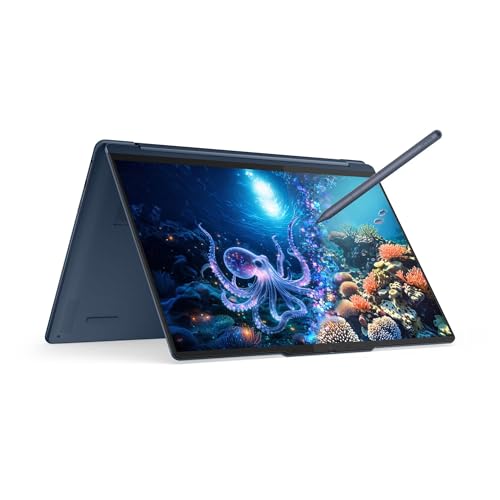
If most of your teaching involves working through problems rather than presenting finished slides, buy for the pen and the hinge. This one folds flat and into tablet mode, ships with the Yoga Pen Gen 2, and puts 32GB behind it so the annotation app is not competing with the video encoder for memory.
The rotating soundbar deserves a mention that is specific to teaching rather than to media. It keeps the speakers pointed at you regardless of whether the machine is in laptop, tent or tablet position, which matters when you flip into tablet mode to write and would otherwise be firing audio at the desk.
LaptopMedia recorded 15 hours 39 minutes of offline video playback and a 1020 cd/m² HDR peak on this generation. That same review also found the chip settling to 3560 MHz under sustained load, describing the cooling as built for bursts — a fair warning for anyone teaching four consecutive periods.
Pros
- Pen included and a hinge that folds flat, so writing on a slide is comfortable rather than a wrist exercise
- 32GB standard on this configuration, unusual at 14 inches
- Soundbar stays aimed at the room in every hinge position
- Very bright OLED panel, readable in a classroom with the lights on
Cons
- Clocks drop under sustained load, so back-to-back classes are its weakest scenario
- Glossy panel picks up reflections from windows behind you
- Memory is soldered — 32GB is what you own for the life of the machine
- A 14-inch panel is small for splitting between gallery view and shared content
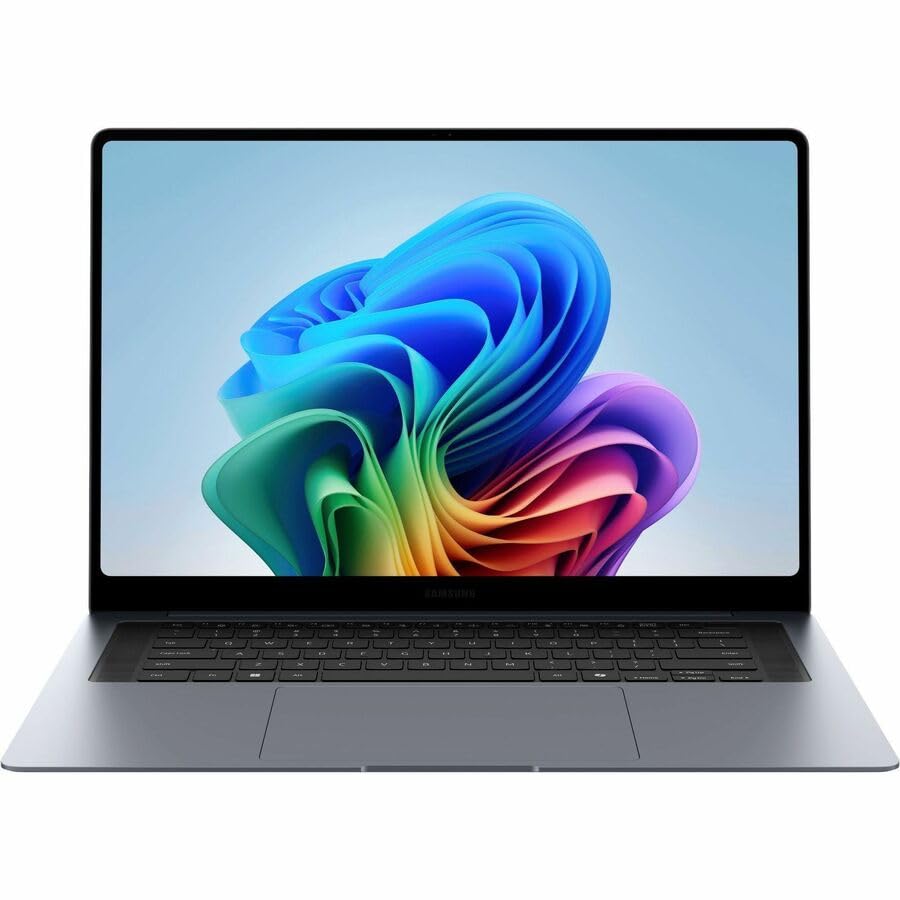
3. Samsung Galaxy Book6 Pro (Best for Driving External Displays)
Best for Driving External Displays
Last update on 2026-10-24 / Affiliate links / Images from Amazon Product Advertising API
- ProcessorIntel Core Ultra 7 356H (Panther Lake)
- Memory16-32GB
- StorageUp to 1TB SSD, expandable via slot
- Display16-inch Dynamic AMOLED 2X touch, 2880×1800, 30-120Hz
- Ports2x Thunderbolt 4, USB-A, HDMI 2.1, SD card slot
- Weight3.51 lbs
For a fixed teaching desk, the port list is the specification that decides the setup. HDMI 2.1 plus two Thunderbolt 4 connections means an external monitor plugs straight in with no dongle competing for the charging port, and a second one is still possible over USB-C.
The 16-inch AMOLED is also the most capable single panel here for splitting. At 2880×1800 you can put a shared document at readable size on one half and keep a gallery of students on the other without either becoming a postage stamp.
Tom’s Guide measured 15 hours 17 minutes in its web-surfing test and 457 nits in SDR, and put the weight at 3.50 pounds — light for a 16-inch machine you might carry between classrooms. The review’s complaint is Samsung’s preinstalled software, which is a setup afternoon rather than a permanent problem.
The memory is the thing to check on the listing. This model sells in 16GB and 32GB versions, and for teaching the larger one is the sensible choice.
Pros
- HDMI 2.1 and two Thunderbolt 4 ports cover a two-monitor teaching desk without a hub
- 16-inch high-resolution panel splits cleanly between shared content and a class gallery
- Battery long enough to cover a full teaching day away from a socket
- Touchscreen with S Pen protocol support for basic markup
Cons
- Sold in a 16GB configuration that undersells the machine for hosting work
- Preinstalled Samsung software adds little unless you own a Galaxy phone
- Glossy AMOLED reflects a bright room
- Pen is not included in the box
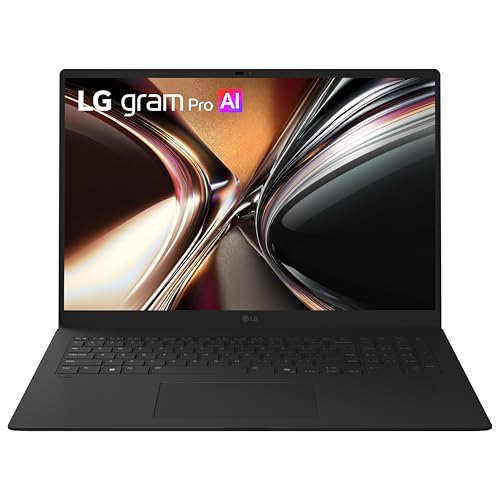
4. LG gram Pro 17 (Best Big Screen That Still Travels)
Best Big Screen That Still Travels
Last update on 2026-10-24 / Affiliate links / Images from Amazon Product Advertising API
- ProcessorIntel Core Ultra 7 355 (8-core)
- Memory32GB LPDDR5X
- Storage1TB NVMe SSD
- Display17-inch WQXGA touchscreen, 2560×1600, 350 nits
- Battery77Wh, 26.5 hours rated
- Weight3.02 lbs
Seventeen inches at three pounds is the trick this line exists to perform, and for teaching it removes a normal trade-off. You get a panel large enough to run a class gallery and a shared window side by side, in a machine you can still take to a classroom, a library or a relative’s kitchen table.
It is a touchscreen with 32GB behind it and Thunderbolt 4 plus HDMI 2.1 on the port list, so the desk setup and the mobile setup are the same machine. LG rates the battery at 26.5 hours, which is a video-playback style figure rather than a video-call one, but it puts a full day of classes well inside reach.
Techgoondu’s review of this generation covered the 16-inch gram Pro rather than the 17-inch model recommended here, and its findings apply to the shared chassis design: the Aerominum construction does not feel fragile despite the thinness, but the keyboard has relatively shallow travel compared with a ThinkPad. Shallow keys matter more than usual when you are typing feedback into chat during a lesson.
Pros
- The only 17-inch panel here that is genuinely portable between teaching locations
- 32GB standard, so the big screen is matched by memory that can fill it
- Thunderbolt 4 and HDMI 2.1 for an external monitor without a hub
- Very large rated runtime for a screen this size
Cons
- Shallow key travel is tiring across a full day of typing
- 350 nits is modest for a panel this large in a bright room
- Thin chassis limits sustained cooling headroom compared with a thicker machine
- Premium pricing for integrated graphics
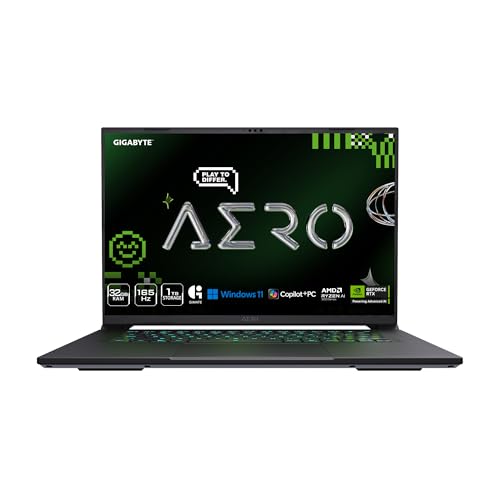
5. Gigabyte Aero X16 (Best for Wired Ethernet and Long Days)
Best for Wired Ethernet and Long Days
Last update on 2026-10-15 / Affiliate links / Images from Amazon Product Advertising API
- ProcessorAMD Ryzen AI 9 HX 370 (12-core)
- GraphicsNVIDIA GeForce RTX 5070 (8GB GDDR7)
- Memory32GB DDR5
- Display16-inch WQXGA, 2560×1600, 165Hz, 400 nits
- PortsUSB4 Type-C, 3x USB-A, HDMI 2.1, Ethernet, 3.5mm combo
- Weight4.18 lbs
The reason a machine with a gaming GPU appears on a teaching list is the port on the side and the airflow inside. A physical Ethernet jack takes your scheduled class off contended Wi-Fi entirely, and a chassis built for hours of game rendering has no trouble with hours of video encoding.
Tom’s Hardware measured that thermal headroom during stress testing: the CPU averaged 58 degrees Celsius and the GPU 68, with the touchpad peaking around 71 degrees Fahrenheit. Those are unremarkable numbers for a gaming laptop and excellent ones for a machine that will spend six hours streaming your face and your slides.
The same review recorded 9 hours 13 minutes of battery life, the best in its comparison group, and 369 nits of peak brightness. It also calls the Wi-Fi 6E radio dated, which is a fair criticism and also the reason the Ethernet port matters here rather than being a bonus.
Teaching a subject that involves rendering, CAD, video editing or machine learning makes the discrete GPU a second argument rather than an accident of the category.
Pros
- Wired Ethernet removes the single most common cause of a dropped class
- Cooling designed for sustained load, so hour four looks like hour one
- 32GB plus a discrete GPU if you demonstrate software that needs one
- Battery life unusually good for a machine with this hardware
Cons
- Heaviest pick here and the least pleasant to carry between rooms
- Wi-Fi 6E rather than Wi-Fi 7, which reviewers flag as behind the class
- 369 nits measured, so a window behind the desk is a problem
- Speakers are the weak point if you present without a headset
6. ASUS Vivobook 18 (Best Desk-Bound Screen Space)
Best Desk-Bound Screen Space

Last update on 2026-10-24 / Affiliate links / Images from Amazon Product Advertising API
- ProcessorAMD Ryzen 7 260 (8-core/16-thread, NPU up to 16 TOPS)
- Memory32GB DDR5-5600
- Storage1TB SSD
- Display18.4-inch WUXGA IPS anti-glare, 1920×1200, 300 nits
- Battery17 hours rated
- Weight5.73 lbs
Teach from the same desk every day and the calculation changes. An 18.4-inch anti-glare panel with 32GB behind it gives you a monitor-sized workspace and a second monitor’s worth of splitting room without buying a second monitor, and the matte coating is friendlier than glossy OLED when a classroom window is behind you.
LaptopMedia’s review of this series measured 352 cd/m² in the center of the screen and 10 hours 35 minutes of video playback, and pointed out the density trade: 1920×1200 across 18.4 inches works out to roughly 126 pixels per inch, so text is larger but visibly softer than on the 2.8K panels here.
That review also found the plastic chassis flexes under pressure and noted no dedicated Ethernet or card-reader port on the unit tested, while our catalog entry for this configuration lists an SD card reader. Read the port list on the exact listing before buying, since this model sells in both Intel and AMD variants.
Pros
- The largest workspace here, enough to run gallery view and shared content without an external panel
- 32GB of DDR5 at the lowest price of any 32GB machine on this list
- Anti-glare coating handles a bright teaching room better than the glossy picks
- Partial upgradability through an accessible SODIMM and M.2 slot
Cons
- Not a machine you carry anywhere regularly
- Text is noticeably softer than the higher-resolution picks at this size
- Chassis flex under pressure reflects the plastic build
- Port configuration varies between variants, so confirm before ordering
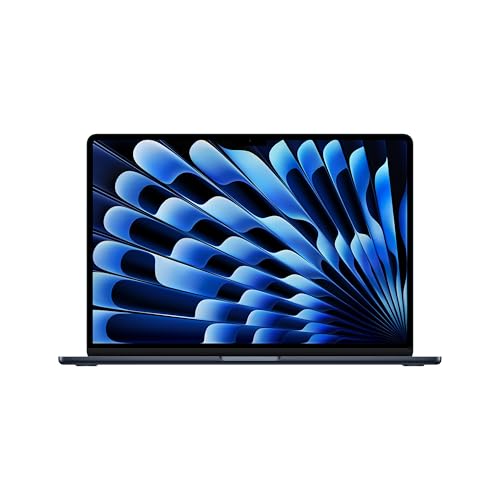
7. Apple MacBook Air 15-inch M5 (Best macOS Choice)
Best macOS Choice
Last update on 2026-10-24 / Affiliate links / Images from Amazon Product Advertising API
- ProcessorApple M5 (10-core CPU)
- Memory16GB unified
- Storage512GB SSD
- Display15.3-inch Liquid Retina, 2880×1864, 60Hz
- Battery18 hours rated
- Weight3.34 lbs
The teaching argument for the 15-inch Air over the 13-inch is the external display support, and Apple states it plainly. Its specifications page says the M5 Air supports up to two external displays at up to 6K and 60Hz each, alongside the built-in display at native resolution. That is a three-panel teaching desk from a machine with two ports.
The larger chassis also adds two speakers over the 13-inch model, which is not nothing when you play a clip to a class without a separate output. And Apple’s own tier appears in Google’s requirements: Meet lists Apple Silicon M1 and up in its optimal bracket, so an M5 is comfortably clear of it.
The honest caveat is the cooling. The Air is fanless, and a review of this model found that sustained heavy workloads can cost roughly 15 to 20 percent of performance as the passive design reaches its limit. For a one-hour class that is invisible; for six consecutive hours of recorded lessons it is the reason a Pro exists.
Pros
- Drives two external displays from two ports, so a full teaching desk is possible without a dock
- Silent under normal class load, with no fan noise reaching the microphone
- Extra speakers over the 13-inch model for playing clips without external audio
- 16GB unified memory is the base configuration, not an upgrade
Cons
- Fanless design gives up performance across a long teaching day
- 16GB is the entry figure and cannot be changed after purchase
- No touchscreen or pen input, so live annotation means a separate tablet
- Two ports total, one of which the charger may occupy
8. Acer Aspire Go 15 AI (Best Budget Pick with Ethernet)
Best Budget Pick with Ethernet
Last update on 2026-10-24 / Affiliate links / Images from Amazon Product Advertising API
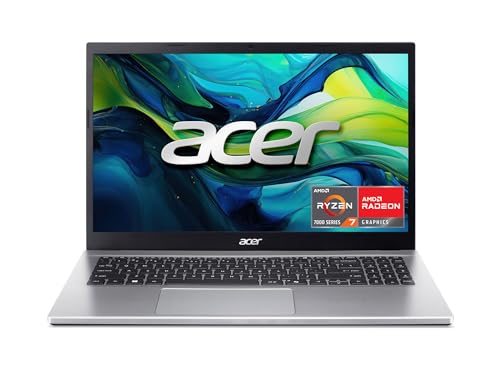
- ProcessorAMD Ryzen 7 7730U
- Memory16GB DDR4
- Storage512GB PCIe NVMe 4.0
- Display15.6-inch Full HD IPS, 1920×1080
- Ports3x USB 3.2 Type-A, USB 3.2 Gen2 Type-C, HDMI, RJ45
- Battery12.5 hours rated
Tutors and part-time instructors buying their first dedicated teaching machine get the two specifications that matter most on this one: 16GB of memory, which is Zoom’s own recommended figure, and an RJ45 Ethernet jack that most laptops three times the price have dropped.
The eight-core Ryzen 7 also clears the four-core bar Microsoft sets for Teams meetings of ten or more participants, which is the specification a budget machine most often fails. HDMI on the side means an external monitor plugs in directly.
The display is the compromise, and it is the one to think hardest about. Notebookcheck’s aggregated coverage of the AG15-42P series — which spans several processor configurations, not only the Ryzen 7 7730U in this listing — describes a grainy screen with poor viewing angles. For reading your own notes it is fine; for judging color on shared material it is not.
Pros
- Wired Ethernet at a price where it has essentially vanished from the market
- 16GB meets Zoom’s published recommended memory figure rather than its minimum
- Eight cores clears the four-core threshold Microsoft sets for larger Teams meetings
- Three USB-A ports and HDMI, so a webcam, microphone and monitor all connect directly
Cons
- Panel quality is the clear weak point, with reviewers describing grain and narrow viewing angles
- DDR4 rather than DDR5 memory, and 16GB is the ceiling for this workload
- 1080p over 15.6 inches leaves less usable space for splitting than a 16:10 panel
- No touchscreen or pen support for annotation
Recommended Accessories
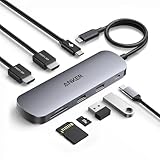
A teaching desk needs three things the laptop does not supply: a second surface to put the class gallery on, a wired network path, and a screen raised to eye level so the camera is not pointed up your nose for an hour.


Last update on 2026-10-24 / Affiliate links / Images from Amazon Product Advertising API
Which Online Teaching Laptop Should You Buy?
| Buy this | If this describes you |
|---|---|
| ASUS Zenbook Duo | You want the two-screen teaching layout everywhere you teach, not only at one desk. |
| Lenovo Yoga 9i 2-in-1 Aura Edition | Your lessons are built on writing and working through problems live, not on finished slides. |
| Samsung Galaxy Book6 Pro | You teach from one desk with an external monitor and want no dongles in the way. |
| LG gram Pro 17 | You need a very large screen but teach from more than one location. |
| Gigabyte Aero X16 | Your Wi-Fi is unreliable, your days are long, or your subject needs a real GPU. |
| ASUS Vivobook 18 | The machine never moves and you want the largest workspace for the money. |
| Apple MacBook Air 15-inch M5 | You are staying on macOS and want two external displays from a silent laptop. |
| Acer Aspire Go 15 AI | You tutor part-time, need wired networking, and cannot justify a premium machine. |
Online Teaching Laptop FAQ
How much RAM do I need to teach online?
Sixteen gigabytes is the working floor, and that figure comes from the platform rather than from us — Zoom’s published requirements list 4GB as the minimum and 16GB as the recommended amount, for the conferencing client alone. A teaching session also holds slides, an LMS in the browser, a PDF and a chat window open at the same time. If you record lessons or run breakout rooms, 32GB is the tier to look at.
Is hosting a class harder on a laptop than joining a meeting?
Yes, and the vendors document it. Microsoft’s hardware requirements page lists a four-core processor from 2018 or newer for Teams meetings of ten or more participants and for live events, above its general 1.1GHz dual-core minimum. Zoom notes that dual and single-core laptops drop to around 5 frames per second when screen sharing, which is the specific thing a host does and an attendee does not.
Do I need two screens to teach online?
Not strictly, but you need somewhere to put the class gallery while you share something else. Either a second display, or one panel large enough to split — 16 inches and up at 16:10 works, and a 15.6-inch 16:9 screen generally does not. The ASUS Zenbook Duo solves it by carrying the second panel internally.
How much upload bandwidth does hosting a class use?
Zoom publishes 3.8Mbps up and 3.0Mbps down for a 1080p one-to-one call, and 2.0Mbps to 4.0Mbps down for gallery view at 25 and 49 tiles. Google lists up to 3.6Mbps in both directions for 1080p on Meet and up to 1.7Mbps for 720p. Those are per-stream figures on a connection you are probably sharing with a household, which is the argument for a wired link.
Is wired Ethernet actually worth it for teaching?
For a scheduled class, yes. Wi-Fi contention is unpredictable in a way that a cable is not, and a class is the one call you cannot quietly rejoin five minutes later. If your shortlist has no RJ45 port, a USB-C hub with gigabit Ethernet does the same job for a fraction of the price difference between models.
What do I need to write on slides during a lesson?
An active digitizer in the display and a pen that matches its protocol — a plain capacitive touchscreen is not enough for accurate writing. A hinge that folds flat or into tablet mode matters almost as much, because writing on an upright panel is uncomfortable. Check whether the pen is included: the Zenbook Duo and Yoga 9i ship with one, and many rivals sell it separately.
Does an NPU help with background blur and noise suppression?
It moves the work off the processor that is already encoding your video. Microsoft states that Windows Studio Effects needs a Copilot+ PC with an NPU above 40 TOPS for the full feature set, and that devices with slower NPUs still get background effects, standard eye contact, automatic framing and voice focus. Zoom and Teams apply their own effects in software regardless, so treat this as a battery and fan-noise benefit rather than a requirement.
Will a fanless laptop cope with a full teaching day?
For an hour at a time, comfortably. Across six consecutive hours of encoding it is the design most likely to throttle, because passive cooling has nowhere to put accumulated heat. A review of the 15-inch MacBook Air M5 put the drop at roughly 15 to 20 percent under sustained heavy load. If your schedule is genuinely back to back, a chassis with fans is the safer purchase.
Is a Chromebook enough for teaching online?
It depends entirely on your platform and your school’s tooling. Zoom, Meet and Teams all run in the browser, but browser clients have historically offered fewer host controls than the desktop apps, and specialist LMS plugins or proctoring tools are often Windows-only. Confirm what your institution requires before saving money on the operating system.
Final Thoughts on Online Teaching Laptops
Hosting is the specification nobody prints on the box. Buy for the whole stack running at once — memory first, then somewhere to put the class gallery while you share your screen — and the rest of the decision gets easier.
After that, spend on the two things a lesson exposes and a meeting forgives: a network path you control, and a chassis that behaves the same in the last period as it did in the first.