Most people searching for this have already plugged the iPhone into a laptop, watched nothing happen, and gone looking for the missing piece. On Windows the missing piece is usually one of three things: the phone was locked, the “Trust This Computer” prompt was never tapped, or the photos copied across fine but arrive as .HEIC files that nothing on the PC will open.
The routes themselves have changed since the iTunes era. Apple split iTunes for Windows into three separate apps — Apple Music, Apple TV and Apple Devices — in February 2024, so any guide that tells you to sync photos through iTunes is describing software that no longer does that job. What follows is the current set of methods for Windows 11 and macOS.
What’s Inside
- 1 – The Fastest Route: USB Cable Into the Windows Photos App
- 2 – The HEIC Problem, and the Two-Minute Fix
- 3 – Copying Photos Straight From File Explorer
- 4 – Using iCloud for Windows for a Cable-Free Setup
- 5 – Where the Apple Devices App Fits In
- 6 – Importing to a Mac Instead
- 7 – Why Bluetooth Transfer From an iPhone Doesn't Work
- 8 – What to Do When the iPhone Doesn't Show Up
- 9 – iPhone to Laptop Photo Transfer Questions
- 10 – Final Thoughts on Getting iPhone Photos Onto a Laptop
The Fastest Route: USB Cable Into the Windows Photos App
This needs no Apple software installed at all, and it is the method both Microsoft and Apple point to first. Apple’s own transfer page sends Windows users to Microsoft’s Photos import instructions.
- Connect the iPhone to the laptop with a USB cable that supports data transfer, not a charge-only cable.
- Unlock the iPhone. Microsoft states plainly that the PC cannot find the device while it is locked.
- Tap Trust when the iPhone asks whether to trust this computer. Miss this and the phone shows up as an empty device.
- On the laptop, open the Photos app from Start.
- Select Import, then choose your connected device.
- Pick which items to import and, before you confirm, set the destination folder — the default is not always where you want several thousand photos landing.
If the import stalls part-way through a large library, unplug, reconnect and import in batches by date rather than selecting everything at once.
The HEIC Problem, and the Two-Minute Fix
Modern iPhones shoot in HEIF/HEVC by default, which is why imported files often carry a .heic extension instead of .jpg. Windows can read them, but only with the codec packages installed: Microsoft’s HEIF Image Extensions listing states that the HEVC Video Extensions package must also be installed to view images using the .heic, .hif or .heif extensions. Some laptops ship with both already present; many do not.
Fix it on the phone instead. Apple’s recommendation for Windows compatibility is to set the iPhone camera to Most Compatible, under Settings > Camera > Formats, which captures in JPEG and H.264 from that point on. It does not convert photos you have already taken, so it is a fix for future shots, not the existing library.
If you shoot for editing rather than sharing, leave the phone in High Efficiency and install the codecs instead — HEIF holds more image data per megabyte, which matters if the photos are heading into a Lightroom workflow on the laptop.
Copying Photos Straight From File Explorer
When the Photos app misbehaves, the iPhone still mounts as a device in File Explorer, and you can drag files out of it like any other drive. This method was in the original version of this guide and it still works.
- Connect and unlock the iPhone, and tap Trust as above.
- Open This PC in File Explorer. The iPhone appears under Devices and drives.
- Open it and browse to Internal Storage > DCIM. Photos sit inside numbered subfolders such as 100APPLE.
- Copy the folders you want to a location on the laptop. Copy rather than move, so a failed transfer cannot delete originals.
Photos stored only in iCloud may not appear here. If Optimize iPhone Storage is switched on, the phone keeps small previews locally and the full-resolution originals live in iCloud. Turn off Optimize iPhone Storage and let the originals download before you rely on a cable copy as a backup.

Using iCloud for Windows for a Cable-Free Setup
If everything on the phone already syncs to iCloud Photos, this is the lowest-effort ongoing arrangement: new shots appear on the laptop without plugging anything in.
- On the iPhone, confirm iCloud Photos is on under Settings > [your name] > iCloud > Photos.
- On the laptop, install iCloud for Windows. Apple distributes it through the Microsoft Store, and the current version requires Windows 11 or later.
- Sign in with the same Apple Account used on the phone.
- Enable Photos, and let the initial sync finish before judging whether it worked. A large library takes hours.
The catch is storage. A free iCloud account includes 5GB, which a single year of photos will usually exceed, so this route generally means paying for an iCloud+ tier or keeping the library trimmed.
Where the Apple Devices App Fits In
The Apple Devices app is the Windows replacement for iTunes device management, installed from the Microsoft Store by searching for “Apple Devices”. It handles backups, updates, restores, and syncing music and video to the phone.
It is not the tool for pulling camera roll photos off the phone — that is still the Photos app or File Explorer. Where it earns its place is the full device backup: a local backup captures the device state rather than just the pictures, which is the difference between recovering photos and recovering your phone.
iTunes itself has not vanished entirely. After the split it remains on Windows for podcasts and audiobooks only, and the existing iTunes library should be left in place because the new apps read from it.
Importing to a Mac Instead
On macOS there is no format problem and no extra software to install. Apple’s instructions are to connect the device by USB, open the Photos app, and use the Import screen that lists everything on the connected device.
- Connect the iPhone to the Mac and unlock it, tapping Trust if prompted.
- Open Photos. The device appears in the sidebar and the Import screen opens.
- Choose Import All New Items, or select individual photos and choose Import Selected.
If both devices are on the same Apple Account with iCloud Photos enabled, there is nothing to import at all — the library is already there, and plugging in only creates duplicates to sort out later.
Why Bluetooth Transfer From an iPhone Doesn’t Work
Pairing an iPhone with a Windows laptop over Bluetooth will not move your photos. iOS does not expose the standard Bluetooth file transfer profile to non-Apple devices, so there is no “send file” option to reach. AirDrop is the Bluetooth-assisted equivalent, and it only talks to other Apple hardware. Use the USB cable, iCloud, or the Apple Devices app instead.
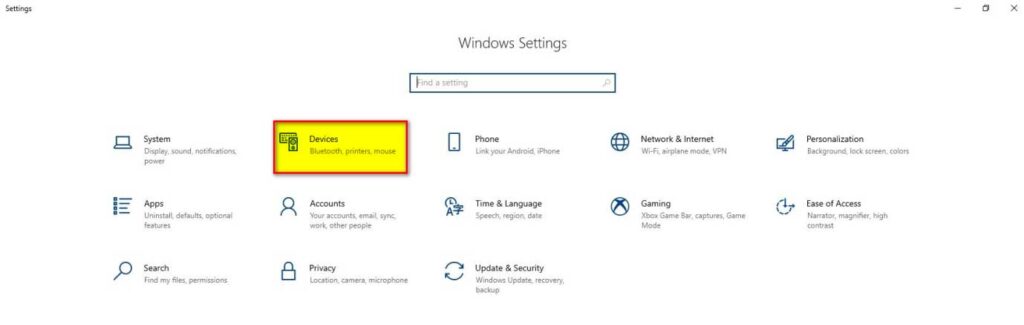
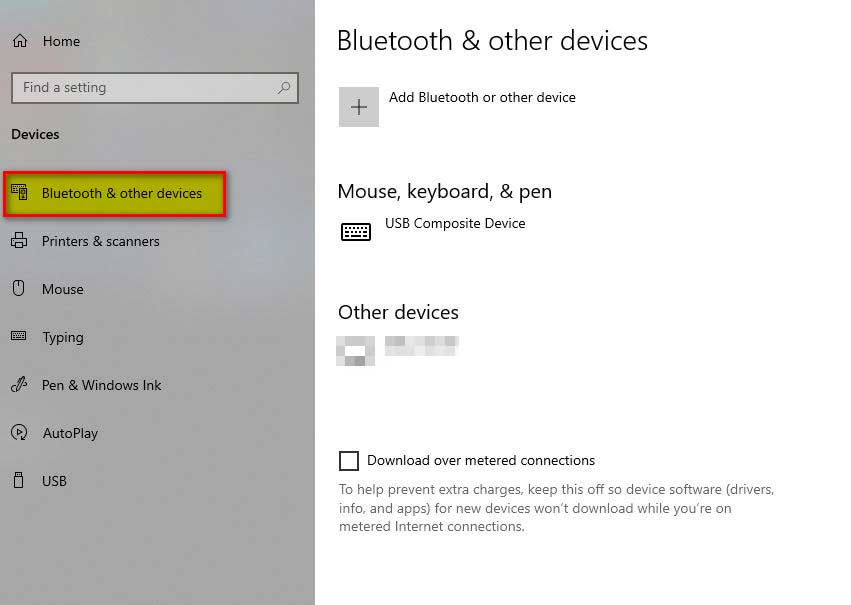
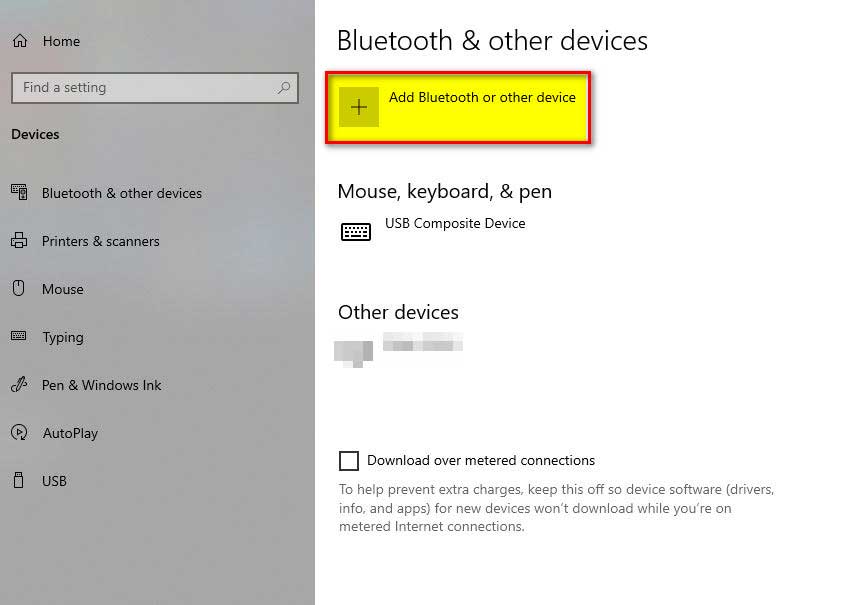
The attempt is common enough that the dead end deserves showing. Older guides walked readers through the Windows Bluetooth panels below, which is the dead end people reach: the phone pairs, or fails to pair, and no file transfer option ever appears. These screenshots are kept as a record of that route and show Windows 10 Settings as it looked at the time, not the current Windows 11 layout.


If a laptop has no working USB port, the cable-free routes are iCloud Photos or the Apple Devices app over Wi-Fi, both covered above.
What to Do When the iPhone Doesn’t Show Up
- Swap the cable. Charge-only cables carry power and no data, and they are the single most common cause.
- Unlock the phone and leave it unlocked during the import.
- If you tapped Don’t Trust by mistake, reset the decision on the iPhone under Settings > General > Transfer or Reset iPhone > Reset > Reset Location & Privacy, then reconnect.
- Try a different USB port, directly on the laptop rather than through a hub or dock.
- Restart both devices before assuming anything is broken.
iPhone to Laptop Photo Transfer Questions
Do I still need iTunes to move photos from an iPhone to a Windows laptop?
No. Photos import through the Windows Photos app or File Explorer with no Apple software installed. Apple split iTunes for Windows into Apple Music, Apple TV and Apple Devices in February 2024, and device management moved to Apple Devices.
Why are my imported photos .HEIC files that won’t open?
Because the iPhone camera is set to High Efficiency. Install Microsoft’s HEIF Image Extensions and HEVC Video Extensions to view them on Windows, or switch the phone to Settings > Camera > Formats > Most Compatible so future photos are captured as JPEG.
Can I transfer photos from an iPhone to a laptop over Bluetooth?
Not to a Windows PC. iOS does not support standard Bluetooth file transfer to non-Apple devices, so a USB cable or iCloud is the working route. Between Apple devices, AirDrop covers this instead.
Why does my laptop only see some of my photos?
Optimize iPhone Storage keeps reduced-size previews on the phone and the originals in iCloud. Turn it off and allow the full-resolution files to download before importing over a cable.
Does importing to the laptop delete photos from the iPhone?
No. Both the Photos app import and a File Explorer copy leave the originals on the phone. Deleting from the phone is a separate step you have to take yourself. Confirm the copies open on the laptop before you do it.
What is the best way to back up an entire iPhone, not just photos?
The Apple Devices app on Windows, or Finder on a Mac, creates a full local device backup. That captures settings, messages and app data as well as the camera roll, which a photo import does not.
Final Thoughts on Getting iPhone Photos Onto a Laptop
For a one-off transfer, a data cable and the Windows Photos app is the shortest path, and the two things that break it are a locked phone and a missed Trust prompt. For an ongoing arrangement, iCloud Photos with iCloud for Windows removes the cable entirely, at the cost of paying for storage once the free 5GB runs out.