You set up your Wi-Fi years ago, the laptop has connected automatically ever since, and now a new phone wants the password nobody can remember. Windows still has it — every network you have joined is saved on the machine, key and all.
There are four ways to read it back: the Windows 11 Settings page, the older Network and Sharing Center dialog, a command that works on both Windows 10 and 11, and the router’s own admin page. The Settings route is fastest; the command line is the only one that recovers networks you are not currently connected to.
This recovers your own saved passwords, nothing else. Every method here reads a key that Windows already stored because that laptop was authorized to join the network. None of them reveals the password of a network you have never connected to, and none of them will help you onto someone else’s Wi-Fi. If the machine is not yours to administer, ask whoever runs the network.
What’s Inside
- 1 – How to Find a Saved Wi-Fi Password in Windows 11 Settings
- 2 – Reading the Key From the Network and Sharing Center
- 3 – Recovering Any Saved Network With netsh wlan
- 4 – Getting the Password From the Router Instead
- 5 – A Note on Third-Party Password Recovery Tools
- 6 – Saved Wi-Fi Password Questions Answered
- 7 – Final Thoughts on Recovering Your Wi-Fi Password in Windows
How to Find a Saved Wi-Fi Password in Windows 11 Settings
Windows 11 finally exposes this in Settings rather than burying it in Control Panel. Microsoft documents the path as Settings > Network & internet > Wi-Fi > Manage known networks.
- Open Settings and select Network & internet.
- Select Wi-Fi, then Manage known networks.
- Choose the network you want.
- Next to Wi-Fi network password, select Show.
On current Windows 11 builds this page also produces a QR code alongside the password. Pointing a phone camera at it joins the network without anyone reading the key aloud, which is the tidiest way to get a guest connected.
If the Show button is missing, you are on an older build. Use the Network and Sharing Center route below, which still exists in every current version of Windows.
Reading the Key From the Network and Sharing Center
This is the classic route and it works identically on Windows 10 and Windows 11, and it is the method Microsoft still documents on its own Windows 10 guidance for finding a Wi-Fi password. Its one limitation matters: it only shows the network you are connected to right now.
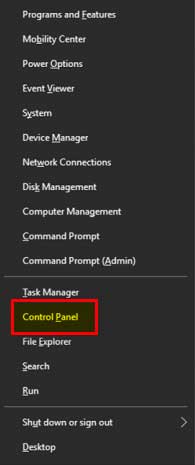
Start by opening network settings. Right-click the network icon in the notification area at the bottom right of the screen.

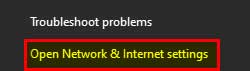
Or press the Windows button, open Settings, and select Network & Internet.
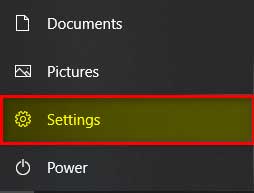
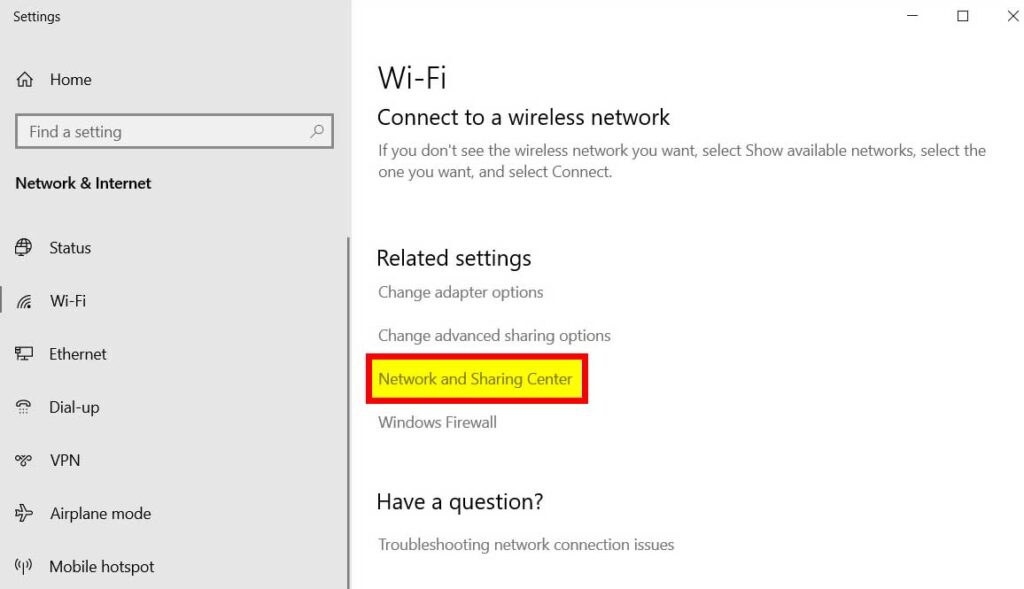
Select Status, scroll the right-hand pane and open Network and Sharing Center.
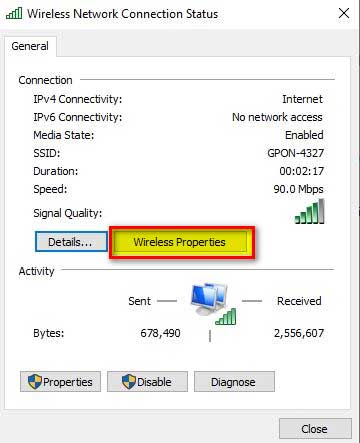
Under View your active networks, click the Wi-Fi connection name. That opens the Wireless Network Connection Status window.
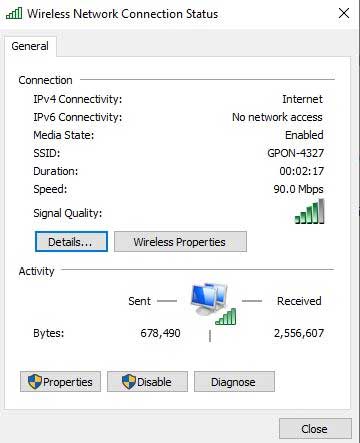
Select Wireless Properties under the Connection heading.
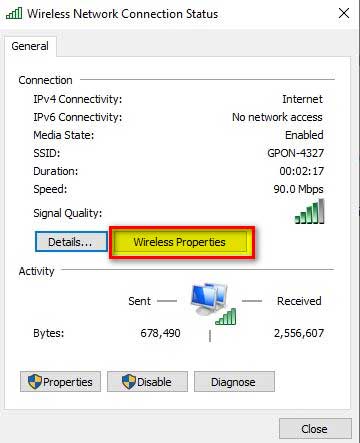
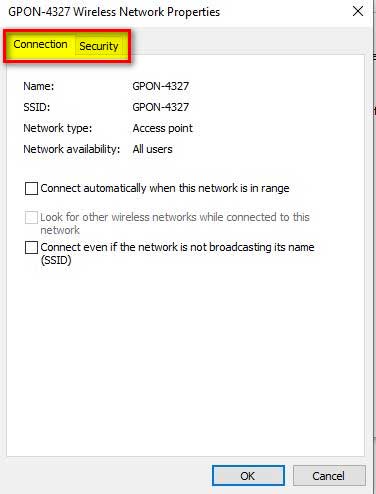
The dialog has two tabs, Connection and Security.
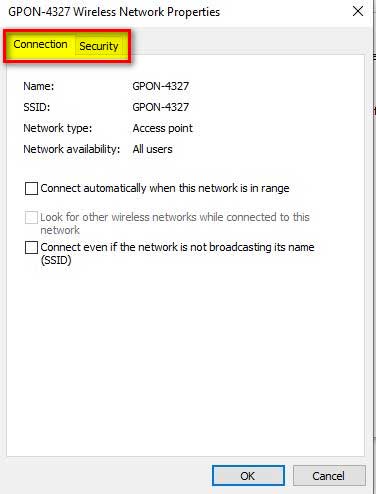
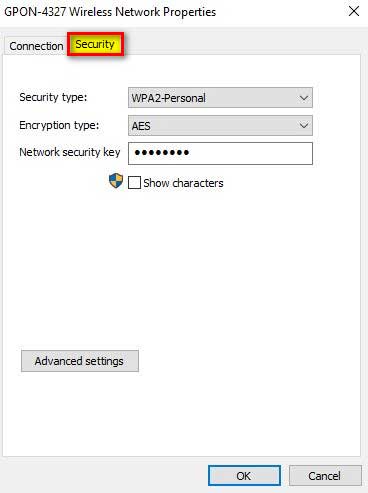
Open Security.
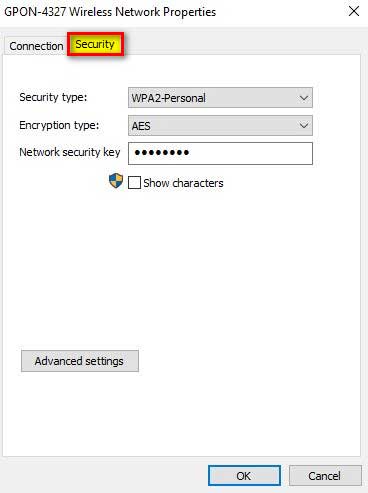
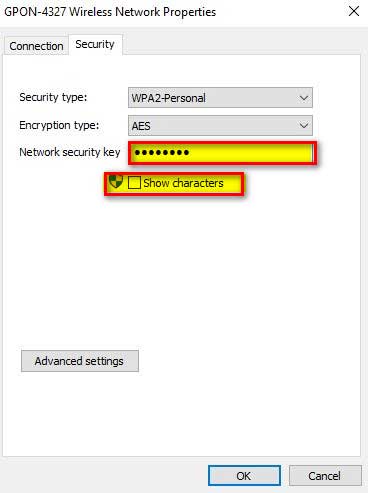
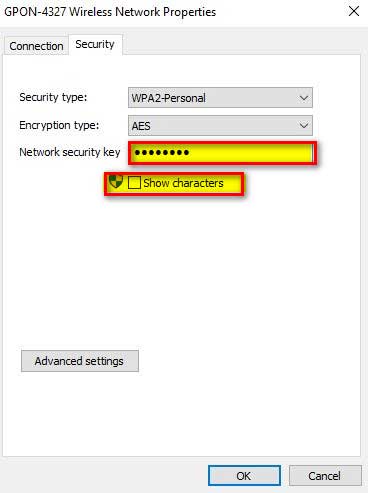
Tick Show characters under the Network security key box. The key appears in plain text. Windows will prompt for administrator confirmation at this point on most machines.
The shorter way in via ncpa.cpl
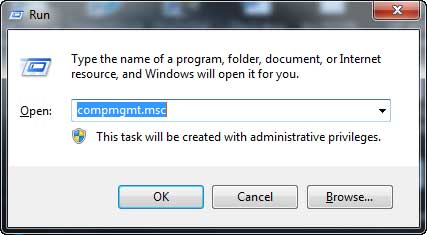
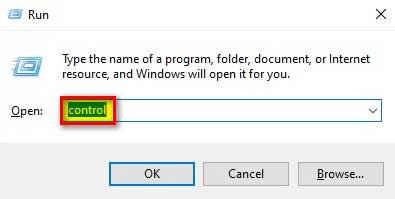
You can skip most of that. Press Windows + R, type ncpa.cpl and press Enter to land straight on the network connections list.
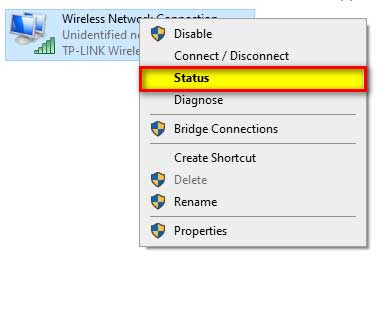
Right-click the active wireless connection and choose Status.
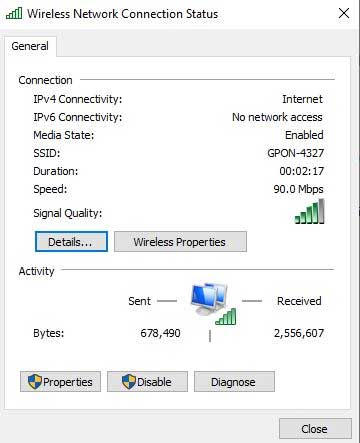
From here the sequence is the same — Wireless Properties, then the Security tab.
Tick Show characters to reveal the key.
Recovering Any Saved Network With netsh wlan
The command line is the most capable method here, because it is not limited to the network you are currently on. It reads any profile Windows has stored — the office network, the one at your parents’ house, a network the router has since been replaced on.
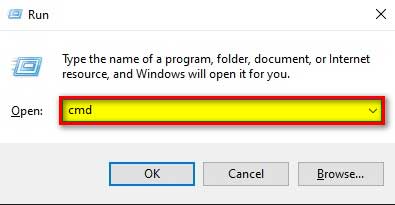
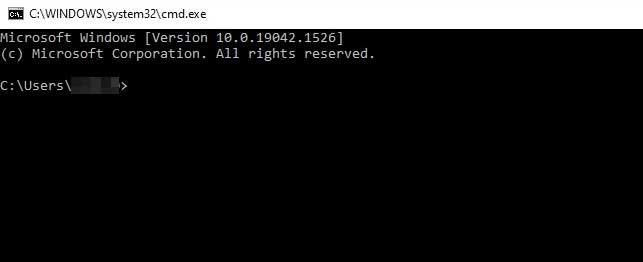
Press Windows + R, type cmd and press Enter. Run it as administrator if the key comes back blank.
List every saved network first:
- netsh wlan show profiles
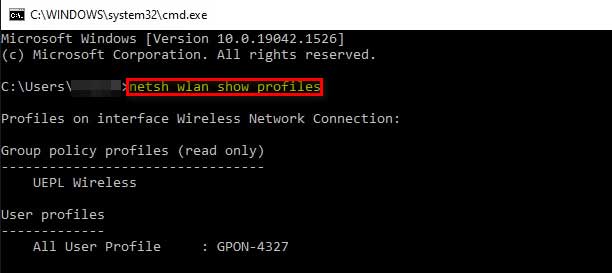
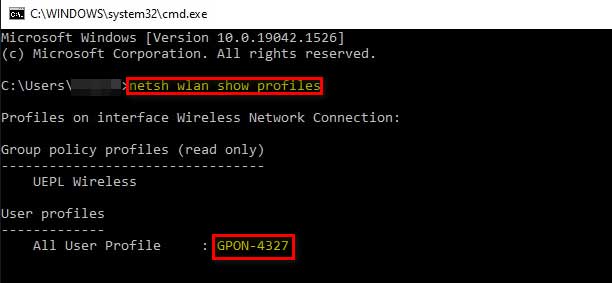
That prints every SSID the laptop has ever connected to under “User profiles”. Copy the exact name of the one you want.
The second command is singular, and it needs name=. The correct syntax is netsh wlan show profile name=”SSID_name” key=clear — profile, not profiles, with the network name passed to the name parameter. Dropping either detail is why the command so often returns nothing useful.
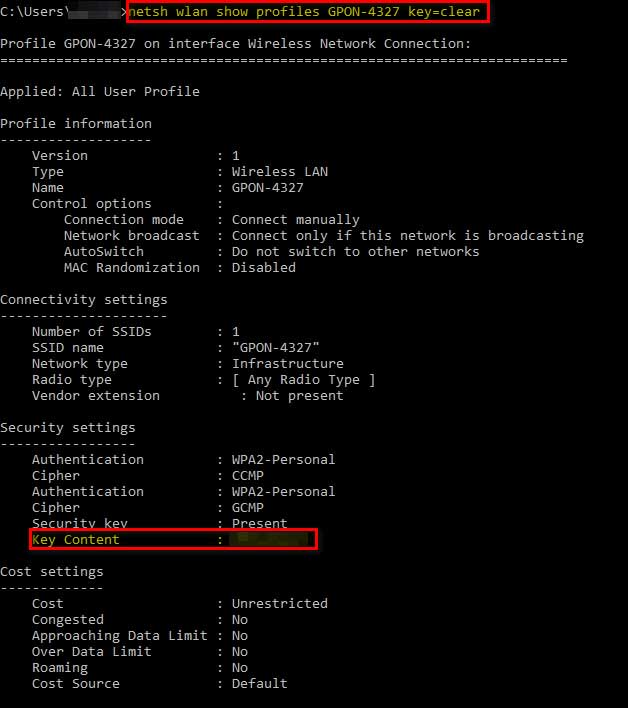
Replace SSID_name with the network name, keeping the quotes if it contains spaces. The output covers connectivity, connection and security settings for that profile.
Under Security settings, the line labeled Key Content is the password.
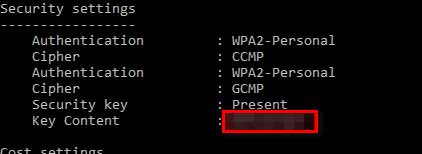
To skip straight to it, append a find filter for the Key Content line: netsh wlan show profile name=”SSID_name” key=clear | find “Key Content”. Note that these commands can be restricted by group policy on managed machines, which is why a work laptop may refuse where a personal one does not.
Getting the Password From the Router Instead
If no laptop in the house has the network saved, the router is the authority. There are two ways at it.
The label. Most routers ship with the default SSID and key printed on a sticker underneath. This only helps if nobody has changed it — and if the default is still in use, changing it is overdue.
The admin page. Connect to the router by cable or Wi-Fi, open a browser and enter its address — commonly 192.168.1.1 or 192.168.0.1, and usually printed on the same label. Sign in, find the wireless security section, and reveal the pre-shared key.
The admin credentials are a separate password from the Wi-Fi key. If they are still the factory defaults, change them once you are in — an unchanged router login is a far bigger exposure than a forgotten Wi-Fi password, and it sits behind every device on the network. Persistent trouble reaching the admin page usually points at a connection problem on the laptop rather than the router itself.
A Note on Third-Party Password Recovery Tools
Utilities that dump every saved Wi-Fi key in one window do exist, and the earlier version of this guide listed several. They do nothing the built-in methods above cannot do.
They also sit in an awkward category. Tools that read stored credentials are routinely flagged by antivirus software, and search results for them are heavily colonized by repackaged installers carrying extras. Given that a single netsh command covers the same ground, there is no good reason to download one.
Saved Wi-Fi Password Questions Answered
Can I see the password for a network I am not currently connected to?
Yes, with the command line or the Windows 11 Manage known networks page. The Network and Sharing Center route is the one that only works for the active connection.
Do I need administrator rights?
Usually. Revealing the key in the Security tab triggers a confirmation prompt, and the netsh command can be restricted by group policy on a managed machine, which is why a work laptop may refuse where a personal one will not.
Why does Key Content come back blank?
The two common causes are running the command without elevation and a profile with no stored key — an open network, or one using enterprise authentication where each user signs in with their own credentials rather than a shared password.
Does this let me get onto a Wi-Fi network I have never joined?
No. Every method here reads a key the laptop already stored because it was authorized to connect. There is nothing to read for a network the machine has never joined.
Where does Windows keep these saved passwords?
In the wireless profiles held by the system’s network configuration, encrypted at rest. The commands and dialogs above are the supported way to decrypt and display one; the stored files are not readable directly.
Will removing a network profile delete the saved password?
Yes, and it is not recoverable afterwards. If you forget a network, the key goes with it, so read it back before removing anything you may need again.
Is there a way to share the password without reading it aloud?
Current Windows 11 builds generate a QR code next to the password in Manage known networks. A phone camera pointed at it joins the network directly.
Final Thoughts on Recovering Your Wi-Fi Password in Windows
On Windows 11, Manage known networks answers this in four clicks and hands you a QR code as well. Keep the netsh command in reserve for the networks you are not currently connected to, since that is the one thing the Settings page and the old Security tab cannot both cover.
Once you have the key, write it somewhere durable — a password manager entry beats rediscovering this in two years.