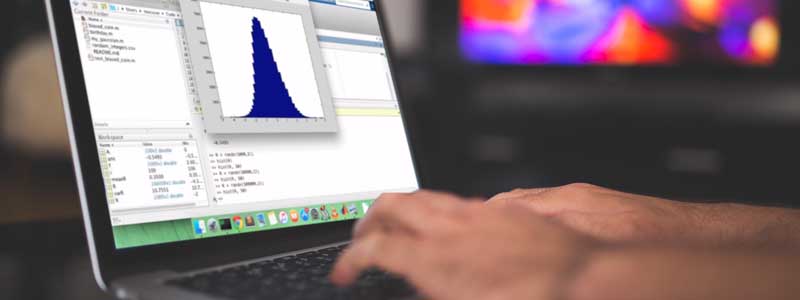
Somewhere in your first semester of MATLAB, you’ve probably watched a classmate’s laptop chew through a Simulink model in seconds while yours sits there spinning. The difference is usually hardware — but not the part of the hardware most buying advice points at.
The trap students fall into is paying for a large GPU that MATLAB will use for a narrow slice of work, while under-buying the memory that decides whether a large dataset or a multi-rate Simulink model stays responsive. MathWorks publishes exact requirements per release, and they are worth reading before a spec sheet talks you into anything. Here’s what R2026a asks for, which specs move the needle, and eight laptops matched to different kinds of MATLAB work in 2026.
Simulation-heavy majors often need more than MATLAB alone accounts for — our chemical engineering laptop guide goes into the additional software those programs tend to require.
Editor’s Pick
Last update on 2026-11-06 / Affiliate links / Images from Amazon Product Advertising API
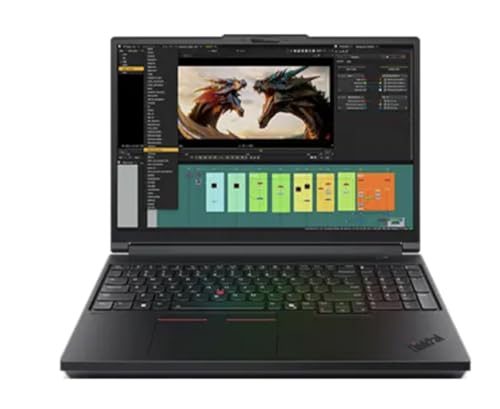
Vendor-certified against the CAD and FEA packages that sit alongside MATLAB in an engineering course, 32GB of memory in the box, and an NVIDIA professional GPU — the one brand MathWorks accepts for gpuArray work.
- Intel Core Ultra 7 255HX
- NVIDIA RTX PRO 2000
- 32GB DDR5
- 16″ WQUXGA
What’s Inside
- 1 – Best Laptops for MATLAB Buyer's Guide
- 2 – MATLAB Laptop Comparison Table
- 3 – Best Laptops for MATLAB in 2026: In-Depth Reviews
- 3.1 – 1. Lenovo ThinkPad P16 Gen 3 (Best Overall / Workstation)
- 3.2 – 2. Acer Nitro V 16 (Best Budget Pick)
- 3.3 – 3. Gigabyte Aero X16 (Best Value Pick)
- 3.4 – 4. LG gram Pro 17 (Most Portable)
- 3.5 – 5. Apple MacBook Pro 14-inch (Best for macOS)
- 3.6 – 6. Lenovo Legion Pro 7i Gen 10 (Best Flagship Performance)
- 3.7 – 7. MSI Stealth 16 AI+ (Best Thin-and-Light with Discrete GPU)
- 3.8 – 8. ASUS ROG Strix Scar 18 (Best Display for Visualization)
- 4 – Recommended Accessories
- 5 – Which MATLAB Laptop Should You Buy?
- 6 – MATLAB Laptop FAQ
- 7 – Final Thoughts on MATLAB Laptops
What Are the Minimum System Requirements for Running MATLAB on a Laptop?
The MathWorks system requirements page for R2026a on Windows lists:
- Operating System: Windows 11 (23H2 or higher), Windows 10 (22H2), or Windows Server 2025/2022
- Processor: minimum, any Intel or AMD x86-64 processor; recommended, four logical cores with AVX2 instruction set support. MathWorks adds that “a future release of MATLAB will require a processor with AVX2 instruction set support”
- Memory: 8GB minimum, 16GB recommended
- Storage: 4.6GB for MATLAB alone, 5-8GB for a typical installation, 25GB for a full one; an SSD is recommended
- Graphics: a GPU supporting WebGL 2.0 with at least 2GB of memory is recommended for graphics rendering. That is a rendering recommendation, not a compute one — GPU computing is covered by a separate requirements page
Those figures let MATLAB launch and stay usable. They are not what you should buy toward, and the gap between the two is worth going through spec by spec.
Best Laptops for MATLAB Buyer’s Guide
Which Operating System Is Best for MATLAB?

MATLAB ships for Windows, macOS and Linux, and for ordinary coursework the platform you already know is the platform to stay on. Linux costs you some setup time and nothing else. macOS carries one hard limitation, covered in the graphics section below, and one release-timing detail that catches people buying second-hand.
On the Mac side, MathWorks’ Apple silicon support page states that native Apple silicon MATLAB has been available since R2023b, and that R2025b is the final release supporting Intel Macs — R2026a and later will not be available for them at all. A handful of products, including Polyspace and Simulink Desktop Real-Time, are still listed as unavailable on Apple silicon. Check that list against your own toolbox set before committing to a Mac.
Processor (CPU)
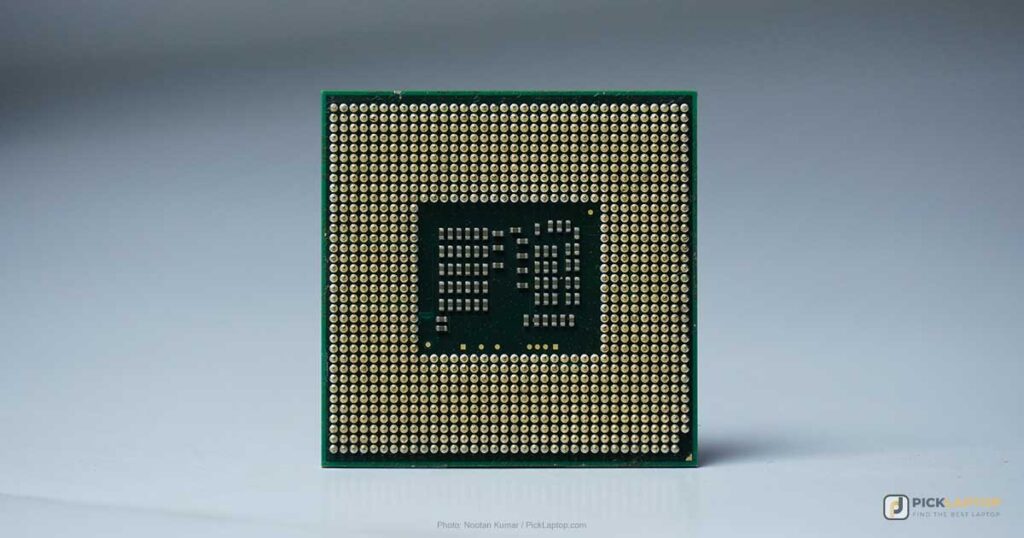
The CPU is where most MATLAB time goes. Many built-in functions are already multithreaded — the linear algebra and elementwise operations that sit under most numeric code — so extra cores shorten those. Plenty of other things are not: interpreted loops that were never vectorized, a Simulink model with a sequential dependency chain, and the single-threaded stretches of a long script all move at whatever one core can do. Both properties matter, and buying only for core count leaves the serial half of your runtime untouched.
An Intel Core Ultra 7/9 or an AMD Ryzen 7/9 in a current H-class part gives you eight or more cores without conceding per-core speed. Note also that MathWorks’ recommended configuration already names AVX2, and has flagged it as a future hard requirement — any x86 chip from the last decade has it, but a much older second-hand machine may not.
Memory (RAM)
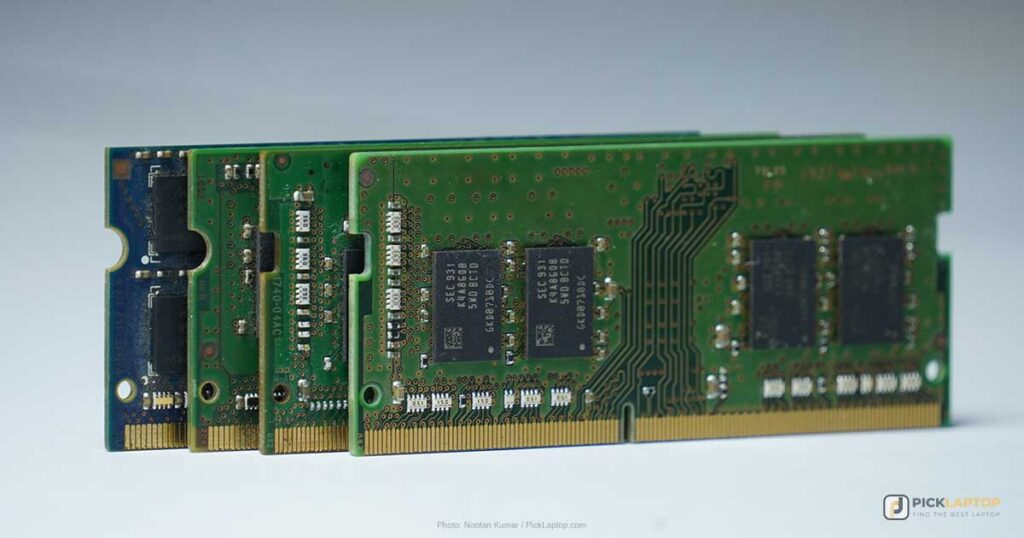
MathWorks’ recommended memory tier for R2026a is 16GB, against an 8GB minimum. The reason to go past 16GB is specific to how MATLAB handles data: arrays are held in memory, and a copy-on-write operation on a large array can transiently need a second copy of it. Add a Simulink model logging signals, a few toolboxes loaded, and a browser, and 32GB stops being luxury. Count what is resident at the same time, not how large the biggest file is.
Memory is also the specification most likely to be soldered. Thin-and-light machines and every Apple silicon Mac fix it at purchase; the workstation and gaming-class machines on this list still use SODIMM slots. Check which kind you are buying, because on the first kind whatever you order is what you keep.
Storage
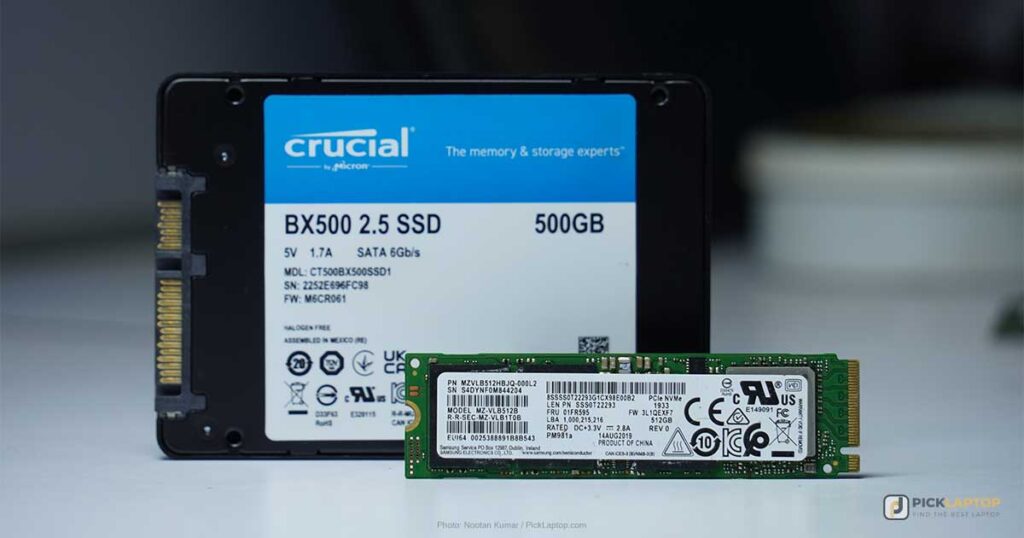
MathWorks puts a typical installation at 5-8GB and a full one with every product at 25GB. The install is the small part. Datasets, recorded simulation output and the rest of an engineering course’s software are what fill a drive, so 512GB is the floor and 1TB is the size that stops you managing it. An SSD is what MathWorks recommends, and it is the difference you notice at launch and when loading files rather than during computation.
Dedicated Graphics Memory
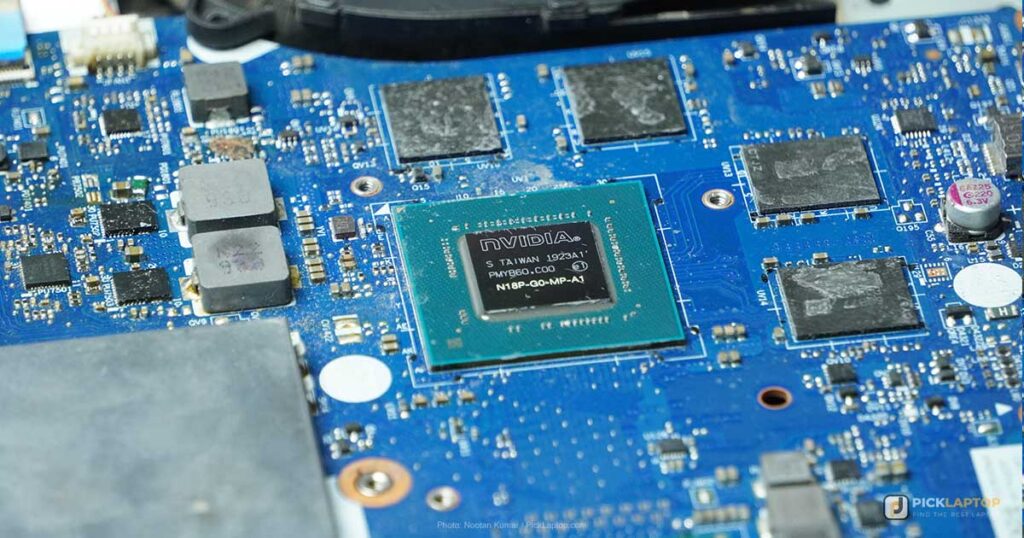
This is the specification most often bought for the wrong reason. MATLAB uses the GPU for two unrelated jobs, and only one of them needs a discrete card. Drawing the desktop, figures and 3D plots is the first, and integrated graphics meeting the WebGL 2.0 and 2GB recommendation does it. The second is compute — running array operations on the GPU through gpuArray, and training networks with Deep Learning Toolbox — and that one is vendor-locked.
The GPU compute path is NVIDIA-only — and Parallel Computing Toolbox does not require a GPU to be useful. MathWorks’ GPU computing requirements page states that MATLAB supports NVIDIA GPU architectures with compute capability 5.0 to 12.x. An AMD Radeon or an Apple silicon GPU will not run gpuArray at all, whatever its raw specification. What that does not mean is that the toolbox is a GPU product: MathWorks describes Parallel Computing Toolbox around parallel for-loops and parallelized numerical algorithms that “scale MATLAB applications without CUDA or MPI programming,” and that CPU-side work — parfor, a local parpool across your cores — is how most people use it. GPU support is an additional path for people who have the hardware.
Simulink is worth separating out here too, since it is regularly listed as a reason to buy a GPU. Ordinary model simulation is CPU work; the GPU-targeted paths are specific, opt-in ones such as GPU Coder code generation and particular deep-learning blocks. If your work is control systems, signal processing or coursework simulation, a discrete GPU buys you heat, weight and shorter battery life, and returns very little. If it is deep learning or large elementwise array work, it changes the runtime by an order of magnitude — and it has to say NVIDIA on it.
MATLAB Laptop Comparison Table




Last update on 2026-11-06 / Affiliate links / Images from Amazon Product Advertising API
Best Laptops for MATLAB in 2026: In-Depth Reviews
1. Lenovo ThinkPad P16 Gen 3 (Best Overall / Workstation)
Best Overall
Last update on 2026-11-06 / Affiliate links / Images from Amazon Product Advertising API
- ProcessorIntel Core Ultra 7 255HX
- GPUNVIDIA RTX PRO 2000 (8GB)
- RAM32GB DDR5
- Storage1TB SSD
- Display16″ WQUXGA IPS
- OSWindows 11 Pro
Lenovo’s P-series is ISV-certified for ANSYS, SOLIDWORKS and AutoCAD, which is a narrower statement than “certified for engineering” and a more useful one: those vendors validate driver and configuration behavior on the specific machine, so a lab that standardizes on one of those packages alongside MATLAB is not troubleshooting the laptop.
The RTX PRO 2000 sits inside MathWorks’ supported compute-capability range, so gpuArray and Deep Learning Toolbox training will run on it. Its 8GB of VRAM is the number to watch rather than the tier of the chip — that is the ceiling on how large a network or array you can move onto the GPU in one piece. The 32GB of DDR5 is the shipping configuration rather than a checkout upgrade, so the memory question is settled at purchase.
Battery is the trade. Rated life is about three hours, which is what a 16-inch workstation with a professional GPU spends its power budget on, and it assumes a desk.
On noise, the closest published account of this generation is Paul Thurrott’s first-impressions piece on a P16 Gen 3, where he writes “I’ve heard less fan noise on a cross-continental flight.” Two caveats attach to it: his unit is the higher configuration — Core Ultra 9 275HX, RTX PRO 3000 with 24GB, 3.2K tandem OLED — and he describes it as first impressions rather than a measured test, saying outright that he does not have workstation workloads to run. Read it as an indication that the cooling system is audible when pushed, not as a decibel figure for the Ultra 7 build here. No independent lab has published a full test of this exact configuration.
Pros
- ISV certification against ANSYS, SOLIDWORKS and AutoCAD
- 32GB DDR5 as the shipping configuration
- 8GB of professional-tier VRAM for
gpuArrayand network training
Cons
- Around three hours of rated battery life
- Fans are audible under load, per a first-impressions account of a higher-spec unit
- Only a first-impressions write-up exists, and of a higher-spec build
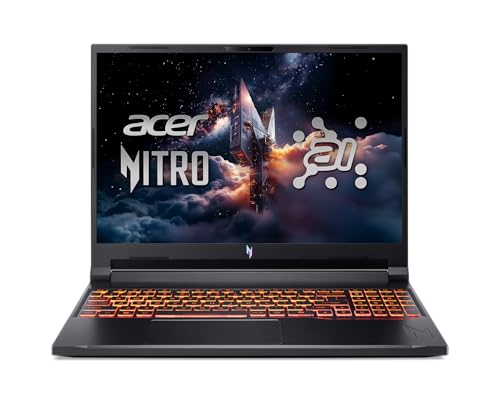
2. Acer Nitro V 16 (Best Budget Pick)
Best Budget
Last update on 2026-11-06 / Affiliate links / Images from Amazon Product Advertising API
- ProcessorAMD Ryzen AI 5 340
- GPUNVIDIA RTX 5060 (8GB)
- RAM16GB DDR5
- Storage512GB SSD
- Display16″ WUXGA, 180Hz
- OSWindows 11 Home
CUDA-capable hardware does not start at workstation prices, and this is the entry into it. An RTX 5060 with 8GB puts gpuArray and Deep Learning Toolbox within reach at a student budget, with the same 8GB VRAM ceiling as the P16 above.
16GB of RAM meets MathWorks’ recommended tier and no more. That is enough for coursework and it is the specification that will run out first — with a large dataset resident and a browser open, this is where a 16GB machine starts swapping. The 512GB drive fills up just as fast once datasets and toolboxes accumulate.
PCWorld has tested a Nitro V 16 AI, though a lower configuration than this one — a Ryzen 5 240 with an RTX 5050. The chassis observations carry across, since it is the same body: opening the lid “will reveal obvious display flex, but the lower chassis is solid when the laptop is picked up from a corner or edge,” and keyboard flex is findable but not intrusive in use. Their unit ran over 12 hours on a 4K video loopback test and weighed 5.38 pounds; treat both as figures for that quieter configuration, since an RTX 5060 draws more.
Pros
- CUDA-capable RTX 5060 at the entry tier
- Meets MathWorks’ recommended 16GB memory tier
- Lower chassis holds up when carried, per PCWorld
Cons
- 512GB is tight once datasets accumulate
- Over five pounds, and obvious display flex on opening
- PCWorld’s test covers a lower CPU/GPU configuration than this one
3. Gigabyte Aero X16 (Best Value Pick)
Best Value
No products found.
- ProcessorAMD Ryzen AI 9 HX 370
- GPUNVIDIA RTX 5070 (8GB)
- RAM32GB DDR5
- Storage1TB SSD
- Display16″ WQXGA, 165Hz
- OSWindows 11 Home (Copilot+ PC)
This is the configuration that stops making you choose: 32GB of memory and a 1TB drive alongside an RTX 5070, in a chassis Tom’s Hardware measured at 4.2 pounds and 0.78 inches thick — closer to a large ultrabook than to the Nitro V or the Legion below.
Tom’s Hardware’s review is the generation-correct source here with one variance worth stating: they tested the Ryzen AI 7 350, not the Ryzen AI 9 HX 370 listed above, with the same RTX 5070 at 85W. Two of their findings bear on MATLAB use. The panel measured 78.5% DCI-P3 coverage at 369 nits, which is short of what color-critical work wants and undercuts the “creator display” framing the Aero line carries — for reading plots and Simulink scopes it is perfectly legible, but do not buy it as a color-accurate screen. Audio is the other: they call it “a weak point,” with “muddy details and a lack of instrument separation.” The keyboard, by contrast, they found comfortable at 1.7mm of travel.
The practical read is that the compromises landed on the panel and the speakers rather than on memory, storage or compute, which is the right place for them if you are running MATLAB rather than grading video.
Pros
- 32GB and 1TB as standard alongside an RTX 5070
- Thin and light for a machine carrying an RTX 5070
- 1.7mm keyboard travel that Tom’s found comfortable
Cons
- Measured 78.5% DCI-P3 at 369 nits — not a color-accurate panel
- Audio called “a weak point” by Tom’s Hardware
- The review config used a lower-tier Ryzen than the HX 370 listed above
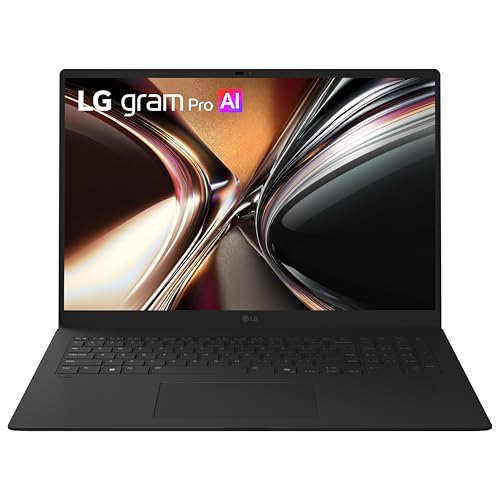
4. LG gram Pro 17 (Most Portable)
Most Portable
Last update on 2026-11-06 / Affiliate links / Images from Amazon Product Advertising API
- ProcessorIntel Core Ultra 7 355
- GPUIntel integrated
- RAM32GB LPDDR5X
- Storage1TB NVMe SSD
- Display17″ WQXGA touch
- Battery26.5 hours (LG rating)
Most MATLAB work never touches a GPU, and this pick is built on that fact. A 17-inch panel is the largest working area on this list, which is what a Simulink canvas and a docked variable browser ask for, and 32GB of LPDDR5X means the memory ceiling is not the constraint either.
The battery figure is LG’s own rating from a video-playback test, not a measured MATLAB runtime — a compute-bound script will consume it far faster than a video loop does. Weight varies by configuration too: LG lists the touch-display 17Z90U builds at about 1.5kg (3.3 lb), with the non-touch versions nearer 1.3kg, so check which panel a listing ships before assuming the lower figure.
Nobody has published measurements for the gram Pro 17 in this 2026 configuration. Reviews circulating for the 2026 gram Pro cover the 16-inch model with a different processor, and they are not evidence about this machine. What is verifiable is the trade it asks you to make: integrated Intel graphics means no gpuArray and no local network training, and Thunderbolt 4 gives you a route to an external GPU enclosure or, more realistically for a student, to campus compute and cloud instances for the occasional GPU job.
Pros
- 17-inch working area — the largest here — at roughly three pounds
- 32GB LPDDR5X
- Thunderbolt 4 for external GPU or dock
Cons
- Integrated graphics — no
gpuArray, no local training - Battery figure is LG’s video-playback rating, not measured runtime
- No independent test published for this configuration
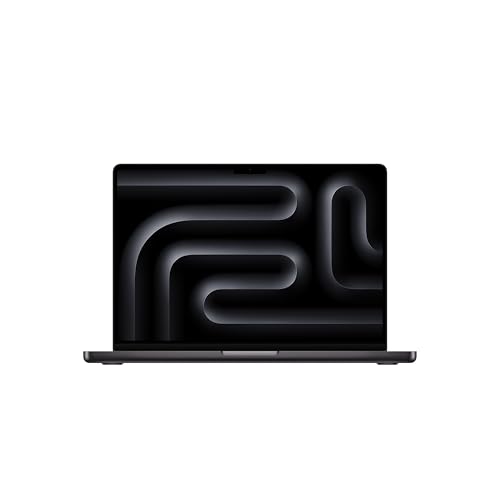
5. Apple MacBook Pro 14-inch (Best for macOS)
Best macOS Pick
Last update on 2026-11-06 / Affiliate links / Images from Amazon Product Advertising API
- ProcessorApple M5 Pro / M5 Max
- GPUIntegrated (up to 40-core, M5 Max)
- RAMUp to 64GB (M5 Pro) / 128GB (M5 Max)
- Storage1TB / 2TB SSD
- Display14.2″ Liquid Retina XDR
- BatteryUp to 22h (M5 Pro) / 20h (M5 Max), Apple rating
MATLAB has run natively on Apple silicon since R2023b, and the CPU-bound half of MATLAB work — scripts, most toolbox functions, ordinary Simulink simulation — is where these chips are at their best.
Memory is the reason to look at this one for large-data work, with a caveat on how it is advertised. The 128GB ceiling belongs to the M5 Max with the 40-core GPU; the M5 Pro tops out at 64GB. Either figure is beyond what any Windows machine on this list will take, and unified memory means the whole of it is addressable by MATLAB without a discrete GPU’s separate VRAM pool.
If you are considering the M5 Max specifically, chassis size matters. Notebookcheck measured the same M5 Max about 18% faster in Cinebench 2024 multi-core in the 16-inch MacBook Pro than in the 14-inch, and 12% faster in 3DMark Steel Nomad, and they do attribute it to cooling — GPU performance held stable under sustained load in the 16-inch where it did not in the smaller body. A five-minute script will not see this. A batch run that keeps every core busy for an hour will.
The hard limit is the GPU. Apple silicon cannot run gpuArray or the GPU-backed paths of Parallel Computing Toolbox at all, since MathWorks supports NVIDIA architectures only. Parallel Computing Toolbox’s CPU side — parfor across a local pool — works normally, so this is a restriction on GPU acceleration rather than on parallelism.
Pros
- Highest memory ceiling here — 128GB unified on the M5 Max
- Native Apple silicon MATLAB since R2023b
- Longest rated battery life of the discrete-GPU-class machines here
Cons
- No
gpuArrayor GPU-accelerated training — NVIDIA only - M5 Max runs measurably slower in the 14-inch body than the 16-inch under sustained load
- A handful of MathWorks products are Intel-only and will not install
6. Lenovo Legion Pro 7i Gen 10 (Best Flagship Performance)
Best Flagship Performance
Last update on 2026-11-06 / Affiliate links / Images from Amazon Product Advertising API
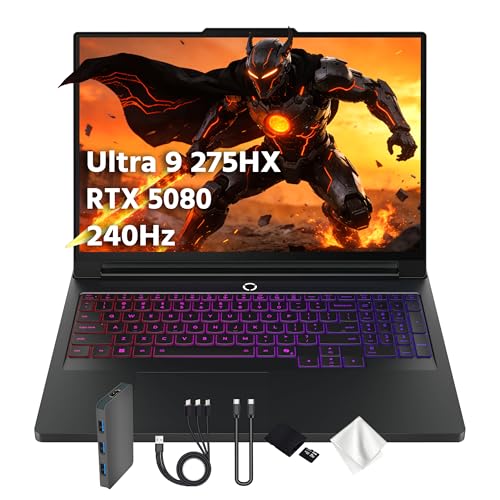
- ProcessorIntel Core Ultra 9 275HX
- GPUNVIDIA RTX 5080 (16GB)
- RAM32GB DDR5
- Storage1TB SSD
- Display16″ WQXGA OLED, 240Hz
- OSWindows 11 Home
The 16GB of VRAM is the specification that separates this from every other NVIDIA machine here, all of which stop at 8GB. For Deep Learning Toolbox that number sets how large a model and batch you can hold on the GPU before you start splitting the work up — the same constraint we go through in more depth in our TensorFlow laptop guide if your training work extends past MATLAB.
Tom’s Hardware tested this exact configuration — Core Ultra 9 275HX, RTX 5080 at 175W, 32GB, the 2560×1600 240Hz OLED — which makes it the best-evidenced pick on this list. Their finding on noise cuts against type: “the fan noise is impressively unobtrusive; I could still pick up subtle in-game audio with the speakers set to 30% volume.” Their battery result cuts the other way. The Legion carries a 99.99Wh pack, the largest in their comparison, and still finished last of four at 4 hours 37 minutes, behind a Gigabyte at 5:02, an Asus at 6:30 and a Razer at 7:21. Capacity and runtime are not the same measurement, and this is the clearest illustration of it here.
At six pounds on their scales, this is a machine you carry to a place and then leave there. Buy it for the 16GB of VRAM; nothing else about it is aimed at MATLAB in particular.
Pros
- 16GB of VRAM — twice any other NVIDIA machine here
- Tested configuration matches exactly what Tom’s Hardware reviewed
- Fan noise Tom’s called “impressively unobtrusive”
Cons
- 4:37 of battery life, last of four despite the largest pack in the test
- Six pounds
- 240Hz OLED is spent on gaming, not on plots
7. MSI Stealth 16 AI+ (Best Thin-and-Light with Discrete GPU)
Best Thin-and-Light w/ GPU
Last update on 2026-11-06 / Affiliate links / Images from Amazon Product Advertising API
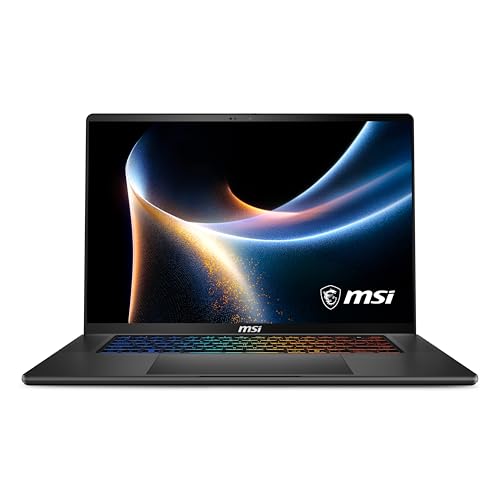
- ProcessorIntel Core Ultra 9 386H
- GPUNVIDIA RTX 5070
- RAM32GB DDR5-7200
- Storage1TB NVMe SSD
- Display16″ QHD+ OLED, 240Hz
- OSWindows 11 Home
The usual price of CUDA acceleration is a five-to-six-pound machine and a battery that lasts an afternoon. This one asks for less of both.
TechRadar reviewed the 2026 Stealth 16 AI+ with the same Core Ultra 9 386H, though paired with an RTX 5070 Ti rather than the RTX 5070 listed here. On their movie-loop test — a video playing on repeat until shutdown — it ran 14 hours 15 minutes, which is the outlier result for a laptop with a discrete GPU in it, and they put the weight at 4.4 pounds across configurations. The lower-tier GPU in this listing should if anything help the first figure. As with any video-loop number, a MATLAB session that keeps the CPU busy will not see anything close to it; the useful comparison is against the other GPU machines here, all measured the same way.
They also note the touchpad is large and smooth, and that thumb contact while typing “rarely triggered cursor movement or clicks” — a small thing that matters over a long editing session.
Pros
- 14:15 on TechRadar’s movie loop — far ahead of the other discrete-GPU picks here
- 4.4 pounds with an NVIDIA GPU inside
- 32GB of DDR5-7200 and a 1TB drive as standard
Cons
- Heavier than the gram Pro 17 despite the smaller screen
- TechRadar’s unit carried the Ti version of that GPU, so its figures are indicative rather than exact
8. ASUS ROG Strix Scar 18 (Best Display for Visualization)
Best Display for Visualization

Last update on 2026-11-06 / Affiliate links / Images from Amazon Product Advertising API
- ProcessorIntel Core Ultra 9 275HX
- GPUNVIDIA RTX 5070 Ti
- RAM32GB DDR5
- Storage1TB PCIe SSD
- Display18″ ROG Nebula HDR, 2.5K, 240Hz
- OSWindows 11 Pro
Eighteen inches is the whole argument. If your day is spent with three Simulink scopes and a figure window tiled at once, or comparing 3D plots side by side, screen area is the specification that changes the work, and the Nebula HDR panel’s mini-LED backlight gives it deeper blacks than the IPS screens on this list.
Windows 11 Pro ships as standard, which is worth something specifically if the machine has to join a university domain or run BitLocker under an IT policy.
The evidence here needs care. Tom’s Hardware’s 2026 Scar 18 review covers a different and higher configuration than the one above — a Core Ultra 9 290HX Plus with an RTX 5090 and a 3840×2400 mini-LED panel — so its numbers do not transfer directly. Two findings still carry over, with that caveat attached. Battery came in one minute short of five hours, mid-pack among 18-inch machines they compared (a Razer at 5:31, an MSI Raider at 8:34, an Alienware at 3:33). And their panel measured 77.9% DCI-P3 out of the box at 428 nits, which is a reminder that mini-LED describes a backlight mechanism and not color accuracy — good contrast, unremarkable gamut. No independent test of the RTX 5070 Ti / 2.5K build has been published.
Pros
- Largest screen area here at 18 inches
- Mini-LED backlight for contrast in dark plots and scopes
- Windows 11 Pro standard for domain-joined lab machines
Cons
- An 18-inch gaming chassis is not something you commute with
- Tom’s measured 77.9% DCI-P3 on the panel — contrast, not color accuracy
- Tom’s tested a higher CPU/GPU configuration than the one listed
Recommended Accessories


Last update on 2026-11-06 / Affiliate links / Images from Amazon Product Advertising API
Which MATLAB Laptop Should You Buy?
| Best For | Pick |
|---|---|
| Overall / Workstation | Lenovo ThinkPad P16 Gen 3 |
| Budget | Acer Nitro V 16 |
| Value | Gigabyte Aero X16 |
| Most Portable | LG gram Pro 17 |
| macOS | Apple MacBook Pro 14-inch |
| Flagship Performance | Lenovo Legion Pro 7i Gen 10 |
| Thin-and-Light w/ GPU | MSI Stealth 16 AI+ |
| Visualization Display | ASUS ROG Strix Scar 18 |
MATLAB Laptop FAQ
What is more important for running MATLAB, a powerful CPU or a large amount of RAM?
Watch your own usage before deciding. Open Task Manager or Activity Monitor during a typical session: if memory sits near the top while CPU utilization stays low, more cores will not change anything — you ran out of RAM. If CPU pins at 100% on one core while the rest idle, that is a single-threaded bottleneck, and per-core speed is what fixes it, not core count.
Can I use a gaming laptop for running MATLAB?
Yes — the NVIDIA GPU is the part MathWorks requires, and gaming machines have one by default. Two things they get wrong for this use: they often ship 16GB when the work wants 32GB, and their displays are tuned for refresh rate rather than resolution or brightness. Check both before buying on GPU alone.
Should I use a Mac or Windows laptop to run MATLAB?
Check your toolbox list against MathWorks’ Apple silicon page before deciding — a short set of products has no Apple silicon build, and hardware support packages for external boards and robotics kits are patchier there than on Windows. One timing detail also matters for second-hand buyers: R2025b is the last release for Intel Macs, so an older Intel MacBook cannot run R2026a at all.
I’m a student and will be running MATLAB and other software. Should I go for a high-end laptop, or will a budget-friendly one be enough?
Budget-friendly is fine if you spend the money in the right order: memory first, storage second, GPU last. The GPU is the one that is easy to rent — cloud instances and campus clusters exist for the occasional training run, while a laptop you have already bought with 16GB of soldered memory cannot be fixed. If you’re heading into a thesis or research-heavy program, our Ph.D. student laptop guide takes up the point where coursework turns into independent research.
Can I use a tablet or 2-in-1 laptop for running MATLAB?
A 2-in-1 with an x86 processor runs MATLAB normally. An ARM Windows tablet is the case to check: MathWorks supports Qualcomm Snapdragon X series machines through Prism emulation, with limits attached, so read the ARM section of the requirements page rather than assuming parity. iPads and Android tablets run only MATLAB Mobile and MATLAB Online, which are different products.
Is it necessary to have a dedicated graphics card for running MATLAB?
No — integrated graphics meets what MathWorks asks for on the rendering side. A discrete NVIDIA card changes three things and no others: gpuArray array operations, network training in Deep Learning Toolbox, and CUDA generated by GPU Coder. Note that GPU Coder still generates code without a GPU present; you need one to build and run the result.
Does MATLAB support AMD or Apple GPUs for acceleration?
No — NVIDIA only, with no OpenCL or Metal path. The misreading worth separating out is that this makes Parallel Computing Toolbox useless on those machines. It does not: parfor and a local parpool run across CPU cores on any supported hardware, AMD and Apple silicon included. If you own one and need CUDA occasionally, MATLAB Parallel Server on a cloud instance runs the same code without new hardware.
Is it essential to have a high-resolution display for running MATLAB?
Sharpness is the less useful half of the question. What changes daily work is whether MATLAB’s docked layout — editor, workspace, command window, a figure — fits without constant rearranging, and that is a function of panel size and aspect ratio. A 16:10 panel gives more vertical room for code and plots than a 16:9 one at the same diagonal, and very high resolutions on small screens can leave interface elements awkwardly sized under Windows display scaling.
Final Thoughts on MATLAB Laptops
Work out whether your MATLAB touches the GPU before you pay for one. For most coursework — scripts, Simulink models, signal processing, control systems — it does not, and the money is better spent on 32GB of memory and a screen large enough to work on. If you are training networks or running large array operations through gpuArray, the GPU stops being optional and the brand stops being a preference: MathWorks supports NVIDIA and nothing else.


It is the only guide I found on the internet for which is suggesting some viable option for MATLAB. I wasn’t aware of, even below 500$ laptop can run this application properly, this post has save me money. Thank you for this write-up.
Glad to hear that, Jacob. Thanks for your thoughts!