A pointer that stops moving is one of the more annoying laptop faults, because the usual way to fix a laptop problem is to click on something. The first job is working out what has actually frozen — the touchpad, an external mouse, or Windows itself — because the three have almost nothing in common as fixes.
This guide starts with that diagnosis, then covers touchpad-specific fixes on Windows 11, external mouse problems, and the system-level causes that make everything freeze at once. Every step can be done from the keyboard.
Keyboard shortcuts to get you through this. Tab and arrow keys move between controls, Space or Enter activates, Alt+Tab switches windows, Windows key + I opens Settings, Ctrl+Shift+Esc opens Task Manager, and the Menu key (or Shift+F10) opens the right-click menu for whatever is selected.
What’s Inside
Is It the Mouse, the Touchpad, or Windows?
Thirty seconds of checking here saves you working through fixes for the wrong problem. Run these three tests in order.
- Press the Windows key. If the Start menu opens, Windows is alive and only the pointer is stuck. If nothing happens, the whole system has frozen.
- Try the other pointing device. If the touchpad works but the external mouse does not, the fault is in the mouse, its cable, its batteries or its receiver. If the reverse is true, it is the touchpad.
- Switch applications with Alt+Tab. If the pointer moves everywhere except in one program, that program has stopped responding — nothing is wrong with your hardware.
A frozen pointer with a responsive keyboard is a device or driver problem. A frozen pointer with a dead keyboard is a system hang, and the section further down on system-level freezes is the one to read.
Fixing a Frozen Touchpad on Windows 11
Touchpad settings moved in Windows 11. Guides that send you to Settings > Devices > Touchpad are describing Windows 10 and will not match what is on your screen.
Check the Touchpad Is Switched On
Microsoft’s current path is Settings > Bluetooth & devices > Touchpad, reached by pressing Windows key + I, scrolling to Bluetooth & devices and selecting Touchpad. There is a master toggle at the top of that page — if it is off, nothing else on the page matters.
Expand the same section and check Leave touchpad on when a mouse is connected. Windows can be set to disable the touchpad automatically the moment a USB or Bluetooth mouse appears, which produces a touchpad that seems broken only sometimes — and that is the setting responsible.
Cursor speed, tap behavior, scroll direction and multi-finger gestures all live on this page too, along with a Reset button at the bottom that returns everything to default. Dell recommends that reset as a troubleshooting step, alongside adjusting sensitivity and turning off individual gestures that cause erratic behavior.
The Touchpad Disable Key
Most laptops have a hardware toggle for the touchpad, and catching it by accident is one of the most common reasons a touchpad “dies” overnight.
- HP: a double-tap in the top-left corner of the touchpad, sometimes marked by a small indentation or an LED that lights when disabled.
- Dell, Lenovo, ASUS, Acer: a function-row key with a crossed-out touchpad icon, usually F5, F6, F7 or F9, pressed with Fn on models where the top row defaults to media keys.
Press it once and test. Press it again if nothing changes — you may have just switched it off. On some models this key only works when the vendor’s hotkey utility is installed, so a touchpad that stays dead after a clean Windows install often needs that package from the support site rather than a driver.
Precision Touchpad Versus OEM Drivers
A Windows Precision Touchpad is driven by Microsoft’s own driver, so gestures and settings are handled by Windows rather than by a Synaptics or Elan control panel. To find out which you have, open Settings > Bluetooth & devices > Touchpad. Dell’s guidance is to look for the line “Your PC has a precision touchpad”; if it is absent, the laptop is using a legacy OEM driver.
This distinction drives the fix. On a precision touchpad, installing a manufacturer’s touchpad driver over the top frequently makes things worse — the vendor filter driver takes over and the Windows gesture settings stop applying. On a legacy touchpad, the OEM driver is the only thing that provides gestures at all, so removing it is what breaks them.
Do not install a random touchpad driver to fix a precision touchpad. If Settings says the laptop has a precision touchpad and gestures have stopped, roll back or uninstall the vendor driver rather than adding another one. Windows reinstalls its own driver on the next restart.
Reinstalling the Touchpad Driver
Have an external mouse plugged in before you start, or be confident with keyboard navigation — this step removes your pointing device on purpose.
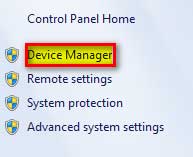
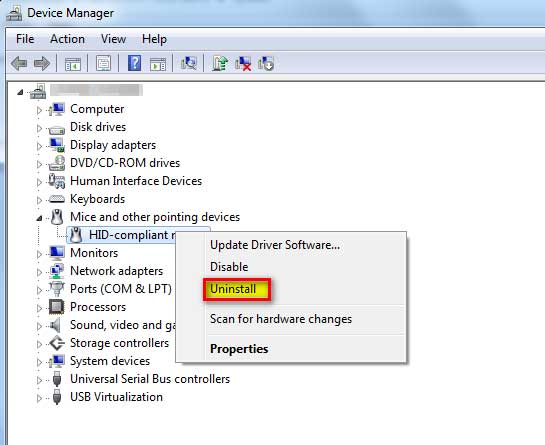
- Press Windows key + X and choose Device Manager.
- Expand Mice and other pointing devices, and also check Human Interface Devices for an “HID-compliant touch pad” entry.
- Select the touchpad, press the Menu key, and choose Properties > Driver tab.
- Try Roll Back Driver first if it is available — that undoes a bad update without downloading anything.
- Otherwise choose Uninstall device and restart. Windows reinstalls the driver automatically on the next boot.
If the touchpad is missing from Device Manager entirely, it may be disabled in firmware. Dell also points to the chipset serial I/O driver as a dependency, recommending that the latest Intel Serial I/O Driver from the Chipset category be installed and the BIOS kept current — the touchpad connects through that controller, so it disappears when the controller has no driver.
Fixing a Frozen External Mouse
External mice fail for physical reasons far more often than software ones. Work through the cheap checks first.
Wired and USB Receiver Mice
- Change the port. Plug directly into the laptop rather than through a hub, dock or extension cable, so the mouse gets full power and a clean connection.
- Check the cable near the connector. That is where the internal conductors break first, and a pointer that cuts out when the cable moves is a diagnosis, not a coincidence.
- Move the receiver away from USB 3 ports. USB 3 controllers emit interference in the 2.4 GHz band that wireless receivers use. Moving the dongle to a port on the other side, or onto a short extension cable, often clears stuttering entirely.
- Clean the sensor and the surface. A cotton bud with a little isopropyl alcohol on the lens, and a proper mouse mat rather than glass or a high-gloss desk. Optical sensors struggle badly on reflective and transparent surfaces.
Wireless and Bluetooth Mice
Replace or recharge the batteries before anything else. A partly drained battery produces intermittent freezing rather than a clean failure, which is exactly the symptom that sends people looking for driver fixes.
Wireless mice also sleep to save power. A click on either button wakes them, and a pointer that is dead for a second after you return to the desk and then fine is doing precisely that — nothing is wrong.
For Bluetooth models, go to Settings > Bluetooth & devices, select the mouse, choose Remove device, then pair it again. Toggling Bluetooth off and on first is quicker and sometimes enough.
Stop Windows Powering Down USB Ports
USB selective suspend lets Windows cut power to idle USB devices, and it is a genuine cause of a mouse that freezes after the laptop has been sitting untouched.
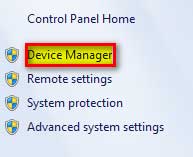
- Press Windows key + X and open Device Manager.
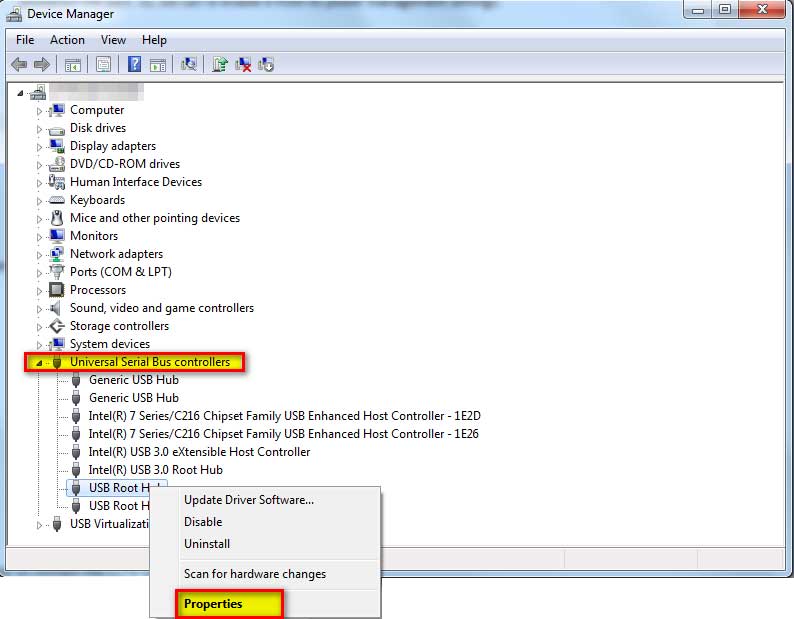
- Expand Universal Serial Bus controllers.
- Open Properties on each USB Root Hub entry, go to the Power Management tab, and clear Allow the computer to turn off this device to save power.
- Repeat for every USB Root Hub listed.
The same setting exists per-power-plan under Control Panel > Power Options > Change plan settings > Change advanced power settings > USB settings > USB selective suspend setting. Turning it off costs a small amount of battery life.
When the Whole System Freezes, Not Just the Pointer
If the Windows key did nothing in the first test, the pointer is a symptom rather than the fault.
Restart Windows Explorer
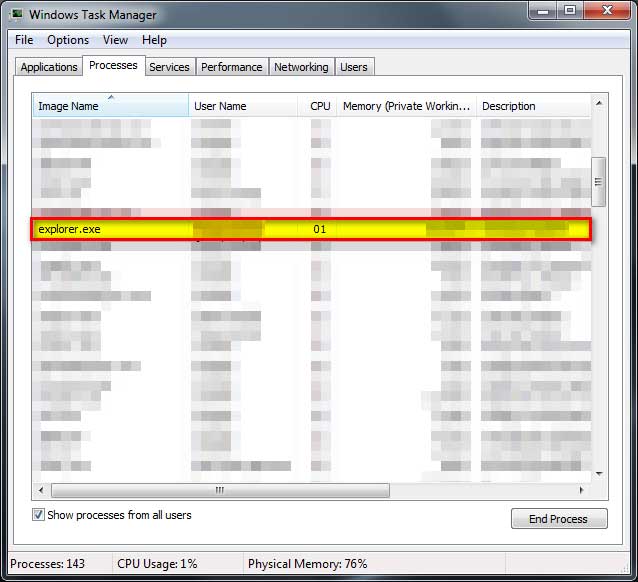
When the desktop, taskbar and Start menu are unresponsive but the machine is otherwise running, the shell has crashed rather than the system.
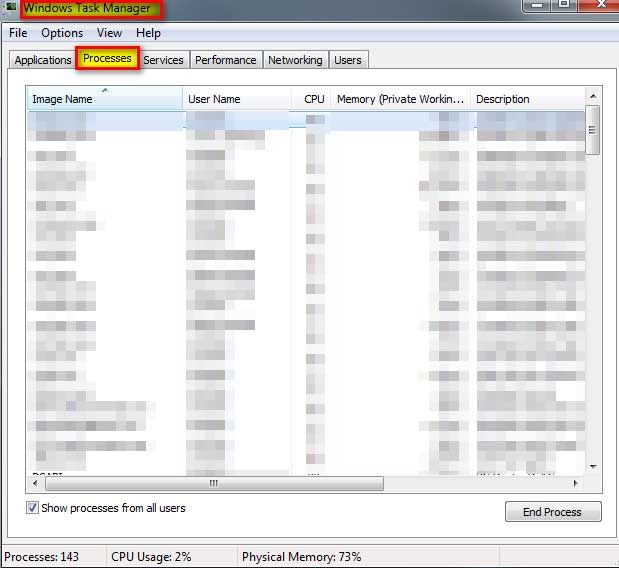
- Press Ctrl+Shift+Esc to open Task Manager directly.
- Find Windows Explorer in the Processes list.
- Press the Menu key and choose Restart. The taskbar disappears and comes back within a few seconds.
Close Whatever Is Eating the Machine
In the same Task Manager, open the Performance tab and look at which resource is pinned. A disk sitting at 100 percent is the usual culprit behind a pointer that moves in lurches — the system is waiting on storage, not on the mouse.
Back on the Processes tab, sort by CPU or Memory, select the offender and press Delete to end it. If a disk is permanently saturated with nothing obvious running, that is worth investigating with a proper storage and memory diagnostic, since failing drives produce exactly this pattern.
Repair Damaged System Files
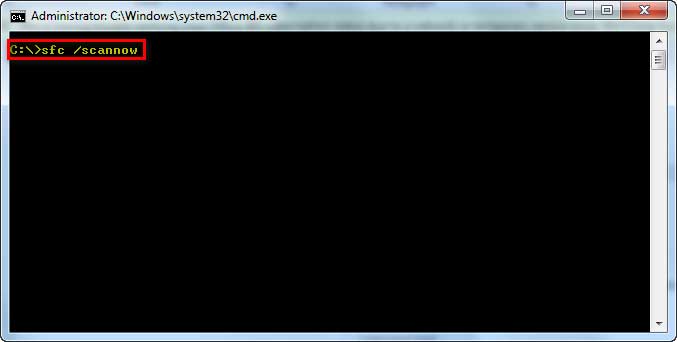
Open Terminal or Command Prompt as administrator via Windows key + X, and run sfc /scannow. If it reports files it could not repair, follow with DISM /Online /Cleanup-Image /RestoreHealth and then run sfc again.
A full malware scan belongs here too. Windows Security is built in and adequate for this — Settings > Privacy & security > Windows Security > Virus & threat protection > Scan options > Full scan. If freezing stops in Safe Mode, the cause is software, and Safe Mode is also the right place to remove whatever is responsible.
Settings That Make the Pointer Feel Broken
Some pointer complaints are not freezes at all — they are configuration.
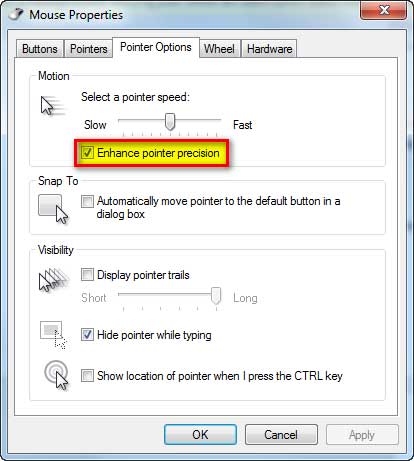
Enhance pointer precision is mouse acceleration: the same physical movement travels different distances depending on speed. It makes precise work feel unpredictable, and gamers usually want it off. Go to Settings > Bluetooth & devices > Mouse > Additional mouse settings, open the Pointer Options tab, and clear the checkbox. That dialog is the old Control Panel mouse applet, which Windows 11 still uses for these settings.
Windows updates cut both ways. They deliver driver fixes, and they occasionally deliver the driver that broke your touchpad. Check Settings > Windows Update, and if the problem started immediately after an update, Roll Back Driver in Device Manager is the targeted response. Note the Windows 10 path for this — Settings > Update & Security > Windows Update — is not the Windows 11 one; Windows Update is now a top-level item in the sidebar.
Sustained heat is the less obvious one. A laptop throttling hard under load produces stuttering input that looks like a mouse fault, so if freezing coincides with fan noise and heavy work, treat it as a cooling problem rather than a pointer problem.
Why does my laptop mouse freeze but the keyboard still works?
That combination points at the pointing device or its driver rather than at Windows. Test the touchpad and an external mouse against each other to identify which one has failed, then work through that device’s fixes — port and battery checks for an external mouse, the Touchpad settings page and driver for the built-in one.
Where are touchpad settings in Windows 11?
Settings > Bluetooth & devices > Touchpad, opened with Windows key + I. This changed from Windows 10, where the path was Settings > Devices > Touchpad, which is why older guides do not match. The master toggle sits at the top of that page, and there is a Reset button at the bottom.
How do I turn my touchpad back on if I disabled it by accident?
On HP laptops, double-tap the top-left corner of the touchpad. On most other brands, press the function-row key with the crossed-out touchpad icon, usually F5, F6, F7 or F9, holding Fn if your top row defaults to media keys. Also check the toggle in Settings > Bluetooth & devices > Touchpad, since the two are independent.
Why does my touchpad stop working when I plug in a mouse?
Windows can be set to disable it automatically. Go to Settings > Bluetooth & devices > Touchpad, expand the touchpad section, and enable “Leave touchpad on when a mouse is connected”.
Should I install the manufacturer’s touchpad driver?
Only if the laptop does not have a precision touchpad. Open Settings > Bluetooth & devices > Touchpad and look for the note that your PC has a precision touchpad. If it is there, Windows supplies the driver and adding a vendor one commonly breaks gestures. If it is absent, the OEM driver is what provides gesture support in the first place.
Why does my wireless mouse freeze intermittently?
Weak batteries and 2.4 GHz interference are the two big causes. Replace the batteries first, then move the receiver away from USB 3 ports and any dock — USB 3 controllers emit noise in the same band the receiver uses. A short USB extension cable that moves the dongle clear of the laptop body fixes a surprising amount of stuttering.
How do I fix a frozen mouse without using a mouse?
Tab and arrow keys move between controls and Space or Enter activates them. Windows key + I opens Settings, Windows key + X opens the power-user menu including Device Manager, Ctrl+Shift+Esc opens Task Manager, and the Menu key or Shift+F10 opens a right-click menu for whatever is selected.
Why is my mouse pointer moving in jumps rather than smoothly?
Open Task Manager with Ctrl+Shift+Esc and check the Performance tab. Stuttering that matches a disk sitting at 100 percent or a saturated CPU is the system waiting on resources rather than a mouse fault. On an optical mouse, a dirty sensor or a glossy desk surface produces the same effect for an entirely mechanical reason.
Can a virus cause the mouse to freeze?
Indirectly, yes — malware that consumes CPU or disk makes the whole system stutter, pointer included. Run a full scan with Windows Security under Settings > Privacy & security > Windows Security. If the freezing stops in Safe Mode, something loading at startup is responsible, whether malicious or simply badly behaved.
Final Thoughts on Fixing a Frozen Laptop Pointer
Spend the first thirty seconds identifying which of the three things has frozen — touchpad, external mouse, or Windows. Almost every wasted hour on this problem comes from applying a driver fix to a flat battery, or a hardware fix to a hung application.
After that, the order that pays off is physical checks, then the Settings toggles, then the driver, and only then the system-level repairs.