
Looking for the best laptop for a multi-monitor setup? Whether you’re a programmer, designer, gamer, or just tired of alt-tabbing between windows, adding a second (or third) display is one of the cheapest productivity upgrades available.
A second monitor means not switching between programs — video, documents, or email can run on one screen while work continues on another. Gamers can get a wider field of view by adding extra monitors to their setup, making some games more immersive.
Adding multiple monitors to a desktop is straightforward, since desktops come with several connectivity ports and a graphics card can be added as needed. Laptops are not as simple — port count alone doesn’t tell you how many independent displays a laptop can actually drive. Intel’s own support documentation makes the point directly: even when a chip’s integrated graphics is rated for a given number of displays, individual manufacturers sometimes restrict a system to fewer, whether through firmware or the physical ports they wire up. The 9 picks below note where a manufacturer publishes an explicit external-display maximum and where that number is inferred from the port list instead.
Editor’s Pick
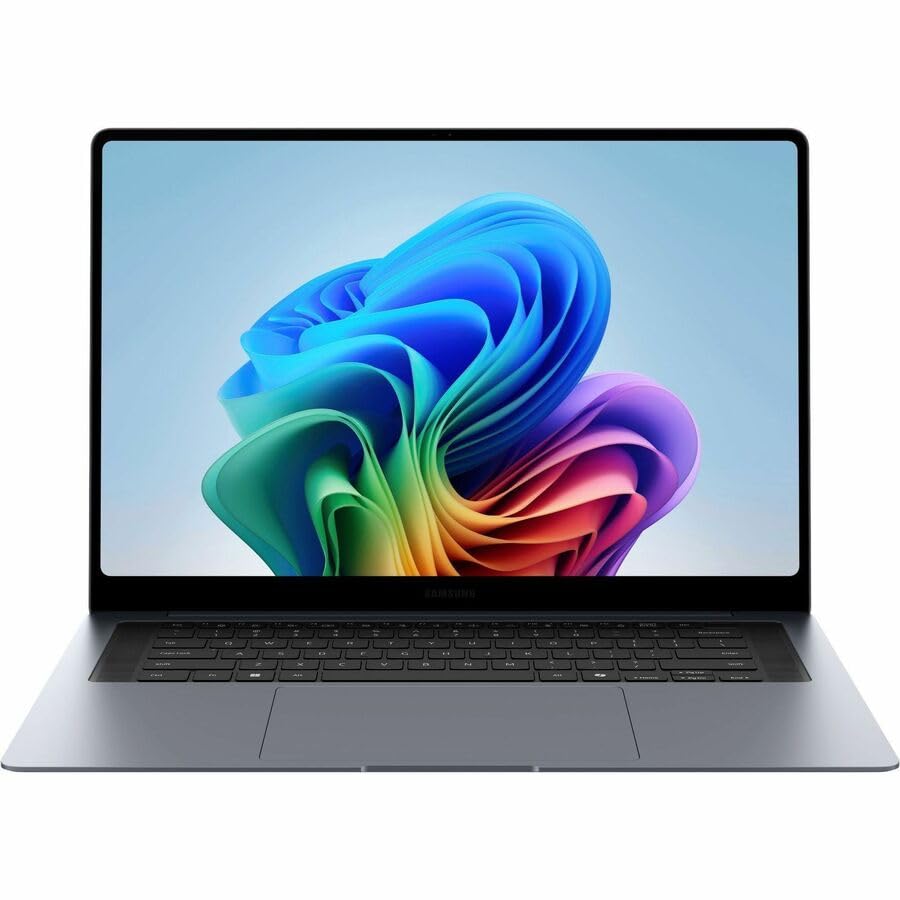
Last update on 2026-09-18 / Affiliate links / Images from Amazon Product Advertising API
Two Thunderbolt 4 ports plus a full-size HDMI 2.1 give three separate video outputs with zero adapters, and a manufacturer-rated 30-hour battery means less time tethered to a wall outlet between desks.
- Intel Core Ultra 7 356H
- 16-32GB RAM
- 16″ AMOLED, 120Hz
- Up to 30h battery (rated)
Multi-monitor questions from laptop owners haven’t changed much over the years, even as the ports involved have: the actual constraint is how many independent displays the GPU can drive, not how many video-out ports are physically present on the chassis. That distinction is what this guide checks for each pick below, rather than assuming more ports means more screens.
The right pick depends on what kind of work is involved — a developer running three terminal windows needs a very different laptop than a photographer color-grading across a second display. Budget options, gaming rigs, ultralight travel machines, and certified professional workstations are all covered below.
The sections below cover what to check before buying — start here if the terminology on a spec sheet isn’t clear yet.
What’s Inside
- 1 – Best Laptops for Connecting Multiple Monitors in 2026 — Buyer's Guide
- 2 – Multi-Monitor Laptop Comparison Table
- 3 – Best Laptops for Connecting Multiple Displays in 2026 — Reviews
- 3.1 – 1. Samsung Galaxy Book6 Pro (Best Overall)
- 3.2 – 2. Acer Aspire Vero Green Laptop (Best Budget)
- 3.3 – 3. Framework Laptop 13 (Best Port Flexibility)
- 3.4 – 4. Apple MacBook Air 13" (Best Ultrabook)
- 3.5 – 5. Apple MacBook Pro 14" M5 Pro/Max (Best for Creators)
- 3.6 – 6. Lenovo Yoga 7i 2-in-1 (Best 2-in-1 Convertible)
- 3.7 – 7. Lenovo ThinkPad P16 Gen 3 (Best for CAD/Engineering Professionals)
- 3.8 – 8. Lenovo Legion Pro 7i Gen 10 (Best for Power Users)
- 3.9 – 9. Razer Blade 16 (Best Gaming)
- 4 – Recommended Accessories
- 5 – Which Multi-Monitor Laptop Should You Buy?
- 6 – Multiple Monitor Laptop FAQ
- 7 – Final Thoughts on the Best Laptops for Multiple Monitors
Best Laptops for Connecting Multiple Monitors in 2026 — Buyer’s Guide
Before choosing a laptop to connect multiple monitors, a few factors decide whether it will actually work the way a spec sheet implies.
Laptop Ports for Multiple Monitors
Ports are the place to start. Here’s what actually shows up on laptops and monitors today.
1. Common but Old
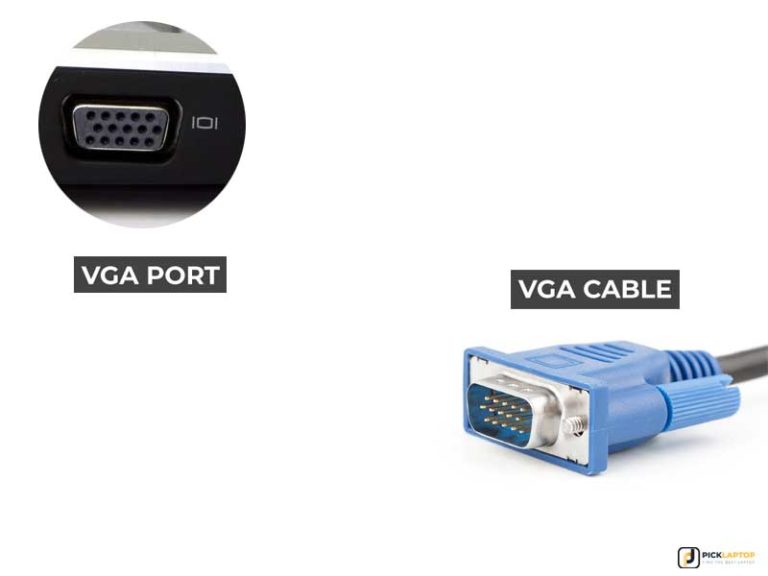
VGA: Powered by analog technology, the VGA connector has been used for a long time. It has effectively disappeared from current laptops entirely — no 2026 model, including budget machines, ships with one — but it still shows up on many external monitors, home projectors, and older office displays, so an adapter is occasionally worth keeping around.
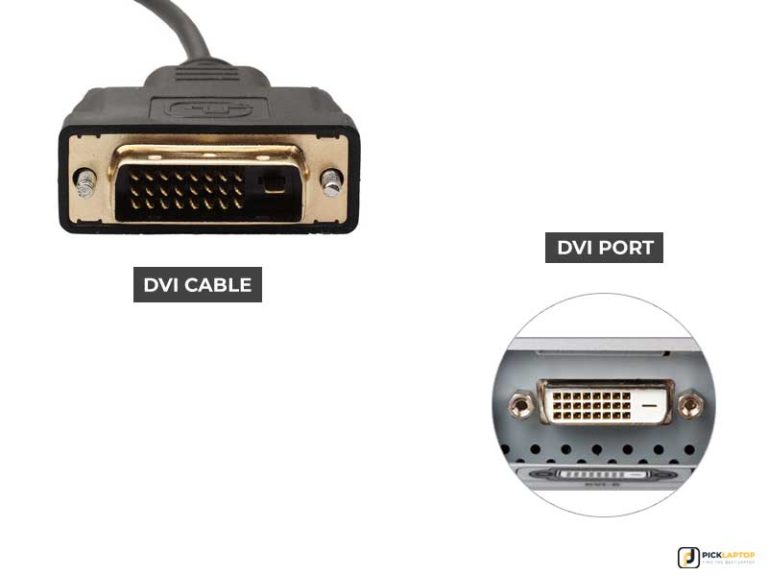
DVI: The Digital Video Interface was an excellent replacement for the VGA interface due to its higher video transmission quality. Because it supports both analog and digital signal transmission, it handles large resolutions and high frequencies. Like VGA, it’s essentially gone from current laptops, but plenty of monitors and projectors still use it.
2. Modern Types
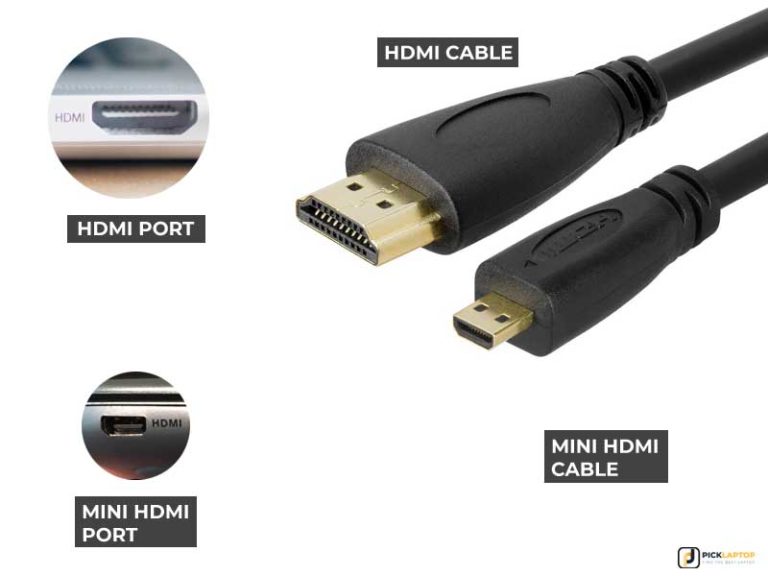
HDMI:
The most common port among current laptops, monitors, TVs, projectors, DVRs, and game consoles.
- It carries audio and video signals.
- Standard passive cables run reliably up to about 5 meters; longer runs (up to 25-30 meters) need an active or fiber-optic HDMI cable to avoid signal loss.
HDMI 2.1 is now standard on current laptops, and comfortably drives a single 4K 60Hz display.
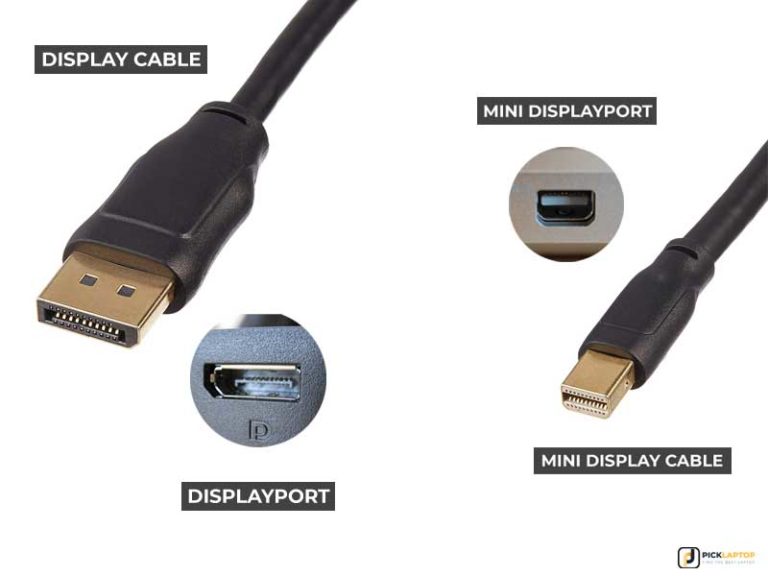
DisplayPort:
DisplayPort is a strong competitor to HDMI and is available in many current notebooks — often built directly into a USB-C port as “DP Alt Mode.”
- It supports very high resolution along with a stereo signal.
- It supports Multi-Stream Transport (MST) — daisy-chaining two or more monitors off a single port.
- It carries both audio and video.
Not every USB-C port supports this, so check the spec sheet for “DisplayPort over USB-C” specifically, not just “USB-C.”
Thunderbolt 3/Thunderbolt 4/Thunderbolt 5: On most current laptops, a TB4 or TB5 port is standard and supports data transfer, power delivery, and external monitor connectivity. If a monitor doesn’t have a TB3/TB4/TB5 port, a TB-to-HDMI or DisplayPort adapter works.
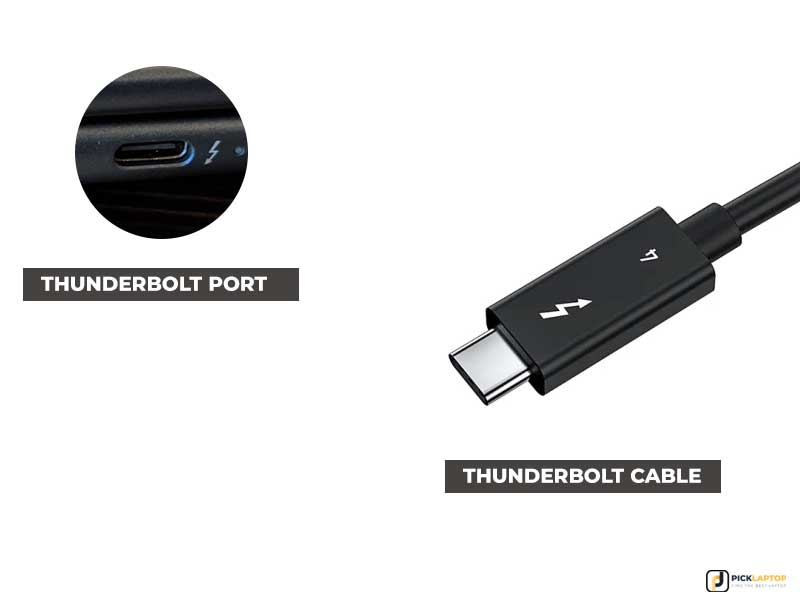
Don’t confuse this with a plain USB Type-C port, which looks identical to a TB3/TB4/TB5 port but doesn’t offer display output in most cases. Always check the product spec sheet to confirm whether that specific Type-C port supports DisplayPort.
Thunderbolt 3/4/5’s most useful trick is that a docking station can connect up to two independent displays through a single port.
It’s still possible to connect multiple monitors with just HDMI and DisplayPort, but to take full advantage of the “Extend” feature across several screens in some configurations, a dock or MST hub is required. Here’s what those display modes actually mean.
Project Options in Windows
Windows offers four options for connecting external displays, accessible with the “Windows + P” key combination.
- PC screen only: Windows uses the laptop screen in this mode, and all connected monitors go black.
- Duplicate: Windows shows the same content on all monitors, including the laptop screen — useful for presentations.
- Extend: Windows enlarges and extends the desktop across all connected monitors, providing more room for working. This is the setting for multitasking.
- Second screen only: Turns off the primary display and uses only the external monitor.
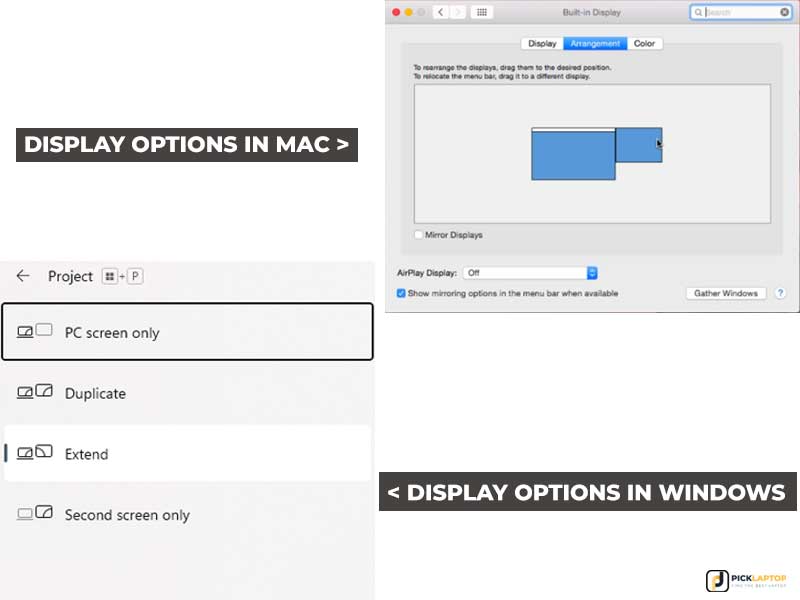
Display Options in macOS
In macOS, there are two options available. Navigate to Apple Menu > System Settings, click Displays > click on the Arrangement tab, then check or uncheck Mirror Displays.
- Mirror Displays — Shows the same content on all monitors. The same as the Duplicate option in Windows.
- Extend — Uses each connected monitor as independent screen space.
One correction worth making here: this used to be a real limitation on older Apple Silicon chips (M1/M2/M3), which needed “clamshell mode” — lid closed, external keyboard and mouse — to add a second external display. Apple changed this starting with the M4 generation. Current M5 MacBook Airs and base M5 MacBook Pros both support two external displays with the lid open, no clamshell required, confirmed on Apple’s own support page. The differentiator now is chip tier, not clamshell mode: the M5 Pro chip unlocks three external displays, and M5 Max unlocks four, per Apple’s tech specs page for the 14-inch MacBook Pro.
Do You Need a Dedicated GPU for Multiple Monitors?
For office work rather than gaming or heavier editing, integrated graphics run two external monitors without trouble, and often a third depending on the specific chip and how the manufacturer wired the ports. Adding multiple displays does increase CPU/GPU workload, though — timeline scrubbing in a video editor, a 3D viewport, or gaming across multiple screens is where a dedicated GPU starts to matter. A discrete GPU is worth the added cost when the budget allows for it and the use case actually demands it.
The nine laptops below cover different multi-monitor use cases, from budget office setups to certified engineering workstations.
Multi-Monitor Laptop Comparison Table


Last update on 2026-09-18 / Affiliate links / Images from Amazon Product Advertising API
Framework Laptop 13 isn’t sold on Amazon and isn’t included in the table above — see its full review below.
Best Laptops for Connecting Multiple Displays in 2026 — Reviews
1. Samsung Galaxy Book6 Pro (Best Overall)
Best Overall
Last update on 2026-09-18 / Affiliate links / Images from Amazon Product Advertising API
- ProcessorIntel Core Ultra 7 356H
- GPUIntel Arc (integrated)
- RAM16-32GB
- StorageUp to 1TB SSD
- Display16″ AMOLED, 2880×1800
- BatteryUp to 30 hours (manufacturer rating)
Two Thunderbolt 4 ports plus a dedicated HDMI 2.1 output give three separate video paths without a docking station — more built-in outputs than most machines at this price. Samsung’s spec sheet lists the ports but doesn’t state a maximum number of simultaneous external displays, and Intel’s own support documentation is explicit that a chip being rated for a given display count doesn’t guarantee an individual laptop is wired to use all of it. Three real external monitors is the likely outcome on this hardware, not a confirmed one — test with your own displays before building a three-monitor desk around it.
The 16-inch AMOLED display is worth the price of admission on its own, and having that quality as the primary screen while extending to secondary monitors makes the whole setup feel less like a compromise. Intel’s Arc integrated graphics comfortably handle office work, web-heavy multitasking, and light creative work across all three screens at once.
Notebookcheck’s review of this configuration found key travel on the shallow side and rated competing keyboards, including the ThinkPad X9-15, more comfortable — the trackpad itself, by contrast, drew no complaints.
The 30-hour battery figure is Samsung’s own rating rather than an independent lab measurement, but even discounted from that number, it’s the longest-rated battery among the picks in this guide, and matters more than usual once a laptop becomes the permanent center of a desk setup rather than something carried around all day.
Pros
- 3 separate video outputs with zero adapters
- Gorgeous AMOLED display
- Highest-rated battery life on this list
- SD card slot included
Cons
- Integrated graphics only — not for heavy creative work
- Shallow key travel compared to competing keyboards, per Notebookcheck’s review
- RAM is soldered, not upgradeable later
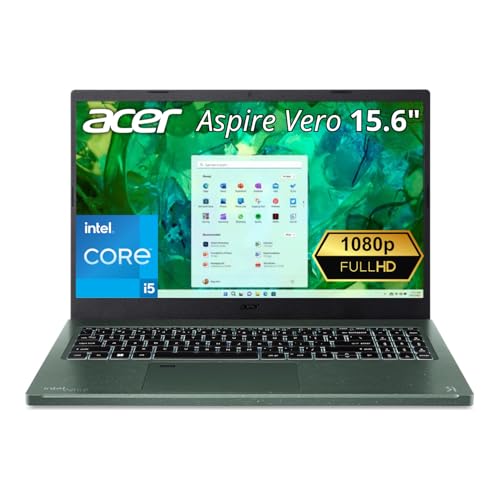
2. Acer Aspire Vero Green Laptop (Best Budget)
Best Budget
Last update on 2026-09-18 / Affiliate links / Images from Amazon Product Advertising API
- ProcessorIntel Core i5-1335U
- GPUIntel Iris Xe (integrated)
- RAM8GB (up to 16GB)
- Storage512GB PCIe Gen4 SSD
- Display15.6″ FHD IPS, 1920×1080
- Webcam1440p QHD
As the least expensive laptop on this list, the Aspire Vero doesn’t cut the port list to hit that price: two Thunderbolt 4 ports and a full HDMI 2.1 jack add up to three separate video outputs with no dock required. Acer’s spec sheet lists the ports without stating a maximum simultaneous external-display count, and no independent test of this configuration confirms three screens running at once — treat the port count as a strong sign rather than a guarantee.
The Core i5-1335U and 8GB of RAM (upgradeable to 16GB via the dual M.2 slot) are enough for office work, browser-heavy multitasking, and email/chat spread across secondary screens. This isn’t a laptop for anything demanding on those extra monitors, but at this price it was never built to be.
The display is the honest compromise point of the line, though the evidence for it needs a caveat: independent testing of this exact chassis (i5-1335U, AV15-51 configuration) measured the panel at under 60% sRGB coverage — a step behind the AMOLED and OLED picks on this list, and short of what the same reviewer said the price point should buy. No test of the current i5-1335U / AV15-53P configuration specifically was found; the panel spec sheet hasn’t changed across the line, but treat the exact figure above as evidence from an adjacent Aspire Vero configuration rather than this one.
Acer’s own product page confirms the AV15-53P chassis uses 40% post-consumer recycled plastic, and the line is Intel Evo verified for battery life and connectivity standards. For a budget laptop that still handles the multi-monitor port story, this is it.
Pros
- Three separate video outputs at the lowest price on this list
- 40% recycled plastic chassis, confirmed by Acer for this exact model
- RAM and storage both user-upgradeable
Cons
- Base RAM (8GB) is tight for heavy multitasking out of the box
- 1080p display is basic compared to pricier picks on this list
- No independent lab test of this exact CPU/panel configuration was found; the display measurement above is from a related but different Aspire Vero model
3. Framework Laptop 13 (Best Port Flexibility)
Most Flexible
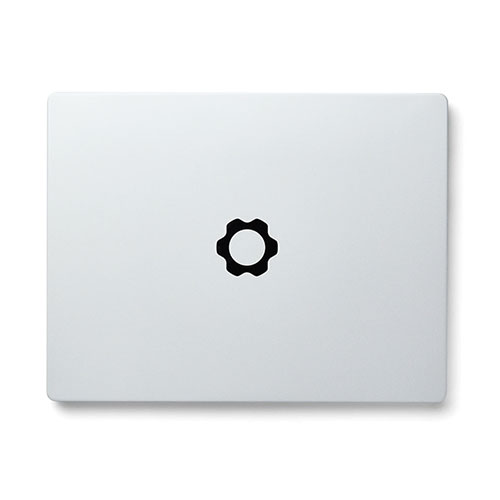
Framework Laptop 13
Priced below most of the other picks on this list — configure and buy directly from Framework, since pricing depends on the components chosen.
- ProcessorAMD Ryzen AI 300 series (AI 5/7/9 options)
- GPUIntegrated (config-dependent)
- RAMUp to 96GB, user-supplied
- StorageUser-supplied NVMe SSD
- Display13.5″, 2256×1504 (2.8K option available)
- Battery61Wh
No other laptop on this list solves the multi-monitor question quite like the Framework Laptop 13, because it doesn’t force a fixed port mix decided by the manufacturer. Four Expansion Card slots allow choosing the exact connectivity needed — two HDMI outputs and two USB-C, or a DisplayPort and an Ethernet jack instead, swapped without a soldering iron.
That flexibility comes with trade-offs elsewhere. This isn’t the thinnest or lightest 13-inch laptop available, and Framework is a small company — support and stock don’t carry the same weight as buying from Dell or Samsung. But for a multi-monitor setup with unusual requirements (an older monitor that only has DVI, a mix of HDMI and DisplayPort displays, a dock to bypass entirely), this is the only laptop here actually built to adapt rather than requiring the buyer to adapt to it.
It’s also one of the only laptops on the market that’s repairable and upgradeable for years afterward, which counts for something even outside the multi-monitor use case. Windows 11, Fedora, and Ubuntu are Framework’s officially supported and tested operating systems; Arch Linux runs, but Framework’s own community documentation labels it community-supported, with ticketed troubleshooting reserved for the Ubuntu LTS and Fedora builds.
Pros
- Choose the exact port combination — the only pick here where the ports themselves are swappable
- User-upgradeable RAM (to 96GB) and storage, rare in 2026
- Repairable, modular design extends the laptop’s useful life
- Windows 11, Fedora, and Ubuntu officially supported; Arch runs via community support only
Cons
- Not available on Amazon — direct purchase only
- Smaller company means less familiar support experience
- DIY Edition requires supplying RAM and storage
4. Apple MacBook Air 13″ (Best Ultrabook)
Best Ultrabook
Last update on 2026-09-18 / Affiliate links / Images from Amazon Product Advertising API
- ProcessorApple M5 (10-core)
- GPUM5 10-core GPU (integrated)
- RAM16GB
- Storage512GB SSD
- Display13.6″, 2560×1664
- Battery18 hours (Apple’s rating; Tom’s Hardware measured 15h28m)
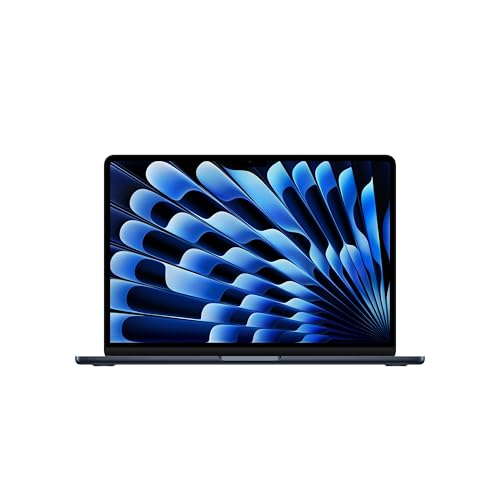
The MacBook Air is the lightest laptop on this list, and it carries the M5 generation’s display change described above: the lid can stay open while driving two monitors, no clamshell trick required, unlike M1 through M3 machines, confirmed on Apple’s support page for the M5. Two external monitors plus the built-in screen covers a two-monitor desk setup for an entry-tier ultraportable.
Where it falls behind the MacBook Pro (next on this list) is chip tier, not clamshell: the base M5 caps out at two external displays regardless of configuration, while stepping up to the M5 Pro or M5 Max chip unlocks three or four. If two external monitors covers the setup, the Air does it without paying for the Pro’s extra chip tier.
Apple rates the Air’s battery at 18 hours of video playback; Tom’s Hardware’s own battery test measured 15 hours 28 minutes under mixed web-browsing and video use — a real gap, and worth expecting rather than being surprised by. It’s not the longest battery in this guide either way: the Galaxy Book6 Pro’s rated figure runs higher. At 2.71 lbs, the Air is the easiest laptop here to actually carry between a home desk and a coffee shop, and the M5 chip is more than adequate for office work, web browsing, and light creative tasks spread across the displays it drives.
Pros
- Two external displays with the lid open, no clamshell needed
- Lightest laptop on this list
- Silent, fanless operation
Cons
- Capped at 2 external displays regardless of configuration — step up to the Pro chip tier for more
- 16GB base RAM is on the low side if those extra screens are running demanding apps
- Rated 18-hour battery measured 15h28m in Tom’s Hardware’s independent test
5. Apple MacBook Pro 14″ M5 Pro/Max (Best for Creators)
Best for Creators

Last update on 2026-09-18 / Affiliate links / Images from Amazon Product Advertising API
- ProcessorApple M5 Pro or M5 Max
- GPUM5 Pro (up to 20-core) or M5 Max (up to 40-core)
- RAM24-128GB unified
- Storage1TB SSD (M5 Pro) / 2TB SSD (M5 Max)
- Display14.2″ Mini-LED, 3024×1964
- BatteryUp to 22h (M5 Pro) / 20h (M5 Max), Apple’s rating
The MacBook Pro’s real advantage over the Air isn’t clamshell mode — the Air doesn’t need that on the M5 generation either. It comes down to chip tier: the M5 Pro configuration supports three external monitors where the Air caps out at two, and the M5 Max configuration raises that ceiling to four, per Apple’s own tech specs page. That’s a meaningful jump for anyone whose desk goes beyond a standard two-monitor arrangement.
Worth checking before configuring the top-end Max chip specifically: Notebookcheck’s testing found the M5 Max runs into thermal throttling and inconsistent CPU performance in the 14-inch chassis — the chip is arguably built for the roomier 16-inch cooling system. Needing the Max chip’s fourth external display without needing its full sustained CPU performance is a reasonable trade in the 14-inch chassis; needing both points toward the 16-inch model instead, where the cooling system can actually sustain that performance.
The 1000-nit Mini-LED panel on the laptop itself is good enough to use as the primary screen, with external monitors handling reference material, chat, or a second timeline. Three physical Thunderbolt 5 ports also mean less cable-juggling than laptops with only one or two video-capable ports, on top of the higher external-display ceiling.
This is the priciest laptop on the list that isn’t a gaming machine, which is a reasonable trade when the work — video editing, design, development — actually benefits from Apple Silicon’s efficiency, three or four external displays instead of the Air’s two, and up to 128GB of unified memory on the Max configuration.
Pros
- M5 Pro: 3 external displays. M5 Max: 4 — both confirmed via Apple’s own spec page
- Outstanding built-in display doubles as a great “main” screen
- Up to 128GB unified memory on the Max configuration
Cons
- Expensive relative to Windows alternatives with similar port counts
- M5 Max can thermal throttle in the 14-inch chassis under sustained load, per Notebookcheck’s testing
- Entry M5 Pro config starts at 24GB — check RAM needs before configuring
6. Lenovo Yoga 7i 2-in-1 (Best 2-in-1 Convertible)
Best 2-in-1 Convertible
Last update on 2026-09-18 / Affiliate links / Images from Amazon Product Advertising API
- ProcessorIntel Core Ultra 7 155U
- GPUIntel integrated
- RAM16GB DDR5
- Storage1TB PCIe SSD
- Display16″ 2K Touchscreen, 1920×1200
- OSWindows 11 Pro
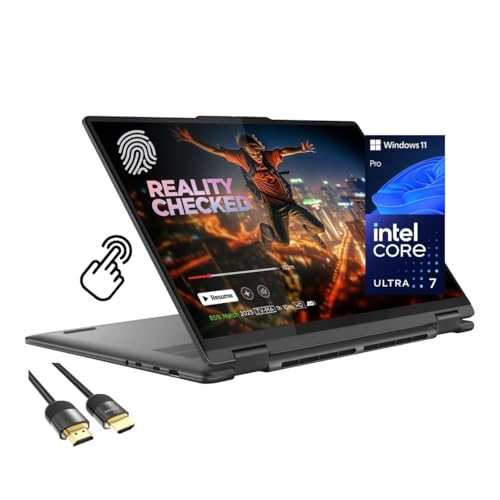
Every other pick in this guide is a traditional clamshell — the Yoga 7i is the one that folds all the way back into a tablet, useful when the desk doubles as a couch or a sketch pad. Thunderbolt 4 plus HDMI gives two independent external displays — check that against a three-monitor requirement before buying.
On the hinge: Windows Central’s review of this Gen 10 chassis found the hinge stiff enough to fail a one-finger lid-opening test, requiring two hands to open without lifting the whole laptop off the desk. That review tested the Core Ultra 7 256V configuration rather than the Core Ultra 7 155U model listed above; no independent test of the 155U variant specifically was found, so the hinge mechanism is shared across the Gen 10 line but the exact figure above comes from a different chip configuration.
The Core Ultra 7 155U and 16GB of RAM handle office work, browsing, and general multitasking across the displays comfortably, and the 16-inch 2K touchscreen doubles as a real second input method — useful for annotation, presentations, or tapping something instead of reaching for a mouse.
Pros
- Only true 2-in-1 convertible on this list
- 16″ 2K touchscreen adds a legitimate second input method
- Backlit keyboard, fingerprint reader, and numeric keypad included
Cons
- Two independent outputs, not three — check if that covers the setup
- Stiff hinge discourages casual tablet-mode switching, per Windows Central’s review of the Core Ultra 7 256V configuration
- Heavier than a typical clamshell at this screen size
7. Lenovo ThinkPad P16 Gen 3 (Best for CAD/Engineering Professionals)
Best for CAD/Engineering
Last update on 2026-09-18 / Affiliate links / Images from Amazon Product Advertising API
- ProcessorIntel Core Ultra 7 255HX
- GPUNVIDIA RTX PRO 2000 (8GB)
- RAM32GB DDR5
- Storage1TB SSD
- Display16″ WQUXGA IPS, 3840×2400
- Battery3 hours
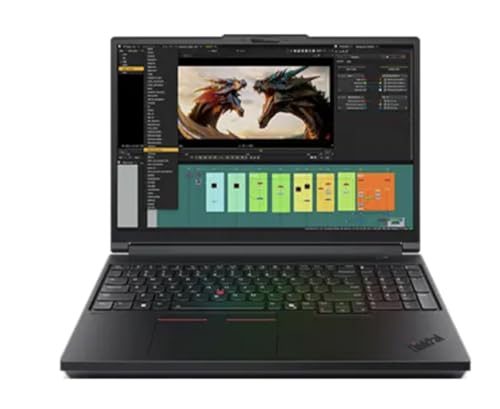
Everything else on this list is either consumer hardware or a gaming laptop pressed into service — the ThinkPad P16 Gen 3 is the one machine here built and certified for professional multi-monitor work. It’s ISV-certified for SOLIDWORKS, AutoCAD, and ANSYS, meaning the software a firm relies on has been tested against this hardware family, not just assumed to work.
Two Thunderbolt 5 ports aren’t the highest port count on this list, but TB5’s bandwidth means each port can drive a high-resolution, high-refresh professional monitor without the compression or refresh-rate compromises of older Thunderbolt generations — useful if the second and third monitors are 4K CAD-grade panels rather than basic office displays.
The RTX PRO 2000 workstation GPU — with RTX PRO 4000 or 5000 configurations available for larger models and heavier simulation loads — targets sustained, stable performance in CAD/3D applications rather than gaming frame rates, which is what a laptop running three monitors for eight hours straight actually needs. MIL-STD-810H tested for work outside the office.
Thurrott’s first-impressions review of the P16 Gen 3 — configured with the higher-tier RTX PRO 3000 GPU rather than the RTX PRO 2000 listed above — described fan noise loud enough to compare to a cross-continental flight under sustained load. The cooling system is shared across the P16 Gen 3 line, so the noise behavior is a reasonable expectation at the 2000-tier GPU too, though no independent test of that exact configuration was found.
At 5.6 lbs and 3 hours of battery life, this is a desk-bound workstation that happens to be portable between offices, not a laptop for use on a plane. For a firm whose software is ISV-certified against it, that trade-off is usually worth making.
Pros
- ISV-certified for SOLIDWORKS, AutoCAD, ANSYS
- Thunderbolt 5 bandwidth handles high-res professional monitors cleanly
- MIL-STD-810H tested durability
- Configurable up to RTX PRO 5000 and 128GB RAM
Cons
- Fans run loud under sustained heavy workloads, per testing of the higher-tier RTX PRO 3000 configuration
- Very short battery life — a desk machine, not a travel laptop
- Heaviest laptop on this list
- Most expensive non-gaming pick here
8. Lenovo Legion Pro 7i Gen 10 (Best for Power Users)
Best for Power Users
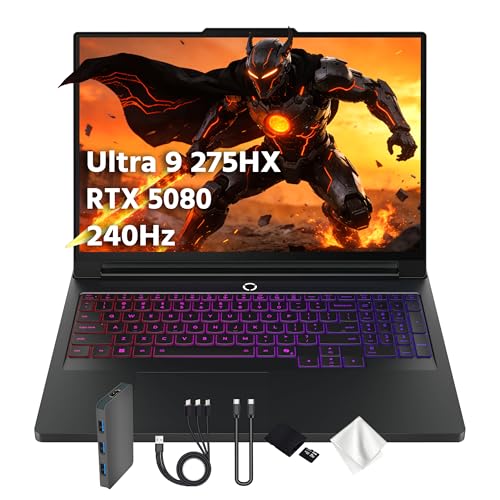
Last update on 2026-09-18 / Affiliate links / Images from Amazon Product Advertising API
- ProcessorIntel Core Ultra 9 275HX
- GPURTX 5080 16GB
- RAM32GB
- Storage1TB PCIe SSD
- Display16″ WQXGA OLED, 240Hz
- Battery6 hours
For a multi-monitor setup that needs to handle demanding work — 3D rendering, heavy simulation, or high-refresh gaming across multiple screens — the Legion Pro 7i is the laptop here built for it. Two Thunderbolt 5/USB4 ports plus a dedicated HDMI 2.1 port provide three separate video outputs, and unlike most of the laptops on this list, a discrete RTX 5080 — GPUs in this class are well established for driving several displays at once — sits behind them to handle demanding content on all three simultaneously.
The 240Hz WQXGA OLED display built into the laptop is sharp and fast enough to run as a fourth working monitor — a full app window, not just a taskbar and system tray.
Notebookcheck’s testing of this exact configuration (Core Ultra 9 275HX, RTX 5080) found fan noise in Performance mode no quieter than that of competing gaming laptops, alongside a higher power draw than most rivals at this tier — the cost of sustaining this much performance in a 16-inch chassis. Add 6-hour battery life and a laptop meaningfully heavier than everything else here, and this is a desk-first machine that happens to be portable.
Pros
- RTX 5080 handles demanding content across multiple displays
- Exceptional 240Hz OLED built-in display
- Three independent video outputs
Cons
- Fan noise on par with competing gaming laptops under load, per Notebookcheck’s testing
- Short battery life away from a wall outlet
- Heavy and large for regular travel
9. Razer Blade 16 (Best Gaming)
Best Gaming
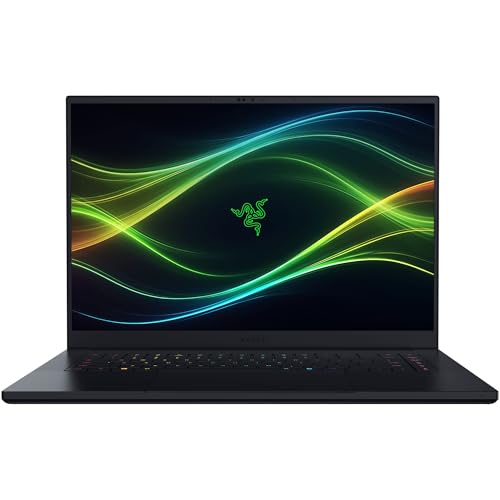
Last update on 2026-09-18 / Affiliate links / Images from Amazon Product Advertising API
- ProcessorAMD Ryzen AI 9 HX 370 or Intel Core Ultra 9 386H
- GPURTX 5090 (160W TGP, top config)
- RAM32GB
- Storage2TB PCIe 4.0 NVMe SSD
- Display16″ QHD+ OLED, 240Hz
- BatteryUp to 15 hours rated; Tom’s Hardware measured 12h46m
The Razer Blade 16 packs the widest port selection on this list — three USB-A, Thunderbolt 5, Thunderbolt 4, and HDMI 2.1 — which in practice means rarely being stuck without the right cable for whatever monitors it’s paired with, new or old.
An RTX 5090 makes this the one laptop here that can game across a multi-monitor setup or drive a single ultra-high-refresh display without compromise, and the 1100-nit HDR OLED panel is one of the better built-in screens on the market right now.
Tom’s Hardware’s review of this exact Core Ultra 9 386H / RTX 5090 configuration found fan noise competing with in-game audio under gaming load, and despite the large glass trackpad, Razer still uses a mechanical click mechanism rather than haptics — a miss at this price. The same test measured battery life at 12 hours 46 minutes on a mixed web-and-video workload, well under Razer’s 15-hour rating; treat the spec-sheet figure as a ceiling rather than an expectation.
Battery life is still a pleasant surprise for a laptop this powerful — even the measured 12-plus hours is usable away from a charger, something flagship gaming laptops have historically struggled with. The price reflects the hardware inside it; a Legion Pro 7i covers most of the same ground for less if its specs already meet the need.
Pros
- Widest port selection of any laptop on this list
- RTX 5090 handles anything thrown at multiple displays
- Usable all-day battery life for a flagship gaming laptop, even measured well under its rating
Cons
- Fan noise competes with in-game audio under load, per Tom’s Hardware’s testing
- Trackpad uses mechanical clicks, not haptics, despite the price
- Rated 15-hour battery measured 12h46m independently
- The most expensive laptop on this list
Recommended Accessories
If a laptop’s built-in ports fall short of the monitor count needed, a Thunderbolt docking station is the cleanest fix — one cable to the laptop, everything else stays plugged in permanently.


Last update on 2026-09-05 / Affiliate links / Images from Amazon Product Advertising API
Which Multi-Monitor Laptop Should You Buy?
| Best For | Pick |
|---|---|
| Overall | Samsung Galaxy Book6 Pro |
| Budget | Acer Aspire Vero Green Laptop |
| Total port flexibility | Framework Laptop 13 |
| Lightest / longest battery | Apple MacBook Air 13″ |
| More than 2 external displays (Mac) | Apple MacBook Pro 14″ (M5 Pro/Max) |
| 2-in-1 convertible flexibility | Lenovo Yoga 7i 2-in-1 |
| CAD / engineering professionals | Lenovo ThinkPad P16 Gen 3 |
| Heavy workloads, desk-first use | Lenovo Legion Pro 7i Gen 10 |
| Gaming across multiple displays | Razer Blade 16 |
Multiple Monitor Laptop FAQ
Does the number of supported displays include my laptop’s own screen?
Usually not — manufacturer specs for “external displays” are typically in addition to the built-in screen. Check whether a spec sheet says “external displays” or just “displays,” and confirm which chip generation the claim applies to, since Apple Silicon’s display limits moved with the chip tier rather than the model name.
Can I connect 3 monitors with just an HDMI and a USB-C port?
Only if that USB-C port specifically supports DisplayPort over USB-C — a plain USB-C port that only handles data and charging won’t output video at all, no matter how many HDMI or other USB-C ports the chassis has. Look for a DisplayPort icon printed next to the port, or the exact phrase “DP Alt Mode” or “DisplayPort over USB-C” on the spec sheet; a bare “USB-C” listing without that detail isn’t a promise of video output.
Do I need a docking station?
Not if the laptop already has enough independent video-out ports for the monitor count in question — several laptops on this list do, without any dock at all. A Thunderbolt dock becomes useful when adding displays beyond what the laptop’s ports support natively, or for single-cable convenience when docking and undocking daily.
Does a dedicated GPU matter for multi-monitor productivity work?
Not much for office work, browsers, and video calls — integrated graphics on any current laptop handles that across 2-3 monitors without strain. It starts to matter once something demanding runs on those extra screens: video editing timelines, 3D viewports, CAD work, or gaming.
Final Thoughts on the Best Laptops for Multiple Monitors
The single detail that separates a laptop that actually does the job from one that just looks like it should on a spec sheet: check the manufacturer’s own “maximum external displays” number before buying, not just the port count.


Hi, thanks for this extensive buyer’s guide, I found it quite useful.
Dustin M.
Thanks, Dustin — really appreciate you taking the time to say so!
Great article, thanks of the information. However, I would like to make note that I own the HP pavilion 15 gaming laptop and it comes with a usb c 3.1 1st gen data only port. Unfortunate but does not support video through the usb c port.
Hi, Bruce Thanks for the comment. Yes, you’re right; the HP Pavilion 15 model with USB C 3.1 1st gen doesn’t support display over Type-C, but the model I have listed here comes with USB 3.1 Gen 2 Type-C that supports Power Delivery 3.0, DisplayPort 1.4, and HP Sleep and Charge. Thanks 🙂
have one doubt though, in your article, does the total number of supported displays include the laptop screen itself ?
For example you said that the Dell XPS 13 7390 can connect up to three displays simultaneously, so including the laptop display will that be 4 working displays ? of it will be limited to showing simultaneously on only 3 displays…