You’ve just been accepted; there’s a stipend or equipment allowance sitting in an email somewhere, and you need to buy a laptop before orientation. It’s tempting to either lowball it with whatever’s cheapest or panic-buy the most powerful machine you can afford — and neither is quite right, because this isn’t a laptop you’re replacing next year. It’s the machine you’ll write your dissertation on, run your analysis on, and defend from, for the next four to seven years.
I’ve spent years doing chip-level laptop repair, and the machines that come back into a repair shop after three years of hard daily use are never the ones that looked most powerful on a spec sheet — they’re the ones that skimped on build quality to hit a price point. A four-to-seven-year machine needs different things than a two-year one: durability that actually holds up, software your department requires, and real value for the money you don’t have much of. That’s what I’ve built this list around.
Editor’s Pick
Last update on 2026-09-08 / Affiliate links / Images from Amazon Product Advertising API
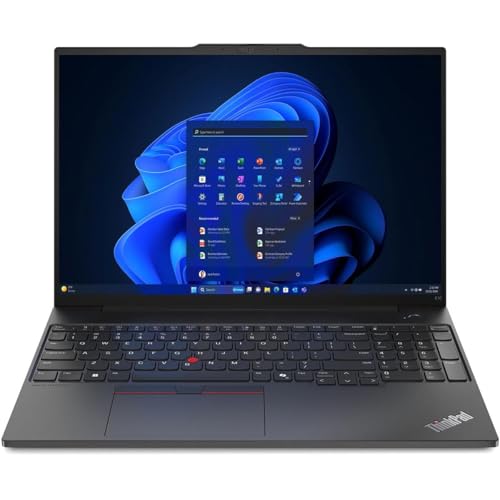
MIL-STD-810H durability for the multi-year haul, a physical webcam privacy shutter, dTPM 2.0 security, and enough external-display support to double as a thesis-writing desk setup — without the premium price of a MacBook or the compromises of a budget laptop.
- AMD Ryzen 7 7735HS
- 16GB DDR5 (up to 64GB)
- 16″ WUXGA IPS, 60Hz
- MIL-STD-810H tested
What’s Inside
- 1 – Best Laptops for Ph.D. Students — Buyer's Guide
- 1.1 – Processor (CPU)
- 1.2 – Memory (RAM)
- 1.3 – Storage
- 1.4 – Dedicated GPU
- 1.5 – Screen Quality
- 1.6 – Portability
- 1.7 – Ports and Connectivity
- 1.8 – Battery Life
- 1.9 – Design
- 1.10 – Durability and Multi-Year Ownership (the part most "student laptop" guides skip)
- 1.11 – Software and OS Considerations
- 1.12 – Some Other Considerations
- 2 – Ph.D. Student Laptop Comparison Table
- 3 – Best Laptops for Ph.D. Students in 2026 — Reviews
- 3.1 – 1. Lenovo ThinkPad E16 Gen 2 (Best Overall)
- 3.2 – 2. Acer Aspire Vero (Best Budget / Eco-Conscious)
- 3.3 – 3. Dell Inspiron 14 2-in-1 (Best for Note-Taking and Paper Annotation)
- 3.4 – 4. LG gram 15 (Best Lightweight / Travel Pick)
- 3.5 – 5. Apple MacBook Air 13-inch M5 (Best MacBook)
- 3.6 – 6. Samsung Galaxy Book5 Pro 360 (Best Premium Windows)
- 3.7 – 7. Microsoft Surface Laptop 13.8-inch, Snapdragon X2 (Best for Silent, All-Day Writing)
- 3.8 – 8. Gigabyte Aero X16 (Best for Heavy Computation and Data Science)
- 4 – Recommended Accessories
- 5 – Which Laptop Should Ph.D. Students Buy?
- 6 – Ph.D. Student Laptop FAQ
- 7 – Final Thoughts on Laptops for Ph.D. Students
Best Laptops for Ph.D. Students — Buyer’s Guide
Processor (CPU)
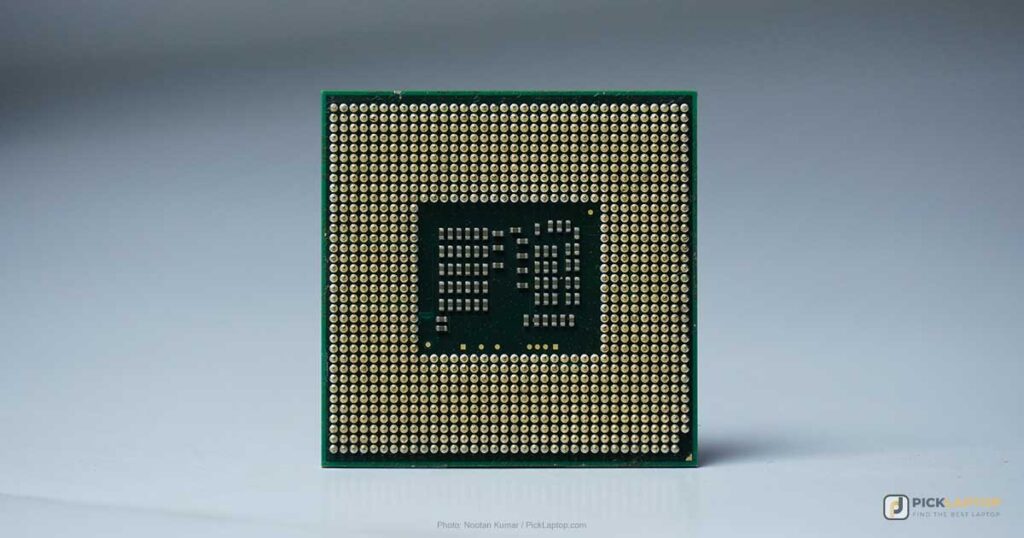
The processor handles every task from a single app to the operating system itself, and it isn’t upgradeable after purchase the way it is on a desktop — so it’s worth getting right the first time.
For research and Ph.D. work, an Intel Core Ultra 5-class or AMD Ryzen 5-class processor handles multiple browser tabs and general multitasking without issue. If your work involves video editing, 3D modeling, or heavier data processing, step up to a Core Ultra 7/9 or Ryzen 7/9 chip.
If battery life matters more to you than raw speed, look specifically for a low-watt U-series or equivalent efficiency chip — these run on modern, power-efficient process nodes and deliver meaningfully better performance-per-watt than older chips like the Ryzen 5 5500U or Core i5-1235U, which still show up in budget laptops today under confusingly current-sounding branding.
Apple’s M-series chips (currently M5) are worth serious consideration too — they’ve come a long way since the original M2, and even the current MacBook Air handles heavy multitasking and academic workloads with excellent battery life. macOS’s Unix underpinnings also play well with common research tooling (Python, LaTeX, Git) out of the box.
Memory (RAM)
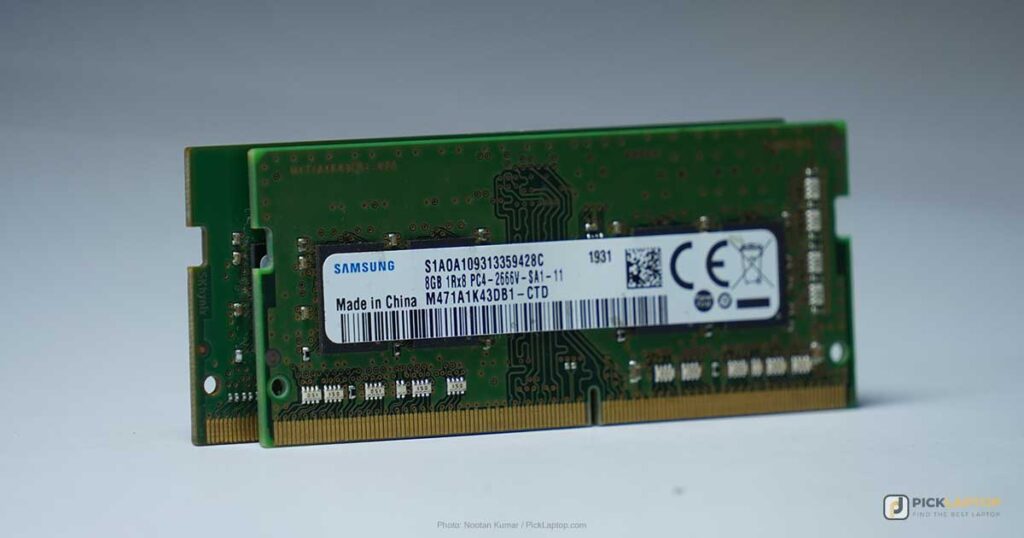
No matter how powerful a processor is, a laptop will lag without enough memory. RAM holds the data for whatever’s actively running — if you’re drafting a document right now and haven’t saved it, that draft is sitting in RAM, not on disk, which is exactly why it disappears if the laptop loses power before you hit save.
16GB is the practical minimum I’d recommend for Ph.D. work in 2026 — statistical software, reference managers, and a dozen browser tabs add up fast, and RAM isn’t upgradable on most modern thin-and-lights. If your workload never goes beyond writing, email, and reading PDFs, 8GB will still function, but I wouldn’t recommend buying at that spec for a multi-year machine when 16GB configs are usually a modest upgrade.
Editor’s note: if your actual workload only ever needs 4GB, jumping to 16GB won’t make daily tasks feel faster — but it does meaningfully future-proof the machine against the software bloat that tends to accumulate over a multi-year program.
Storage
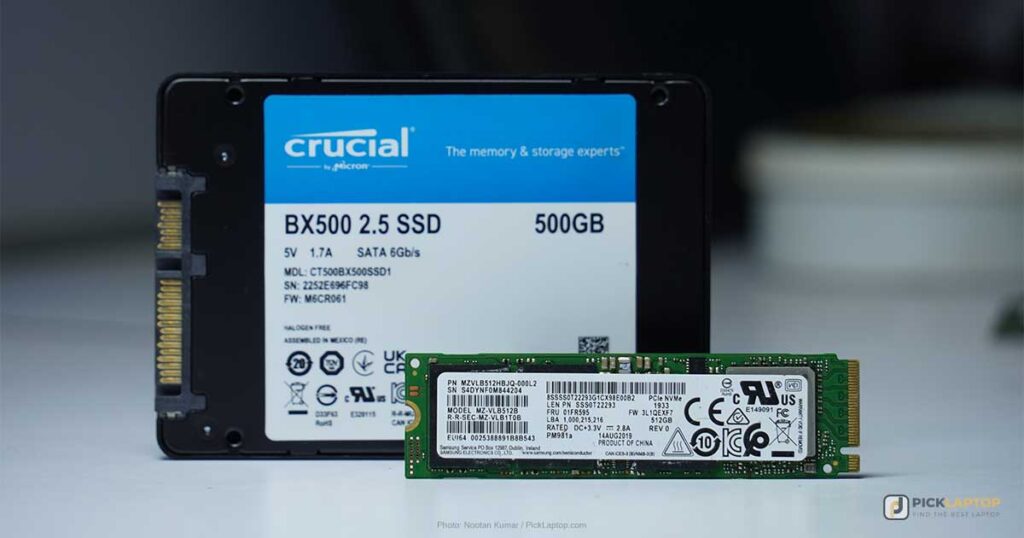
How much storage you need comes down to what you’re actually storing — how many datasets, documents, or media files you expect to accumulate over the program.
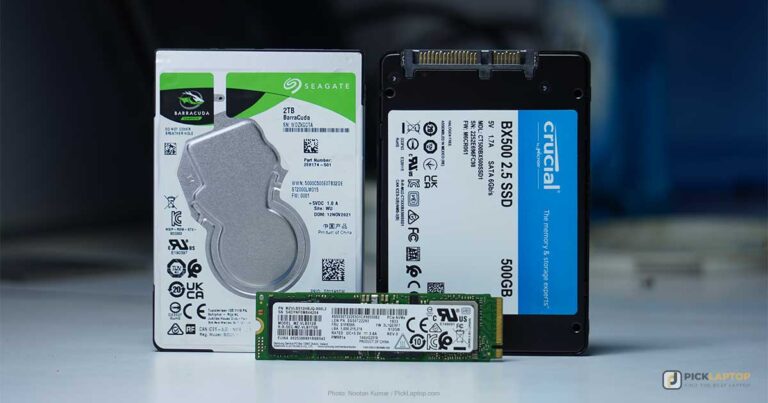
I strongly recommend an SSD over a traditional hard drive — it dramatically cuts boot time, file access time, and search time, while running cooler, quieter, and more reliably. A 512GB PCIe Gen 4 or Gen 5 NVMe SSD is a sensible baseline; size up to 1TB if you work with large datasets, high-resolution imaging, or extensive media.
Editor’s note: if your capacity needs run past what an all-SSD build can afford on a tight budget, a laptop with hybrid storage (a smaller SSD paired with a larger HDD) can be a smart compromise — you get SSD speed for your OS and active files, and cheap bulk storage for everything else, since SSD capacity is still relatively expensive per gigabyte.
Dedicated GPU
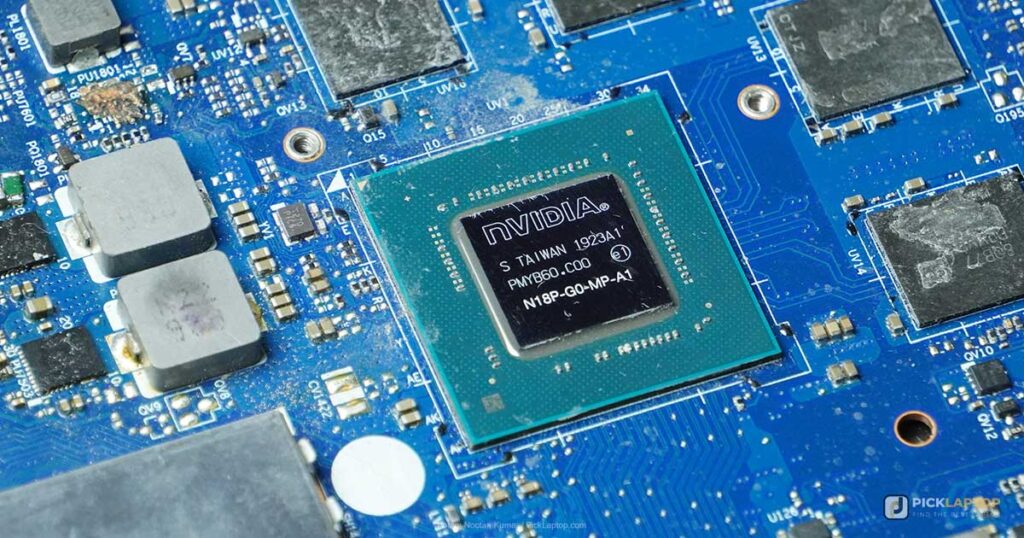
Integrated graphics already handle external monitors, document work, and light photo/video editing fine — a dedicated GPU only adds value for specific, demanding tasks.
Current dedicated GPU options span Intel Arc, NVIDIA GeForce RTX 40- and 50-series, and AMD Radeon RX 7000M/8000S-class chips, all built on more efficient architectures with better AI acceleration than a few generations back — but they also draw more power.
I generally don’t recommend a laptop with a dedicated GPU for Ph.D. students unless you have a specific need — data visualization, simulation, or GPU-accelerated coding (TensorFlow, PyTorch, CUDA-based ML). It adds cost and taxes battery life for research that doesn’t actually use it.
Screen Quality
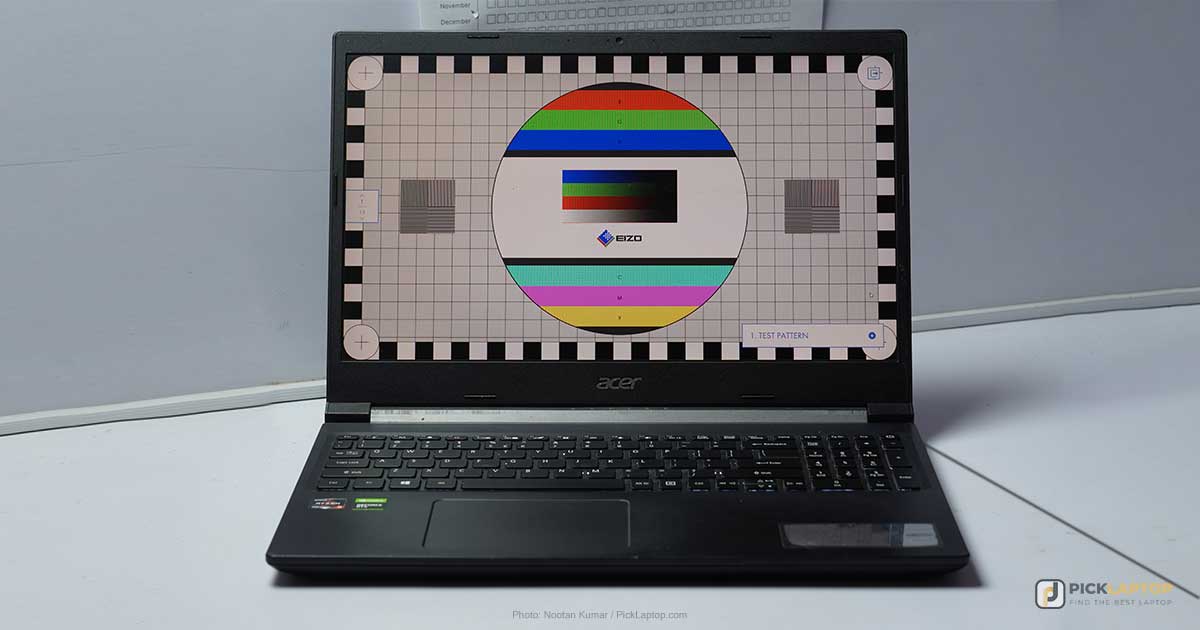
Screen size is roughly proportional to portability, so choose accordingly — 13–15 inches remains the sweet spot for working area without weighing on your shoulder during a commute.
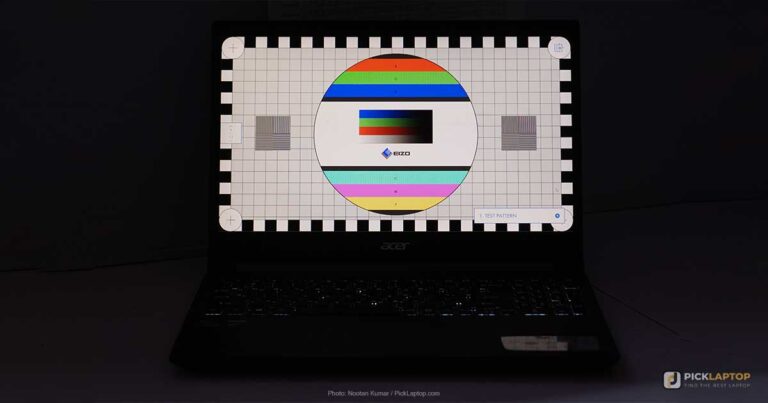
A Full HD (1920×1080) panel is a solid baseline for reading, writing, and video calls. Higher resolutions — QHD, 2.8K, or 4K OLED — look great but aren’t necessary unless you’re doing photo or graphics-heavy work. OLED and mini-LED panels with HDR10 or DisplayHDR True Black certification offer deeper contrast and reduced blue-light emission, which cuts down on eye fatigue during multi-hour reading sessions, even if it’s not a research requirement. Panel technology name isn’t the same thing as measured quality, though — IPS describes viewing-angle behavior, not brightness or color accuracy, and two IPS panels on the same laptop line can differ sharply on both; check the actual nits and gamut figures for the configuration you’re buying, not just the acronym.
Aim for at least 300 nits of brightness for comfortable indoor and outdoor use. And unless you’re gaming, a standard 60Hz or 90Hz refresh rate is more than enough — the 120Hz-240Hz panels on gaming laptops solve a problem most Ph.D. work doesn’t have.
Portability
If you’re moving between office, lab, library, and conferences, weight matters more than most students initially think. Anything under 3.5 lbs is comfortable for daily carry, and several current laptops now manage under 3 lbs without sacrificing a full-size keyboard — thanks in part to a shift toward magnesium-aluminum and carbon-fiber chassis construction that keeps weight down without sacrificing rigidity.
Ports and Connectivity
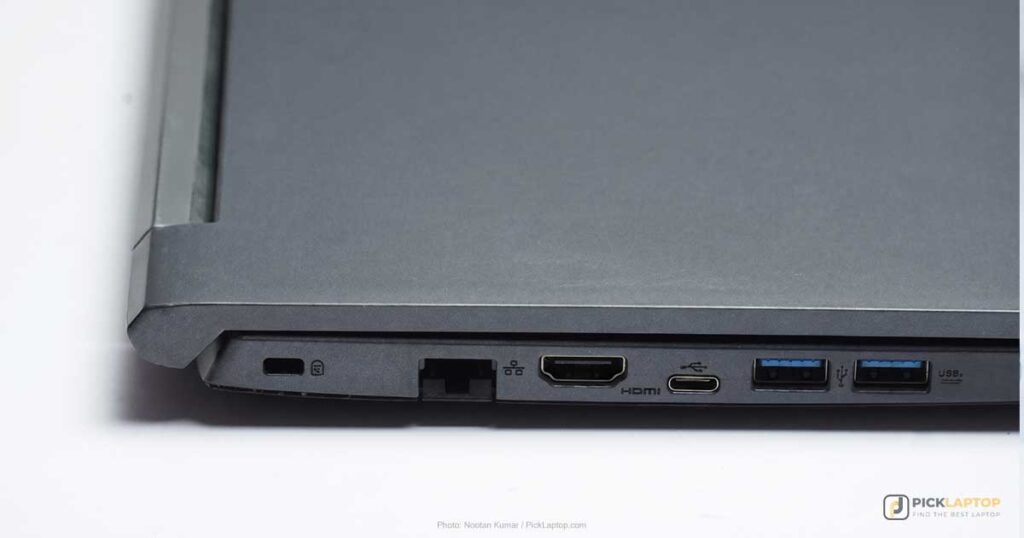
As laptops get thinner, some ports are disappearing — not always a bad trade-off, but worth checking rather than assuming.
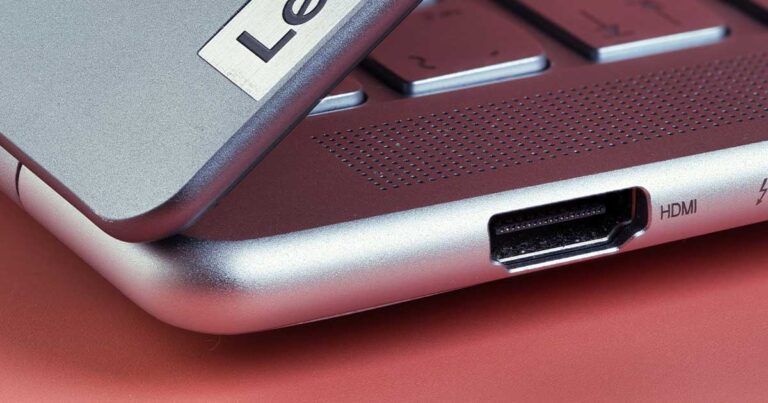
Thunderbolt 4/5 and USB4 Type-C are versatile modern standards for display, power, and peripherals, but they often need a docking station or hub to reach their full potential — not always practical if you’d rather not carry an extra device everywhere. A built-in HDMI port still saves you when you need a presentation or a quick external display, and if your department relies on wired networking, look for an RJ45 Ethernet port or at least solid Wi-Fi 7 support.
Don’t overlook the small stuff either: a 3.5mm headphone/mic jack if you use wired headphones, and a dedicated SD or microSD card reader if you work with cameras or research equipment that generates data you need to transfer regularly.
Battery Life
Modern efficient chips have pushed long battery life into the mainstream — several current laptops now carry manufacturer ratings of 18+ hours on mixed use, a meaningful upgrade over what was possible even a few years ago. Treat any such figure as a rated, not measured, number until an independent lab tests the specific configuration you’re buying — real-world runtime routinely falls a few hours short of the rated figure once someone actually clocks it. If you often work off the wall, aim for at least 8–10 hours of realistic backup; a laptop that can’t clear that isn’t saving you money over a desktop.
Many current thin-and-lights support USB-C Power Delivery 3.1 charging, which works even with a certified high-wattage power bank (65W–140W) in a pinch — just confirm both your power bank and cable are actually PD-certified before relying on it. As a rule, a low-watt CPU without a dedicated GPU delivers the best endurance; exact battery life still varies by configuration, display type, and battery capacity.
Design
Modern laptops increasingly favor sleek aluminum or magnesium-alloy builds with minimalist designs that don’t sacrifice durability. 2-in-1 convertibles with stylus support are useful for annotating PDFs of papers and marking up drafts by hand — not just a gimmick, if that’s part of your workflow.
Durability and Multi-Year Ownership (the part most “student laptop” guides skip)
A Ph.D. is a four-to-seven-year commitment, not a single semester — and most laptop buying guides are written for undergrads replacing a machine every 2-3 years. Look specifically for MIL-STD-810H testing (a real durability benchmark, not just marketing language) and check the manufacturer’s stated warranty length. A cheaper laptop that needs replacing in year three isn’t actually the better deal.
4-7 years is the realistic ownership window for a Ph.D. laptop — roughly double the 2-3 year cycle most “best student laptop” guides are written for.
Software and OS Considerations
This is the section most generic student-laptop guides never mention, and it matters enormously for a Ph.D.: check what your department actually requires before you buy. SPSS, many MATLAB toolboxes, specialized lab equipment drivers, and some statistical packages remain Windows-only or run better on Windows than on macOS or ARM-based Windows machines (Snapdragon). Windows-on-Arm compatibility has improved substantially since Snapdragon laptops first launched, and mainstream productivity software now runs natively — but niche and specialized tools (VPN clients, print drivers, older lab utilities) remain the category most likely to hit a compatibility wall on an ARM chip, simply because they’re the software vendors are slowest to rebuild. If your program hands out site-licensed Windows-only software, a MacBook or a Snapdragon-based Surface — however excellent otherwise — may mean running a Windows virtual machine or an emulation layer for specific tasks. Confirm compatibility with your department’s required tools before committing to a platform.
Buying the “wrong” platform is one of the few mistakes on this list you can’t fix by upgrading later. A MacBook or Snapdragon Surface that can’t run your department’s required software means a Windows VM for years, not a quick fix — check compatibility before you buy, not after.
Some Other Considerations
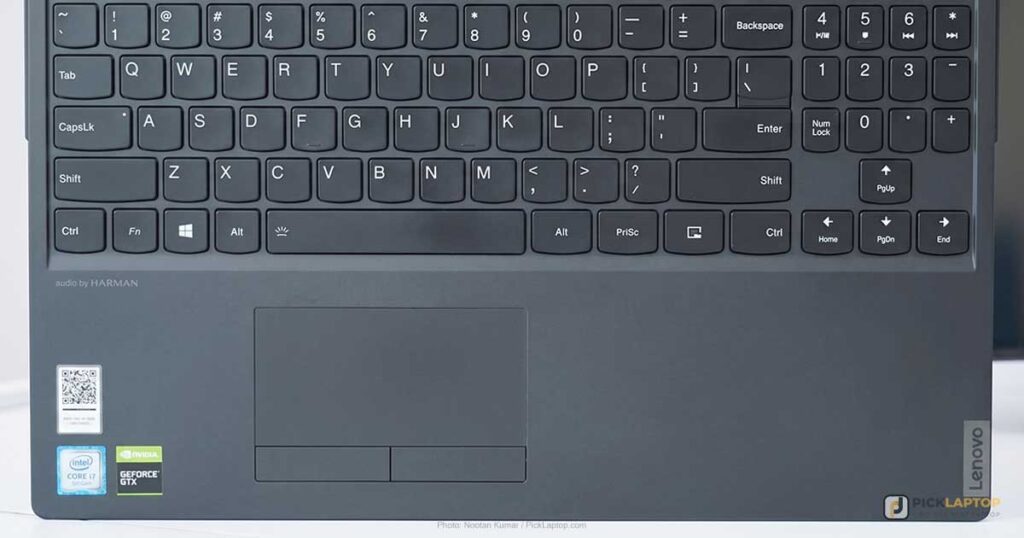
Keyboard: If you type a lot, you deserve a good keyboard — a backlit layout is excellent for late-night writing sessions. Several brands now offer spill-resistant, quiet, tactile keyboards built for extended writing, with consistent key travel across their premium lines.
Webcam: A Full HD (1080p) webcam is worth seeking out for higher-quality video calls and committee meetings — some current laptops add AI-powered auto-framing and background blur on top. A physical or electronic webcam shutter is worth prioritizing for privacy; it beats trusting a software toggle. Watch for ultra-slim laptops that position the camera awkwardly low on the bezel, which can create an unflattering call angle.
Trackpad: A trackpad with poor sensitivity turns document navigation and citation-manager work into a daily chore. A large, precise trackpad with multi-gesture support — increasingly with haptic feedback that simulates a real click — is worth prioritizing over a merely adequate one.
Ph.D. Student Laptop Comparison Table




Last update on 2026-09-08 / Affiliate links / Images from Amazon Product Advertising API
Best Laptops for Ph.D. Students in 2026 — Reviews
1. Lenovo ThinkPad E16 Gen 2 (Best Overall)
Best Overall
Last update on 2026-09-08 / Affiliate links / Images from Amazon Product Advertising API
- Weight3.59 lbs
- ProcessorAMD Ryzen 7 7735HS
- RAM16GB DDR5 (up to 64GB)
- Storage512GB PCIe SSD
- Display16″ WUXGA IPS, 60Hz
- Battery13 hours
The ThinkPad line has long been known for durability and business-grade build quality, and the keyboard is a particular strength — spill-resistant, comfortable, and still featuring the signature TrackPoint red dot between the keys that longtime ThinkPad typists swear by. The trackpad is equally solid, responsive with reliable multitouch gestures.
This Gen 2 is MIL-STD-810H tested — the kind of durability testing that actually matters across a multi-year program — and it drives up to three external monitors over HDMI/USB-C at 4K@60Hz, covering a proper desk setup for thesis writing without a dedicated dock. Security is a real strength too: a dTPM 2.0 firmware module pairs with a fingerprint reader and physical webcam privacy shutter, which matters if you’re on frequent committee or collaboration calls and don’t want to rely on software toggles.
This AMD configuration connects external displays over USB4/USB-C rather than true Thunderbolt 4 — that branding is specific to the Intel variant of this laptop. It still drives monitors fine; the port just isn’t Thunderbolt-certified on this config. Lenovo’s own spec sheet for the Gen 2 AMD configuration lists two DDR5 SODIMM slots to a 64GB ceiling — not the 32GB figure that circulates on some retail listings — and confirms the entry panel tops out at 60Hz regardless of trim; there’s no 120Hz option on this chassis.
The keyboard runs a touch shallow despite its 1.5mm of travel. No independent lab has yet tested the Gen 2’s Ryzen 7 7735HS configuration specifically — the closest published third-party review covers the Gen 1 chassis with a Ryzen 5 7530U, which found some give in the keyboard deck under firm pressure despite calling it more solid than most laptops at the price. Deck rigidity is a function of the chassis, which carries over between the two generations, but the finding hasn’t been confirmed on this exact CPU. Factor that in for a dissertation-length typing schedule.
Pros
- MIL-STD-810H durability for the multi-year haul
- Drives 3 external monitors
- TrackPoint, dTPM 2.0, and physical webcam privacy shutter
- Upgradable to 64GB RAM (two DDR5 SODIMM slots)
Cons
- AMD config uses USB4/USB-C, not true Thunderbolt 4 (Intel variant only)
- No independent review of the Gen 2 / Ryzen 7 7735HS configuration specifically yet exists
- Bigger and heavier than the ultraportable picks below
2. Acer Aspire Vero (Best Budget / Eco-Conscious)
Best Budget / Eco-Conscious
Last update on 2026-09-08 / Affiliate links / Images from Amazon Product Advertising API
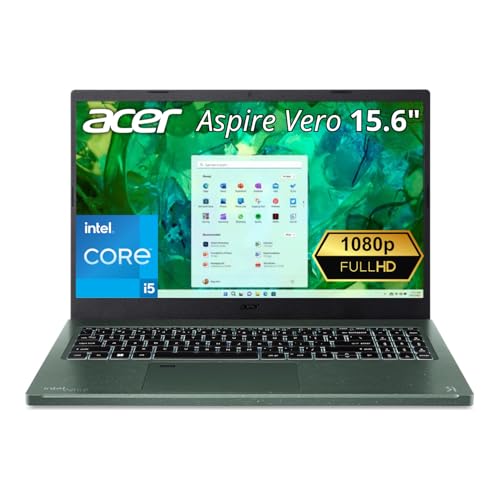
- Weight3.97 lbs
- ProcessorIntel Core i5-1335U
- Storage512GB PCIe Gen4 SSD
- Display15.6″ FHD IPS, 300 nits
- Ports2x USB-A, 2x Thunderbolt 4, HDMI, LAN
Built with post-consumer recycled plastics — Acer specs roughly 40% PCR content in the keycaps and chassis, with the touchpad made from ocean-bound plastic — the Aspire Vero backs its eco-marketing with actual PCR content and Intel Evo certification, not just a lower spec sheet dressed up as eco-friendly. It’s tested to a MIL-spec-like durability standard, and it still supports easy internal upgrades, extending the machine’s useful life rather than locking you in.
Acer’s Bio-Protection fingerprint reader handles quick, secure login, and the connectivity list is unusually complete for the price — 2 USB-A ports, dual Thunderbolt 4, HDMI, and a wired LAN port, which most budget ultrabooks have dropped entirely.
LaptopMedia’s dual-fan cooling test on this same AV15-53P chassis found low noise and stable temperatures under sustained CPU load, though the unit LaptopMedia tested carried the higher-wattage Core i7-1355U rather than the i5-1335U configuration here — the cooling hardware is identical, but the i5’s lower TDP means it should run at least as cool, not the reverse.
One honest caveat: the base configuration ships with 8GB of RAM. Per my own buyer’s guide above, I’d recommend paying up for the 16GB configuration if it’s available at your retailer, since 8GB is a tighter fit for multi-year research work than the base spec suggests.
Pros
- Verified PCR plastics and an ocean-bound-plastic touchpad, not just an eco-marketing label
- Thunderbolt 4 and a wired LAN port, rare at this price
- Intel Evo certified with strong display for the price
- Rigorous drop/durability testing
Cons
- Base config ships with only 8GB RAM — upgrade if you can
- No dedicated GPU
3. Dell Inspiron 14 2-in-1 (Best for Note-Taking and Paper Annotation)
Best for Note-Taking
Last update on 2026-09-08 / Affiliate links / Images from Amazon Product Advertising API
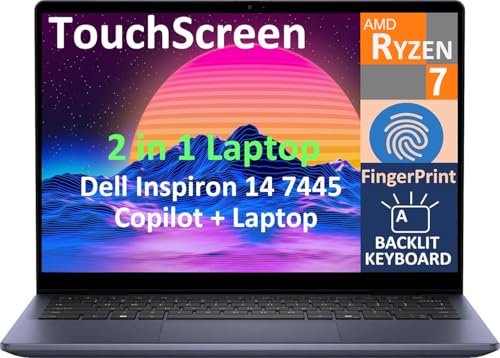
- ProcessorAMD Ryzen 7 8840HS
- RAM16GB DDR5
- Storage512GB SSD
- Display14″ WUXGA touchscreen
- Webcam1080p FHD, dual mic array
- Ports2x USB-A 3.2, 2x USB-C 3.2, HDMI, SD card reader
If part of your workflow involves marking up PDFs of papers or sketching diagrams by hand, a convertible with a touchscreen is worth having here. The Ryzen 7 8840HS is a capable, current-gen chip well ahead of the previous generation’s entry-level convertibles, and the SD card reader is a small but welcome convenience if you’re pulling data off cameras or field equipment — exactly the kind of detail worth checking for per my ports section above.
Notebookcheck’s review of this same 7445 chassis and Ryzen 8840HS configuration found the base of the laptop solidly built with almost no warping, though the outer lid bends more easily under pressure than the base does — a mixed result, not the flawless “zero flex” some listings imply. The same review flagged the display as a weak point, describing it as dim with washed-out colors and heavy glare in ambient light, which tracks with the battery and screen quality lagging behind competing Windows convertibles.
Pros
- 360-degree touchscreen for annotation and note-taking
- Current-gen Ryzen 7 performance
- Rigid chassis base with minimal warping
Cons
- Outer lid flexes more than the base under pressure
- Dim display with washed-out colors and heavy glare in ambient light
4. LG gram 15 (Best Lightweight / Travel Pick)
Best Lightweight / Travel
Last update on 2026-09-08 / Affiliate links / Images from Amazon Product Advertising API
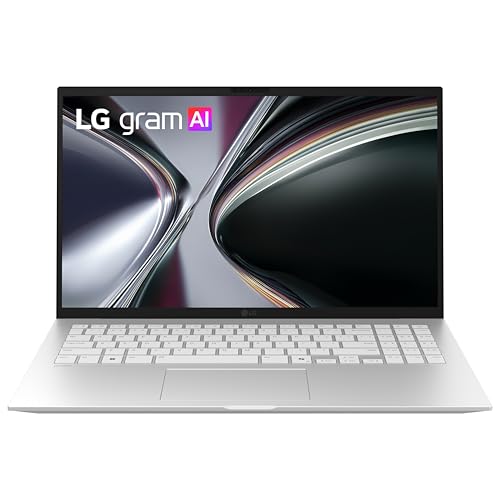
- Weight2.84 lbs
- ProcessorAMD Ryzen AI 7 350
- RAM16GB
- Battery22 hours video playback, rated (72Wh)
- BuildMIL-STD-810H tested
At 2.84 lbs with a manufacturer-rated 22-hour video-playback battery, this is the laptop to reach for if your week regularly shuttles between the lab, the library, the office, and conference travel — the gram line has built its reputation on exactly this combination since long before this model. Like the ThinkPad E16 above, it’s MIL-STD-810H tested across seven durability categories, which matters more for a machine that’s living in a bag daily rather than sitting on a desk.
No independent lab has published a review of this specific 15-inch, Ryzen AI 7 350 configuration. LG’s gram line has a long-standing reputation across generations for prioritizing weight over chassis rigidity, and that reputation predates this exact model — treat any specific flex claim for this configuration as unverified until a third party tests it, and handle one in person if build feel matters to you. The efficiency-tuned chip also trades some peak performance for that battery rating, which — like all manufacturer figures — will run lower in mixed real-world use than in LG’s video-playback test.
Pros
- Lightest laptop on this list
- Strong rated battery life (22h video playback, manufacturer figure)
Cons
- No independent review yet exists for this specific configuration
- Premium price for the core specs
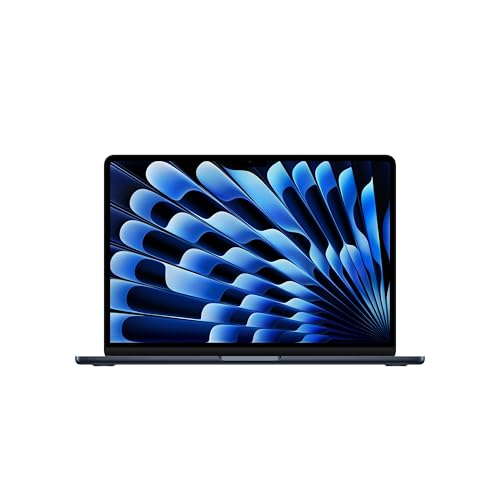
5. Apple MacBook Air 13-inch M5 (Best MacBook)
Best MacBook
Last update on 2026-09-08 / Affiliate links / Images from Amazon Product Advertising API
- Weight2.71 lbs
- ProcessorApple M5 (10-core)
- RAM16GB
- Storage512GB SSD
- Ports2x Thunderbolt 4, MagSafe 3
The MacBook Air remains a strong research machine for anyone not tied to Windows-only departmental software (see my software licensing note in the buyer’s guide above — check that before you buy). The 13.6-inch Liquid Retina display supports the P3 wide color gamut and True Tone, and the Magic Keyboard and Force Touch trackpad remain comfortable for long writing sessions. Touch ID, a Center Stage camera, a three-mic array, and a four-speaker system round out a laptop built as much for committee meetings and remote check-ins as for writing.
The M5 is Apple’s current-generation chip — fanless by design, silent under normal workloads, and macOS’s Unix base plays well with Python, Git, and LaTeX workflows common across research fields.
Expert Reviews found battery life “hasn’t moved forward” from the M4 model despite the performance bump, and measured the Surface Laptop 7 lasting over two hours longer and the Honor MagicBook 14 Pro (2025) an hour longer in the same test. Tom’s Hardware measured 15 hours 28 minutes on its own battery test and confirmed thermal throttling under sustained load — a Cinebench 2026 stress run opened at 3,415 points and settled into the low 2,300s — worth factoring in if you regularly run longer compile jobs or data processing tasks rather than typical writing and browsing use.
Pros
- Current M5 chip performance and efficiency
- Fanless and silent
- Comfortable Magic Keyboard, trackpad, camera, and speakers
Cons
- Battery life didn’t improve over the M4, and some Windows/ARM rivals now last longer per Expert Reviews’ testing
- Measurable thermal throttling under sustained load in the fanless chassis, per Tom’s Hardware
- Only 2 Thunderbolt ports — budget for a hub if you connect multiple peripherals
6. Samsung Galaxy Book5 Pro 360 (Best Premium Windows)
Best Premium Windows
Last update on 2026-09-08 / Affiliate links / Images from Amazon Product Advertising API
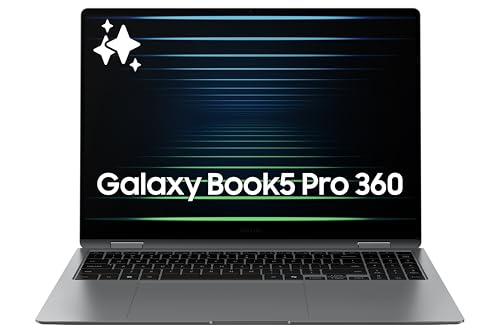
- Weight3.73 lbs
- ProcessorIntel Core Ultra 7 258V
- RAM32GB
- Storage1TB PCIe SSD
- Display16″ 3K AMOLED touchscreen, 120Hz
- Battery76Wh, up to 25-27 hours
If you want a large display for reading dense papers and staring at data visualizations for hours, the AMOLED panel here is a step up over standard IPS — and 32GB of memory gives more multitasking room for statistical software alongside a dozen browser tabs. The 360-degree hinge and touchscreen also cover the note-taking use case if you don’t want a separate convertible.
Despite the 16-inch display, the Galaxy Book5 Pro 360 stays surprisingly light at 3.73 lbs, and rounds out its connectivity with a MicroSD card reader alongside the usual USB-C and Thunderbolt 4 ports. The 76Wh battery is what delivers the 25-27 hour rated runtime.
ITPro’s review found the keys occasionally tough to actuate at first, improving with practice — a laptop you grow into rather than one that feels right out of the box. ITPro’s test unit was the Core Ultra 7 256V configuration with 16GB of RAM and a 60Hz panel, not the 258V/32GB/120Hz configuration listed here. The keyboard finding likely carries over since it’s the same chassis, but the AMOLED panel’s higher refresh rate and the extra memory haven’t been independently benchmarked on this specific configuration.
Pros
- Large 3K AMOLED display at 120Hz
- 32GB memory as standard
- Long rated battery life for the screen size, backed by a 76Wh cell
- MicroSD reader and touchscreen/convertible flexibility
Cons
- Keyboard takes some getting used to before it feels comfortable, per ITPro’s testing on the related 256V configuration
- The 32GB/120Hz configuration sold here hasn’t been independently reviewed
- Expensive
7. Microsoft Surface Laptop 13.8-inch, Snapdragon X2 (Best for Silent, All-Day Writing)
Best for Silent, All-Day Writing

Last update on 2026-09-08 / Affiliate links / Images from Amazon Product Advertising API
- ProcessorQualcomm Snapdragon X2
- ConnectivityWi-Fi 7
- Build100% recycled aluminum alloy chassis
The ARM-based Snapdragon X2 delivers quiet, fanless-feeling operation and strong battery efficiency, making this a good pick if your days are mostly writing, reading, and browser-based research rather than running native Windows-only software. Notebookcheck praised the input devices on this chassis as “super comfortable to type on,” with a well-working haptic trackpad — though Notebookcheck’s unit was the higher-tier Snapdragon X2 Plus configuration rather than the base X2 here, so while the shared keyboard and trackpad design should carry over, performance and battery figures for the base X2 model specifically remain unpublished by any independent lab.
Windows-on-Arm software compatibility keeps closing the gap: mainstream productivity software (Office, Chrome, Zoom) now runs natively rather than through emulation. The compatibility gap that’s left is the department-specific software the buyer’s guide above covers — confirm your program’s software list works here before this becomes your only laptop.
Pros
- Quiet, efficient operation
- Sustainable aluminum chassis
- Wi-Fi 7
- Comfortable keyboard and trackpad, per Notebookcheck’s testing of the related X2 Plus configuration
Cons
- Niche/specialized Windows software can still hit compatibility snags on ARM — check your required tools first
- No independent review yet published for the base Snapdragon X2 configuration specifically
8. Gigabyte Aero X16 (Best for Heavy Computation and Data Science)
Best for Heavy Computation
Last update on 2026-09-08 / Affiliate links / Images from Amazon Product Advertising API
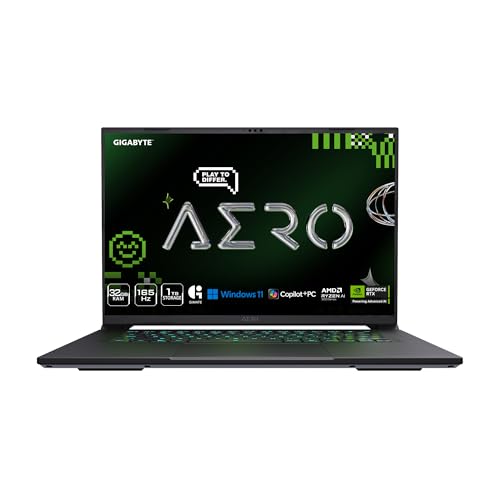
- Weight4.18 lbs
- ProcessorAMD Ryzen AI 9 HX 370 (12-core)
- GPUNVIDIA GeForce RTX 5070 (8GB GDDR7)
- RAM32GB DDR5
- Battery14 hours, rated
This is my one pick with a discrete GPU, aimed squarely at Ph.D. students who specifically need it — GPU-based machine learning, large-scale simulation, or computer vision work, the exact use case my buyer’s guide above flags as the one legitimate reason to pay for a dedicated GPU. At 16.75mm thick, it doesn’t look or feel like a gaming laptop in a lab meeting.
Tom’s Hardware measured the display at 78.5% DCI-P3 coverage and 369 nits — serviceable but not accurate enough for color-sensitive creative work — and flagged no SD card reader despite the creator positioning, plus dated connectivity: a legacy USB 2.0 port and a barrel-style power connector rather than USB-C charging. Tom’s found the keyboard itself comfortable, with 1.7mm of travel. That review tested the Ryzen AI 7 350 configuration of this same chassis and RTX 5070 GPU, not the Ryzen AI 9 HX 370 spec listed here — the display panel, port selection, and GPU are shared across both CPU options, so those findings should carry over, but Tom’s measured 9 hours 13 minutes of battery life on that unit, well short of the 14-hour figure Gigabyte rates the HX 370 configuration for. Treat the 14-hour number as an unverified manufacturer rating for this specific chip, not a measured result.
If your research is specifically GPU-bound, the display and connectivity tradeoffs are likely worth it; if you’re on the fence, they’re worth weighing against the price.
Pros
- Real CUDA/GPU-accelerated computing power
- Comfortable keyboard, per Tom’s Hardware’s testing of the related Ryzen AI 7 350 configuration
- Thin, creator-oriented design rather than gaming aesthetics
Cons
- Muted display color accuracy (78.5% DCI-P3, 369 nits measured), not suited to color-critical work
- No SD card reader despite the creator positioning
- Some dated connectivity — legacy USB 2.0 port, barrel power connector
- 14-hour battery figure is Gigabyte’s rating for this chip, not an independently measured one — Tom’s measured 9h13m on the related Ryzen AI 7 350 configuration
- Overkill and poor value if you don’t specifically need GPU acceleration
Recommended Accessories
Two accessories cover the most common gaps in a Ph.D. student’s setup: a reliable dock for turning any of these laptops into a proper desk workstation, and noise-canceling headphones for library or shared-office focus.


Last update on 2026-09-08 / Affiliate links / Images from Amazon Product Advertising API
Which Laptop Should Ph.D. Students Buy?
| Best For | Pick |
|---|---|
| Overall | Lenovo ThinkPad E16 Gen 2 |
| Budget / Eco-Conscious | Acer Aspire Vero |
| Note-Taking / Annotation | Dell Inspiron 14 2-in-1 |
| Lightweight / Travel | LG gram 15 |
| Apple Ecosystem | MacBook Air 13-inch M5 |
| Premium Windows | Samsung Galaxy Book5 Pro 360 |
| Silent, All-Day Writing | Surface Laptop (Snapdragon X2) |
| Data Science / Heavy Computation | Gigabyte Aero X16 |
Ph.D. Student Laptop FAQ
Do I need a Mac or a Windows laptop for a Ph.D.?
It depends entirely on your department’s required software. Check with your program before buying — some fields lean on Windows-only tools (SPSS, certain MATLAB toolboxes, drivers for specialized lab instruments), while others are platform-agnostic. Don’t assume either way.
How much should a Ph.D. student spend on a laptop?
Enough to cover 16GB of RAM, an SSD, and a durable (ideally MIL-STD-810H tested) build — that’s realistically an entry-to-mid-tier laptop, not a premium one, for a solid non-GPU machine. Only go higher if your research specifically needs a discrete GPU or you want the Apple/premium-display experience.
Is 16GB of RAM enough for a Ph.D.?
Yes, for the large majority of Ph.D. work — writing, reading, statistical software, and normal multitasking. Data-science-heavy or simulation-heavy research benefits from 32GB, but 16GB is a reasonable baseline, not a compromise.
Do I need a laptop with a dedicated GPU for research?
Only if your specific work involves GPU-accelerated machine learning, large-scale simulation, computer vision, or CAD-heavy engineering. For most Ph.D. tasks — writing, statistics, general data analysis — integrated graphics are enough, and a discrete GPU mostly just adds cost, weight, and battery drain.
Can I use a Chromebook for a Ph.D. program?
Generally not recommended as your primary machine. Most Chromebooks can’t run Windows-only departmental software, have limited local storage, and aren’t built for years of sustained daily use the way the laptops on this list are.
Should I buy my laptop before or after starting my program?
If possible, wait until you’ve confirmed your department’s specific software requirements — that one piece of information can change which platform (Mac, Windows, or ARM-based Windows) makes sense for you.
Do universities provide laptops for Ph.D. students?
Sometimes, particularly for funded research positions or specific lab roles, but it varies widely by institution and department. Check with your program directly rather than assuming either way.
Final Thoughts on Laptops for Ph.D. Students
There’s no need to buy an expensive laptop unless your research involves heavy tasks like GPU-accelerated computing or video editing — even the most affordable pick here, the Acer Aspire Vero, or the overall pick, the Lenovo ThinkPad E16 Gen 2, will comfortably handle what most Ph.D. work actually demands: writing, reading, statistics, and multitasking. If your field leans data-heavy, the Gigabyte Aero X16 is the one pick here built specifically for that. Whichever you choose, confirm your department’s required software runs on your chosen platform before you buy — it’s the one factor a spec sheet won’t tell you.