Defragmenting was real maintenance advice when laptops shipped with spinning hard drives and Windows did not tidy up on its own. Both of those things stopped being true a long time ago, and for most people reading this in 2026 the honest answer is that there is nothing to do.
Windows 11 already handles it. Microsoft’s own documentation states that Windows automatically optimizes your drives once a week by default, and it applies the right treatment to each drive type rather than blindly defragmenting everything. This guide covers how to check that it is running, what to do on the rare occasion manual intervention helps, and why running a third-party defragmenter across an SSD is the one thing you should not do.
What’s Inside
- 1 – Never Defragment an SSD — and Why
- 2 – How to Tell Whether Your Laptop Has an SSD or a Hard Drive
- 3 – Using Defragment and Optimize Drives in Windows 11
- 4 – Running Defrag From the Command Line
- 5 – What Windows Actually Does to an SSD on Schedule
- 6 – Do Third-Party Defrag Tools Still Have a Use?
- 7 – When a Slow Laptop Isn't a Fragmentation Problem
- 8 – Defragmentation Questions for Modern Laptops
- 9 – Final Thoughts on Defragmenting a Laptop Today
Never Defragment an SSD — and Why
Do not run a traditional defragmenter on a solid state drive. Defragmentation exists to reduce physical head movement on a spinning platter. An SSD has no platter and no head, so the rearranging achieves nothing for read speed while writing large amounts of data to a medium with a finite write endurance. If your laptop was bought in the last several years, its main drive is an SSD.
Fragmentation slows a hard drive because the read head has to physically travel to each scattered piece of a file. An SSD reads any block at essentially the same speed regardless of where it sits, so a file split across a hundred locations opens as fast as a contiguous one. The reordering is pure write activity with no performance payoff.
What an SSD needs instead is TRIM. Microsoft describes trimming as telling the drive where it can safely do cleanup work when it is not busy — the drive is told which blocks hold deleted data so it can erase them in advance, rather than stalling a future write while it clears space first.
Windows knows the difference. The defrag command reference describes the /o switch as performing the proper optimization for each media type, which is what the scheduled task uses. Point the built-in tool at an SSD and it issues TRIM; point it at a hard drive and it defragments. The risk comes from third-party “optimizer” utilities that offer an SSD defragmentation option and do exactly what the label says.
How to Tell Whether Your Laptop Has an SSD or a Hard Drive
You do not have to open the laptop. Windows labels each drive by type in the same tool that does the optimizing.
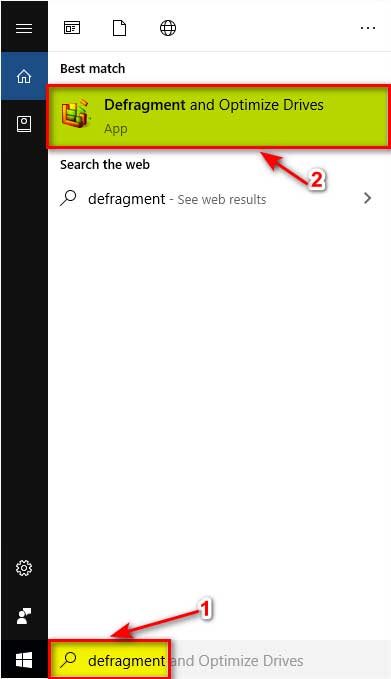
- Select the search bar and type defrag.
- Open Defragment and Optimize Drives.
- Read the Media type column. It says either Solid state drive or Hard disk drive for every volume.
Laptops with both are common — a small SSD holding Windows and a larger hard drive for files. In that case the SSD gets TRIM and the hard drive is the only one where defragmentation means anything.
Using Defragment and Optimize Drives in Windows 11
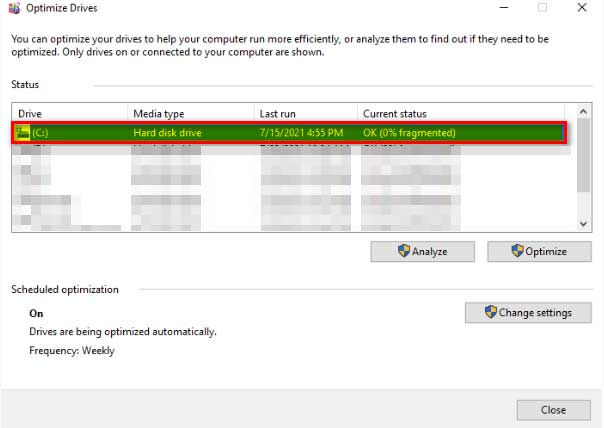
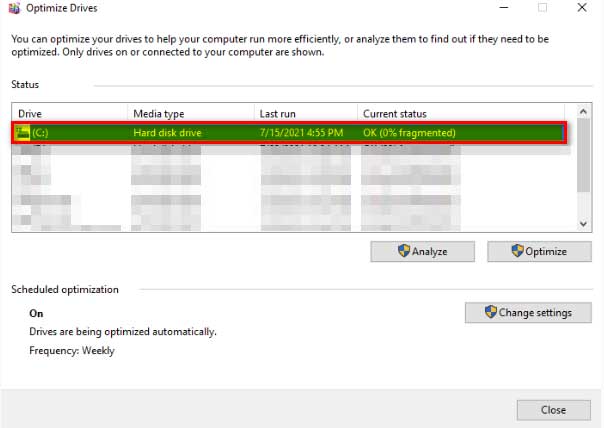
The old Windows 7 Disk Defragmenter is gone. The current tool is Defragment and Optimize Drives, and Microsoft’s steps are to search for defrag, open it, select a drive, then use Analyze to check its status or Optimize to run it.
- Search for defrag and open Defragment and Optimize Drives.
- Select the drive you want to check.
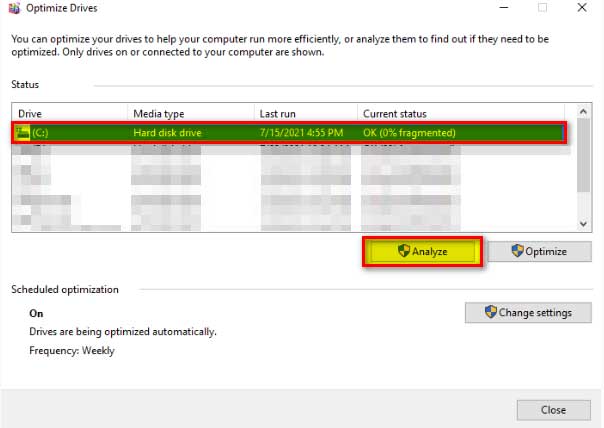
- On a hard drive, select Analyze first. The Current status column reports the fragmentation percentage, so you find out whether anything needs doing before committing to a long job. The Analyze button is grayed out for SSDs, because the figure would be meaningless.
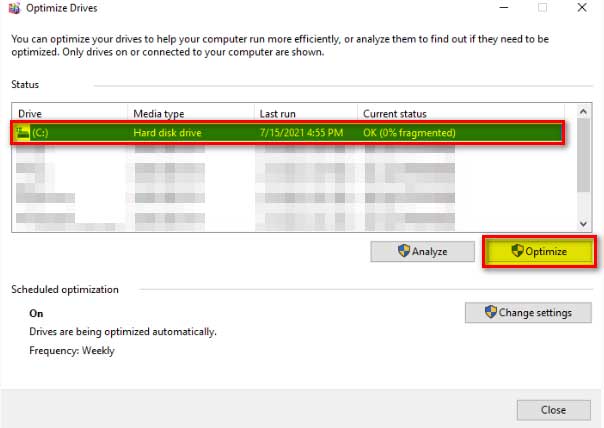
- Select Optimize to run it. On a hard drive this defragments; on an SSD it retrims.
A defragmentation pass on a badly fragmented, nearly full hard drive can run for hours. Leave the laptop plugged in and leave it alone — the scheduled task, by design, will not run on battery power, and running it manually on battery is not a good idea either.
Checking and Changing the Automatic Schedule
In the same window, the Scheduled optimization section shows whether the weekly task is on and when it last ran. Select Change settings to switch the frequency between Daily, Weekly and Monthly, or to choose which drives are included.
If the last-run date is months old, that usually means the laptop is asleep or on battery whenever the task is scheduled. Microsoft notes the scheduled task will not wake the computer to run, so leaving it plugged in and awake occasionally is all the intervention it needs.
On an Older Windows 7 Machine
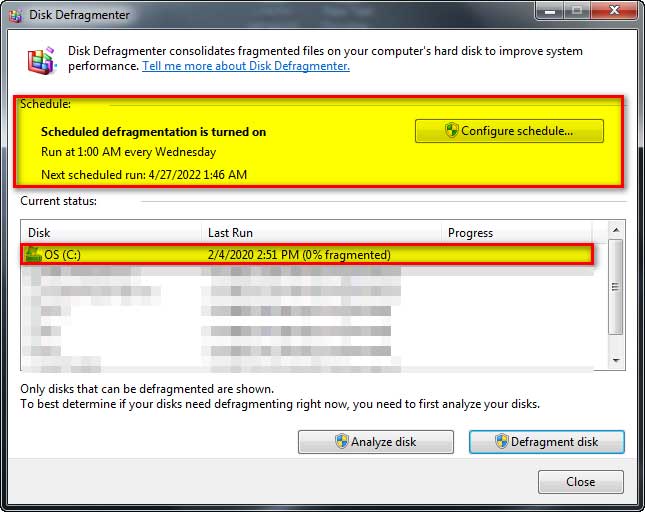
Windows 7 shipped a separate tool called Disk Defragmenter, which no longer exists in Windows 10 or 11 — it was replaced by Defragment and Optimize Drives. Windows 7 also reached end of support in January 2020, so a machine still running it should not be online without care. The screenshots below are kept for reference; nothing in this section applies to a current Windows install.
Disk Defragmenter could be reached from the Start menu search, from a drive’s Properties > Tools tab, or through Computer Management > Disk Management.
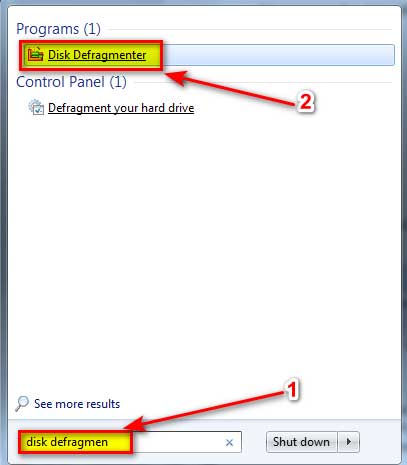
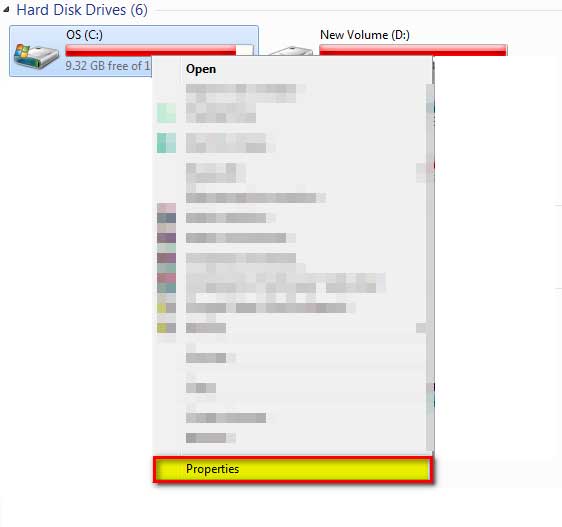
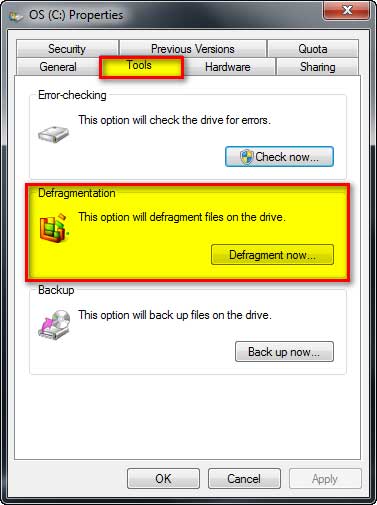
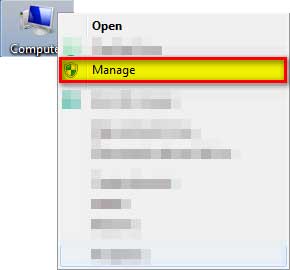
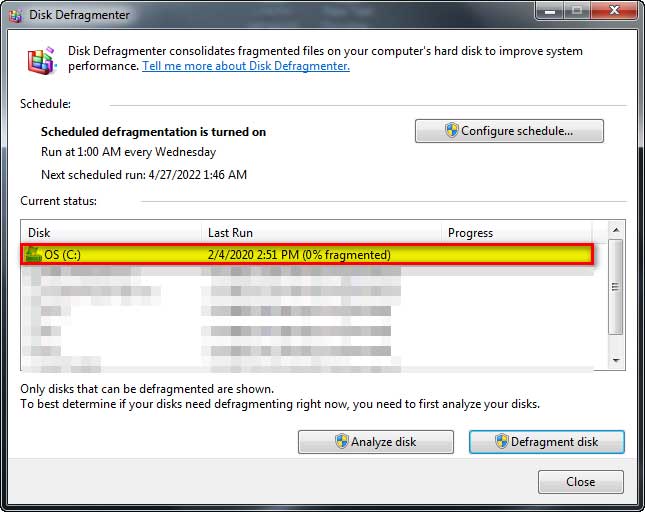
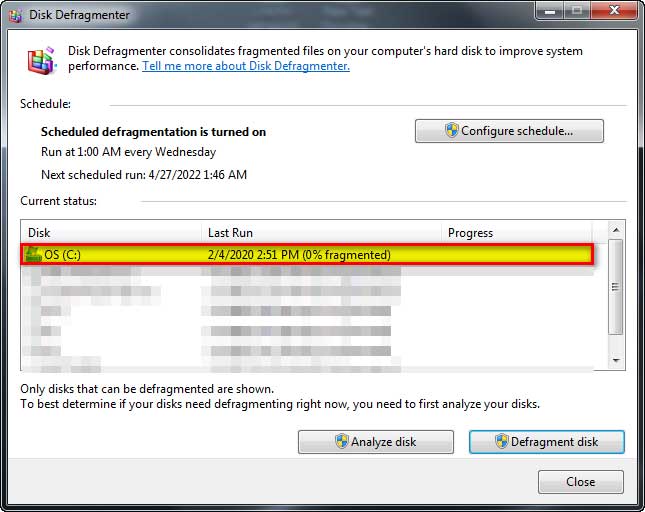
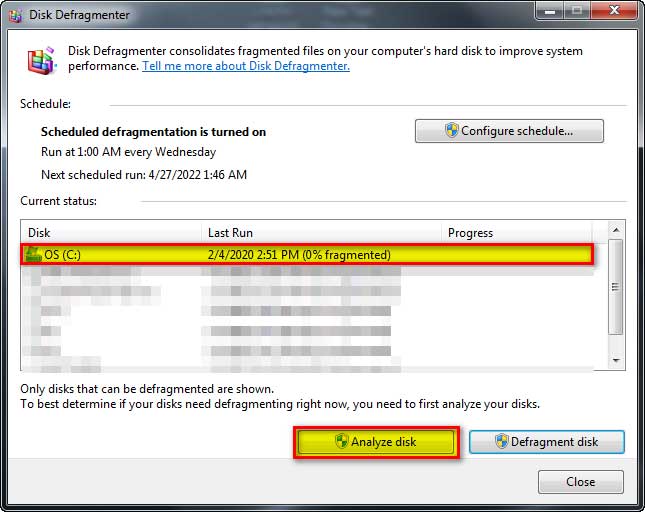
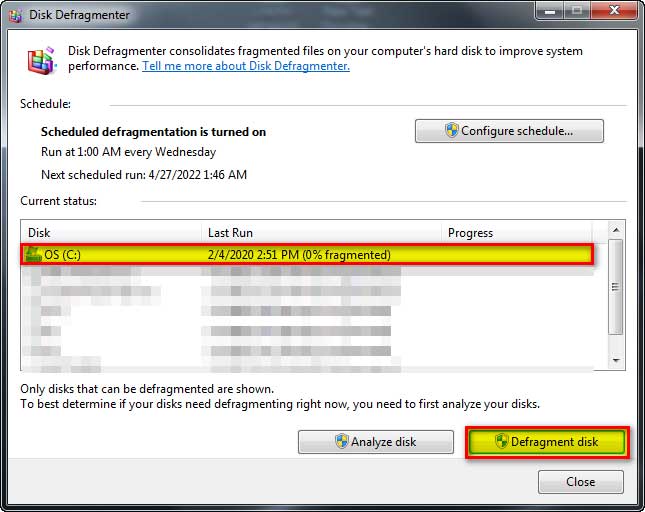
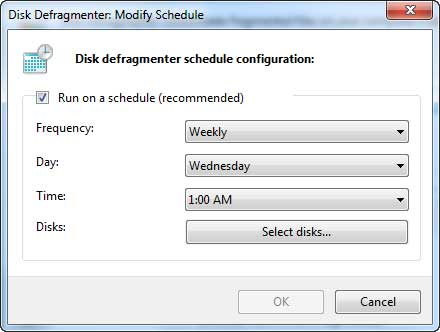
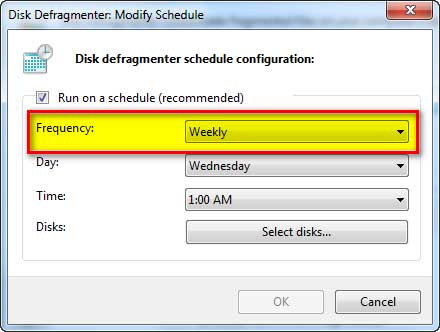
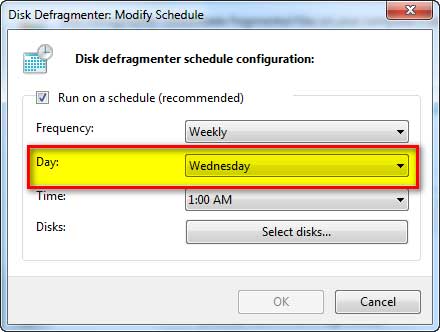
Windows 7’s Disk Defragmenter also had its own scheduler, reached through Configure schedule. The equivalent on Windows 10 and 11 is the Change settings button described above.
Running Defrag From the Command Line
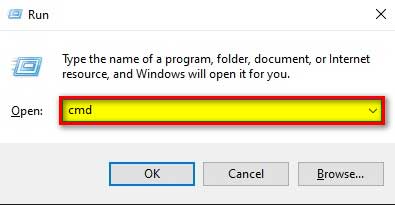
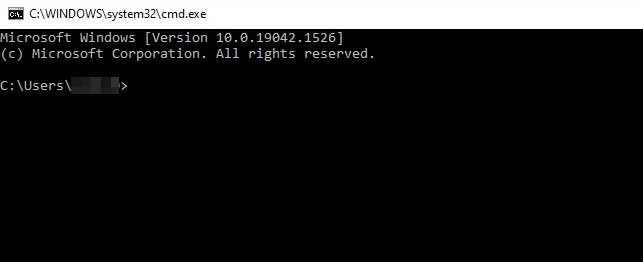
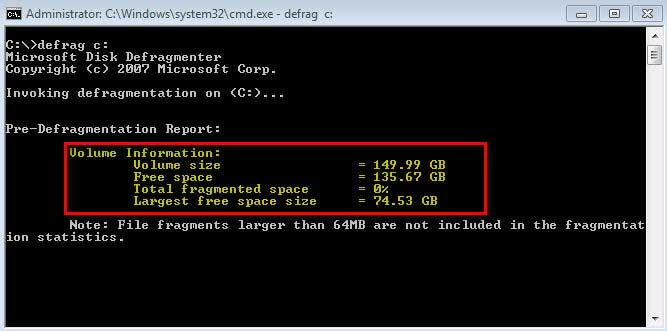
The command-line tool gives you the switches the graphical window hides, and it is the quickest way to confirm TRIM is actually being issued. Open Command Prompt or Terminal as an administrator first, or the commands fail on the system drive.
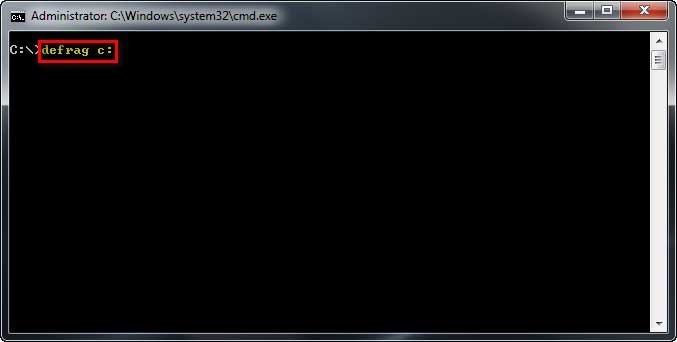
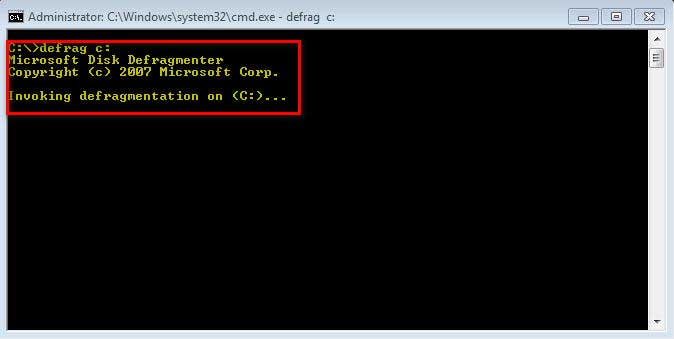
defrag C: /A— analyzes the volume and reports back without changing anything.defrag C: /O— performs the proper optimization for that media type, which is the safe choice on any drive.defrag C: /L— performs a retrim, the SSD-appropriate operation on its own.defrag C: /U /V— adds progress output and verbose results if you want to see what it found.
Use /O rather than a bare defrag C:. The bare form requests traditional defragmentation, which is not what you want pointed at an SSD.
What Windows Actually Does to an SSD on Schedule
The picture is slightly more nuanced than “Windows never defragments an SSD”. Microsoft’s reference states that on SSDs, traditional optimization — including traditional defragmentation and retrim — runs once per month, and that if you manually run a traditional defragmentation on an SSD in between, the next scheduled run performs analysis and retrim but skips the traditional defragmentation.
That infrequent, deliberately rate-limited pass is nothing like a third-party tool defragmenting an SSD on a weekly schedule. Windows knows the write cost and budgets for it; a generic optimizer does not.
Do Third-Party Defrag Tools Still Have a Use?
For an ordinary laptop, no. The built-in tool covers every case an average user encounters, it is free, and it will not do the wrong thing to the wrong drive type. Third-party defragmenters date from an era when the Windows tool was genuinely weak.
The category to be careful with is the “PC speed-up” or “cleanup” suite that bundles defragmentation with registry cleaning and startup management. Several of them will happily defragment an SSD if you let them, and the SSD is the drive whose write endurance you are spending.
If the actual complaint is that an old laptop feels slow and it still has a mechanical hard drive, no amount of defragmentation will match what swapping that drive for an SSD does. That is the upgrade that changes how the machine feels; defragmenting a hard drive only stops it getting worse.
When a Slow Laptop Isn’t a Fragmentation Problem
People arrive at defragmentation because something feels sluggish, and on modern hardware the cause is almost always elsewhere. Rule these out first:
- A nearly full drive. SSDs slow noticeably when they run short of free space for the controller to work with.
- Startup programs. Task Manager’s Startup apps tab shows what loads at boot and its measured startup impact.
- Not enough RAM. Constant swapping to disk feels exactly like a slow drive.
- Thermal throttling. A laptop that is fast when cool and slow after twenty minutes is overheating, not fragmenting.
- A failing drive. Persistent freezes and long stalls deserve a proper diagnostic pass before any maintenance tool.
Defragmentation Questions for Modern Laptops
Do I need to defragment my laptop at all in 2026?
For most people, no. Windows optimizes drives automatically once a week by default, and applies TRIM rather than defragmentation to SSDs. Manual defragmentation is only relevant if you have a mechanical hard drive and the scheduled task has not been running.
Is it safe to defragment an SSD?
It causes no immediate damage, but it writes a large amount of data for no performance benefit, and write endurance is finite. Windows’ own Optimize button on an SSD issues TRIM instead, which is the operation that actually helps.
How often should I defragment a laptop hard drive?
Leave the weekly scheduled task on and it is handled. If you are running it manually, use Analyze first and only defragment when the fragmentation figure justifies the time.
How do I know whether my laptop has an SSD?
Open Defragment and Optimize Drives and read the Media type column — it names each volume as either Solid state drive or Hard disk drive.
Will defragmenting speed up my laptop?
Only on a mechanical hard drive that is genuinely fragmented, and even then the gain is modest. On an SSD it does nothing for speed. A full drive, background startup programs, insufficient RAM or thermal throttling are the more likely causes of a slow laptop.
Should I use a third-party defragmentation tool?
There is no need. The built-in tool handles both drive types correctly and is free. The specific risk with third-party cleanup suites is that some of them offer SSD defragmentation as an option.
Why does Windows say my drive was never optimized?
The scheduled task will not wake a sleeping computer and does not run on battery power. A laptop that is closed or unplugged at the scheduled time simply misses it — leave it plugged in and awake, or run Optimize manually once.
Final Thoughts on Defragmenting a Laptop Today
Defragmentation went from routine maintenance to a specialist operation for one shrinking category of hardware, and Windows now decides correctly on your behalf. Open Defragment and Optimize Drives once, confirm the media type and that the weekly schedule is running, and that is the whole job.