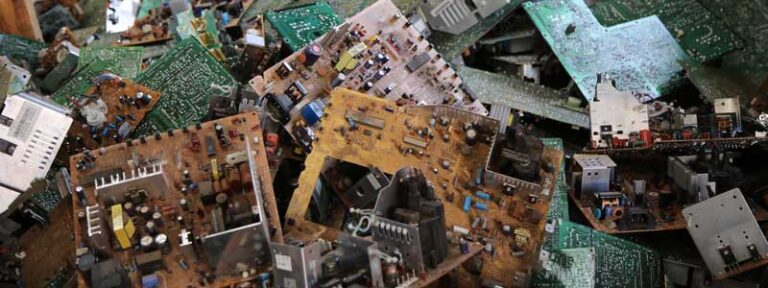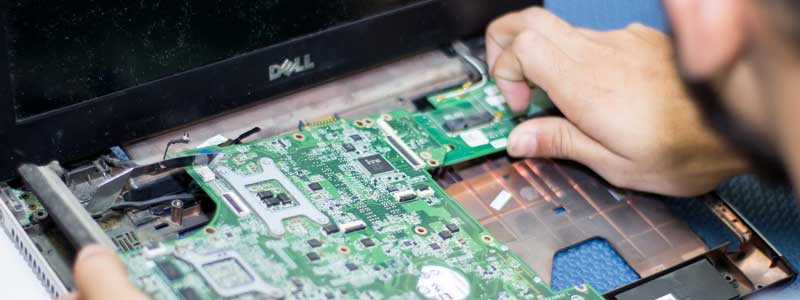
A laptop that no longer earns its keep has three honest destinations: sold, donated, or recycled. The one thing all three share is that the drive inside it still holds your logins, tax documents, photos and saved passwords, and none of that gets removed by deleting files or dragging things to the recycle bin.
This guide covers the whole sequence in order — back up, deauthorize, wipe, strip peripherals, handle the battery, then hand it over — and names the manufacturer and retailer programs that will actually take the machine off you in 2026, most of them free.
Wipe the drive before it leaves your hands, not after. Once a laptop is in a recycler’s collection bin you have no control over it, and a factory reset performed from inside Windows is not the same thing as a certified erase. Do the data step first, every time.
What’s Inside
- 1 – Before You Recycle: Decide Whether It Should Be Recycled at All
- 2 – Step 1: Back Up Everything You Want to Keep
- 3 – Step 2: Deauthorize Your Software Licenses
- 4 – Step 3: Erase the Drive Properly
- 5 – Step 4: Remove Peripherals and Anything Reusable
- 6 – Step 5: Handle the Lithium Battery Safely
- 7 – Manufacturer Takeback Programs That Are Still Running
- 8 – Retailer and Drop-Off Options
- 9 – How to Check a Recycler Is Actually Certified
- 10 – What Happens to a Laptop After You Hand It Over
- 11 – Laptop Recycling Questions Answered
- 12 – Final Thoughts on Recycling an Old Laptop
Before You Recycle: Decide Whether It Should Be Recycled at All
Recycling recovers materials but destroys the device. If the machine still boots and holds a charge, reuse beats recovery on every measure, and the UN’s Global E-waste Monitor 2024 found only 22.3% of e-waste is formally recycled at all — a working laptop passed to someone else never enters that statistic.
Check the usual reasons a laptop reaches the end of the line against what is actually wrong with it:
- It’s too slow. Often a storage problem rather than a CPU problem. Moving from a mechanical hard drive to an SSD is the biggest single change available, and our walkthrough of replacing a laptop HDD with an SSD covers the cloning step that trips most people up.
- The battery is dead. A consumable part, not a terminal fault. A replacement cell is usually a fraction of a new laptop.
- It can’t run the current Windows. Microsoft ended support for Windows 10 on 14 October 2025, and many machines that can’t meet the Windows 11 requirements run a Linux distribution or ChromeOS Flex perfectly well.
- It has a real hardware fault. A cracked board, liquid damage, or a repair quote above the machine’s residual value. This is where recycling genuinely is the right answer.
If you are leaning towards selling instead, note that pawn shop offers and trade-in quotes differ enormously for the same hardware; we break down what pawn shops actually pay for laptops separately.
Step 1: Back Up Everything You Want to Keep
Do this before anything else, because every step that follows is destructive. You need somewhere for the data to live and a method for getting it there.
Where to Put the Backup
- Cloud storage — OneDrive, Google Drive, iCloud, Dropbox or Mega. Convenient and off-site, but a full drive’s worth of data will take a long time on a domestic upload connection and usually costs money above the free tier.
- An external drive — the practical default for a whole-machine backup. Fast, one-off cost, no upload limits. Keep it disconnected once the copy is done.
- Another laptop over the network — sensible if you already have the replacement machine. Faster and more reliable than shuttling a flash drive back and forth.
- A NAS — the most robust option if you already own one, overkill if you don’t.
- Flash drives and optical discs — fine for a handful of documents, poor for a full backup. Flash drives get lost; recordable discs degrade and need many of them.
How to Run the Copy
Dragging folders across in File Explorer works and is the least error-prone method for a one-off. For anything larger, Windows still ships robocopy, which mirrors a folder rather than copying it and handles long paths that File Explorer chokes on.
Press Windows + R, type cmd, press Enter, then run the copy from the command prompt.
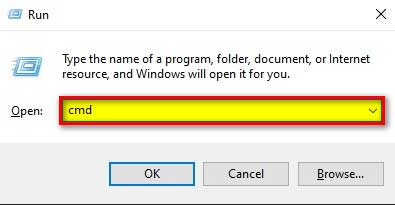
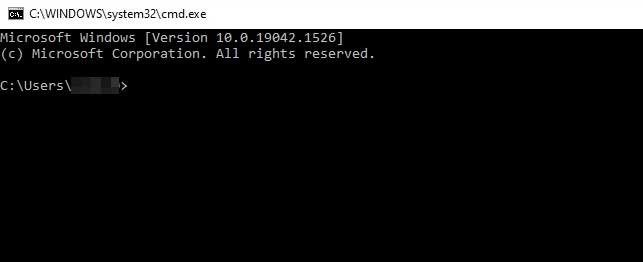
The two commands are robocopy <source> <destination> /E, which copies a folder tree including empty directories, and the older xcopy a: b: /s /e /h. Microsoft’s robocopy reference lists the full switch set. Robocopy is the better choice: it resumes, it logs, and it handles paths xcopy rejects.
The Built-In Windows Backup Tools
The path here has changed since Windows 10, and this is where older guides go wrong. In Windows 10 you went to Settings > Update & Security > Backup and added a drive for File History. In Windows 11 there is no “Update & Security” section at all — Microsoft’s current backup documentation points to the Windows Backup app and to Control Panel > System and Security > File History for drive-based backups.
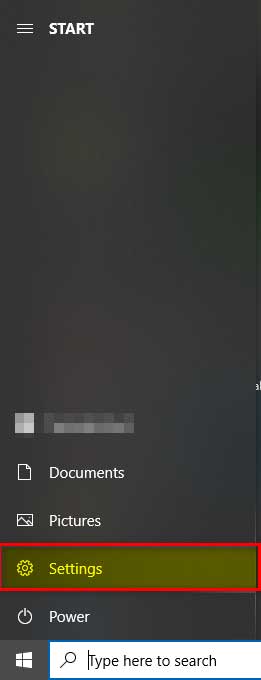
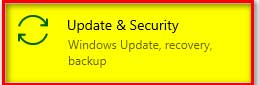
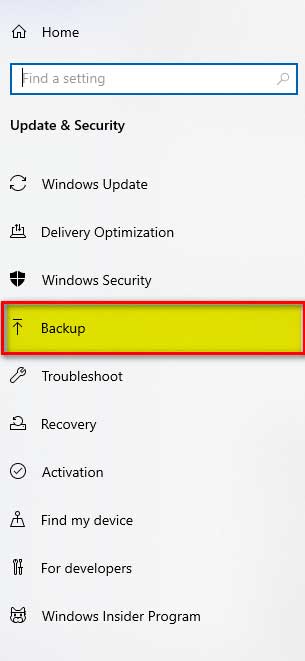
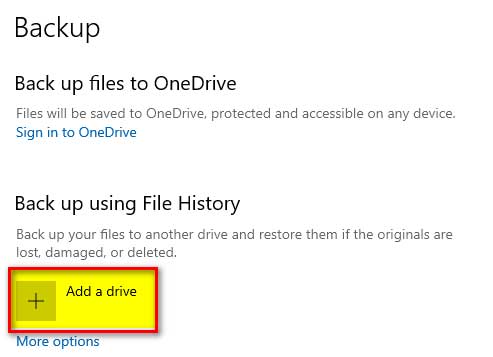
Once a drive is added, “More options” lets you choose which folders are included, how often it runs, and how long versions are kept. Third-party imaging tools such as Macrium Reflect or Acronis do the same job with full-disk imaging on top, which matters if you want a restorable copy of the whole installation rather than just your files.
Step 2: Deauthorize Your Software Licenses
Subscription software counts installations against your account. If you wipe a machine without signing out first, that seat can stay allocated to a computer that no longer exists.
- Microsoft 365 — sign out of the apps, then deactivate that install from the Services & subscriptions section of your Microsoft account, which lists every device the subscription is installed on.
- Adobe Creative Cloud — the old Help > Deactivate menu belongs to the perpetual Creative Suite era. For Creative Cloud, Adobe’s instructions are to sign out of the Creative Cloud desktop app, which deactivates that machine.
- Apple ID — on a Mac, sign out of iCloud, iMessage and the App Store, and Apple advises to turn off Find My and Activation Lock before parting with the machine. A Mac left with Activation Lock on is unusable to anyone else and awkward for a recycler.
- Password managers, VPNs, authenticator apps and browser sync — sign out of each, and remove the device from the account’s trusted-device list where one exists.
Step 3: Erase the Drive Properly
Deleting files removes the pointers, not the data. What you need is sanitization, and NIST’s Special Publication 800-88 Rev. 1, Guidelines for Media Sanitization is the reference standard, defining three levels: Clear, Purge and Destroy.
The method depends on the drive type. Repeated overwriting was designed for magnetic hard drives. On an SSD, wear leveling means an overwrite pass cannot guarantee it touched every physical cell, which is why NIST 800-88 points to the drive’s own sanitize command or cryptographic erase for flash media instead.
Cryptographic Erase: the Fastest Reliable Option
If the drive was encrypted before you started, destroying the key destroys the data — the ciphertext left behind is unreadable. On Windows this means BitLocker, which Microsoft documents in its BitLocker overview; on a Mac it is FileVault, and Apple silicon Macs additionally erase the key when you use Erase All Content and Settings.
The catch is that the encryption has to have been on before the data was written. Turning BitLocker on at the last minute encrypts what is currently there, which is usually adequate, but it does not retroactively cover data written and deleted months ago.
Overwriting and Secure Erase
For a mechanical hard drive, a single full overwrite pass is sufficient under NIST 800-88’s Clear level. For an SSD, use the manufacturer’s own utility — Samsung Magician, Crucial Storage Executive, WD Dashboard and their equivalents all expose the drive’s built-in secure erase or sanitize command, which the controller runs across the whole flash array.
Windows’ own Reset this PC with the “Remove everything” and “Clean data” options is a reasonable middle ground for a machine being donated rather than sold to a stranger. Our guide to erasing everything on an old Windows laptop goes through the process for machines too old to offer the modern reset path.
Physical Destruction
Pulling the drive and destroying it is the only method that needs no trust in software. It also removes the drive from the recycling stream as a reusable component, so treat it as the option for genuinely sensitive data rather than the default.
Degaussing works on magnetic hard drives and does nothing useful to an SSD. If you keep the drive, the rest of the laptop still recycles normally — just tell the recycler the drive has been removed.
Step 4: Remove Peripherals and Anything Reusable
Detach the external keyboard, mouse, dock, webcam, speakers and any USB devices. They have their own useful life and there is no reason to send working accessories into a shredder with the laptop.
Take the SD card out of the slot — it is small enough to be forgotten and usually holds photos. Keep the charger unless the recycler asks for it; many programs accept chargers and cables in the same drop-off, and a compatible spare is worth having if you know how to identify which charger fits which machine.
Step 5: Handle the Lithium Battery Safely
This is the step with an actual fire risk attached, and it is the reason laptops cannot go in curbside recycling. The US EPA is explicit that lithium-ion batteries can catch fire if damaged or if their terminals short, and should never be placed in household bins or curbside recycling, because they ignite in collection trucks and sorting facilities.
Do not puncture, crush or force out a swollen battery. A bulging cell is under pressure and damaged internally. Leave it in place, stop charging the laptop, and tell the recycler or drop-off point about it when you hand the machine over so it can be handled separately.
- If the battery is removable and undamaged, take it out and tape over the terminals with non-conductive tape.
- Bag or box it separately so the contacts cannot touch other metal.
- If it is internal, which is the norm on anything recent, leave it alone and hand the laptop over whole. Every takeback program below accepts machines with the battery installed.
- Use Call2Recycle’s drop-off locator for loose batteries; it lists collection points across the US and Canada.
Manufacturer Takeback Programs That Are Still Running
Every major laptop maker operates a free consumer recycling route, and most accept competitors’ hardware.
Dell
Dell runs three routes, all free to consumers and small businesses: a mail-back program with a prepaid label generated from an online form, Dell Trade In for credit against a Dell purchase, and Dell Reconnect, the long-running partnership with Goodwill that lets you drop equipment at participating Goodwill locations. Dell’s recovery and recycling page states it accepts any brand in any condition. Devices that don’t qualify for trade-in credit are recycled at no charge.
HP
HP’s hardware takeback runs under the Planet Partners banner, alongside its separate and better-known cartridge return scheme. The program also covers trade-in for cash value on eligible devices. Terms and accepted product categories vary by country, so start from the regional page rather than assuming US terms apply.
Apple
Apple Trade In offers credit for eligible devices, and for everything else Apple states that if your device isn’t eligible for credit, it will be recycled securely and for free, no matter the model or condition. That covers non-Apple hardware as well as old Macs. Sign out of iCloud and disable Activation Lock first.
Lenovo
Lenovo operates a US consumer product recycling program plus Asset Recovery Services for business volumes and a trade-in scheme. Check the current terms on that page before shipping, as the consumer program’s coverage and any shipping arrangements differ by region.
Retailer and Drop-Off Options
Best Buy: Free for Laptops, Charged for Screens
Best Buy’s terms changed and this is where old guides mislead people. Per its current recycling page, laptops, desktops, tablets, keyboards, mice, hard drives and battery backups are accepted free of charge, with a limit of ten items per household per day at most stores.
Televisions and monitors are the exception: Best Buy charges $29.99 per item for those, waived in California, Connecticut and Hawaii where state law prohibits the fee. Separate haul-away pricing applies for in-home collection. So a laptop still costs nothing — an old monitor going with it does not.
Municipal and Community Collection
Many US states run mandatory electronics recycling programs funded by manufacturers, which means a free municipal drop-off point near you. The EPA maintains a directory of donation and recycling options including manufacturer and retailer programs. Local household hazardous waste events are the other reliable route.
How to Check a Recycler Is Actually Certified
“Recycler” is not a protected term. The two certifications that mean something in North America are R2 and e-Stewards, and both publish searchable directories so you can verify a claim rather than take it on trust.
- R2v3 — the current version of the Responsible Recycling standard, published by SERI. It covers environmental, health and safety management, data security and downstream accountability. SERI runs a find-a-certified-facility directory. R2v3 superseded the earlier R2:2013 version, so a facility advertising “R2 certified” without a version is worth a directory check.
- e-Stewards — run by the Basel Action Network, and the stricter of the two on exports. It requires certified processors to destroy all residual data and to conform with international waste trade rules, and it maintains its own Find a Processor directory.
Both certifications require documented downstream tracking, which is the part that matters. It is what separates a recycler that dismantles material domestically from a broker that puts a container on a ship. Given that the Global E-waste Monitor recorded 5.1 million tonnes of e-waste crossing borders in 2022, that distinction is not theoretical.
What Happens to a Laptop After You Hand It Over
The processing chain at a certified facility runs roughly in this order:
- Collection and consolidation at a receiving point.
- Sorting by device type and condition.
- Testing for reuse — machines that still work are refurbished and resold rather than shredded, which is the highest-value outcome.
- Battery removal, handled separately because of the fire risk.
- Data-bearing device sanitization or destruction, documented under the certification’s requirements.
- Manual disassembly of the remainder into major components.
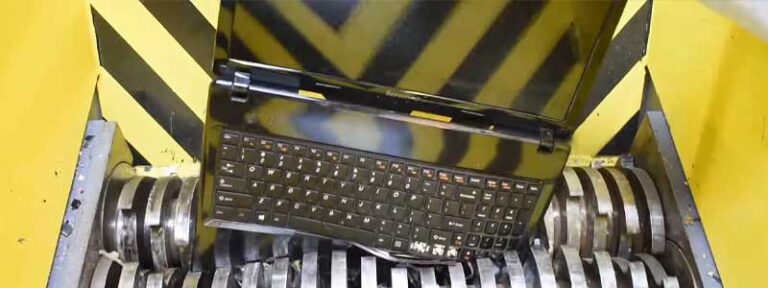
- Shredding and mechanical separation into material streams — steel, aluminum, copper, plastics, circuit boards.
- Smelting and refining to recover metals for reuse.
Step three is the one worth aiming for. A machine that gets refurbished displaces a new one; a machine that gets shredded recovers some fraction of its materials and nothing else.
Laptop Recycling Questions Answered
Why do we need to recycle laptops rather than bin them?
Two reasons. Laptops contain lead, mercury, flame retardants and other substances that should not go to landfill, and the lithium-ion battery is a fire hazard in collection trucks and sorting facilities — the EPA says explicitly that these batteries must never go in household or curbside bins. They also contain recoverable copper, gold and aluminum that is lost if buried.
Does Best Buy still recycle laptops for free?
Yes. Laptops, desktops, tablets, keyboards, mice and hard drives are accepted free at most stores, up to ten items per household per day. The fee applies to televisions and monitors, currently $29.99 per item, waived in California, Connecticut and Hawaii.
Will manufacturers take a laptop that isn’t their brand?
Dell and Apple both state they accept any brand — Dell in any condition through its mail-back and Reconnect routes, Apple recycling non-eligible devices free regardless of model or condition. HP and Lenovo’s terms vary by region, so check the program page for your country before shipping.
Is a factory reset enough before recycling a laptop?
For a donation to a family member, usually. For anything else, no. A reset removes the operating system’s view of the data, not necessarily the data itself. Use the drive’s own secure erase or sanitize command via the manufacturer’s utility, or rely on full-disk encryption having been enabled beforehand so that destroying the key destroys the data.
Should I remove the hard drive before recycling?
It’s the only approach that requires no trust in software, so it’s the right call for genuinely sensitive data. The trade-off is that a working drive removed from the machine is a reusable component taken out of the recycling stream. If you do remove it, tell the recycler.
What do R2v3 and e-Stewards certification actually mean?
Both are audited standards requiring documented downstream tracking, data destruction and environmental controls. R2v3 is published by SERI and is the current version of the Responsible Recycling standard. e-Stewards is run by the Basel Action Network and is stricter on exports to developing countries. Both publish directories so you can verify a facility’s claim.
What do I do with a swollen laptop battery?
Do not puncture it, crush it, or force it out of the chassis. Stop charging the laptop, keep it away from anything flammable, and tell the drop-off point or recycler about the swelling so it gets handled separately. Call2Recycle’s locator lists collection points that take damaged lithium cells.
Can I get paid for an old laptop instead of recycling it?
Sometimes. Dell, HP, Apple and Lenovo all run trade-in schemes that give credit for eligible machines and recycle the rest free. Independent buy-back sites and pawn shops are the other route, though the offers differ sharply for identical hardware.
Final Thoughts on Recycling an Old Laptop
The logistics of recycling a laptop are easy and mostly free — Dell, Apple, HP, Lenovo and Best Buy will all take one off you without charge. The part that goes wrong is the data, because it is the only step nobody else will do for you.
Back up, sign out of your accounts, erase the drive with a method that suits the drive type, then pick a recycler you can find in the R2 or e-Stewards directory. In that order.